Skip to Content

Odoo Snapchat Catalog Ads

Leave your feedback
https://garazd.biz/web/image/product.template/316/image_1920?unique=dd9c713

167.00
167.00 0
166.9965228117849 USD

Not Available For Sale

  • Odoo Version

  • Price

This combination does not exist.

Odoo Version: 18.0
Price: Paid

Overview

The Odoo Snapchat Catalog Feeds module by Garazd Creation provides integration between Odoo and the Snapchat Ads Manager advertising platform. It generates dynamic product feeds in compliance with Snapchat requirements.

Availability
Odoo Online
Odoo.sh
On Premise
Compatibility
Community
Enterprise
Technical Name product_data_feed_snapchat
Version 18.0.1.0.0
License OPL-1
Category
Support Free 60 days support and 360 days bug-fixing

Use Case

Jorem ipsum dolor sit amet, consectetur adipiscing elit. Nunc vulputate libero et velit interdum, ac aliquet odio mattis. Class aptent taciti sociosqu ad litora torquent per conubia nostra, per inceptos himenaeos.

Forem ipsum dolor sit amet, consectetur adipiscing elit. Nunc vulputate libero et velit interdum, ac aliquet odio mattis. Class aptent taciti sociosqu ad litora torquent per conubia nostra, per inceptos himenaeos.

Dorem ipsum dolor sit amet, consectetur adipiscing elit. Nunc vulputate libero et velit interdum, ac aliquet odio mattis.

It is a long established fact that a reader will be distracted by the readable content of a page

Korem ipsum dolor sit amet, consectetur adipiscing elit. Nunc vulputate libero et velit interdum, ac aliquet odio mattis. Class aptent taciti sociosqu ad litora torquent per conubia nostra, per inceptos himenaeos.

Korem ipsum dolor sit amet, consectetur adipiscing elit. Nunc vulputate libero et velit interdum, ac aliquet odio mattis.

Odoo App Installation

Upload modules

Upload modules from the ZIP archive to your Odoo hosting, or a GitHub repository connected there.

Place the unzipped modules in your custom add-on directory and restart the Odoo system service.

Update App List

After restarting, activate the Developer Mode, and go to the Apps menu.

Odoo Update App List

Click on Update Apps List to fetch the new modules in the list.

Activate the App

Install the new module, finding it by name and clicking on the Activate button.
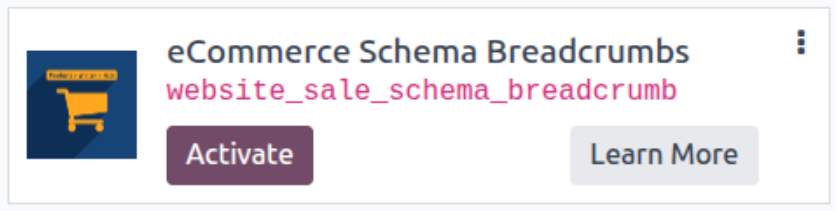
Odoo App Installation

* If you don't see the module, try to remove the default Apps filter from the search bar.

Configuration

Follow the instructions in the module description to complete the installation process and start using the app.
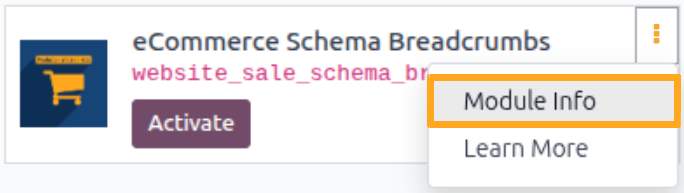

View Odoo App Description

Manual


Google Product Categories
After installing the module, import Google product categories – these are Google's recommended product classifications. This product taxonomy is standard not only for Google Shopping but also for other advertising platforms like Facebook Ads, Snapchat Ads, and more.
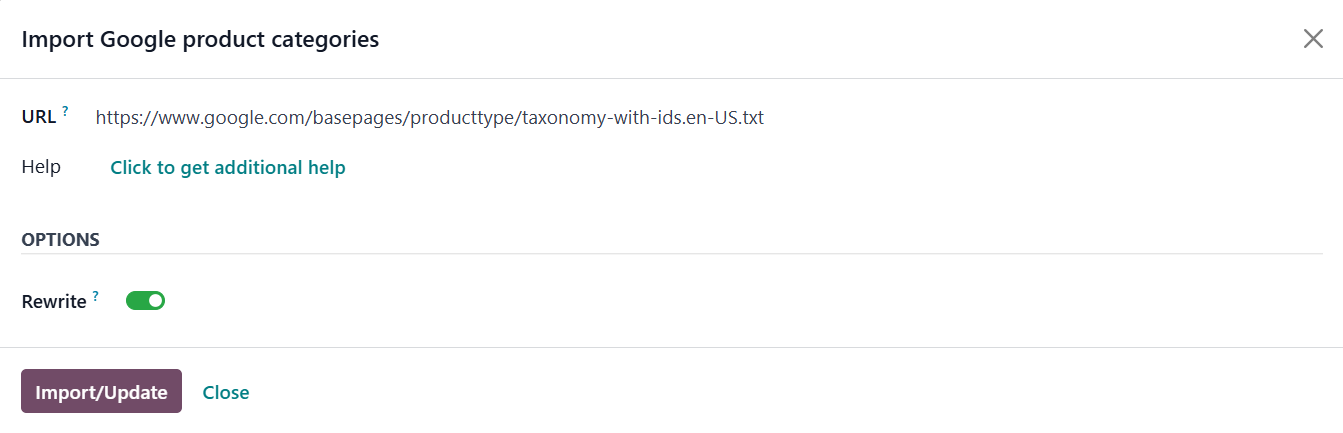
The solution includes a module for importing Google product categories and managing these categories at the product level. The category import wizard is opened automatically after installing the app through the interface. If not, run it from the menu Website - Configuration - Import Google Categories. Click on Import/Update to upload the Google category list.
Odoo 18.0 Import Update Google Product Categories
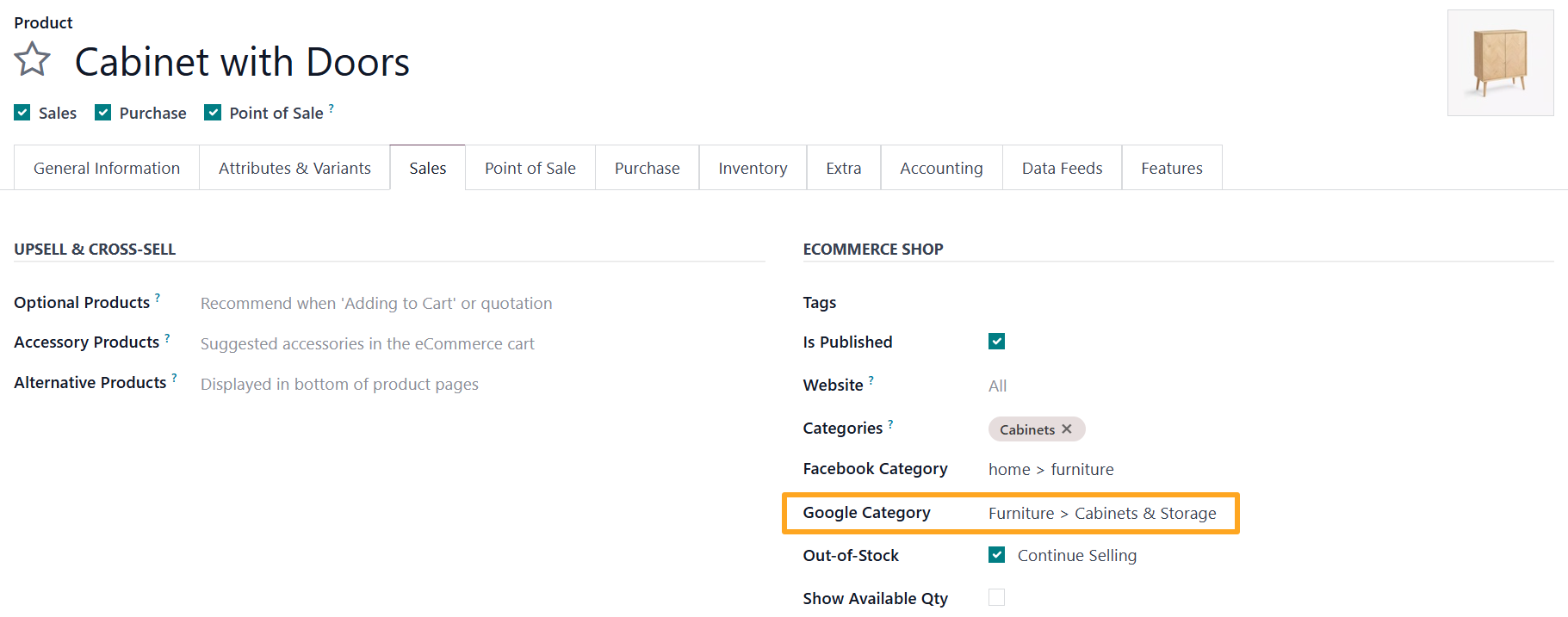
Once the import is complete, assign Google product categories for your products. Open the product form and specify the required one on the Sales tab.
Odoo 18.0 Product Google Category
Feed Configuration
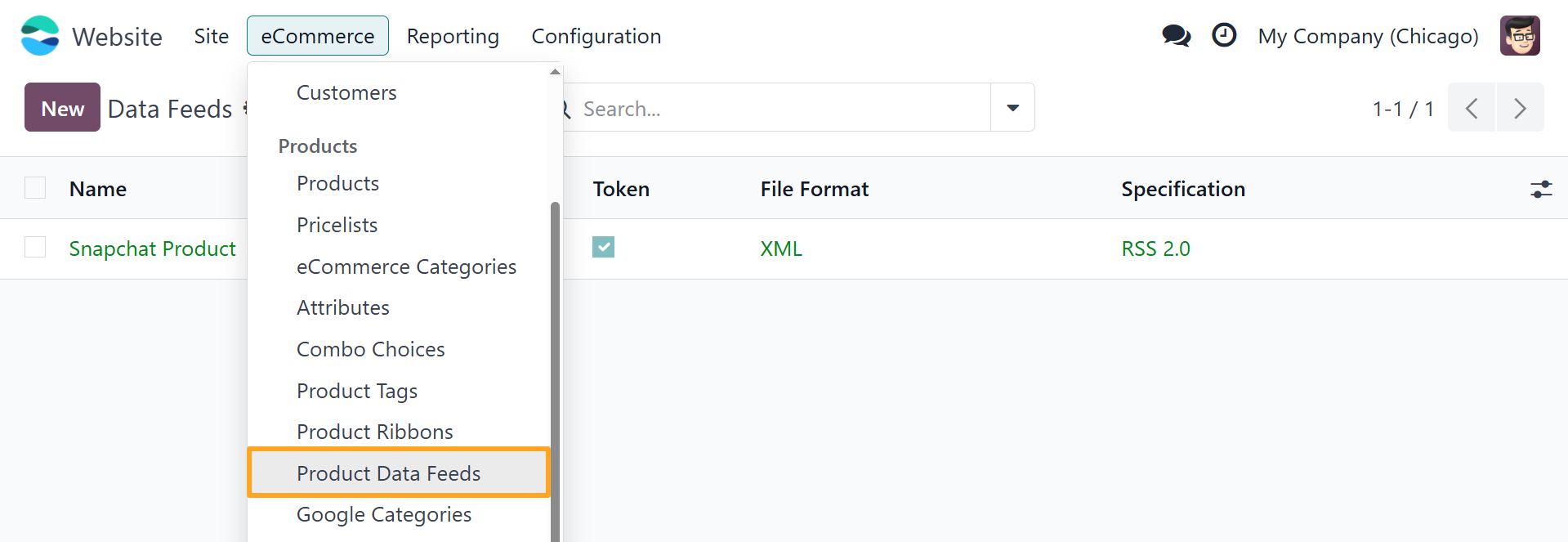
The next step is to open the list of product feeds and prepare one for your business case. Go to Website - eCommerce - Product Data Feeds.
Odoo Snapchat Catalog Website eCommerce Product Data Feeds Snapchat
The Odoo Snapchat Catalog Feeds module comes with a ready-to-use feed template preconfigured according to Snapchat requirements.
Products
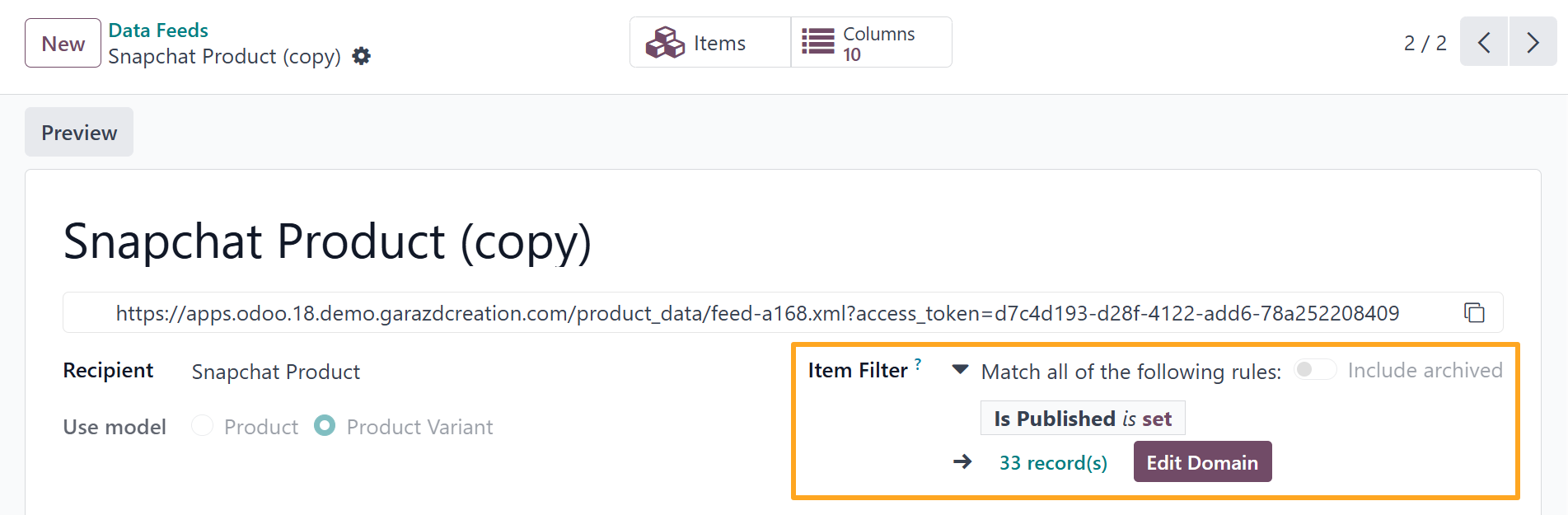
The next step is to define a list of products for the feed. Set the defining characteristics of products to come to the feed using the Item Filter option.
Odoo 18.0 Snapchat Product Data Feed Item Filter
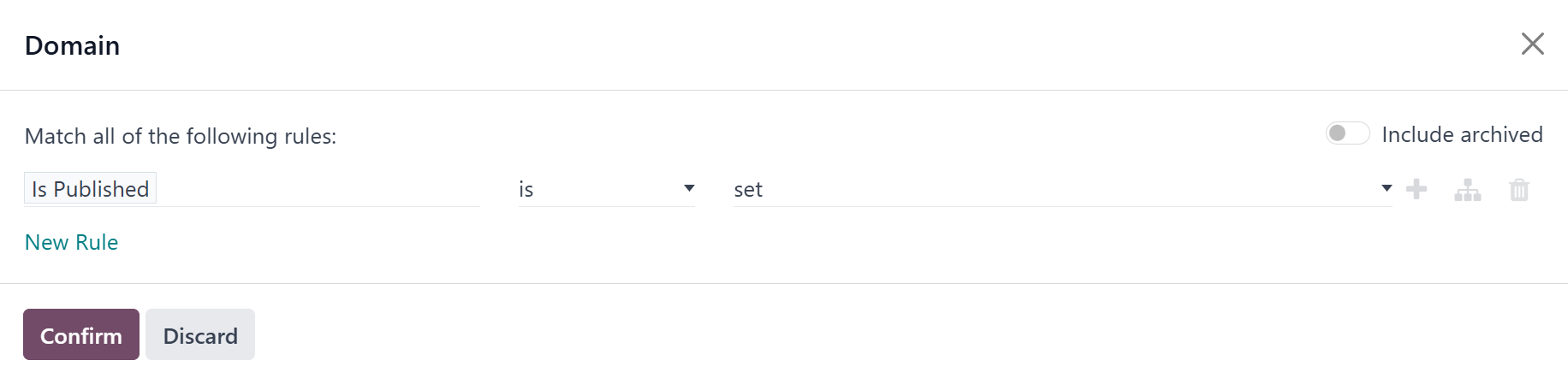
Click on Edit Domain to add your product filters.
Odoo 18.0 Product Data Feed Item Filter Domain
Once your filters are set, click Confirm to save the changes. The number of products included in the feed is automatically recalculated based on the filter domain.
To manage the feed products, click the link with number of records or use the Items button at the top of the feed form.
Odoo 18.0 Snapchat Product Data Feed Items Button
Price Settings
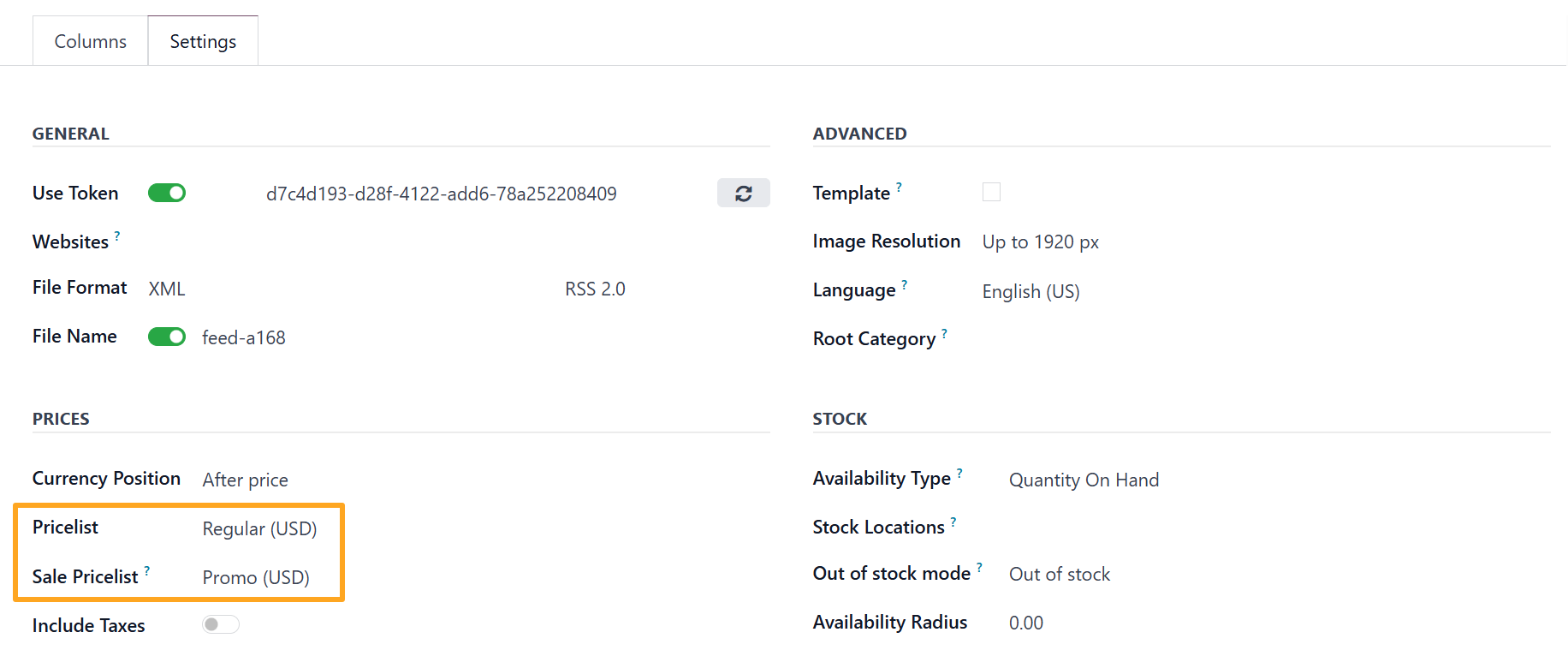
Next, configure product prices. Open the Settings tab, and in the Prices section, select the Pricelist that should be used to calculate the product prices included in the feed.
Odoo 18.0 Snapchat Product Data Feed Settings Prices Pricelists
To include promotional or discounted prices in your Snapchat Catalog, configure the Sale Pricelist field. This pricelist should be set up in advance and must define lower prices than the standard ones.
Stock Locations
Inventory management for Snapchat Catalogs allows selecting warehouses or stock locations to be used for calculating stock levels and product availability statuses.
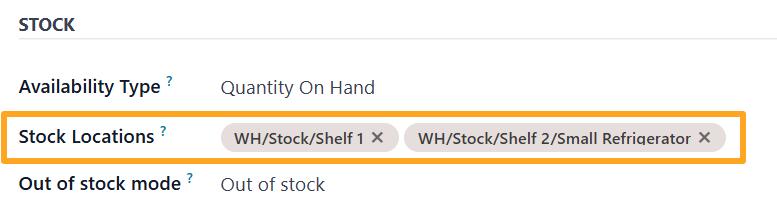
Open the Settings tab and go to the Stock section. In the Stock Locations field, select the locations that need to be involved in stock computation. As a result, the product availability in the feed is based only on the selected locations.
Odoo 18.0 Snapchat Stock Locations Settings
The Out of Stock Mode option defines the product availability status when the product is out of stock at the selected locations:
  • The Out of stock value instructs to use the same availability status out_of_stock.
  • The Available for Order value substitutes the availability status to backorder so the out-of-stock products can be ordered.

Feed Columns
The Odoo Snapchat Product Catalog app comes with the pre-configured set of Snapchat feed columns. They are already mapped to basic Odoo product fields and special product fields added with additional modules of the solution. You can customize feed columns through the Odoo UI and link them to your custom product fields, if it's required.
Odoo 18.0 Snapchat Product Data Feed Columns Button
To manage the feed columns, click the Columns button at the top of the feed form.
Connect to Snapchat Ads Manager
To connect a data feed to Snapchat, a configured feed and an Ads Manager account are required.
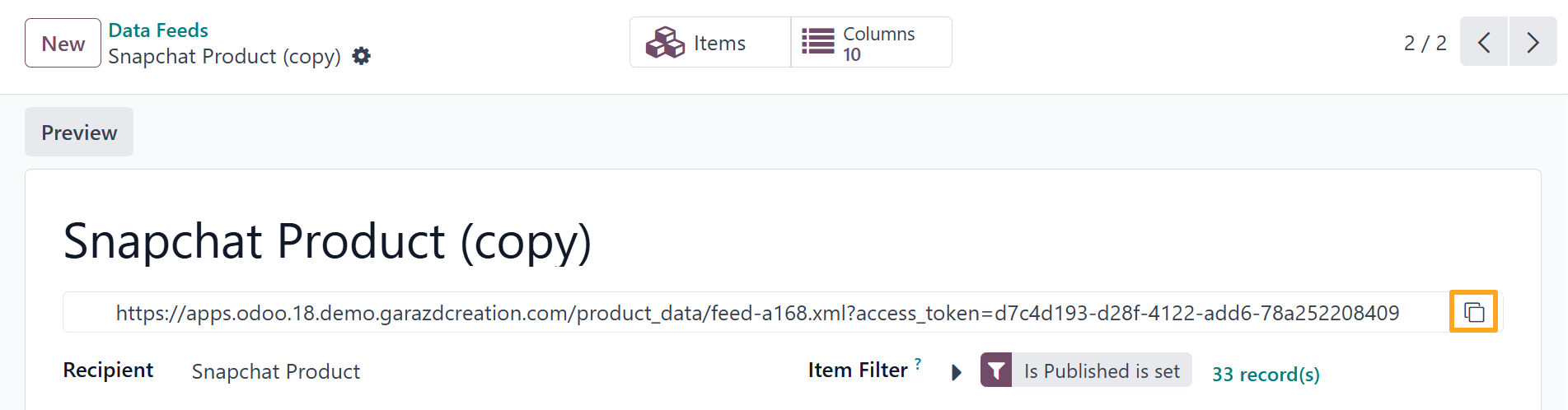
To add a product feed to a Snapchat Ads Manager account, first copy the feed URL from Odoo.
Odoo 18.0 Snapchat Product Data Feed URL
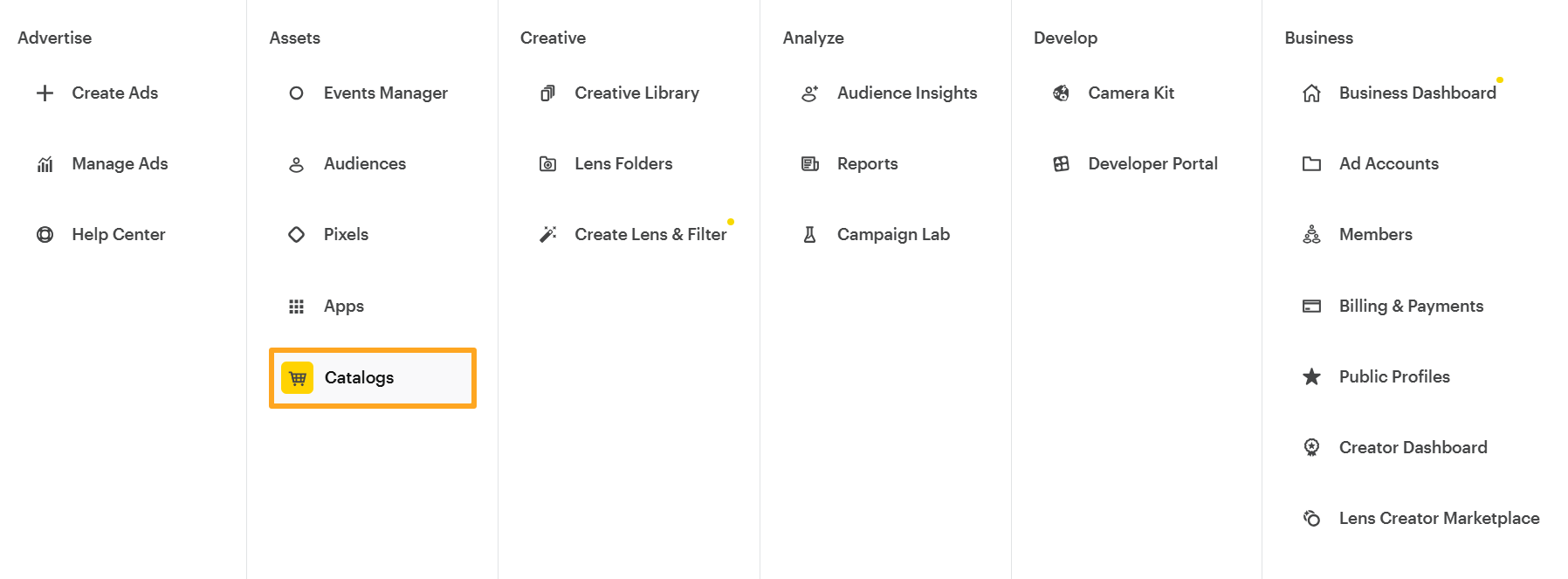
Now, log in to your Ads Manager account and go to Catalogs under the Assets section.
Snapchat Ads Manager Assets Catalogs
Fill in the form as follows:
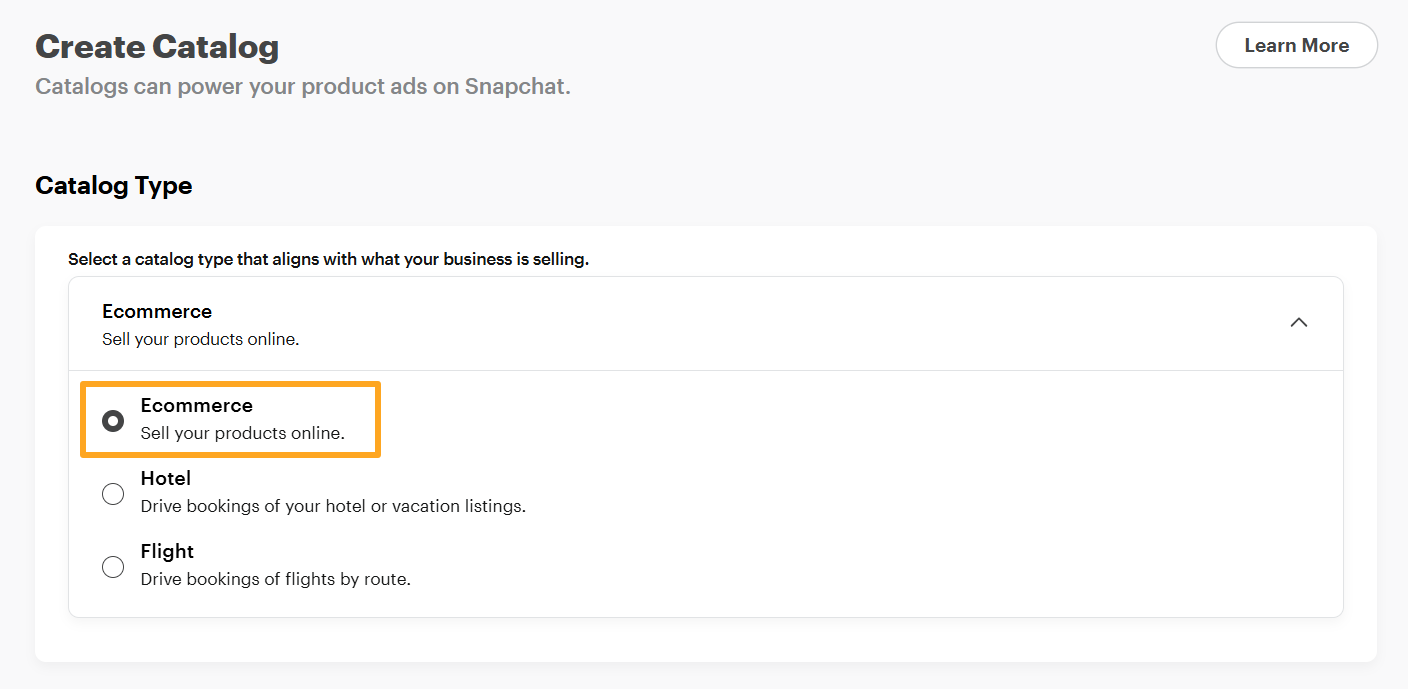
  1. Select Ecommerce as the catalog type.
  2. Snapchat Ads Manager Catalog Type
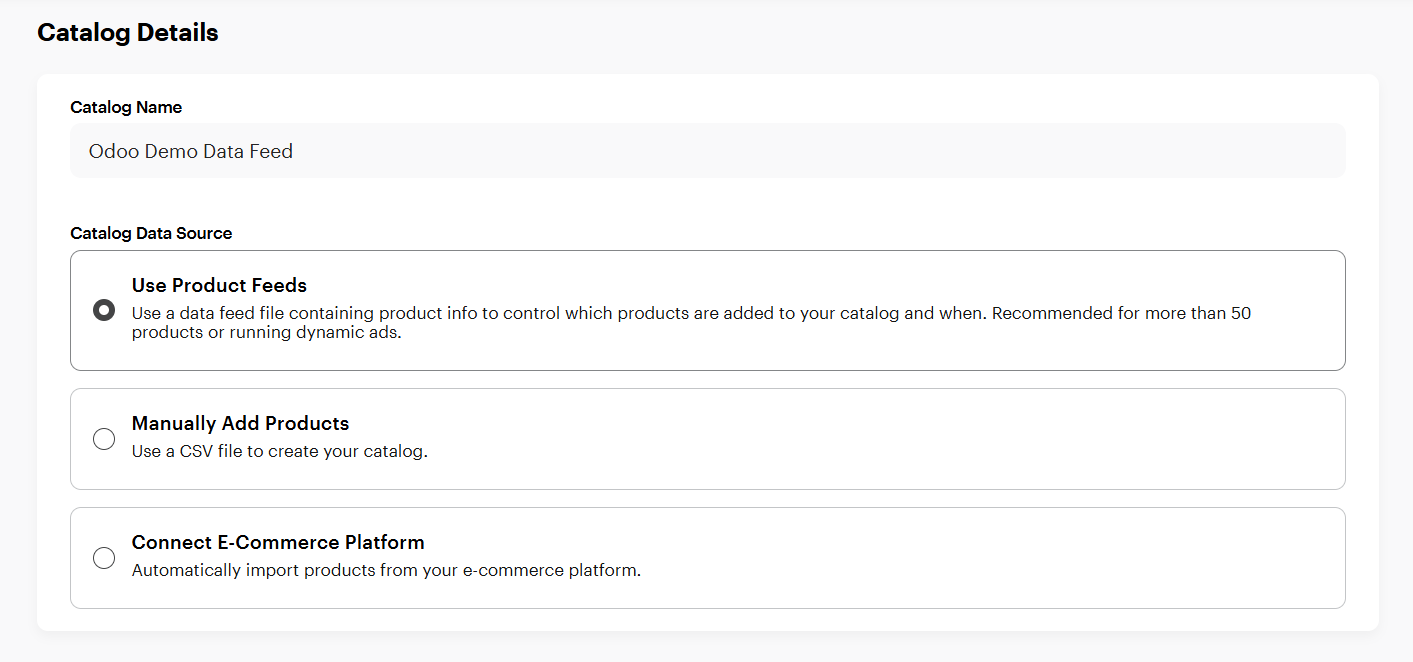
  3. Enter the Catalog Name and choose Use Product Feeds.
  4. Snapchat Ads Manager Catalog Details
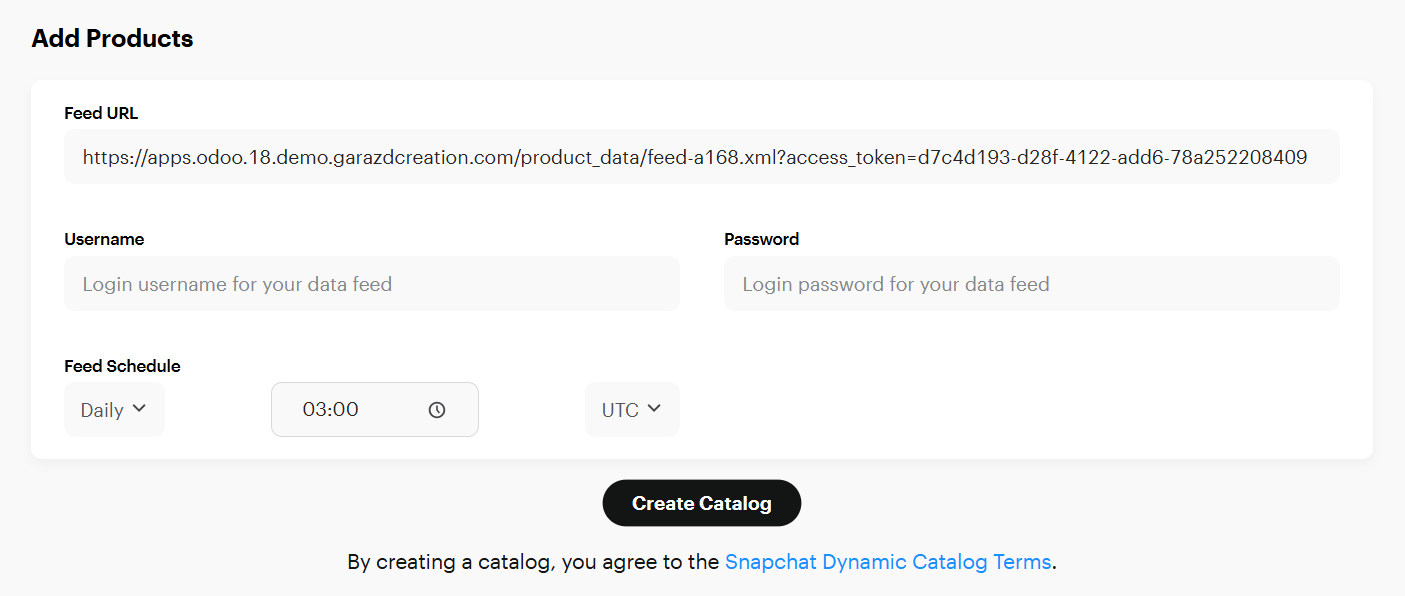
  5. Paste the copied feed URL from Odoo.
  6. Leave the Username and Password fields empty, as the feed is already secured with an access token.
  7. Set the update frequency.
  8. Snapchat Ads Manager Add Products
  9. Click Create Catalog.
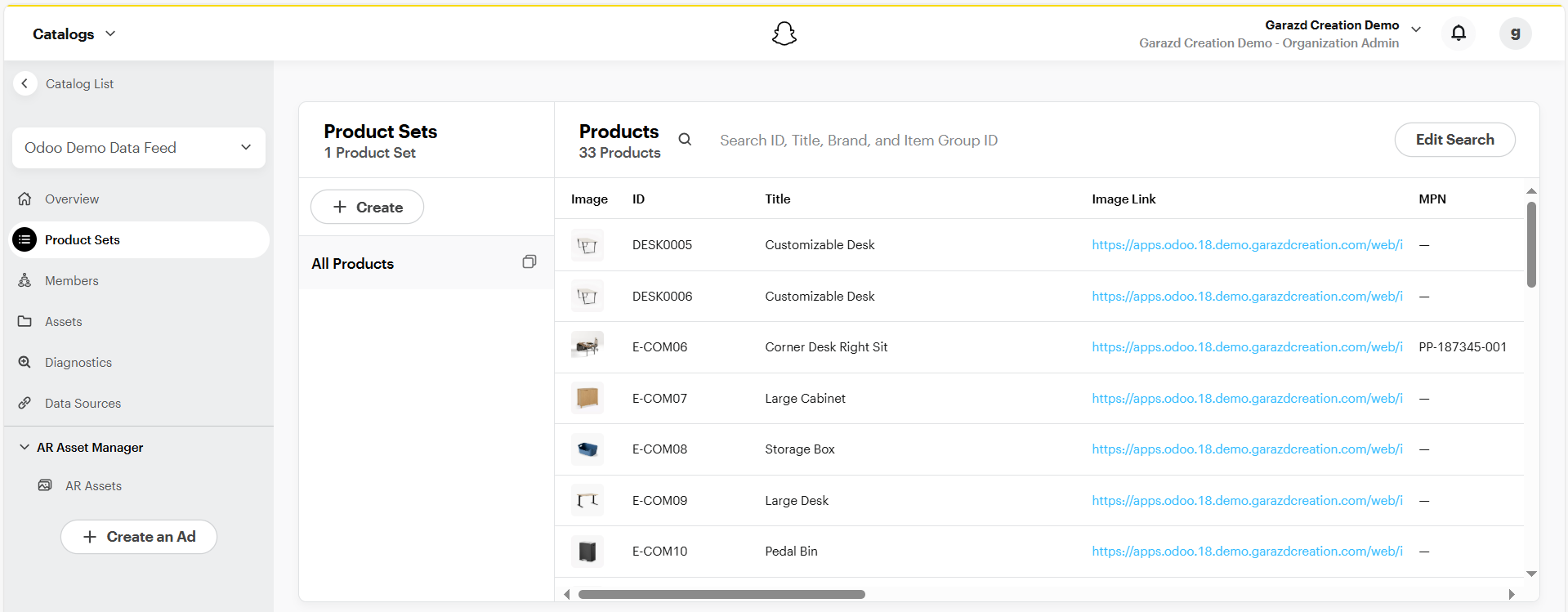
Wait for the upload to complete, and your products will appear in Snapchat Ads Manager.
Snapchat Ads Manager Product Sets

Changelog

18.0.1.0.0 2025-09-04

  • Init version.

Reviews

Our customers have already appreciated the quality, reliability, and performance of the solutions we offer

Login to leave a comment

FAQ

Do you provide assistance with this Odoo app installation?

Yes, if you are on Odoo.sh or use your own On-Premise hosting, and can grant us with access, we can help you with the installation and initial setup.

How do I change the feed URL from the base URL to the domain of a specific website?

You can specify your website domain on the feed settings tab in the “Websites“ field. After that, the feed uses the domain name of the specified website. P.S. To see the “Websites” field, you need the “Multi-website“ user access rights.