
Assign Google product categories to your Odoo products
You can also use the imported categories with Odoo product feed solutions by Garazd Creation, such as Google Merchant Center Feeds, Facebook Catalog Feeds, ChatGPT Product Feeds, and others, which automatically include the assigned Google Product Category in preconfigured product feed templates.
Use Case

Jorem ipsum dolor sit amet, consectetur adipiscing elit. Nunc vulputate libero et velit interdum, ac aliquet odio mattis. Class aptent taciti sociosqu ad litora torquent per conubia nostra, per inceptos himenaeos.
Forem ipsum dolor sit amet, consectetur adipiscing elit. Nunc vulputate libero et velit interdum, ac aliquet odio mattis. Class aptent taciti sociosqu ad litora torquent per conubia nostra, per inceptos himenaeos.
Dorem ipsum dolor sit amet, consectetur adipiscing elit. Nunc vulputate libero et velit interdum, ac aliquet odio mattis.
It is a long established fact that a reader will be distracted by the readable content of a page
Korem ipsum dolor sit amet, consectetur adipiscing elit. Nunc vulputate libero et velit interdum, ac aliquet odio mattis. Class aptent taciti sociosqu ad litora torquent per conubia nostra, per inceptos himenaeos.
Korem ipsum dolor sit amet, consectetur adipiscing elit. Nunc vulputate libero et velit interdum, ac aliquet odio mattis.
Odoo App Installation
Upload modules
Upload modules from the ZIP archive to your Odoo hosting, or a GitHub repository connected there.
Place the unzipped modules in your custom add-on directory and restart the Odoo system service.
Update App List
After restarting, activate the Developer Mode, and go to the Apps menu.

Click on Update Apps List to fetch the new modules in the list.
Activate the App
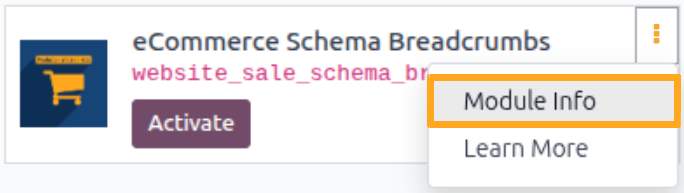
Install the new module, finding it by name and clicking on the Activate button.
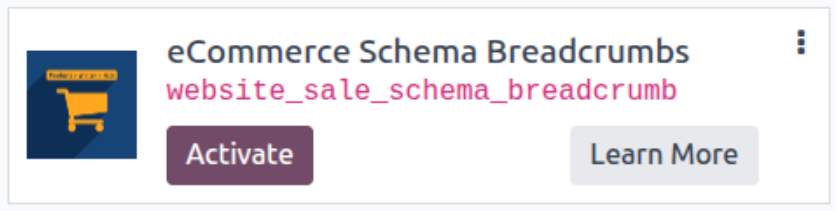
* If you don't see the module, try to remove the default Apps filter from the search bar.
Configuration
Follow the instructions in the module description to complete the installation process and start using the app.

Manual

Configuration
The module allows you to import Google Product Categories (GPC) into Odoo.
Import Categories
To import Google Product Categories into Odoo, go to Website — Configuration — Import Google Categories and click Import/Update.
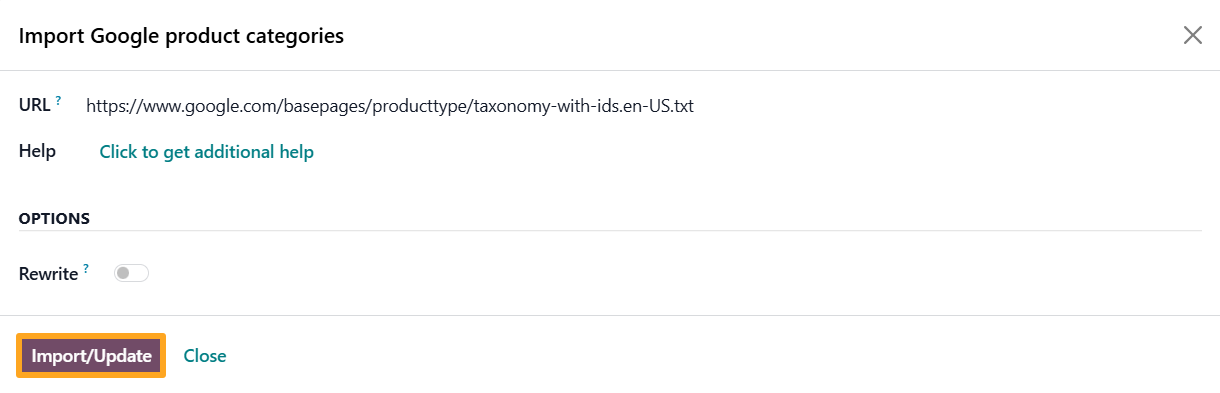

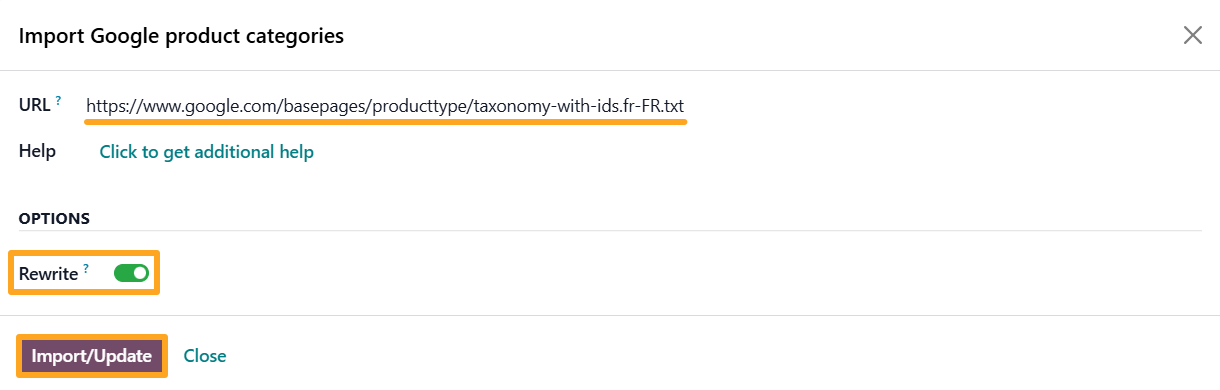
By default, the module imports categories in English. To import categories in another language, follow these steps:
-
01Replace the link in the URL field with the taxonomy link for your desired language
-
02Enable the Rewrite option
-
03Click Import/Update
Categories List
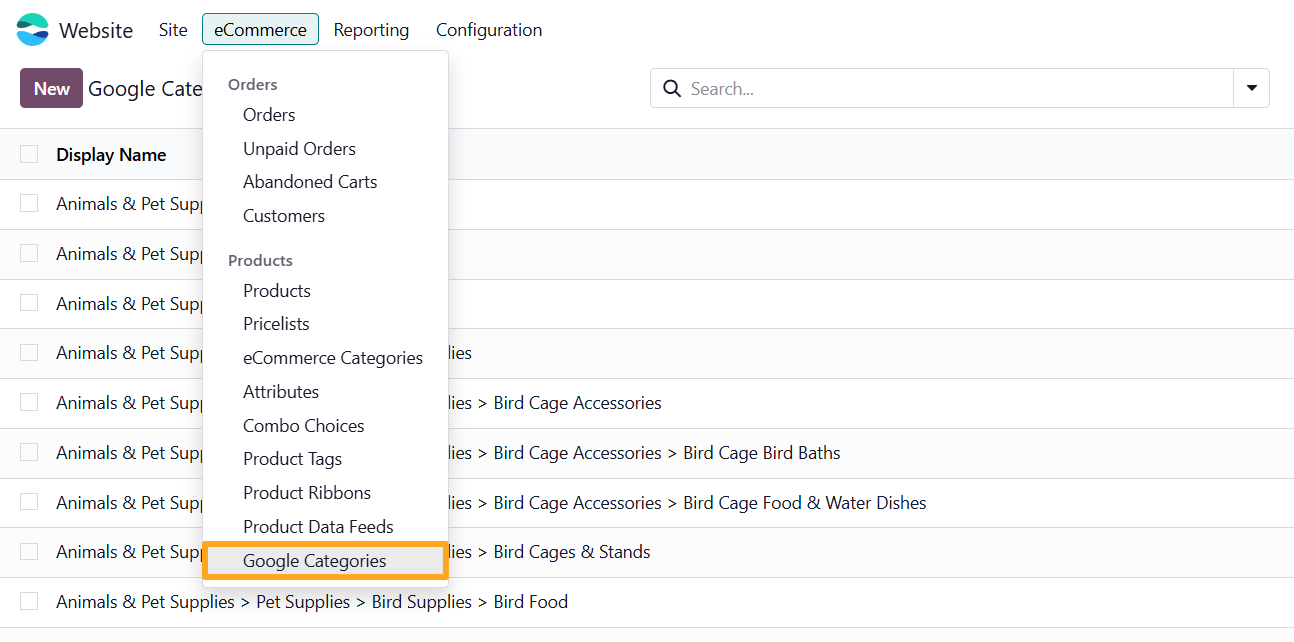
The GPC list is available under the Website — eCommerce — Products — Google Categories menu.

Usage
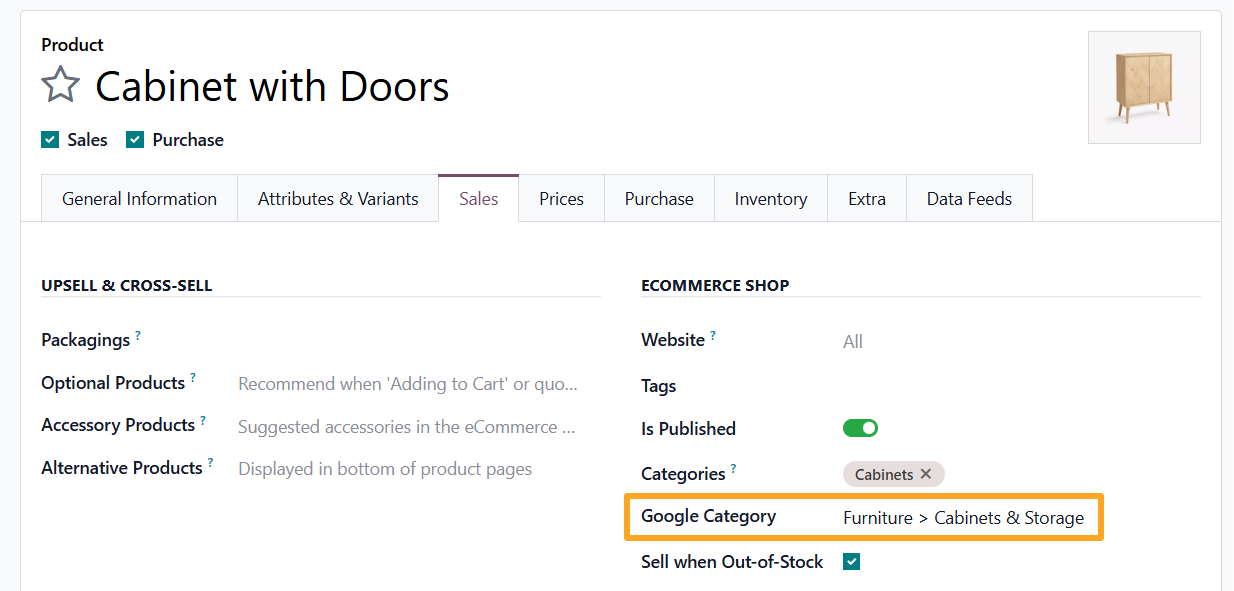
Once the GPC is imported into Odoo, you can assign a Google category to your products. To do this, open the product, navigate to the Sales tab, and in the eCommerce Shop section, select the Google Category that best describes the product.
Changelog
13.0.1.1.0 2023-07-07
- Rebuild logic.
- Improve description.
13.0.1.0.1 2022-07-02
- Fix error on loading taxonomy with " - " in names.
13.0.1.0.0 2021-04-09
- Init version.
14.0.1.0.3 2023-05-15
- Improve description.
14.0.1.0.2 2022-07-02
- Fix error on loading taxonomy with " - " in names.
14.0.1.0.1 2022-01-27
- Add a todo action to run wizard after module installation.
14.0.1.0.0 2021-04-21
- Initial version.
15.0.1.1.0 2023-02-12
- Improve rewrite logic.
15.0.1.0.1 2022-06-03
- Fix error on importing taxonomies.
- Add ability to rewrite google category names.
15.0.1.0.0 2022-01-29
16.0.1.1.1 2025-02-10
- Improve access rights to create and update Google categories.
16.0.1.1.0 2023-02-12
16.0.1.0.0 2022-11-04
- Migration from 15.0.
17.0.1.0.0 2023-11-11
- Migration from 16.0.
18.0.1.0.0 2024-10-12
- Migration from 17.0.
19.0.1.0.2 2026-10-05
- Improve the display name computation.
19.0.1.0.1 2026-09-03
- Remove tests with the external requests.
19.0.1.0.0 2025-09-29
- Migration from 18.0.
20.0.1.0.0 2026-08-27
- Migration from 19.0.