

Deliver your products throughout Ukraine and Europe with the Nova Post integration
The module serves as a central hub for delivery management, reducing manual operations and errors while increasing logistics transparency. This solution supports both business users and system administrators by offering flexible settings and support for a range of local and international shipping scenarios.
| Availability |
Odoo Online
Odoo.sh
On Premise
|
|---|---|
| Compatibility |
Community
Enterprise
|
| Technical Name | delivery_nova_post |
| Version | 20.0.1.0.0 |
| License | OPL-1 |
| Category | |
| Support | Free 60 days support and 360 days bug-fixing |
Use Case

Jorem ipsum dolor sit amet, consectetur adipiscing elit. Nunc vulputate libero et velit interdum, ac aliquet odio mattis. Class aptent taciti sociosqu ad litora torquent per conubia nostra, per inceptos himenaeos.
Forem ipsum dolor sit amet, consectetur adipiscing elit. Nunc vulputate libero et velit interdum, ac aliquet odio mattis. Class aptent taciti sociosqu ad litora torquent per conubia nostra, per inceptos himenaeos.
Dorem ipsum dolor sit amet, consectetur adipiscing elit. Nunc vulputate libero et velit interdum, ac aliquet odio mattis.
It is a long established fact that a reader will be distracted by the readable content of a page
Korem ipsum dolor sit amet, consectetur adipiscing elit. Nunc vulputate libero et velit interdum, ac aliquet odio mattis. Class aptent taciti sociosqu ad litora torquent per conubia nostra, per inceptos himenaeos.
Korem ipsum dolor sit amet, consectetur adipiscing elit. Nunc vulputate libero et velit interdum, ac aliquet odio mattis.
Odoo App Installation
Upload modules
Upload modules from the ZIP archive to your Odoo hosting, or a GitHub repository connected there.
Place the unzipped modules in your custom add-on directory and restart the Odoo system service.
Update App List
After restarting, activate the Developer Mode, and go to the Apps menu.

Click on Update Apps List to fetch the new modules in the list.
Activate the App
Install the new module, finding it by name and clicking on the Activate button.
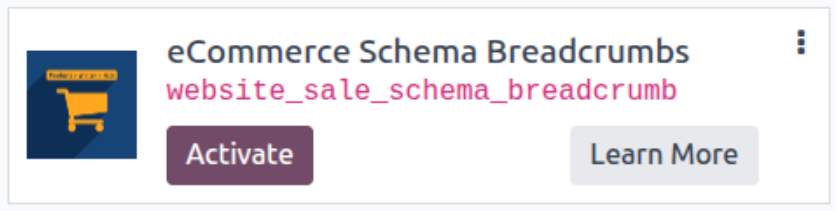
* If you don't see the module, try to remove the default Apps filter from the search bar.
Configuration
Follow the instructions in the module description to complete the installation process and start using the app.
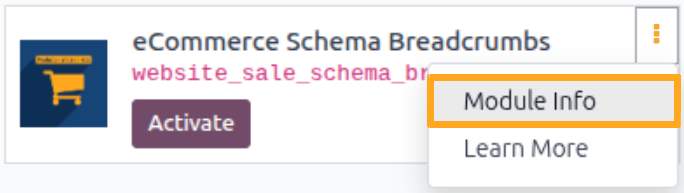

Manual

Access Rights
After installing the module, configure user access rights for the Delivery Hub menu. Navigate to user settings, go to the Access Rights tab, and select the role in the Delivery Hub section:
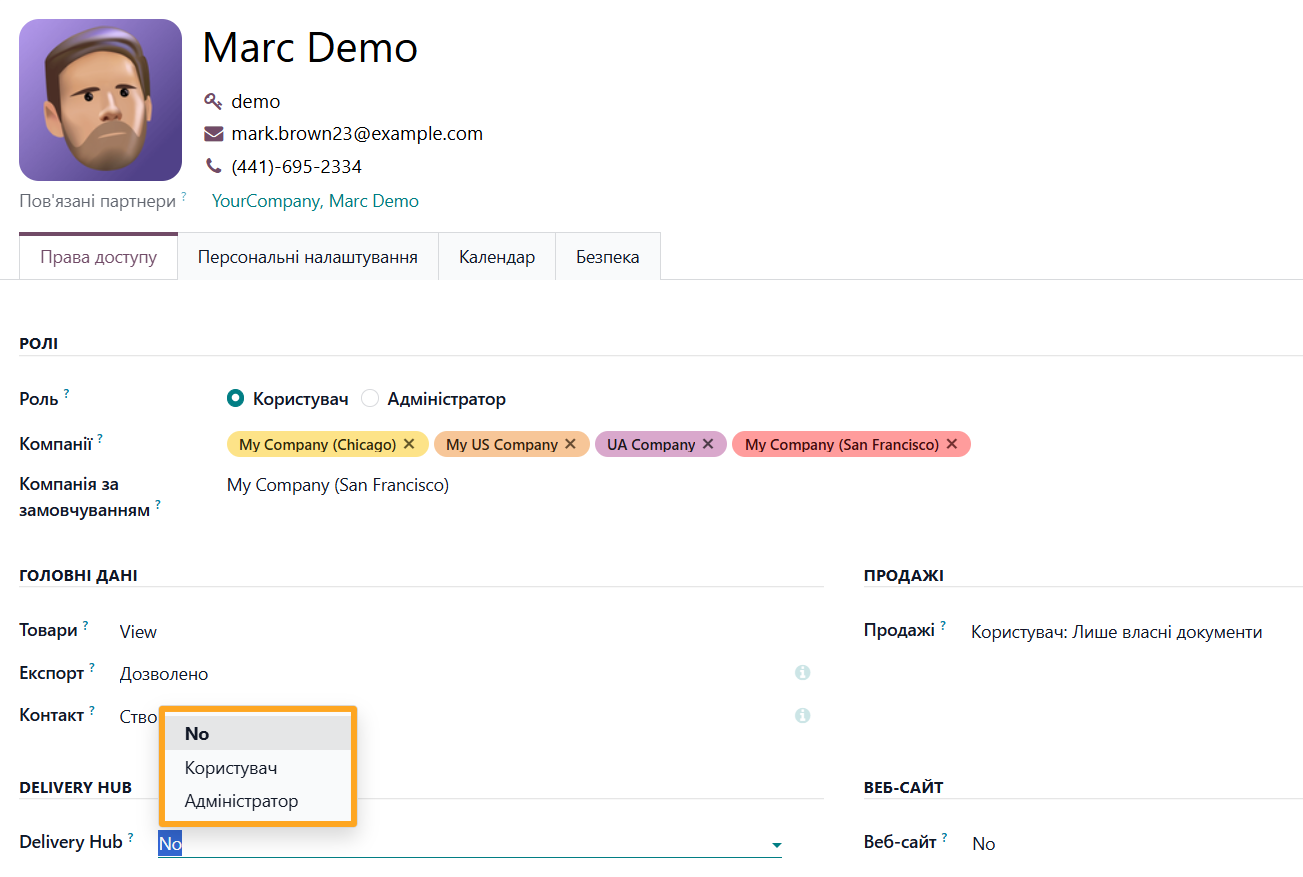
- No: No access to the Delivery Hub menu
- User: Access to view information
- Administrator: Full access and management rights

Menu Overview
The Delivery Hub menu contains the following sections:

- Accounts: Delivery service account settings
- Notes: Delivery note management
- Waybills: List of all created waybills
- Contacts: List of partners and delivery addresses
- Products: Product list
- Catalogs: List of divisions, parcel lockers, and other pickup/drop-off points
- Configuration: General settings

Connecting
To integrate Nova Post with Odoo, follow these steps:
-
01Obtain API keys to link your accounts
-
02Add a delivery provider account in Odoo
-
03Synchronize catalogs
-
04Configure the delivery provider account
How to Get an API Key
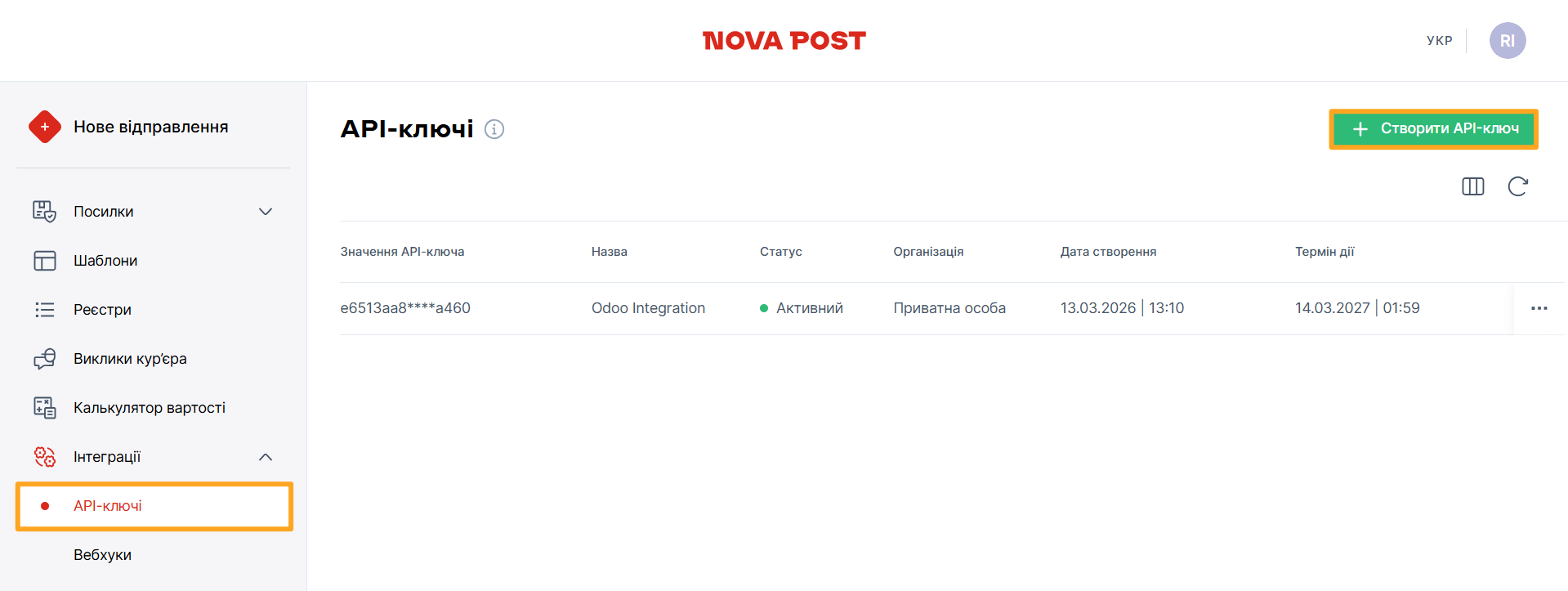
To obtain an API key, follow these steps:
-
01Log in to your Nova Post account
-
02Navigate to Integrations — API keys
-
03Click Create API key
-
04Copy the API key value
Adding an Account
Return to Odoo and create a new delivery provider account:
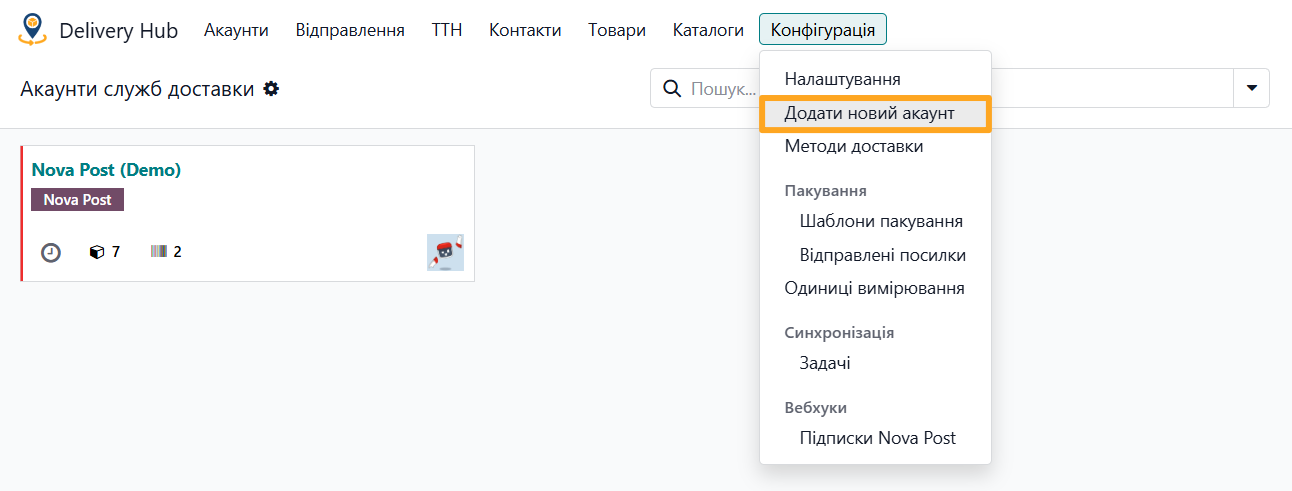
-
01Navigate to Delivery Hub
-
02Open Configuration
-
03Click Add New Account
Next, fill in the pop-up window:
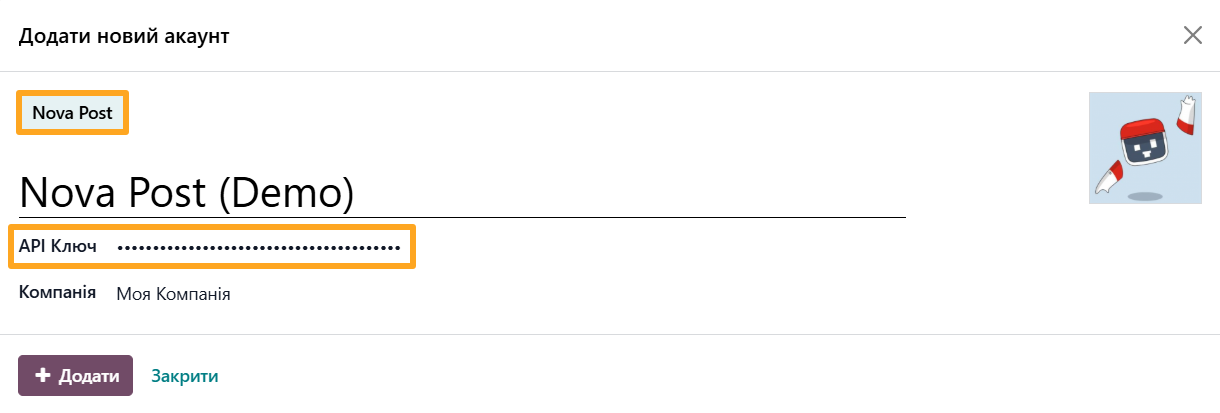
-
01Select Nova Post as the delivery provider type
-
02Enter a Name
-
03Paste the copied API key
-
04Click Add
Initial Synchronization
Perform an initial synchronization of catalogs, such as divisions and units of measure. These catalogs contain essential information for further configuration.
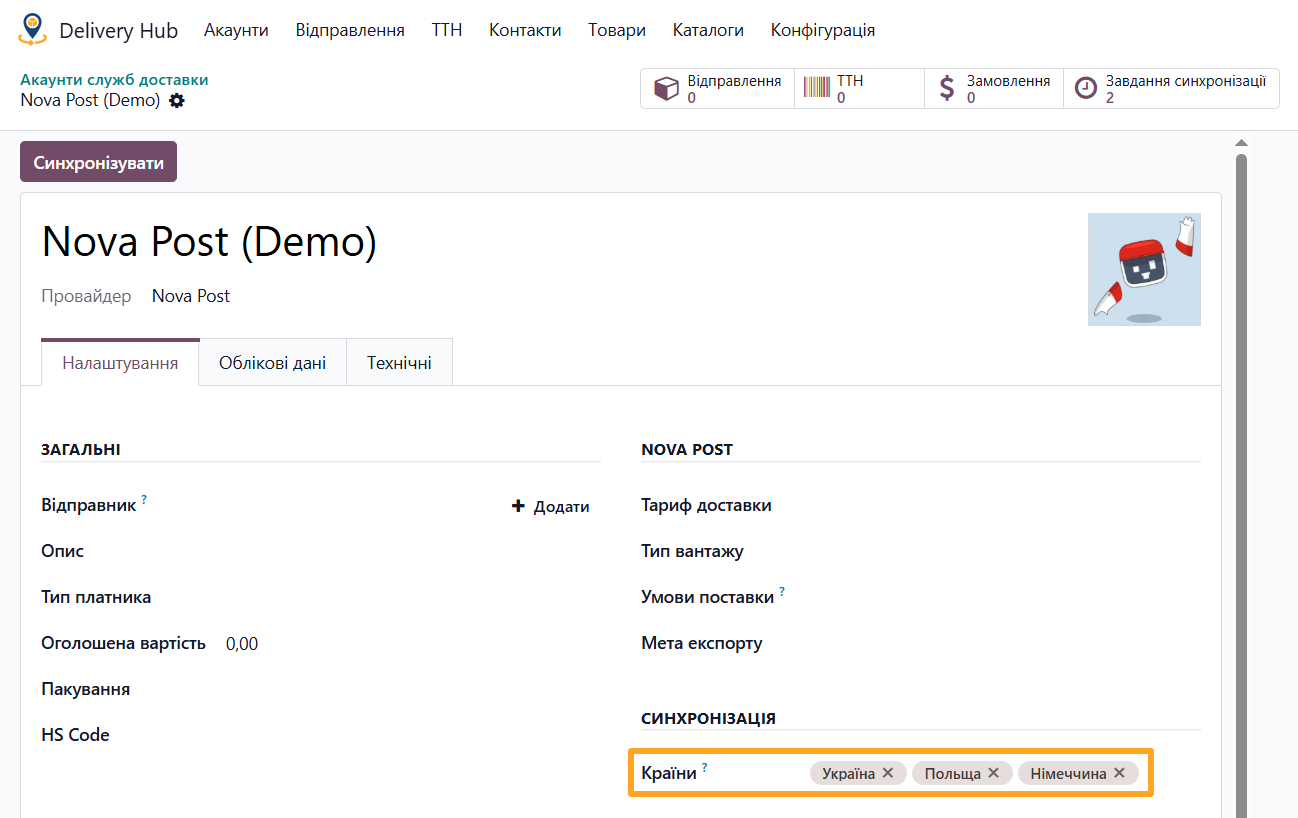
Since catalogs contain a large number of records, synchronization takes time. To reduce it and avoid unnecessary data, specify the countries you work with. On the Settings tab in the Synchronization section, specify the Countries of origin and destination:

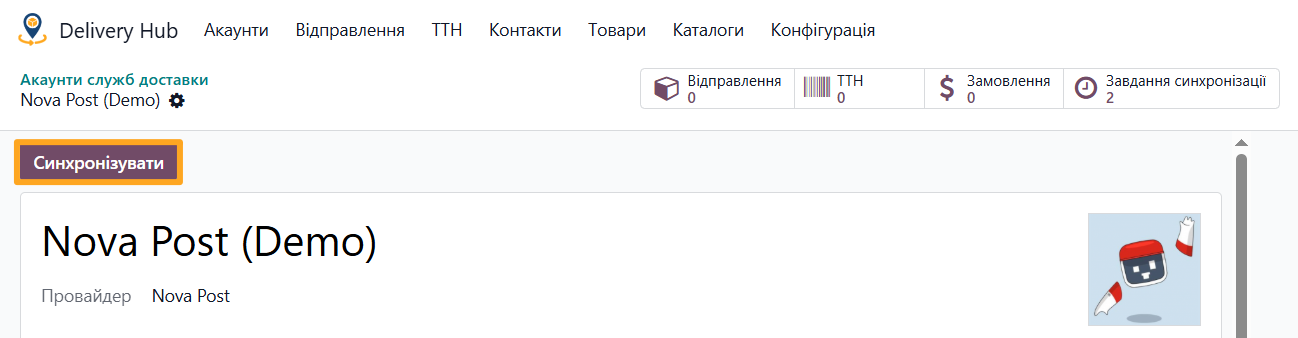
Click Synchronize to start the initial synchronization:
Account Settings
On the Settings tab, specify the default data for delivery notes.
To designate the person responsible for shipments, click Add in the Sender field:
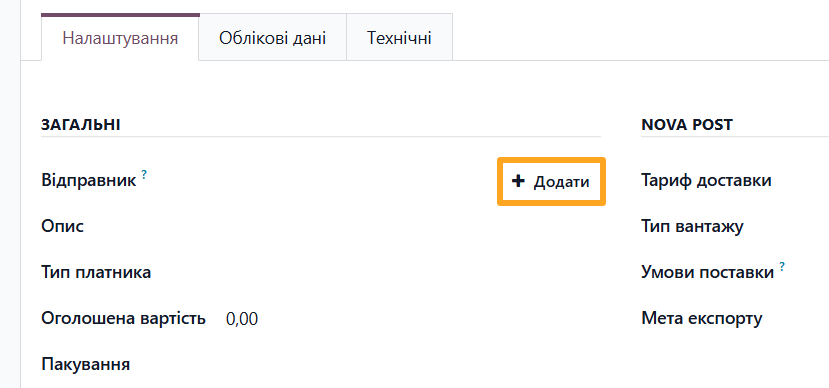
Fill in the contact details:
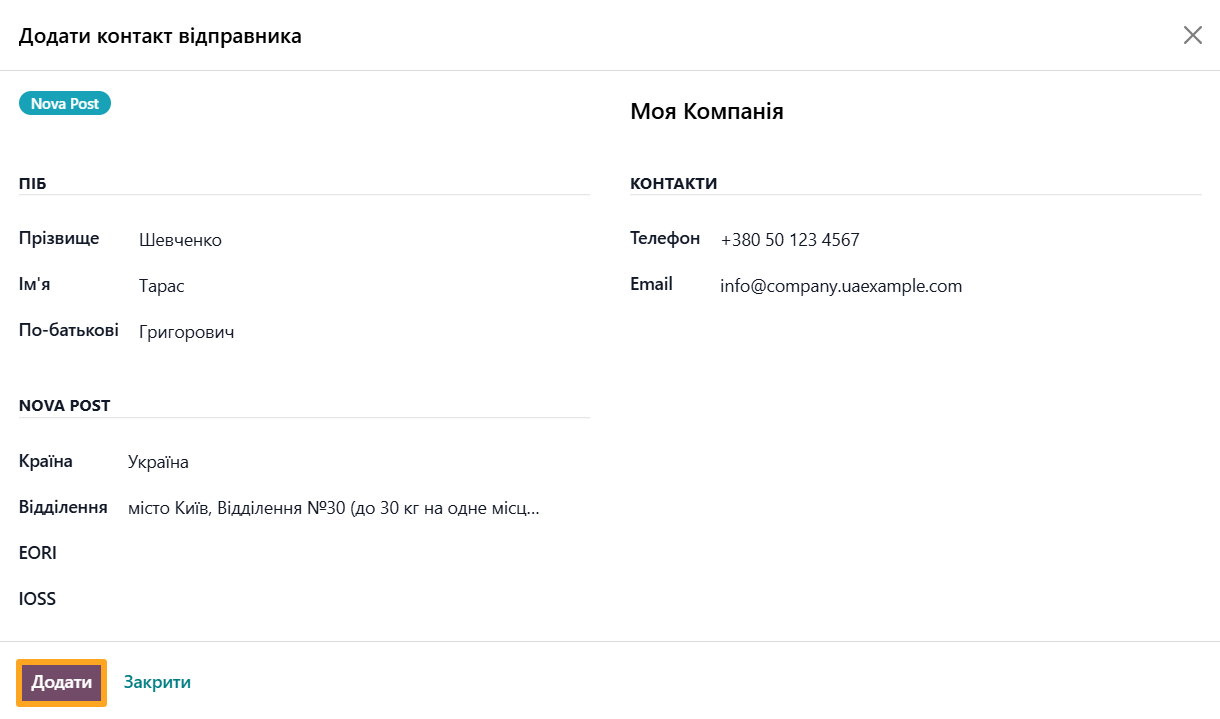
- Enter personal data (Names, Phone, and Email)
- Select the Country and Division
- Click Add
Then, specify the following default information:
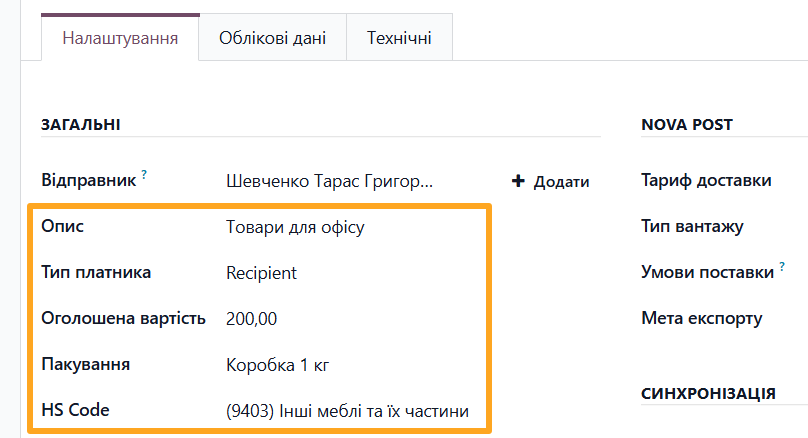
- Description — Shipment description
- Payer Type — Sender, recipient, or third party
- Declared Amount — Declared shipment value
- Package — Shipment package template
- HS Code: Ukrainian Classification of Goods for Foreign Economic Activity (UCGFEA) for international shipments
In the Sales section, choose the action for the delivery line in the sales order according to your needs:
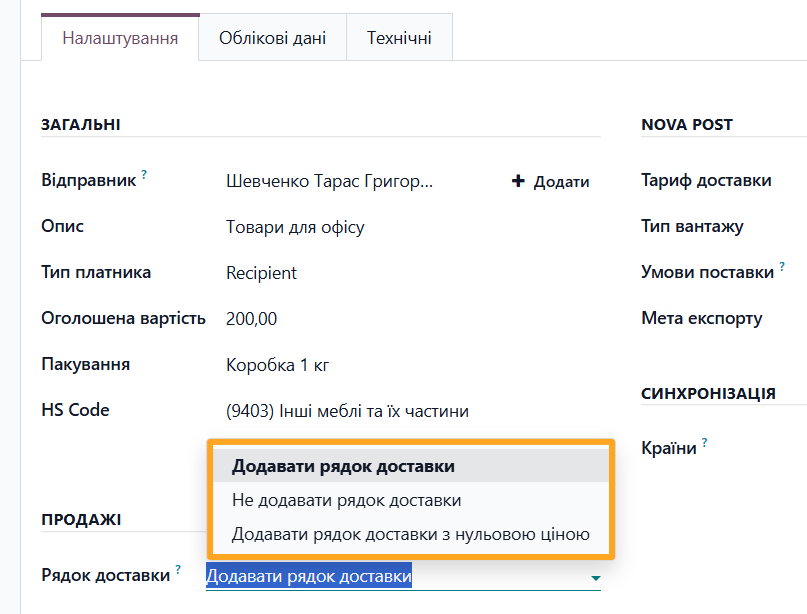
- Add a delivery line: Adds a line based on native Odoo logic
- Do not add a delivery line: No addition
- Add a delivery line with 0 price amount: Adds free delivery
Nova Post Parameters
In the Nova Post section, specify mandatory information for this carrier:
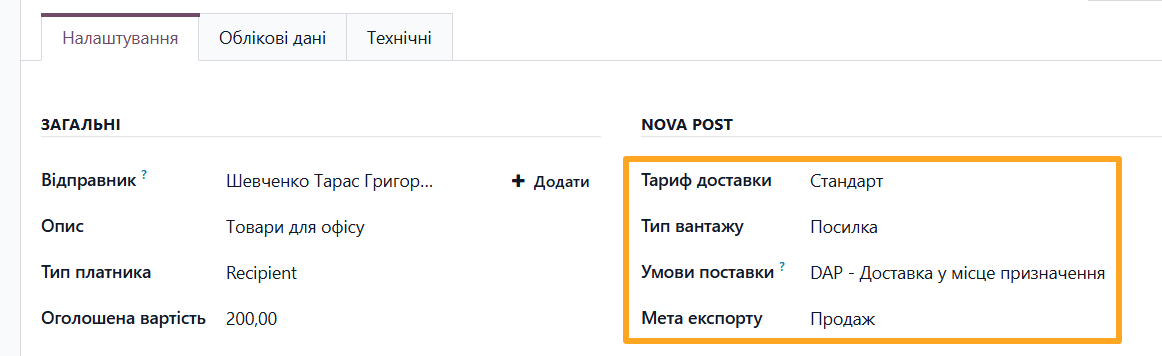
- Delivery Tariff: Standard, Economy, or Express
- Cargo Type: Parcel or Documents
- Incoterm: DAP — Delivered at Place or DDP — Delivered Duty Paid
- Export Reason: For Personal Purposes, Selling, Repair, Return, or Other

SECTION NAME
The module allows specifying package and shipment descriptions not only at the account level but also at other levels, enabling flexible settings.
Package
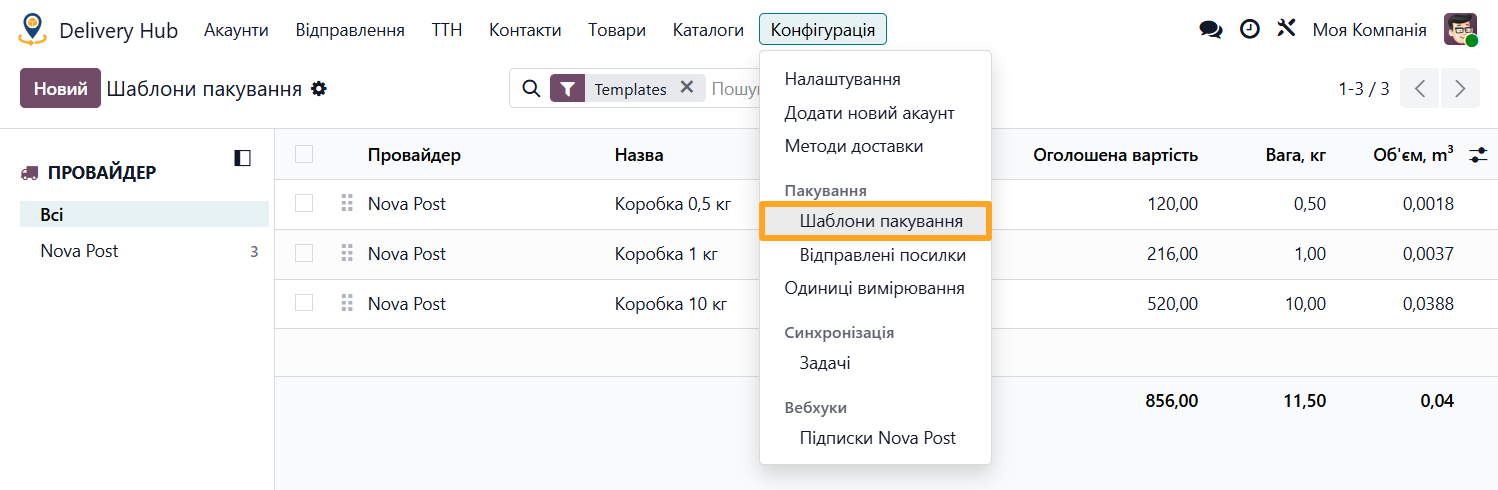
To add a package, navigate to Configuration — Packages — Package templates:
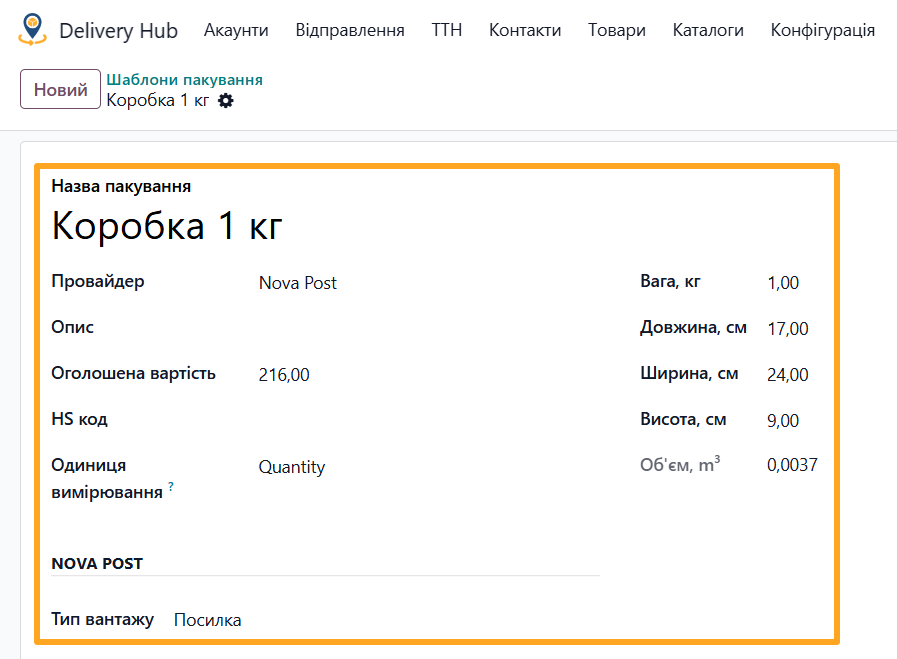
Click New to create a package template and fill in the details:
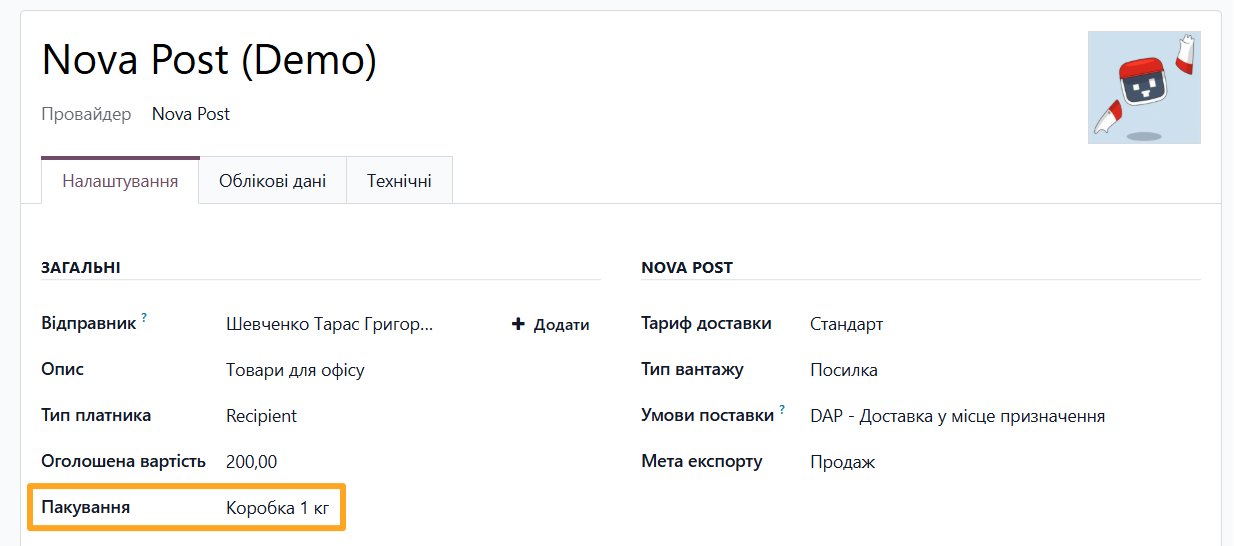
The package selection field at the account level is on the Settings tab in the Common section:
To specify a package for a specific product:
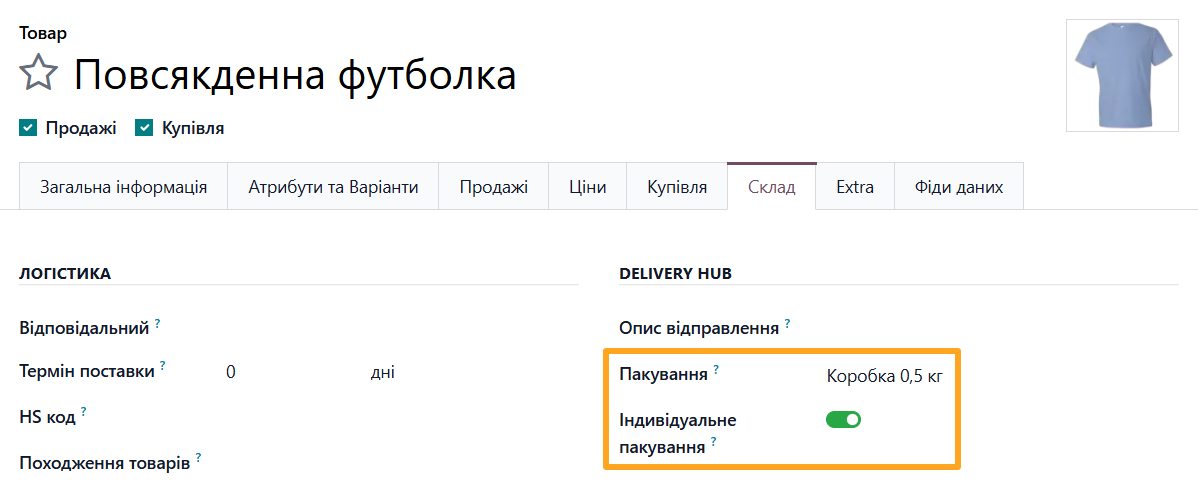
- Open the product template on the Inventory tab
- Select Delivery Package
- Enable the Individual Package option if the product cannot be packed with others
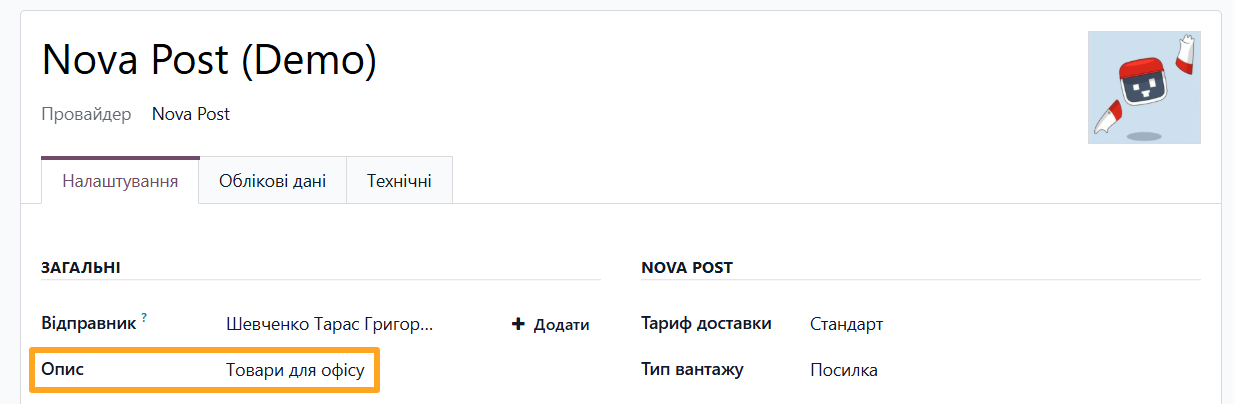
Shipment Description
The field for the shipment description at the account level is on the Settings tab in the Common section:
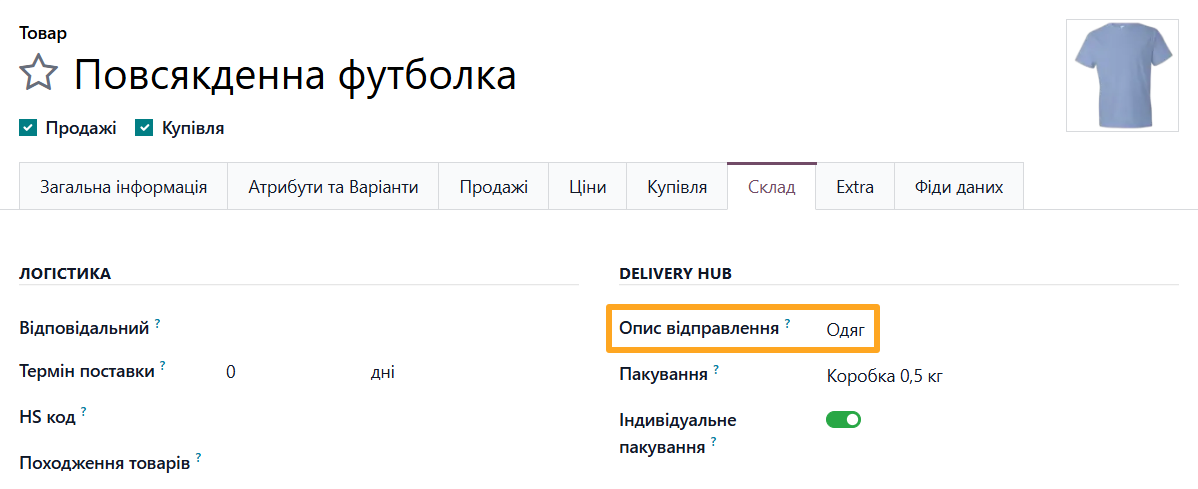
To specify an individual description for a specific product, open the product template on the Inventory tab and fill in the Delivery Description field:
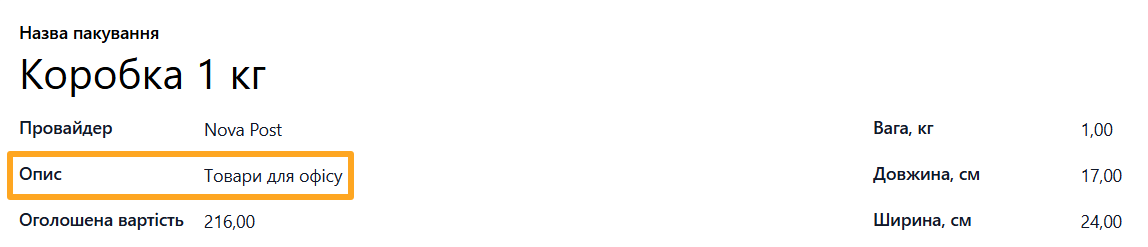
You can also specify the description at the package template level:

Delivery Note Management
The module allows you to:
- Add Nova Post delivery services to sales orders
- Create and manage delivery notes
- Configure individual delivery note places
- Calculate delivery costs
- Create waybills
- Upload supporting documents for international shipments
Adding Delivery to Sales Orders
Add a delivery address with a Nova Post division during order creation. Select the delivery provider and click Add Address. To create a delivery note via Nova Post, click Add Shipping:
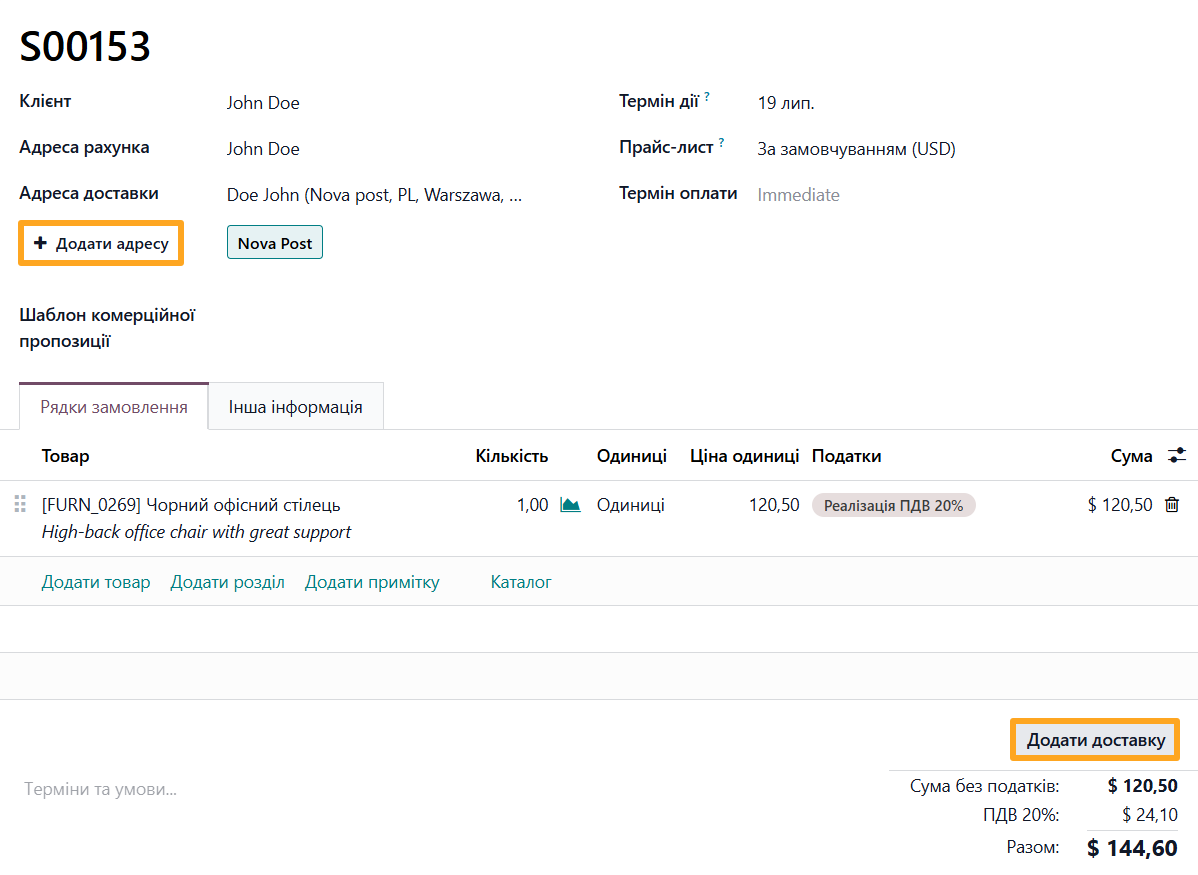
In the pop-up window, select the Shipping Method and click Add:
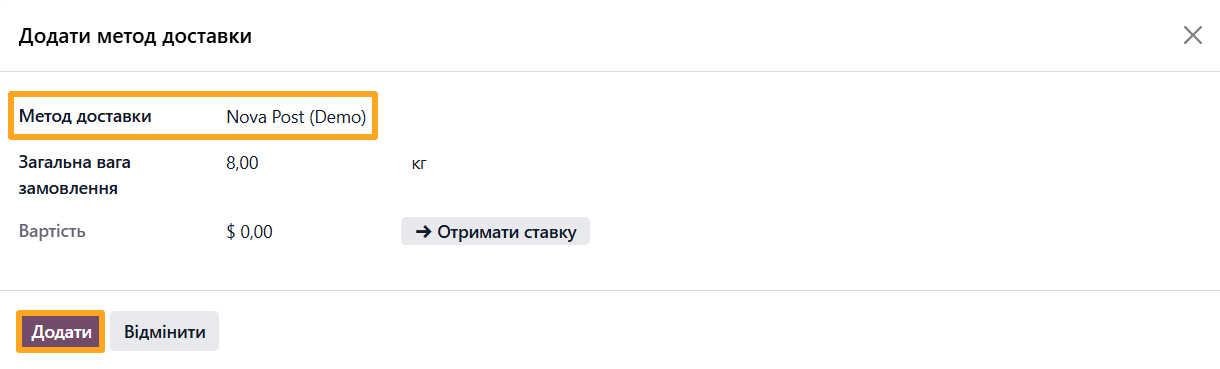
Delivery note created:

Creating a Delivery Note Manually
To create a delivery note manually without a linked sales order, navigate to Delivery Hub — Nots and click New:

Website Delivery Note Creation
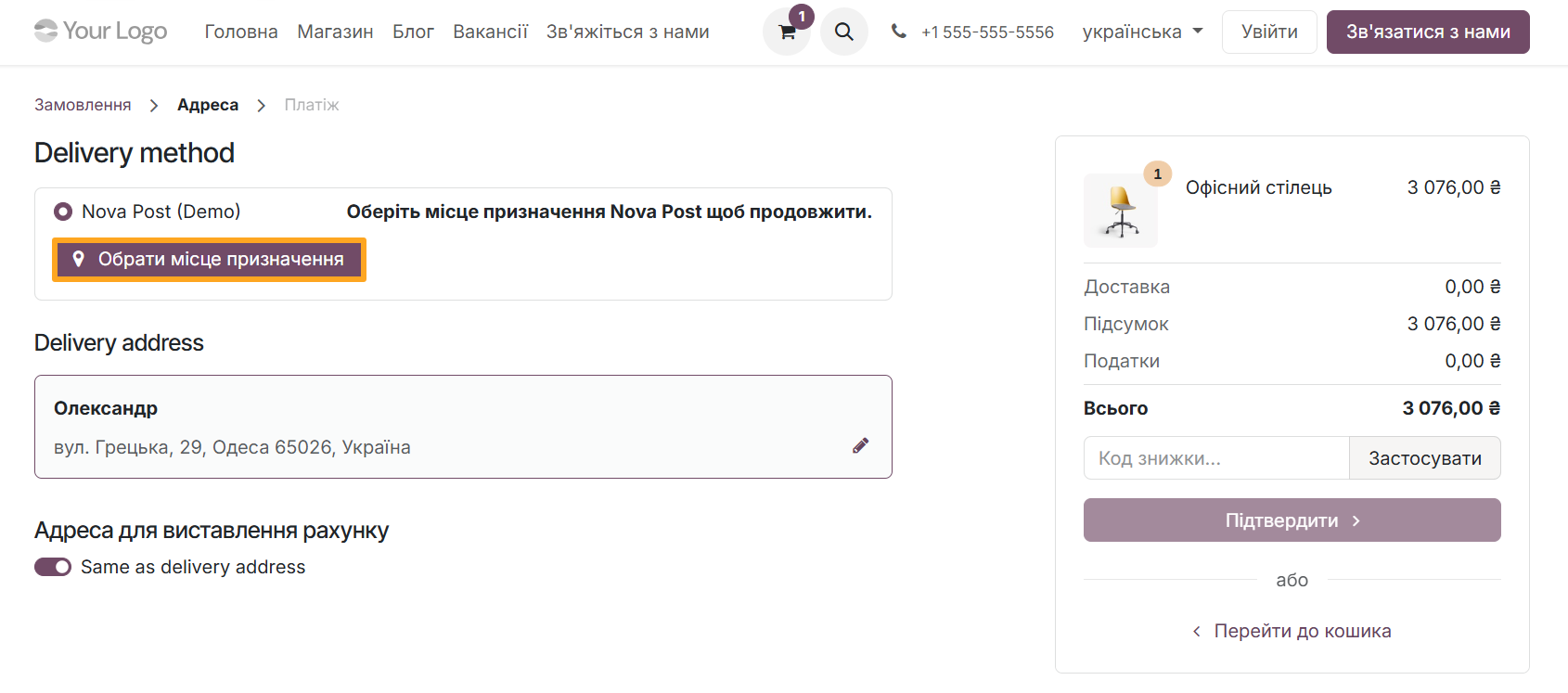
To automate delivery note creation from website sales orders, use the Odoo Nova Post for eCommerce module. This module extends Nova Post integration and allows buyers to select post branches or parcel lockers during checkout:
Delivery Note Settings
You can modify the following delivery note settings:
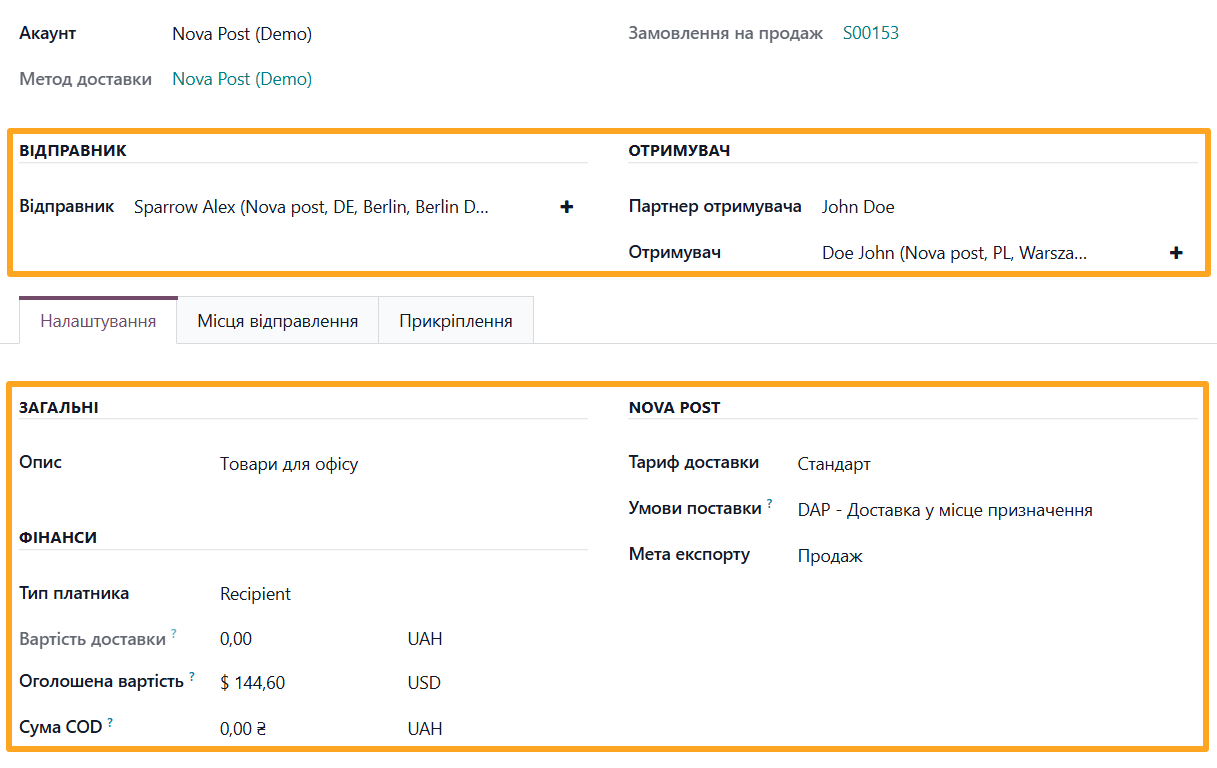
- Sender
- Recipient Partner and Recipient
- Pre-set parameters from the delivery provider account on the Settings tab
Delivery Note Places
On the Dimensions & Places tab, manage the description, dimensions, and other data for shipment items:
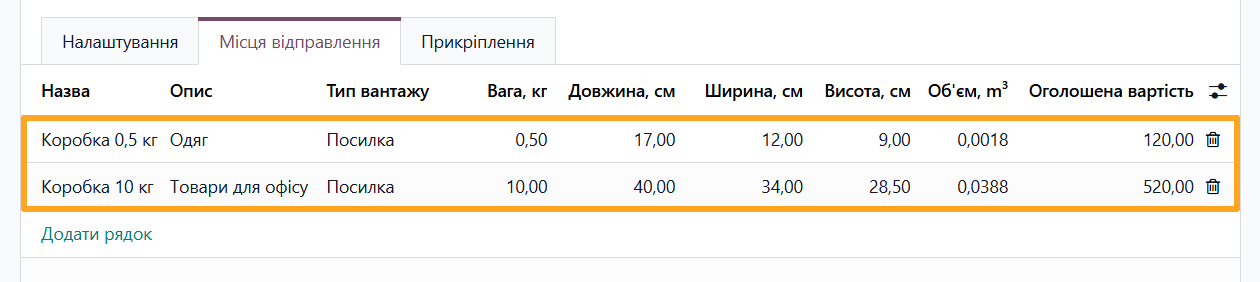
Delivery Cost and Waybills
Once the delivery note is filled with necessary data, calculate the delivery cost and create a waybill using the buttons at the top of the page:

After confirming the delivery note, the module creates a waybill:
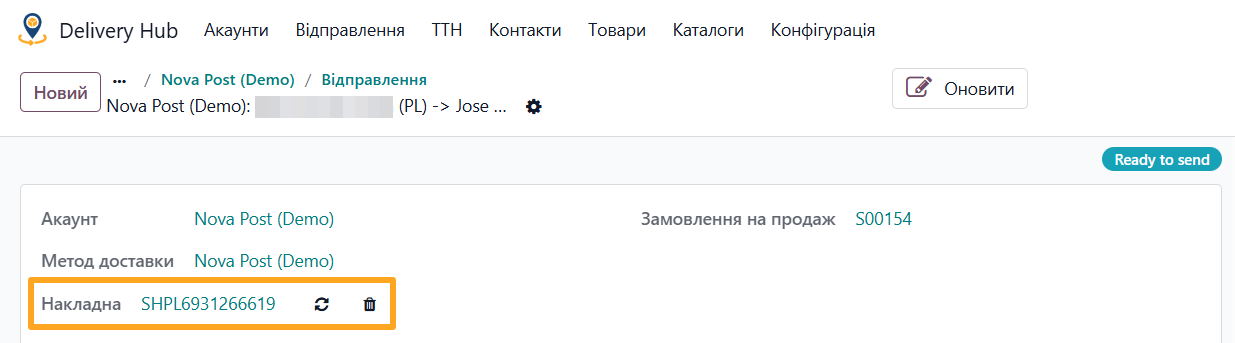
Use the buttons in the Waybill field to delete it or manually synchronize its status.
If you make changes to the delivery note, click Update to send the updated data to Nova Post:

Attachments
International shipments require supporting documents. To add them:

-
01Open the delivery note on the Attachments tab
-
02Upload the file
-
03Click the Upload button

Synchronization
The module automatically synchronizes data between Nova Post and Odoo using scheduled actions and webhooks.

Changelog
18.0.1.0.2 2026-10-06
- Improve the wizard to create contacts.
- Improve UA translations.
- Add service types for delivery contacts.
18.0.1.0.1 2026-06-26
18.0.1.0.0 2026-03-13
- Init version.
19.0.1.0.5 2026-10-02
- Improve the wizard to create contacts.
- Improve UA translations.
- Add service types for delivery contacts.
19.0.1.0.4 2026-07-16
- Restore own model for HS codes.
19.0.1.0.3 2026-06-26
- Improve logic to handle package HS codes.
19.0.1.0.2 2026-06-18
- Improve default value processing for delivery packages.
19.0.1.0.1 2026-06-02
- Add method to create delivery note from external request data.
- Implementation of webhook subscription and handling callback data.
- Improve translations
19.0.1.0.0 2026-05-22
- Migration from 18.0.
20.0.1.0.0 2026-10-05
- Migration from 19.0.
Resources

Step-by-Step Guide to Connecting Nova Poshta to Odoo
How to integrate with the Ukrposhta shipping provider to deliver your Odoo products
How to ship products across Ukraine and worldwide via Nova Post delivery service in Odoo