

Introduction
Choosing a module to create shipments from Odoo is not enough. A solution requires an efficient synchronization mechanism to ensure correct operations and timely updates.
The Odoo Nova Post Delivery solution provides an optimized synchronization mechanism for divisions and pick-up points alongside real-time waybill status updates.
Updates occur through both scheduled actions and webhooks, ensuring near-immediate delivery.
Synchronization Methods
Scheduled actions represent the base mechanism for periodic process execution in Odoo. This mechanism is convenient and solves synchronization issues effectively when used correctly with an understanding of all nuances.
Modules in the Delivery Hub series feature additional process separation logic for handling large data volumes: sync tasks. The module creates and executes these tasks automatically, prioritizing minimal system load and maintaining up-to-date records.
Webhooks offer an alternative synchronization mechanism. These special URLs remain in standby mode and react instantly upon receiving a request.
Let's review how to use and configure these mechanisms in the module by Garazd Creation — Odoo Nova Post Delivery.
Scheduled Actions
Scheduled actions update core directories, divisions, and Nova Post Pickup/Drop-Off (PUDO). Actions run with a specific frequency that you can change according to your business needs.

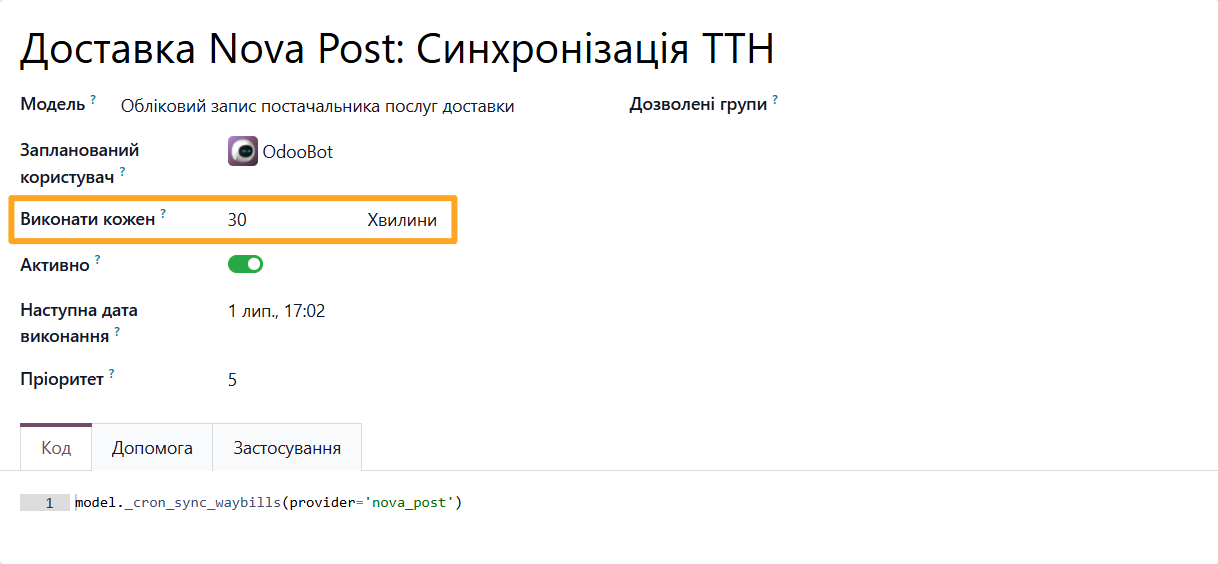
The Sync Waybills scheduled action updates waybill statuses every 30 minutes by default. The update applies only to delivery notes already handed over to the carrier but not yet received.
The second scheduled action appears later in this blog post.
Synchronization Tasks
The Odoo Nova Post Delivery module uses a flexible sync task mechanism to handle large datasets. Below, let’s look at how sync tasks work, how to manage them, and how to resolve errors during execution.
How It Works
The goal of sync tasks is to split the update process for large data volumes into parts. This optimizes server resource allocation and keeps data current in Odoo.
To view sync tasks, select the menu path Delivery Hub — Configuration — Synchronization — Tasks, or open the delivery provider account and click Sync Tasks.

The sync task list for Nova Post contains two records:
- Nova Post Division Synchronization
- Package Unit of Measure Synchronization
Each task configuration ensures that execution time does not exceed 1–2 minutes. It also accounts for the recommended update frequency, which includes the following options:
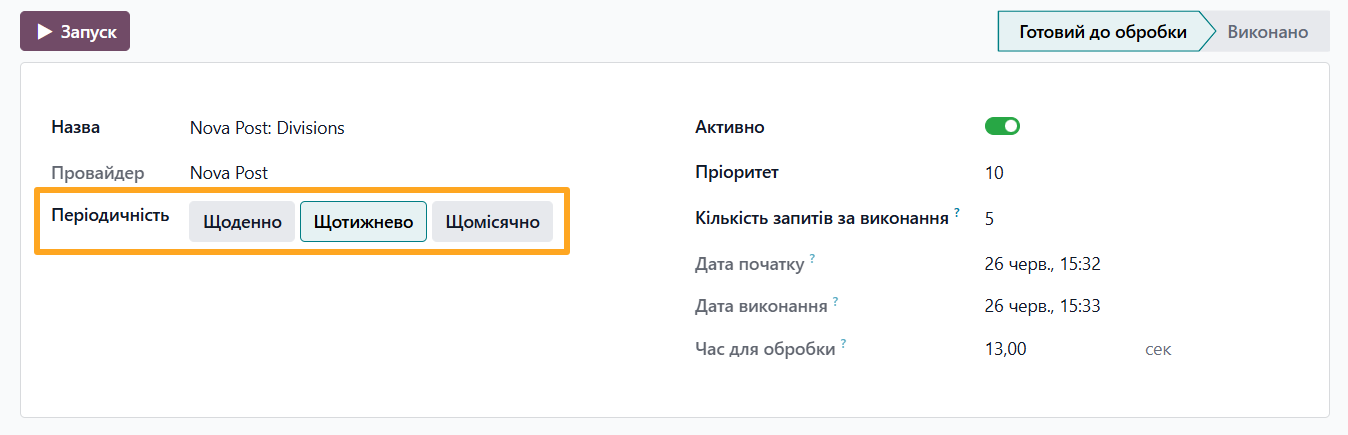
- Daily — the sync task runs every day. This option synchronizes the most critical data where accuracy is critical.
- Weekly — the sync task restarts every 7 days. This frequency suits medium-priority data.
- Monthly — the sync task restarts every 30 days. This applies to low-priority or rarely updated data.
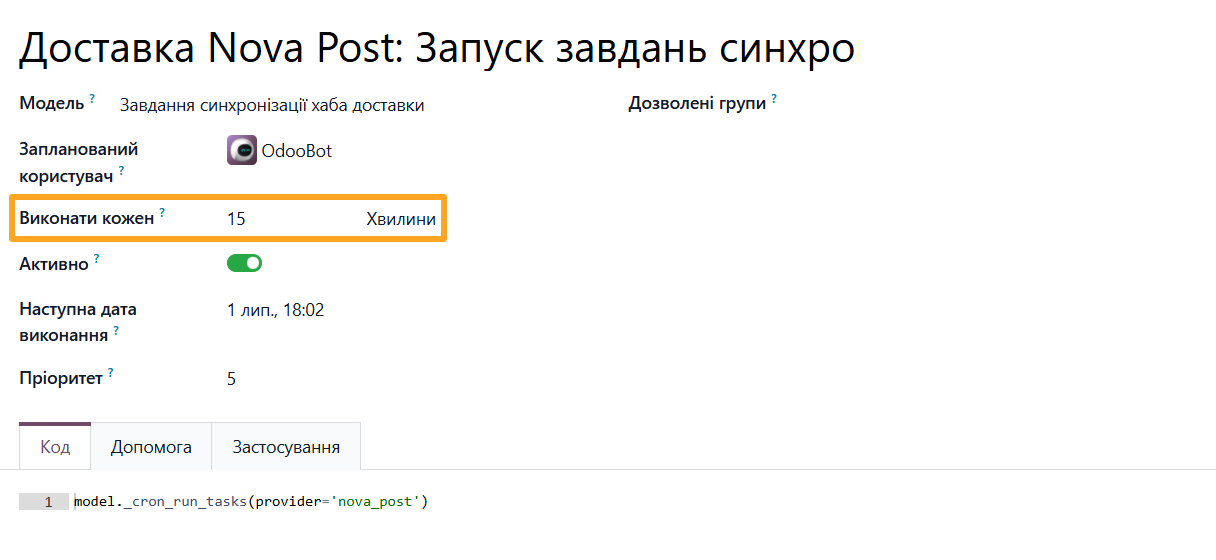
Let's examine the process using the division sync task with a Weekly frequency as an example. The task restarts once every 7 days. After that, the scheduled action Delivery Nova Post: Run Sync Tasks, which runs every 15 minutes, processes it to update the division directory in batches of approximately 500 records.
Once the module updates all divisions, the current task pauses, switches to the Done status, and restarts 7 days after the previous start date.
Actions with Tasks
You can start tasks manually by clicking the Run button. This executes partial processing and updates the data.
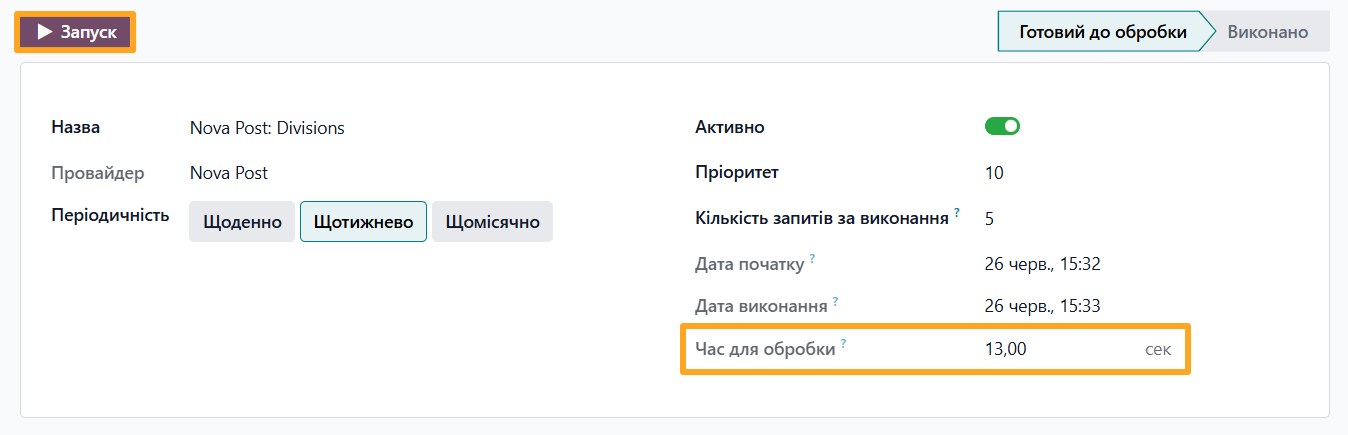
To analyze task performance, check the value in the Time to Process field. It shows the time spent executing the task on your system. Recommended keeping this under 1–2 minutes. If the execution time is significantly longer, decrease the Request Batch Size parameter, for example, from 5 to 3.
Another action allows you to restart a sync task. This option is available in two cases:
- When a task completes fully and requires a manual restart
- When an error occurs during execution and requires a restart

To perform a restart, click Reassign.
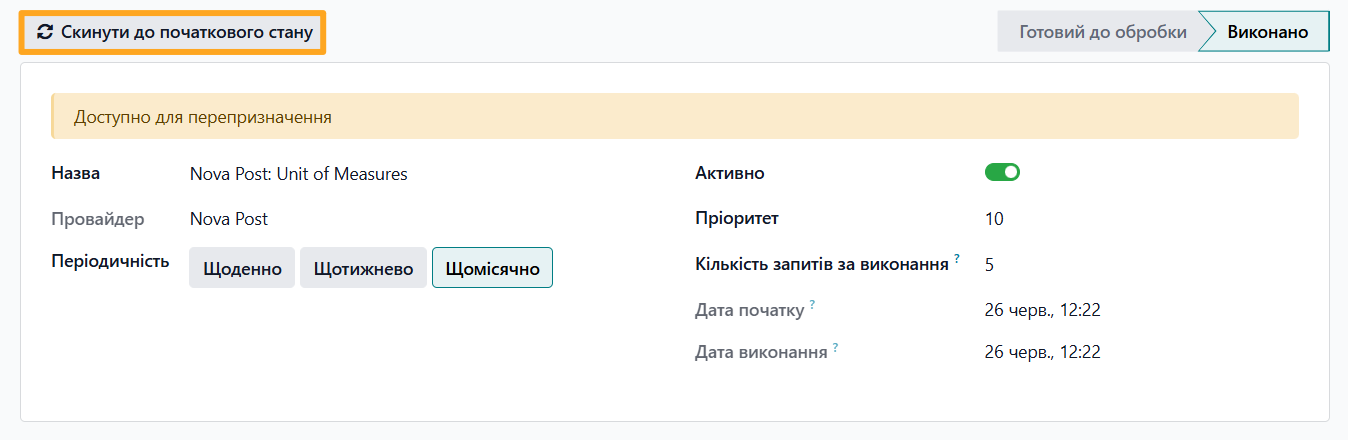
This changes the task state to To Process and resets all progress counters to zero.
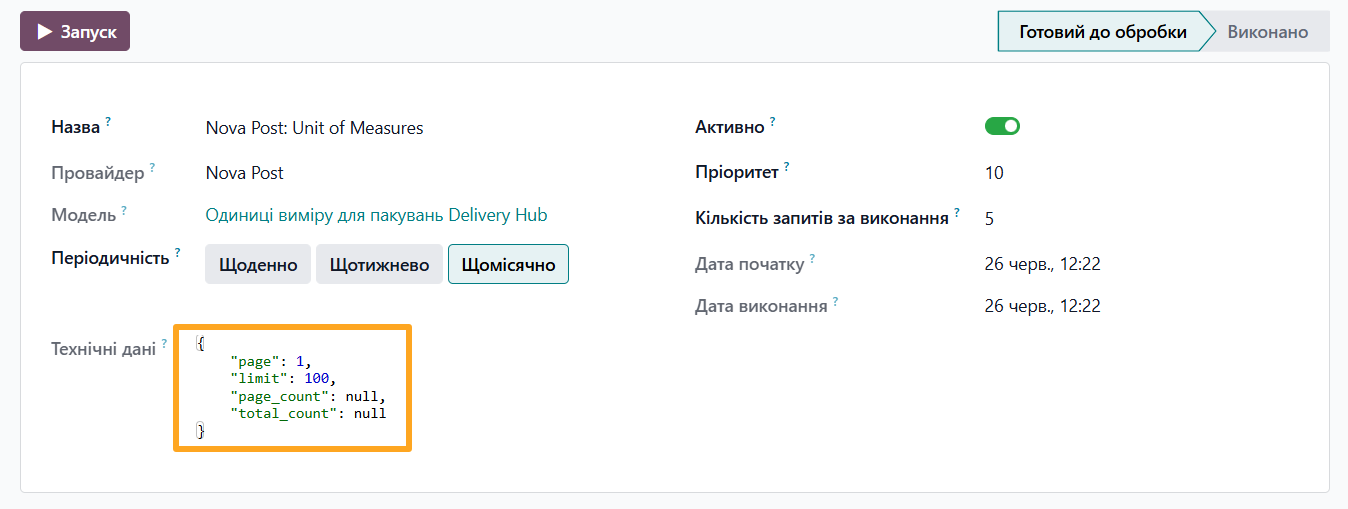
Error Handling
When errors occur, identify the cause and restart the task.
Follow these steps for a manual task restart:
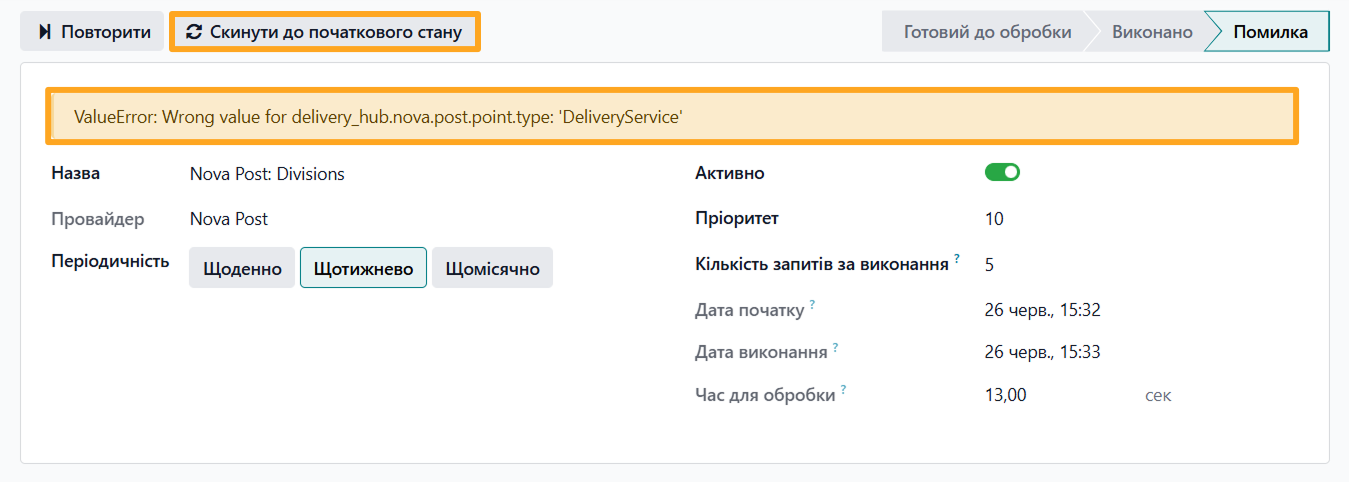
- Check the Message field to determine the cause of the error
- Click the Reassign button
- Click the Run button to execute the task again
Webhooks
Nova Post provides a modern data update mechanism via webhook registration. After registration, Nova Post updates your waybill statuses in real time. The module includes this functionality. To activate it, complete the following settings in Odoo.
Activation
To create and activate a webhook, open the menu path Configuration — Webhooks — Nova Post Subscriptions.
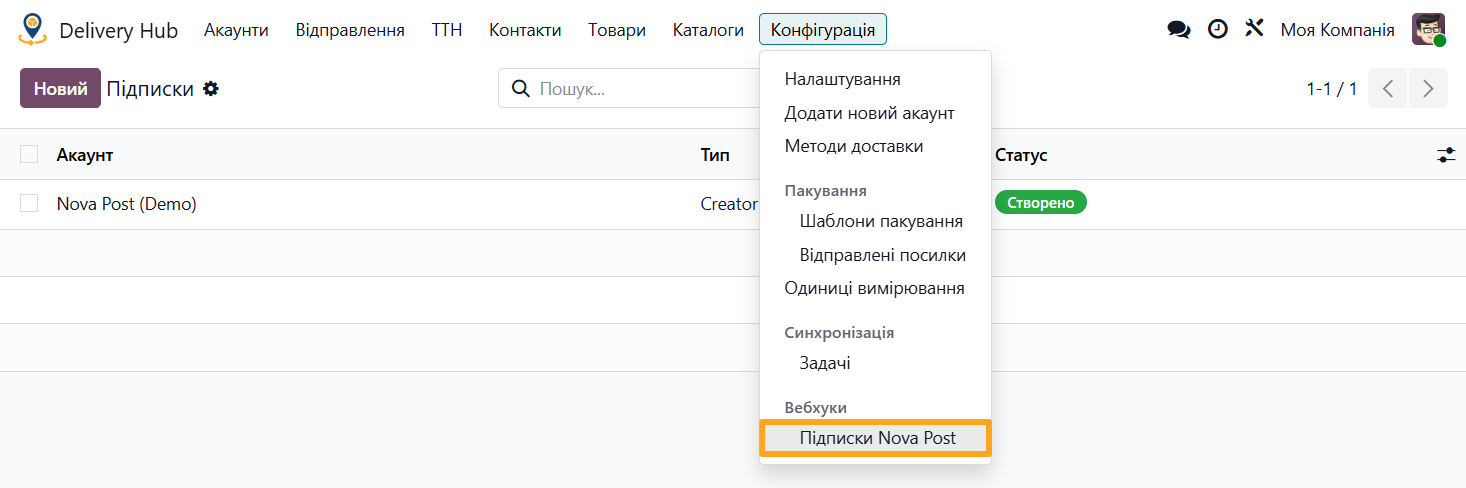
Create a new subscription and specify the following details:
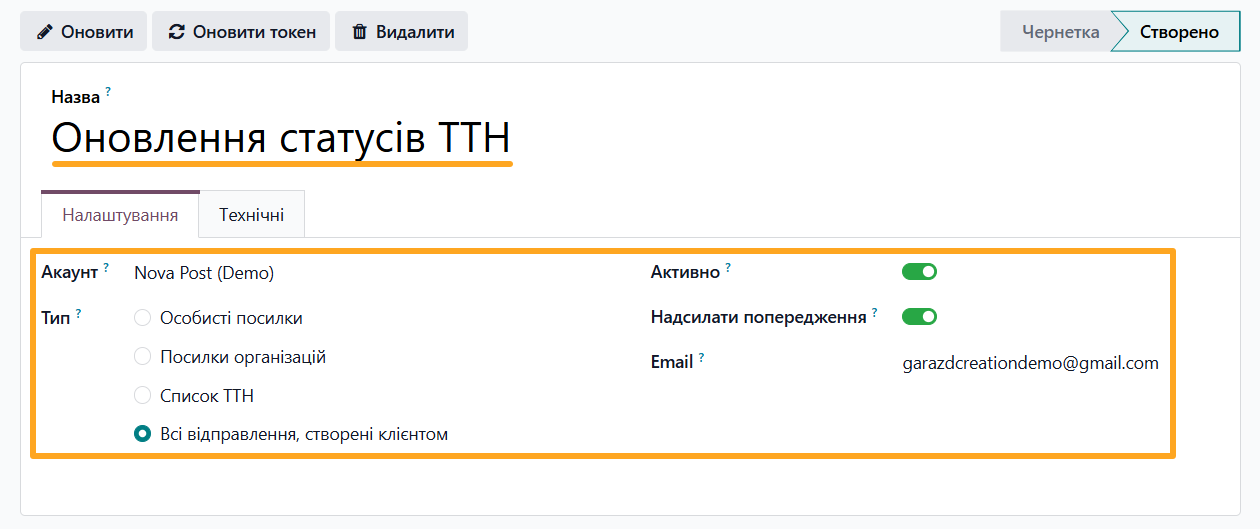
- Subscription Name
- Delivery provider Account
- Subscription Type — choose one of 4 options:
- Individual — for personal accounts
- Legal — for business accounts that require additional company data
- Numbers — for tracking specific waybills
- Creator — for tracking all delivery notes created by a client (regardless of whether they are listed as the sender)
- If you need to receive error notifications for this webhook, enable the Send Warning option and enter an Email
When finished, click Subscribe to register the webhook on the Nova Post side. Upon success, the subscription status changes to Created.
Subscription Types
Certain subscription types feature additional parameters — let's review these cases.
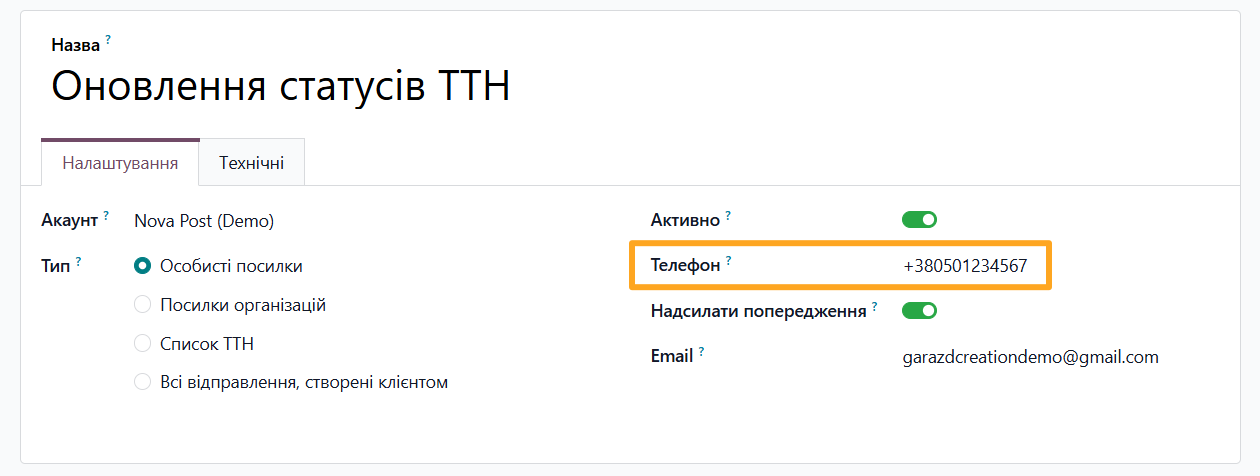
The Individual subscription type targets personal accounts. Selecting this type requires an additional phone number.
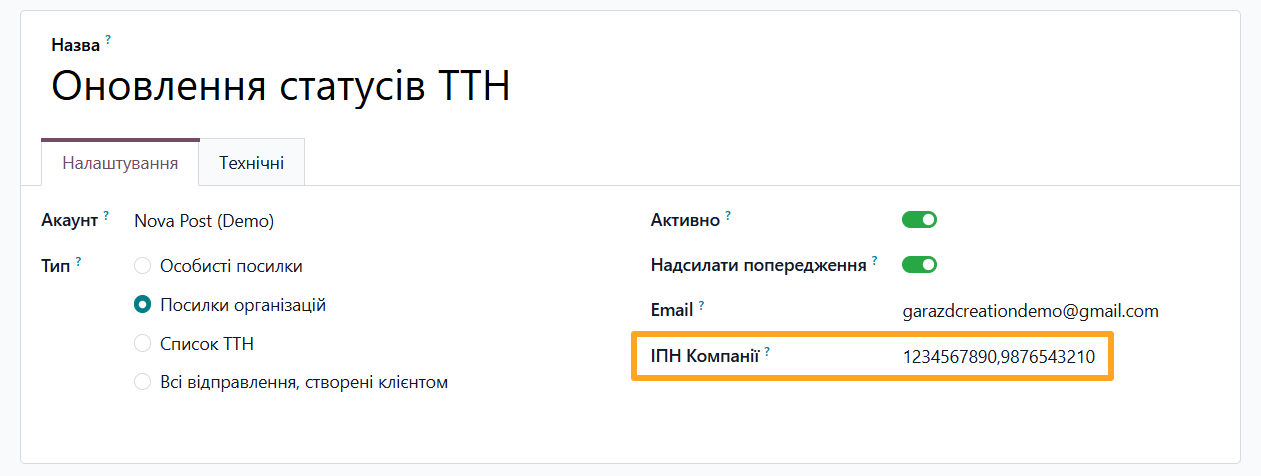
Another type, Legal, tracks delivery notes made by business accounts. Enter the tax identification numbers of the legal entity in the corresponding field, separated by commas.
When choosing the Numbers subscription type, specify the waybill numbers for tracking. To do this:
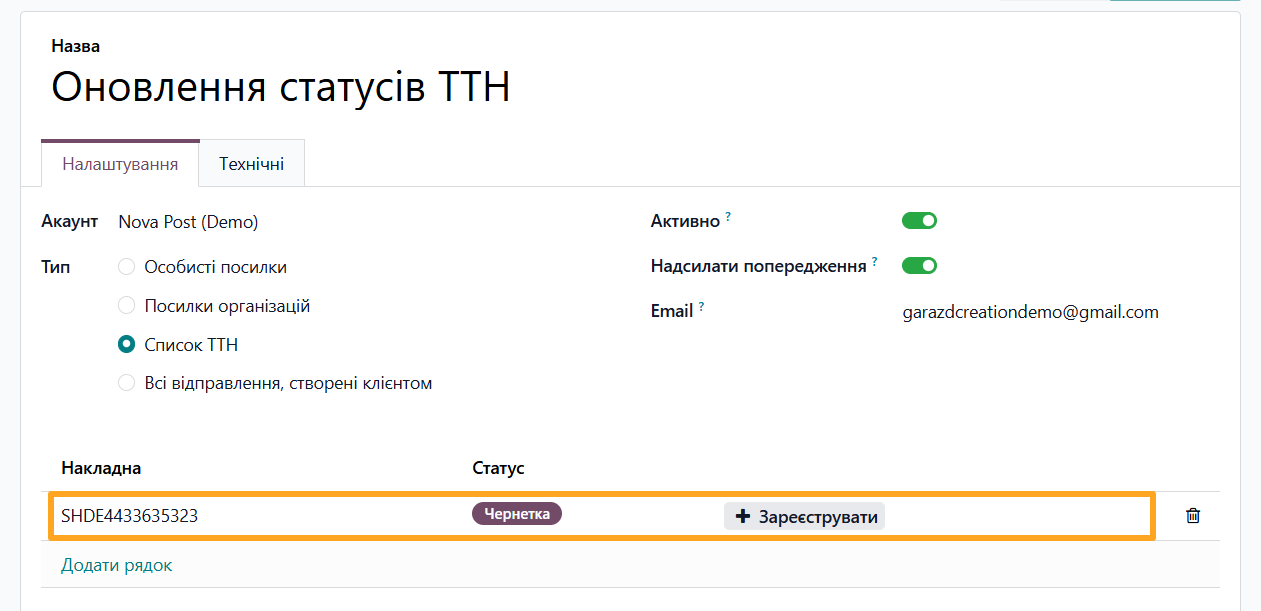
- Add a new row to the table
- Select one of the created waybills
- Register this waybill number with Nova Post by clicking Register
Actions with Subscriptions
The following actions are available for active subscriptions:
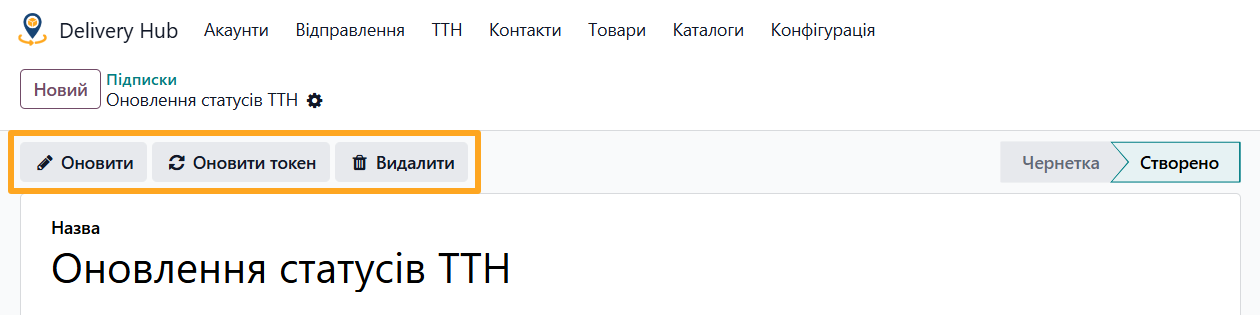
- Making changes — edit the subscription settings and click the Update button to apply the updates to Nova Post as well.
- Updating the token — if you need to change the token for security or other reasons, click the Refresh Token button.
- Deactivating a subscription — to temporarily deactivate a subscription, disable the Active option on the Settings tab and click the Update button. Reactivation follows the same process.
- Deleting a subscription — to completely deactivate a subscription, click the Delete button. This action is permanent and irreversible.
Waybill Status Log
After creation, the waybill status updates continuously using the methods described above. The module records all changes in a table, making them available for review when you open the waybill.
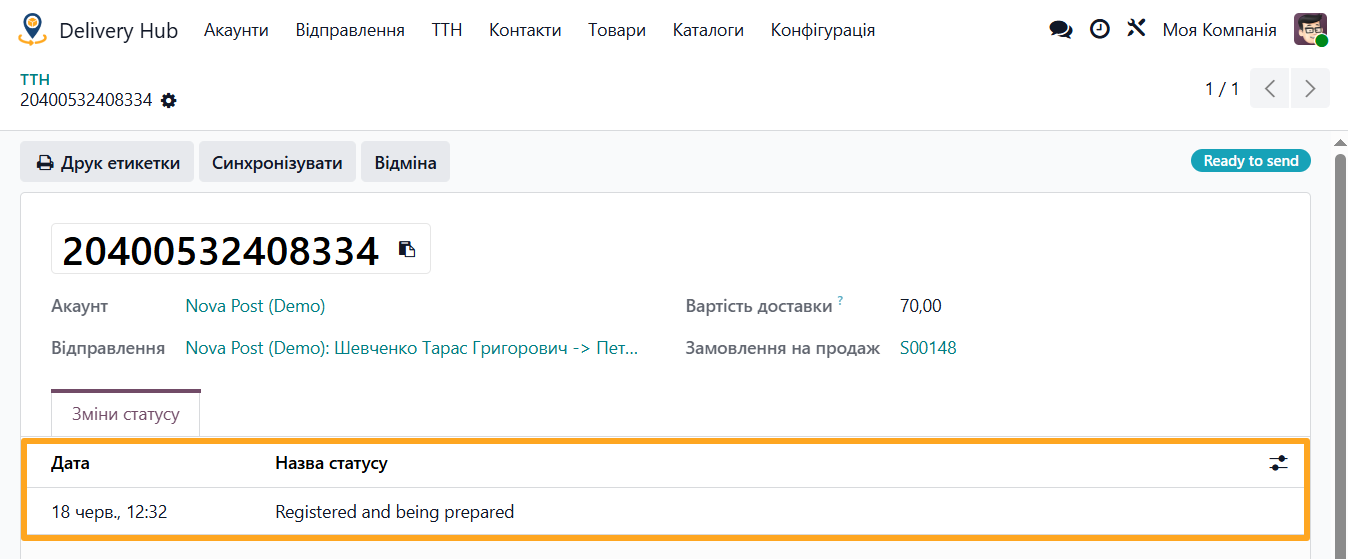
Log entries contain information about the new waybill status, status code, and status change date, appearing in chronological order.
Summary
Odoo integration with delivery services occurs in various ways. Modules providing this integration work well with small volumes of delivery notes, but issues arise during long-term operations and high volumes of delivery notes.
You can avoid difficulties when proper synchronization mechanisms are built into the solution architecture. This allows the integration to work without delays and always maintain up-to-date data.
The Nova Post integration by Garazd Creation relies on mechanisms that consider system load and diversify data update paths. You receive a tool that supports scaling your business into international markets, providing full-cycle automation for delivery note processing with real-time data synchronization.