

Automate Ukrposhta shipment creation directly from your Odoo website
Implementing the module ensures automatic creation of Ukrposhta shipments within Ukraine in Odoo.
Use Case

Jorem ipsum dolor sit amet, consectetur adipiscing elit. Nunc vulputate libero et velit interdum, ac aliquet odio mattis. Class aptent taciti sociosqu ad litora torquent per conubia nostra, per inceptos himenaeos.
Forem ipsum dolor sit amet, consectetur adipiscing elit. Nunc vulputate libero et velit interdum, ac aliquet odio mattis. Class aptent taciti sociosqu ad litora torquent per conubia nostra, per inceptos himenaeos.
Dorem ipsum dolor sit amet, consectetur adipiscing elit. Nunc vulputate libero et velit interdum, ac aliquet odio mattis.
It is a long established fact that a reader will be distracted by the readable content of a page
Korem ipsum dolor sit amet, consectetur adipiscing elit. Nunc vulputate libero et velit interdum, ac aliquet odio mattis. Class aptent taciti sociosqu ad litora torquent per conubia nostra, per inceptos himenaeos.
Korem ipsum dolor sit amet, consectetur adipiscing elit. Nunc vulputate libero et velit interdum, ac aliquet odio mattis.
Odoo App Installation
Upload modules
Upload modules from the ZIP archive to your Odoo hosting, or a GitHub repository connected there.
Place the unzipped modules in your custom add-on directory and restart the Odoo system service.
Update App List
After restarting, activate the Developer Mode, and go to the Apps menu.

Click on Update Apps List to fetch the new modules in the list.
Activate the App
Install the new module, finding it by name and clicking on the Activate button.
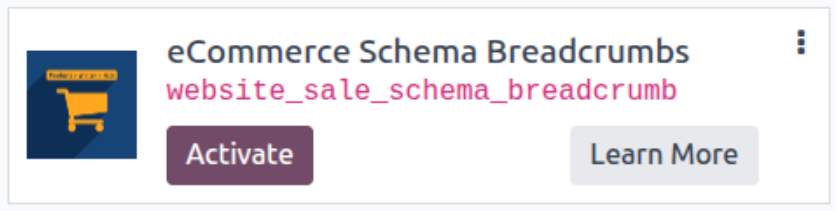
* If you don't see the module, try to remove the default Apps filter from the search bar.
Configuration
Follow the instructions in the module description to complete the installation process and start using the app.
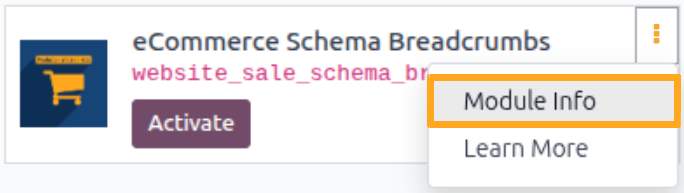

Manual

Activation
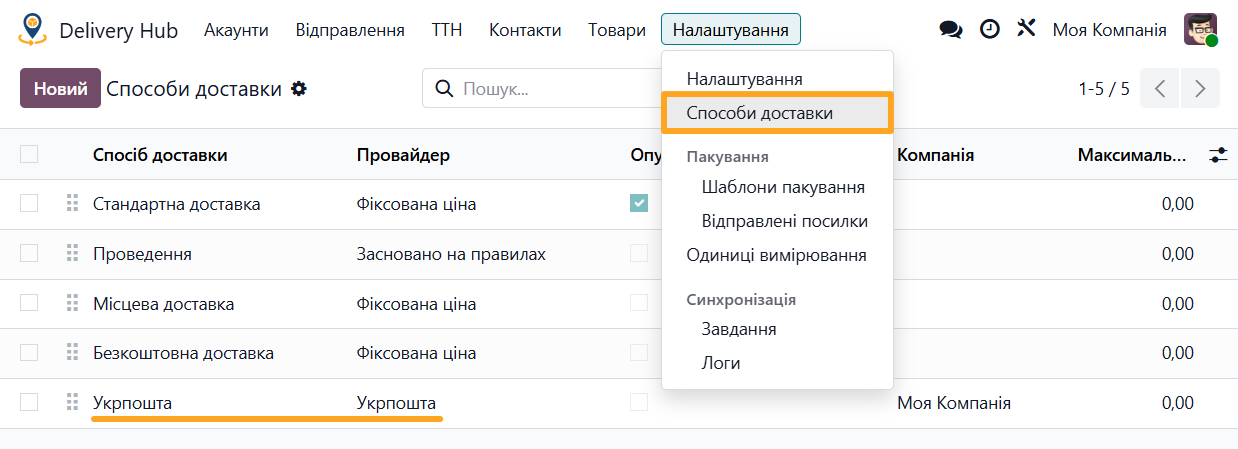
After installing the module, go to the Delivery Hub — Configuration — Shipping Methods menu. Open the Ukrposhta shipping method.

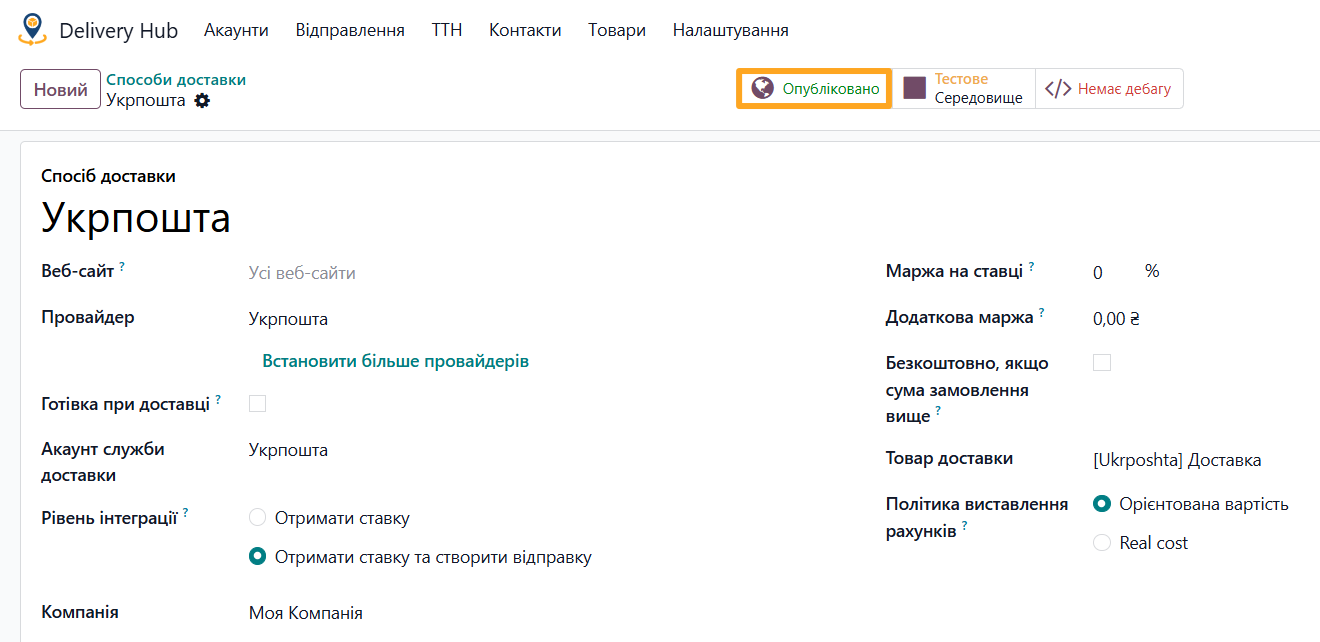
Switch the shipping method status to Published to make it available on your website.

Delivery Checkout
The Odoo checkout process includes several steps. Delivery selection is performed after entering buyer data.
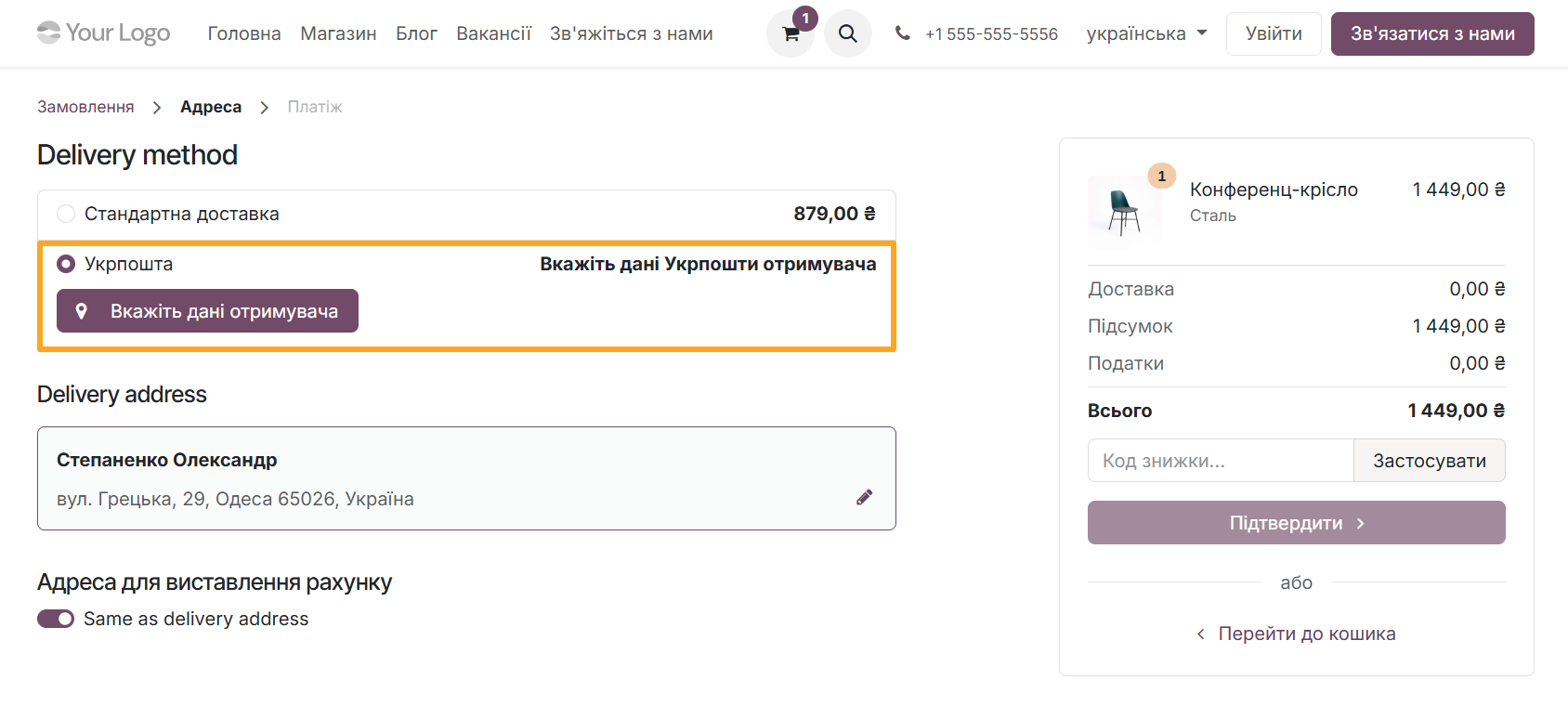
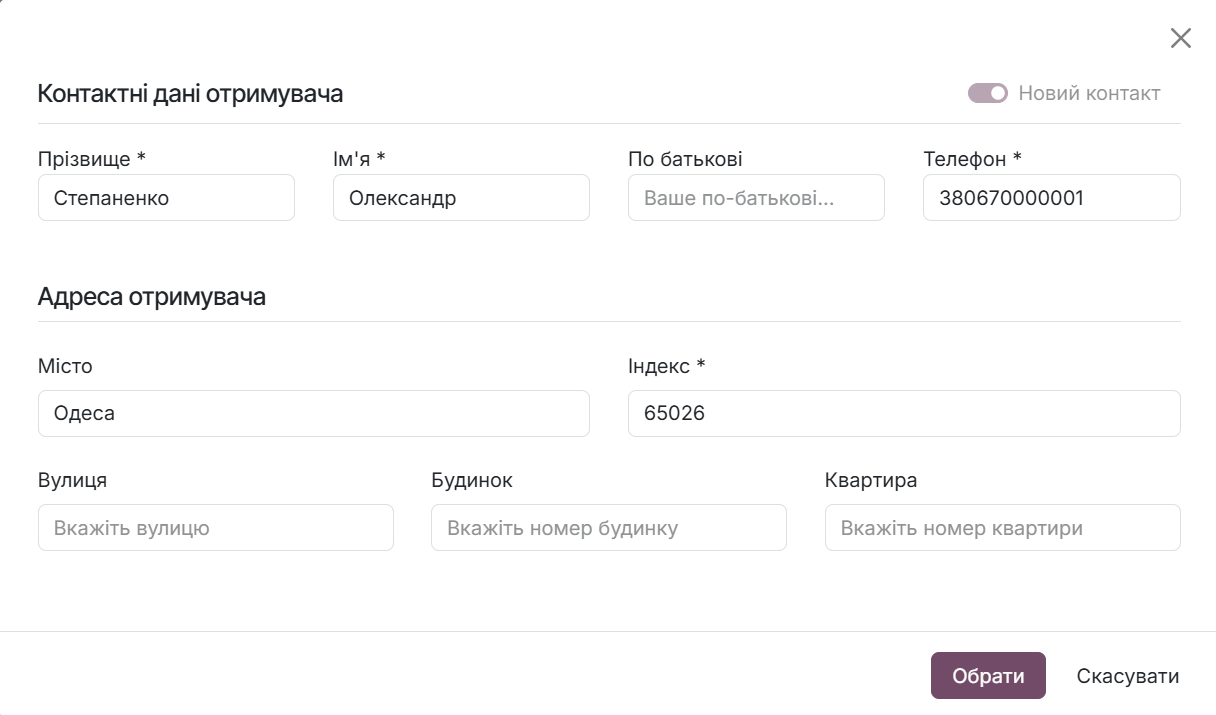
To select Ukrposhta delivery for an order, choose the Ukrposhta shipping method. Then click Specify Destination and enter the information in the special form.
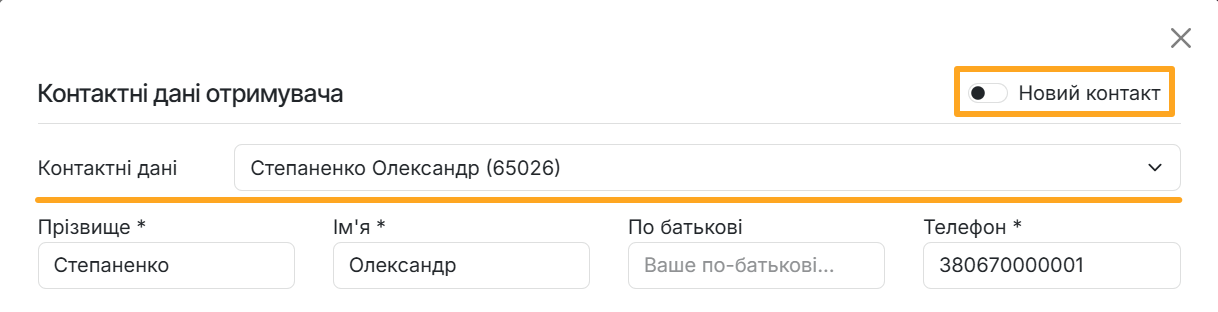
For customers who have already made purchases and have access to a personal account on the website, Ukrposhta data is saved for reuse. In this case, you can also add another address or recipient by enabling the New Contact option.
After entering the data, click Select. The form closes, and the module automatically calculates shipping costs and creates a shipment.
Changelog
19.0.1.0.0 2026-05-22
- Migration from 18.0.
18.0.1.0.0 2026-05-22
- Init version.
Resources

How to ship products across Ukraine and worldwide via Nova Post delivery service in Odoo
Step-by-Step Guide to Connecting Nova Poshta to Odoo

Learn how to configure data synchronization with Nova Post and connect a real-time waybill status update mechanism