

Label Builder GS1 Barcodes
The Odoo Label Builder GS1 Barcodes app extends the functionality of the Label Builder Professional Edition by adding support for GS1-format barcodes on labels.
| Availability |
Odoo Online
Odoo.sh
On Premise
|
|---|---|
| Compatibility |
Community
Enterprise
|
| Technical Name | garazd_product_label_gs1 |
| Version | 20.0.1.0.0 |
| License | OPL-1 |
| Category | |
| Support | Free 60 days support and 360 days bug-fixing |
Use Case

Jorem ipsum dolor sit amet, consectetur adipiscing elit. Nunc vulputate libero et velit interdum, ac aliquet odio mattis. Class aptent taciti sociosqu ad litora torquent per conubia nostra, per inceptos himenaeos.
Forem ipsum dolor sit amet, consectetur adipiscing elit. Nunc vulputate libero et velit interdum, ac aliquet odio mattis. Class aptent taciti sociosqu ad litora torquent per conubia nostra, per inceptos himenaeos.
Dorem ipsum dolor sit amet, consectetur adipiscing elit. Nunc vulputate libero et velit interdum, ac aliquet odio mattis.
It is a long established fact that a reader will be distracted by the readable content of a page
Korem ipsum dolor sit amet, consectetur adipiscing elit. Nunc vulputate libero et velit interdum, ac aliquet odio mattis. Class aptent taciti sociosqu ad litora torquent per conubia nostra, per inceptos himenaeos.
Korem ipsum dolor sit amet, consectetur adipiscing elit. Nunc vulputate libero et velit interdum, ac aliquet odio mattis.
Odoo App Installation
Upload modules
Upload modules from the ZIP archive to your Odoo hosting, or a GitHub repository connected there.
Place the unzipped modules in your custom add-on directory and restart the Odoo system service.
Update App List
After restarting, activate the Developer Mode, and go to the Apps menu.

Click on Update Apps List to fetch the new modules in the list.
Activate the App
Install the new module, finding it by name and clicking on the Activate button.
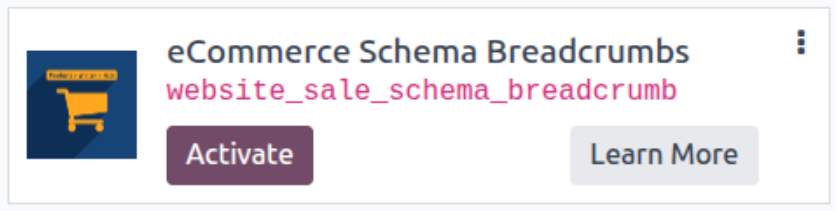
* If you don't see the module, try to remove the default Apps filter from the search bar.
Configuration
Follow the instructions in the module description to complete the installation process and start using the app.
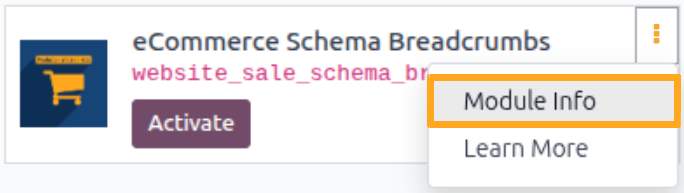

Manual

Usage

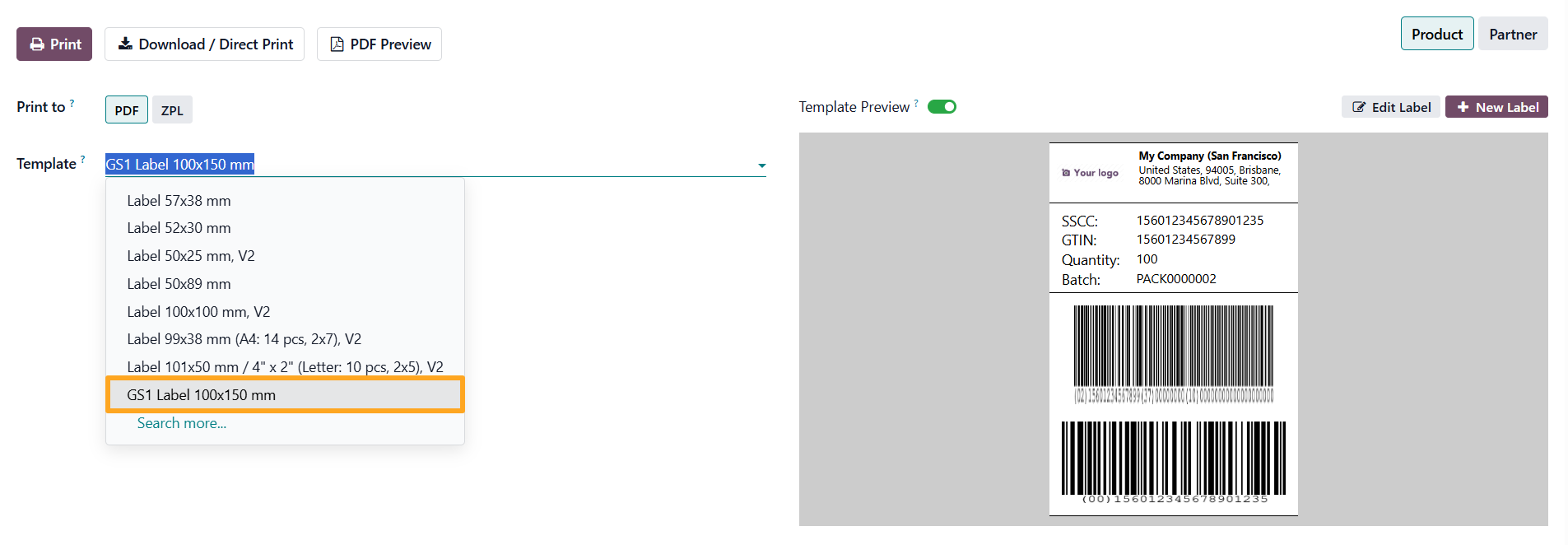
The module includes a template with GS1 barcodes available for editing:
Single Value
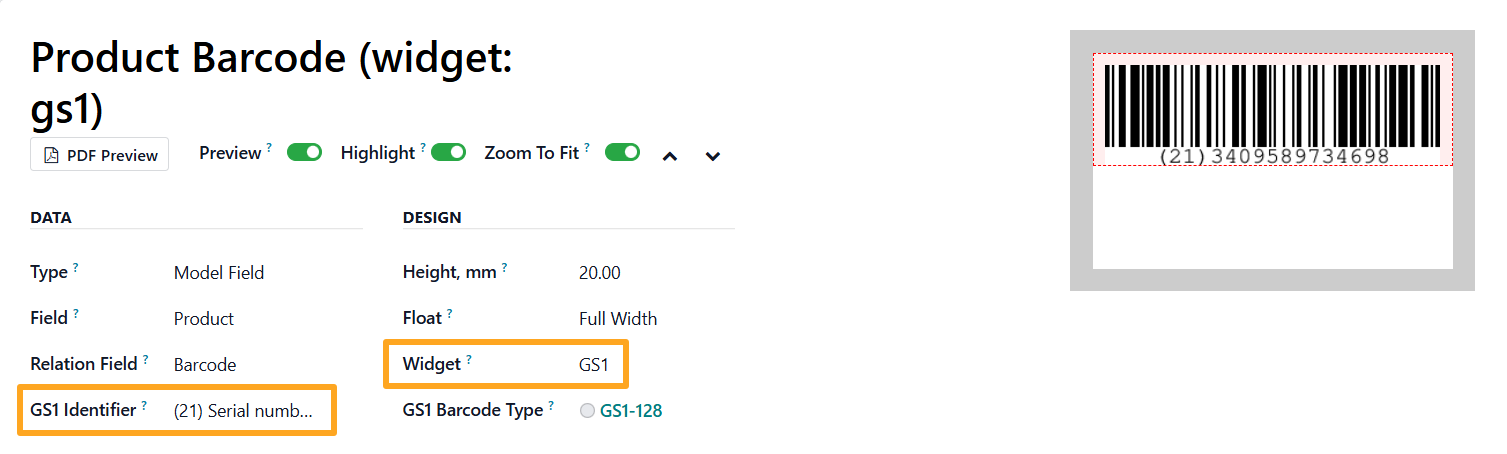
To add a GS1 barcode with a single value to a label:
-
01Go to the label template section
-
02Fill in the Data section by selecting a desired field
-
03In the Design section, choose the GS1 widget
-
04In the Data section, select the GS1 Identifier corresponding to the field value
To manage the barcode appearance, select the GS1 Barcode Type in the Design section:
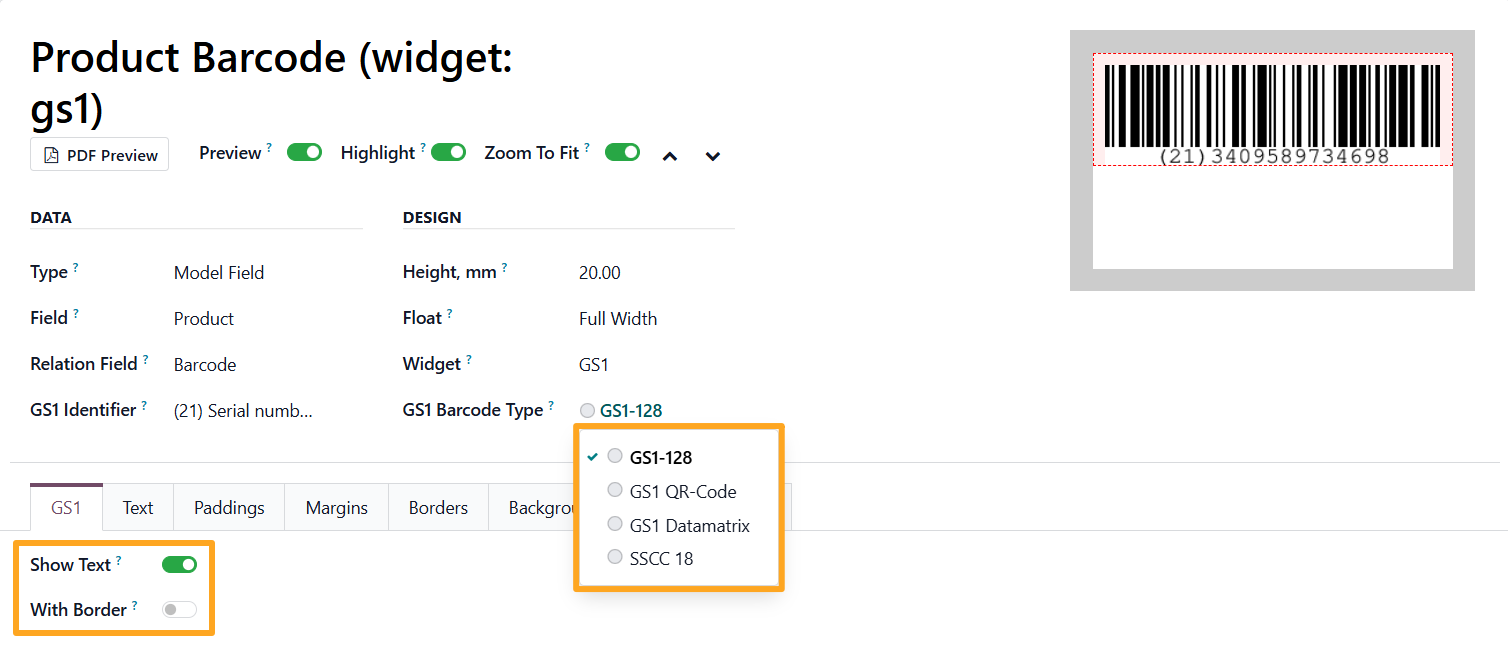

On the GS1 tab, configure the following options:
- Show Text to display the text value under the barcode
- With Border to add a border to the barcode
Multiple Values
To add a GS1 barcode composed of multiple values, use a group section:
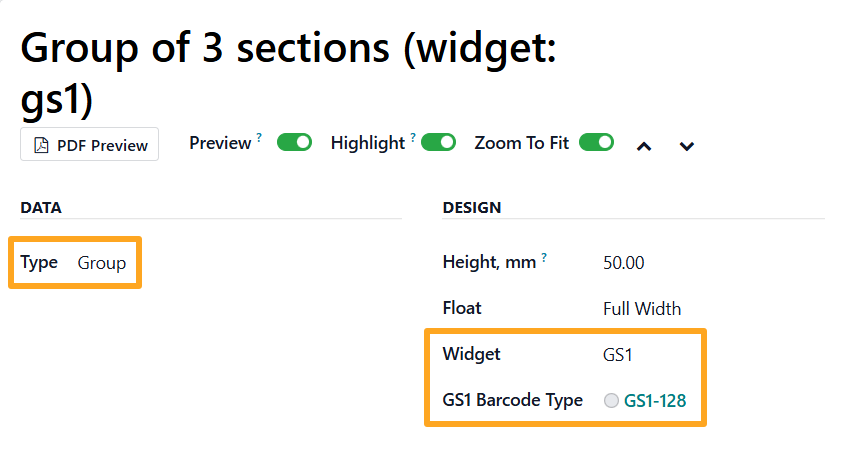
-
01Go to the label template section
-
02In the Data section, select Group as a Type
-
03In the Design section, choose GS1 as a Widget, and select a GS1 Barcode Type
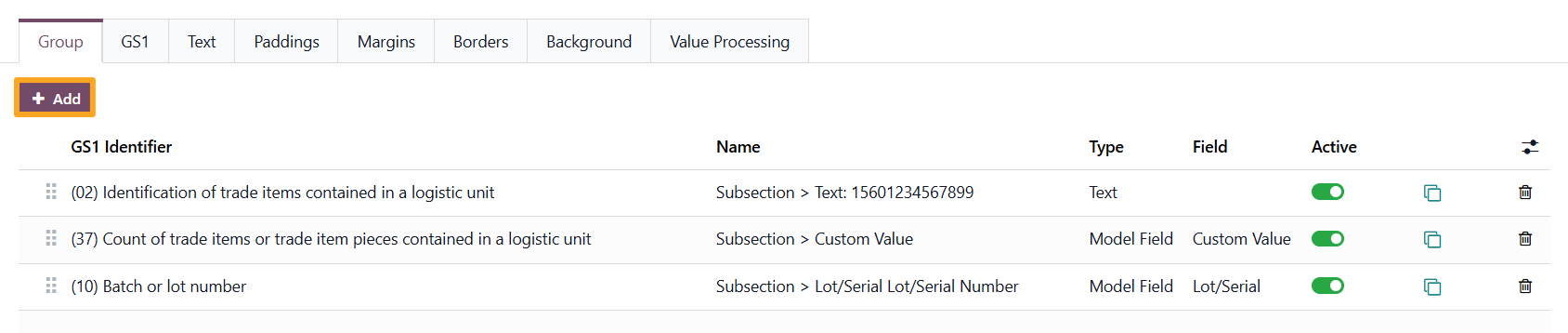
Then open the Group tab and click Add to create a new subsection:
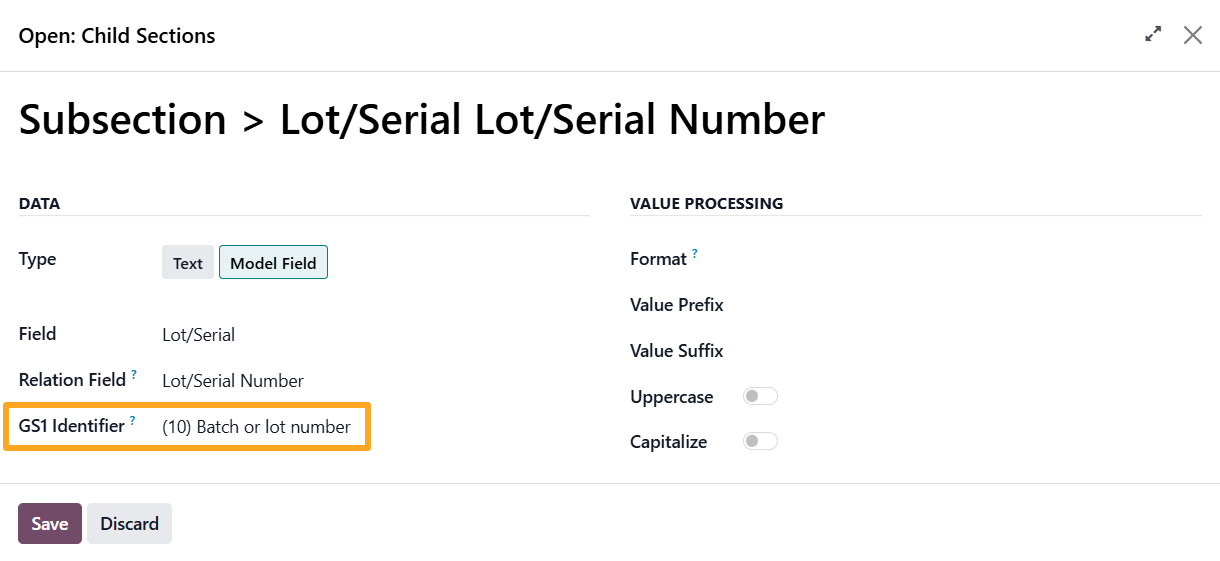
In the pop-up window, select a desired field or enter a custom value and choose the corresponding GS1 Identifier:
Label Samples
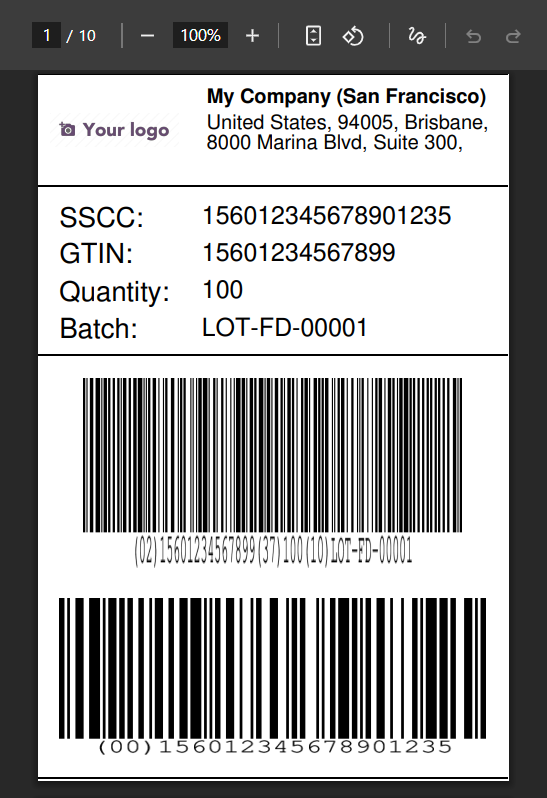
Example of a 100×150 mm label with GS1 barcodes in PDF format:
Changelog
18.0.1.0.2 2026-06-23
- Add new non-GS1 barcodes: PDF417, Aztec Code, ITF-14, Code 39, and Code 93.
18.0.1.0.1 2026-05-26
- Add more application identifiers.
18.0.1.0.0 2026-04-07
- Init version.
19.0.1.0.4 2026-07-28
- Add ES, FR, IT, NL, PL, RO translations.
19.0.1.0.3 2026-06-23
- Add new non-GS1 barcodes: PDF417, Aztec Code, ITF-14, Code 39, and Code 93.
19.0.1.0.2 2026-06-15
- Improve barcode image handling.
19.0.1.0.1 2026-05-26
- Add more application identifiers.
19.0.1.0.0 2026-04-09
- Migration from 18.0.
17.0.1.0.1 2026-06-20
- Add new non-GS1 barcodes: PDF417, Aztec Code, ITF-14, Code 39, and Code 93.
17.0.1.0.0 2026-05-26
- Migration from 18.0.
20.0.1.0.0 2026-09-22
- Migration from 19.0.
Resources
Create GS1 labels according to international standards with Label Builder
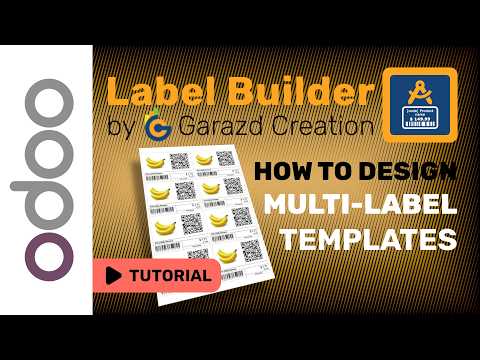
How to design a multi-label layout with Odoo Label Builder by Garazd Creation

Complete Review of Odoo Label Builder Apps by Garazd Creation