

What Is Google First-Party Mode
Google First-party mode is a way to configure Google tags so that analytics and advertising tools operate through your own domain rather than directly through Google’s third-party domains. In simple terms, data from your website is transmitted as if it originates from your own domain.
Browsers and ad blockers increasingly restrict third-party requests to analytics services. As a result, some events may not appear in reports of:
- Google Analytics
- Google Ads
- Google Tag Manager
Google First-party mode helps reduce data loss because requests appear as first-party (from your own domain). This enhances analytics accuracy, improves ad campaign optimization, and enables more informed data-driven decisions.
Below is an overview of how to configure Google First-party mode on an Odoo website using Cloudflare.

Configuration on the Google Side
You can configure the Google Tag Gateway directly in the interface of your Google tag within Google Tag Manager, Google Analytics, or Google Ads.
The setup consists of four steps. The first step depends on the selected service, while the remaining steps are identical.
Step 1. Google Tag Manager
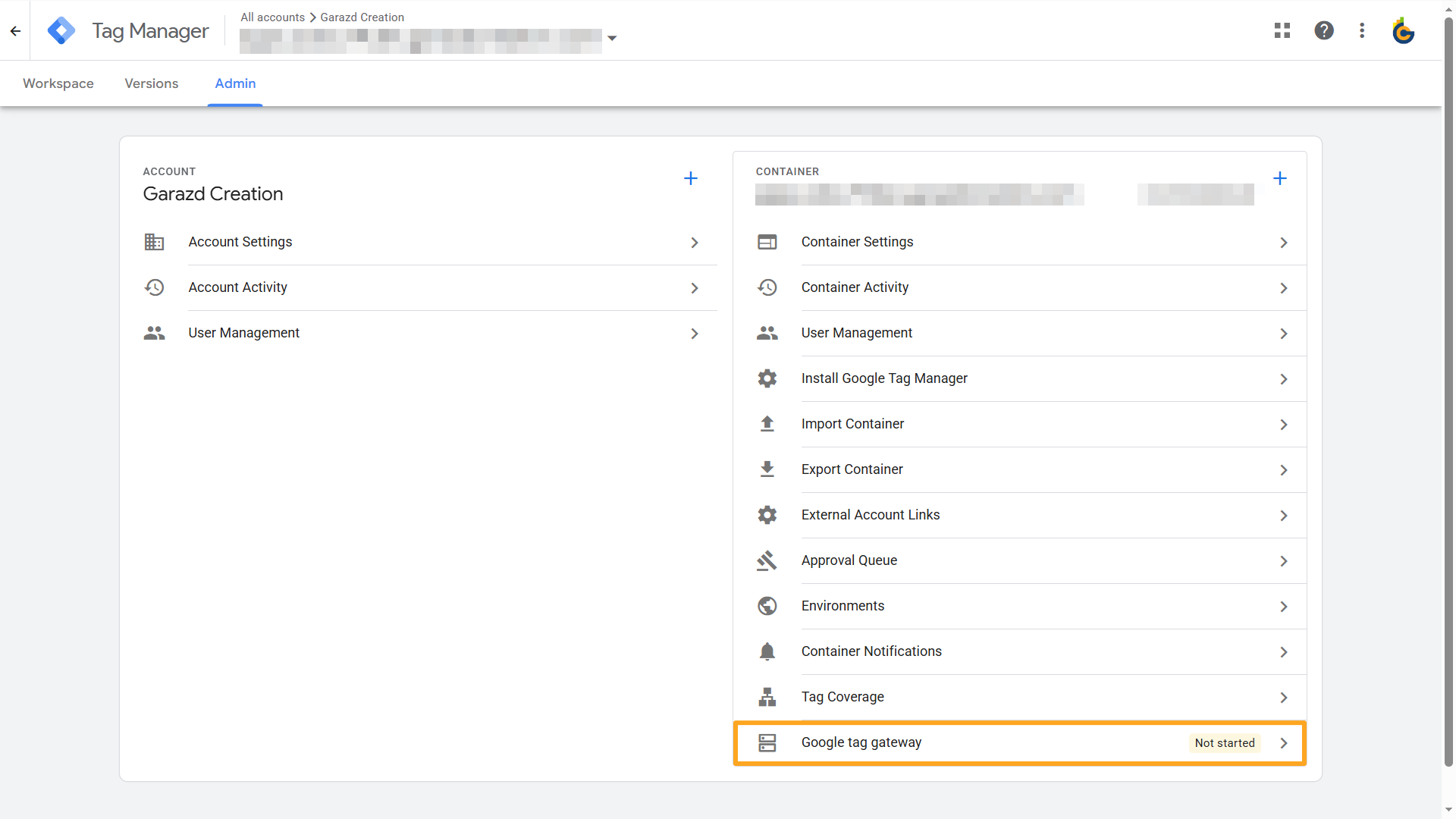
To activate in Google Tag Manager, go to Admin — Google tag gateway:
Step 1. Google Analytics
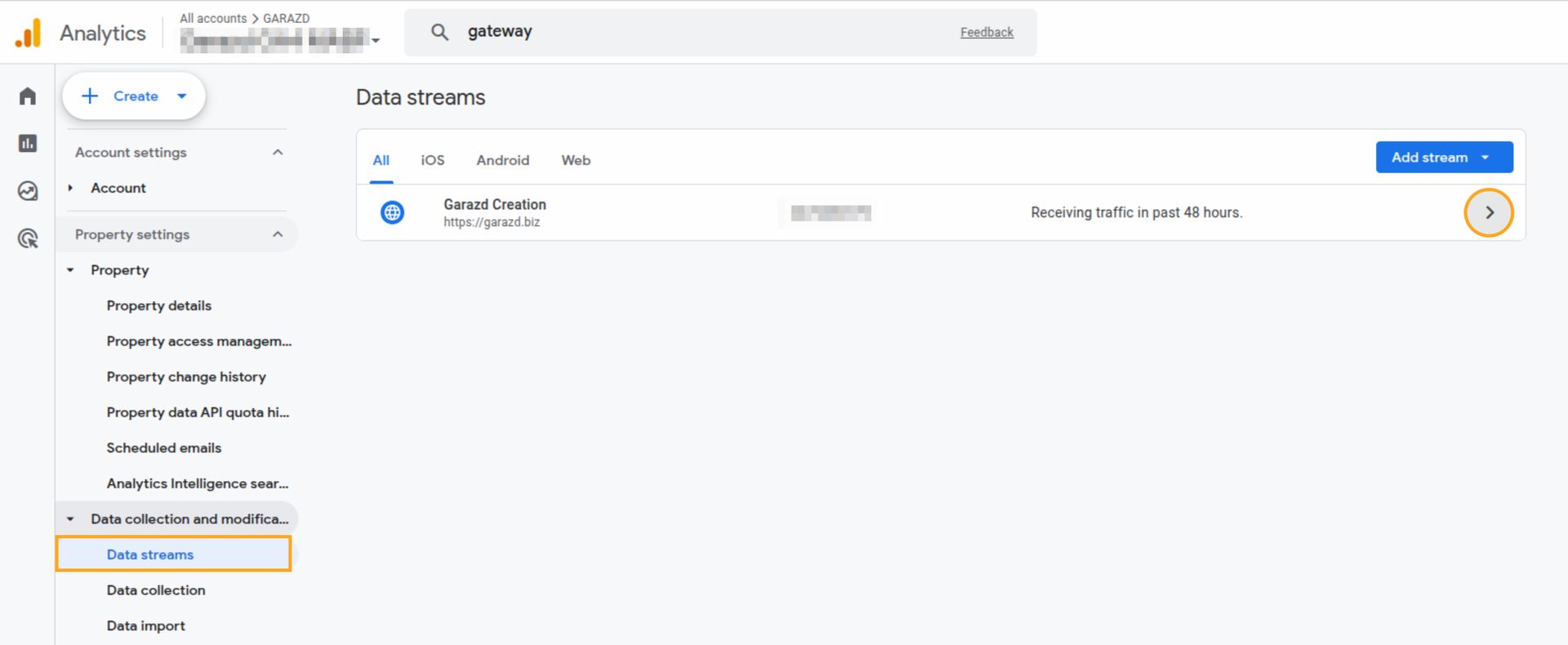
In Google Analytics, go to Admin — Data Streams, then open your data stream:
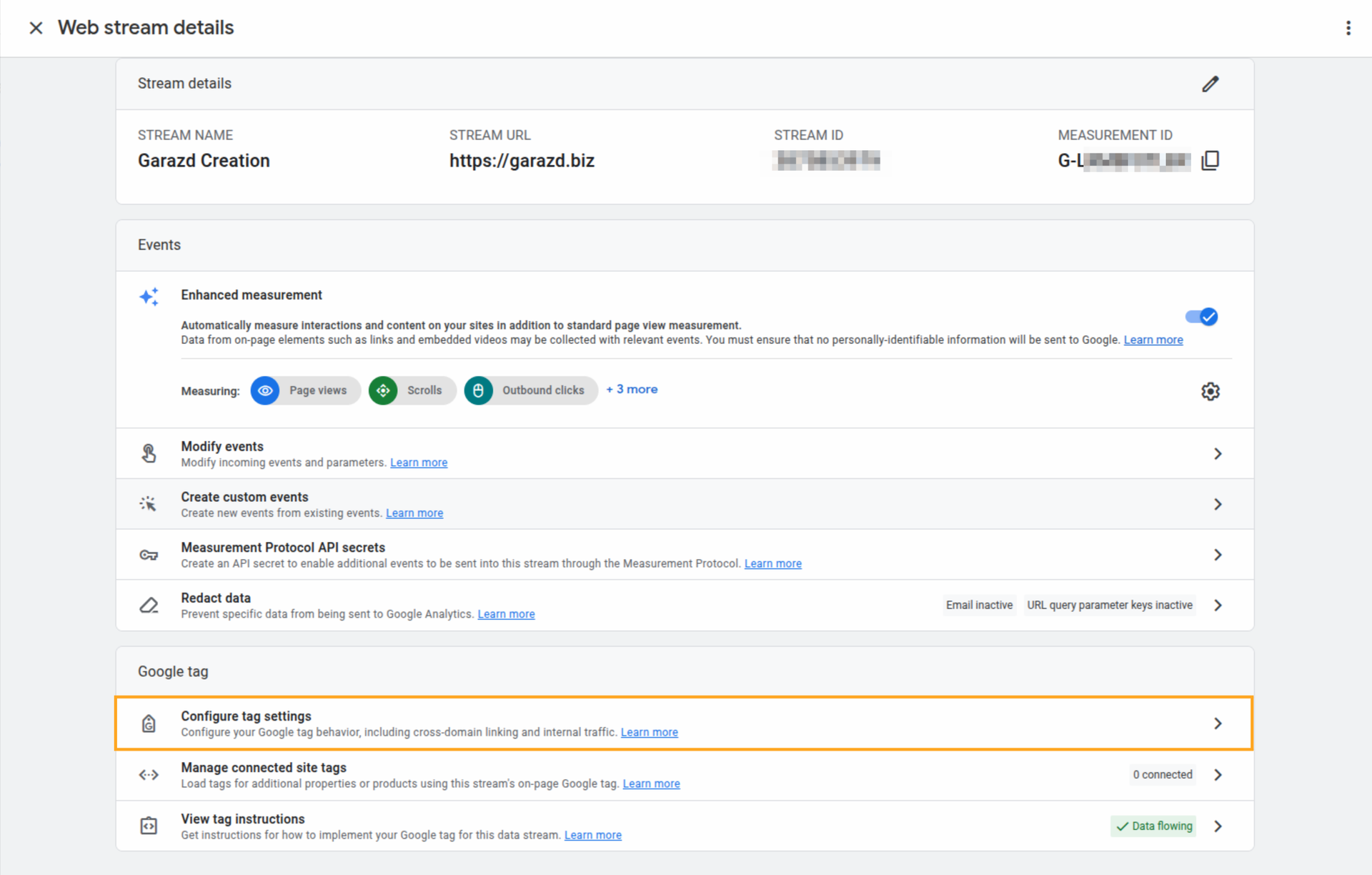
In the Google tag section, click Configure tag settings:
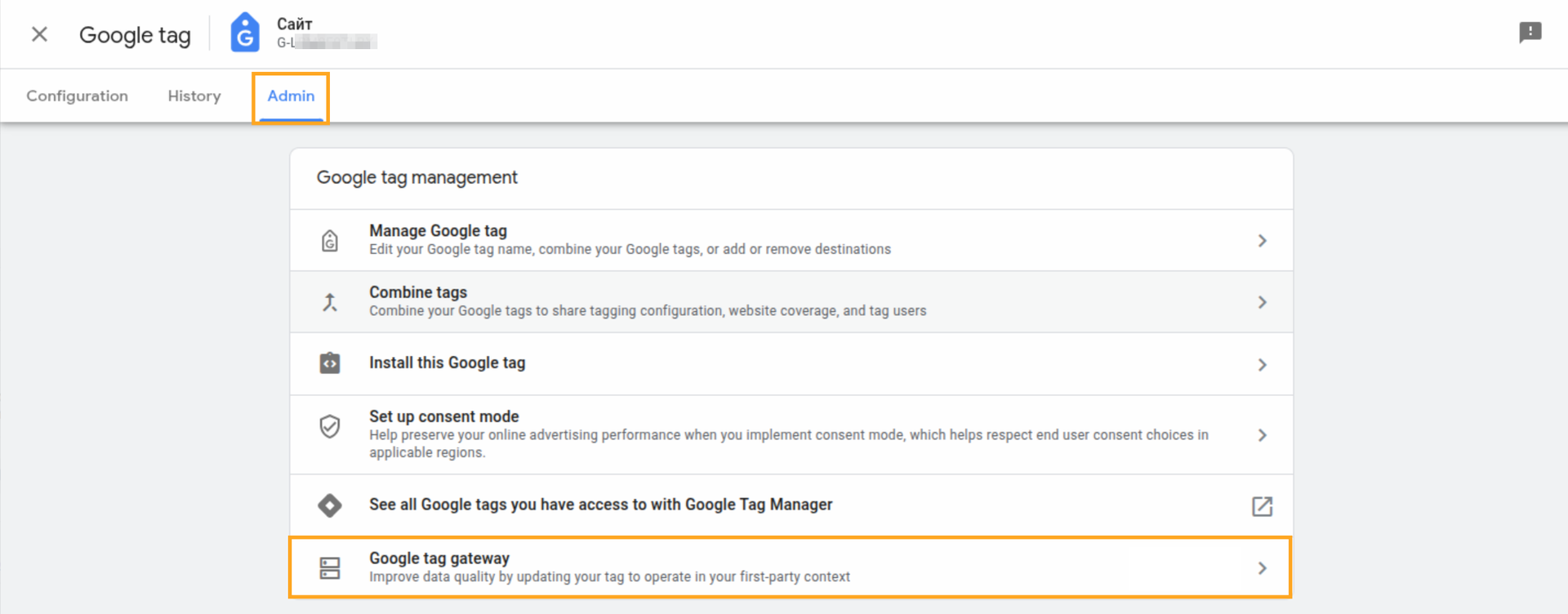
In the Admin tab, select Google tag gateway:
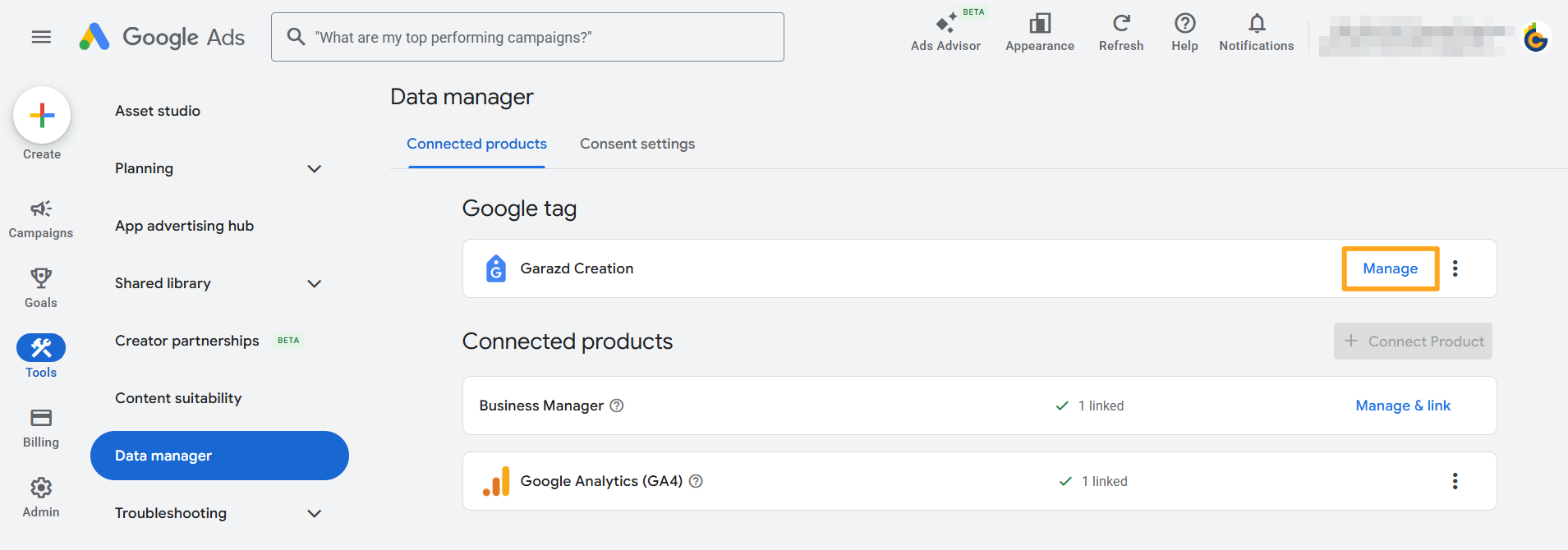
Step 1. Google Ads
In Google Ads, go to Tools — Data Manager, then in the Google tag section, click Manage:
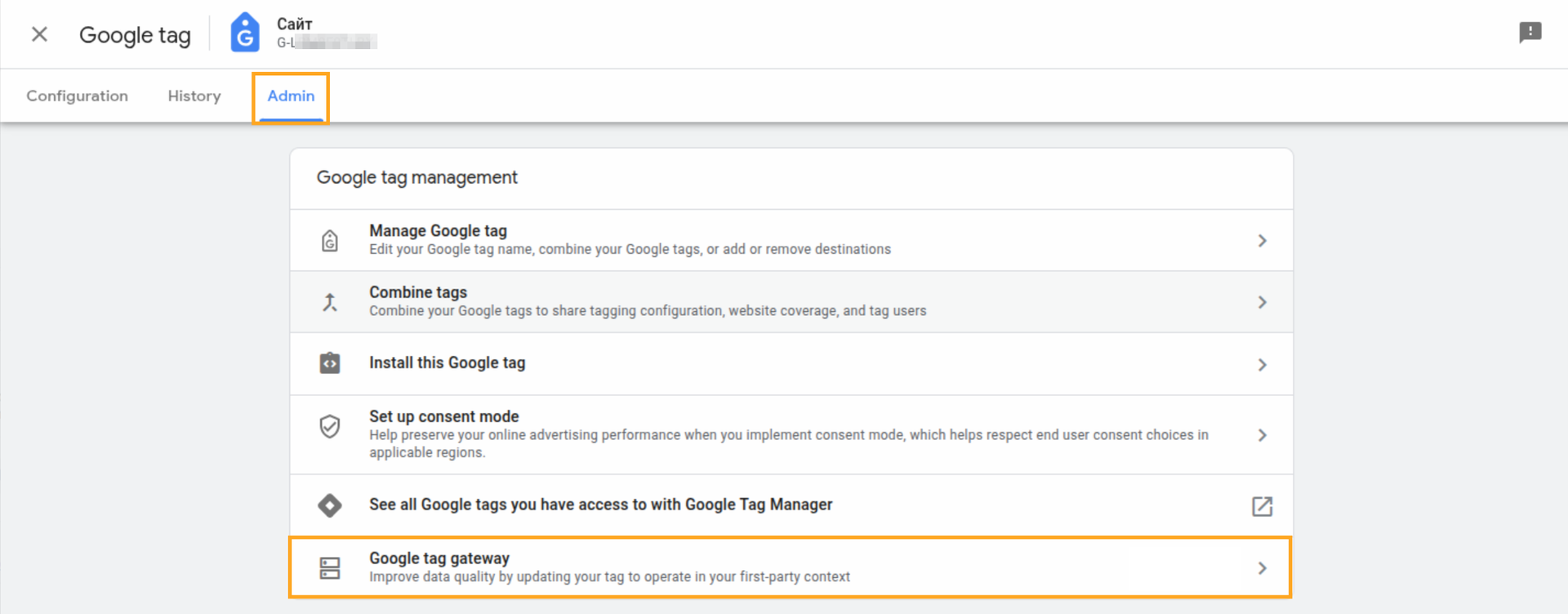
In the Admin tab, click Google tag gateway:
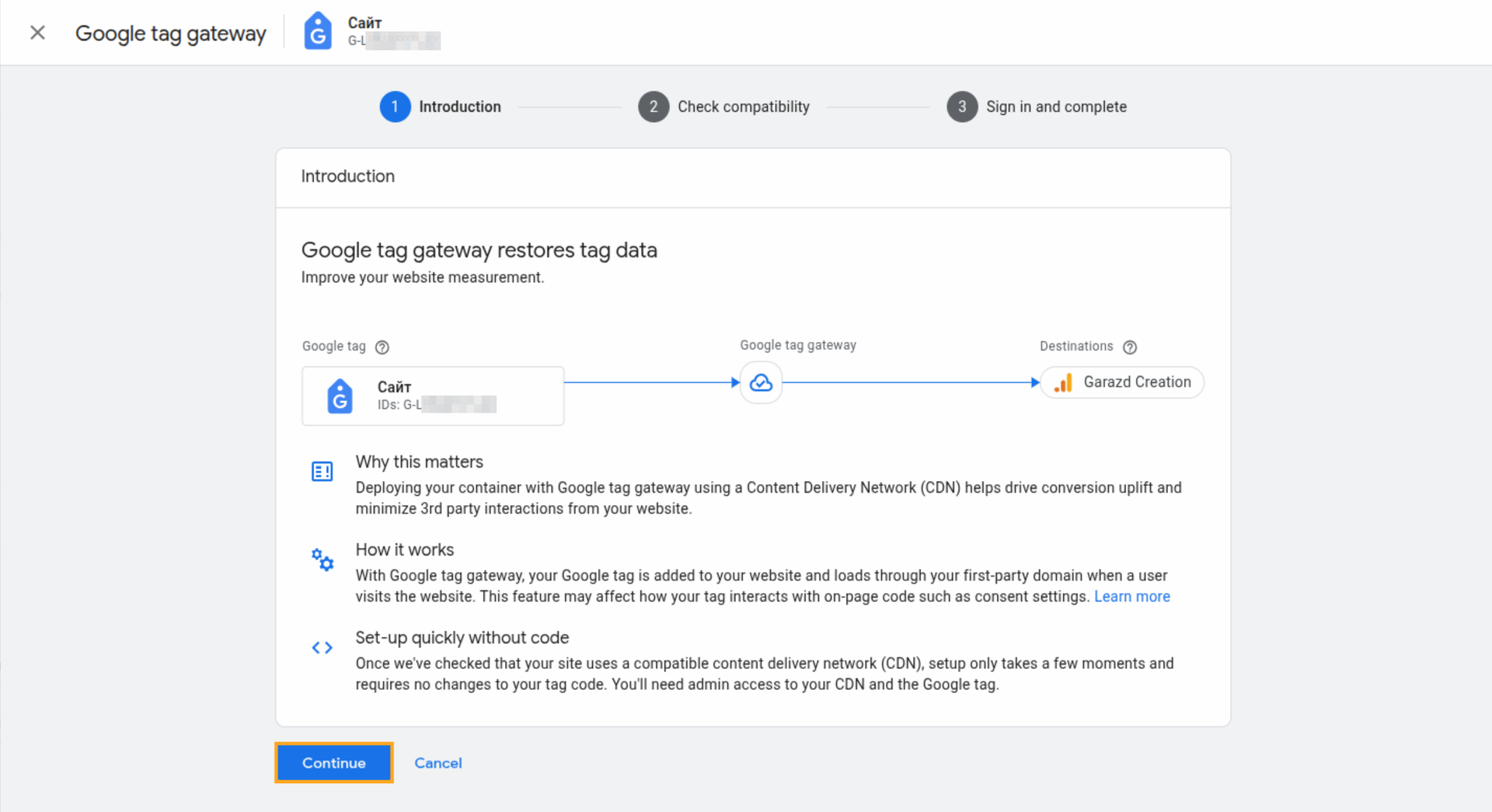
Step 2. Introduction
Click Continue on this step:
Step 3. Platform Selection
Select Cloudflare as the platform and click Continue:
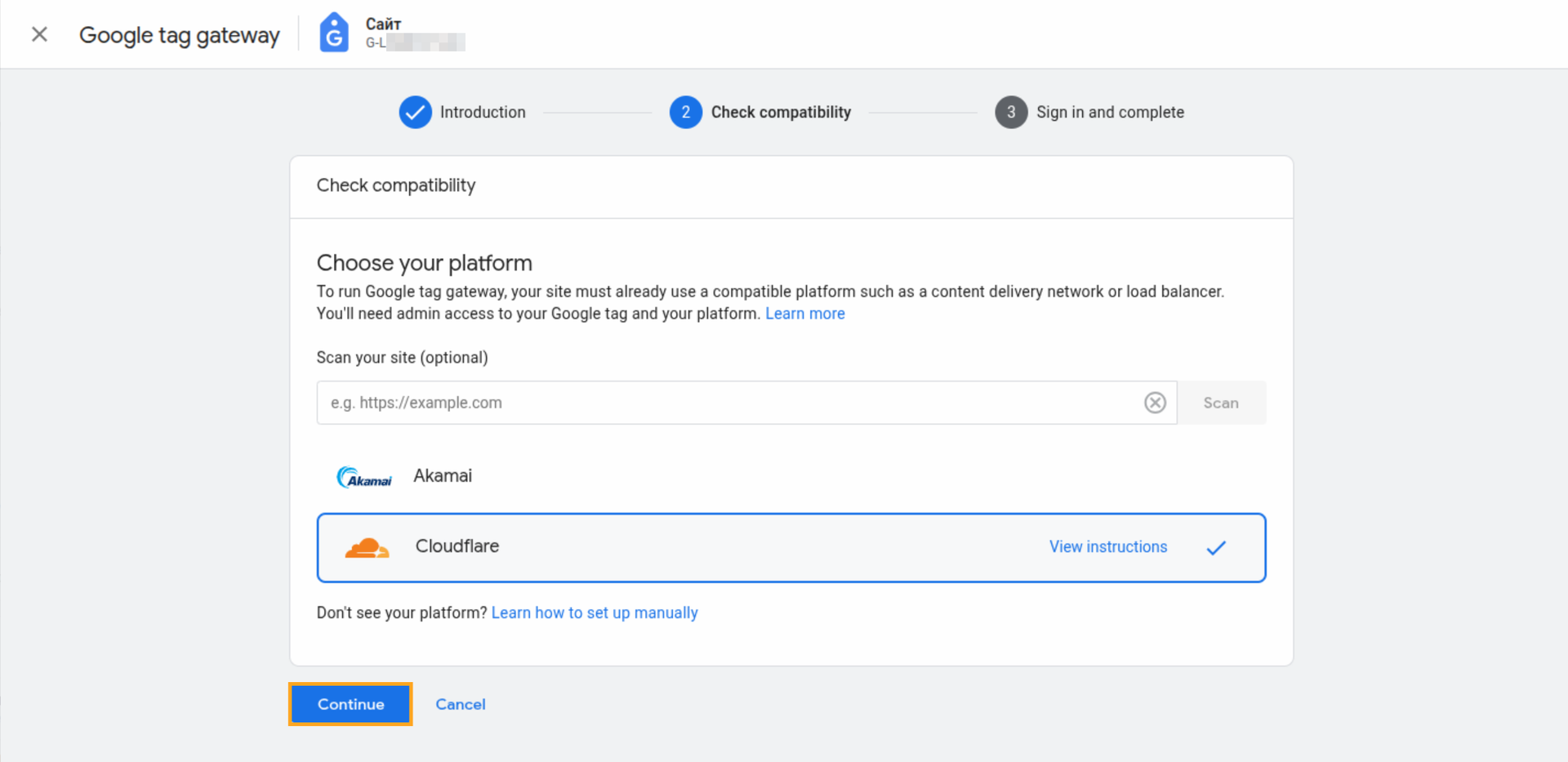

Don’t see your platform? Learn how to set up manually.
Step 4. Sign In and Complete Setup
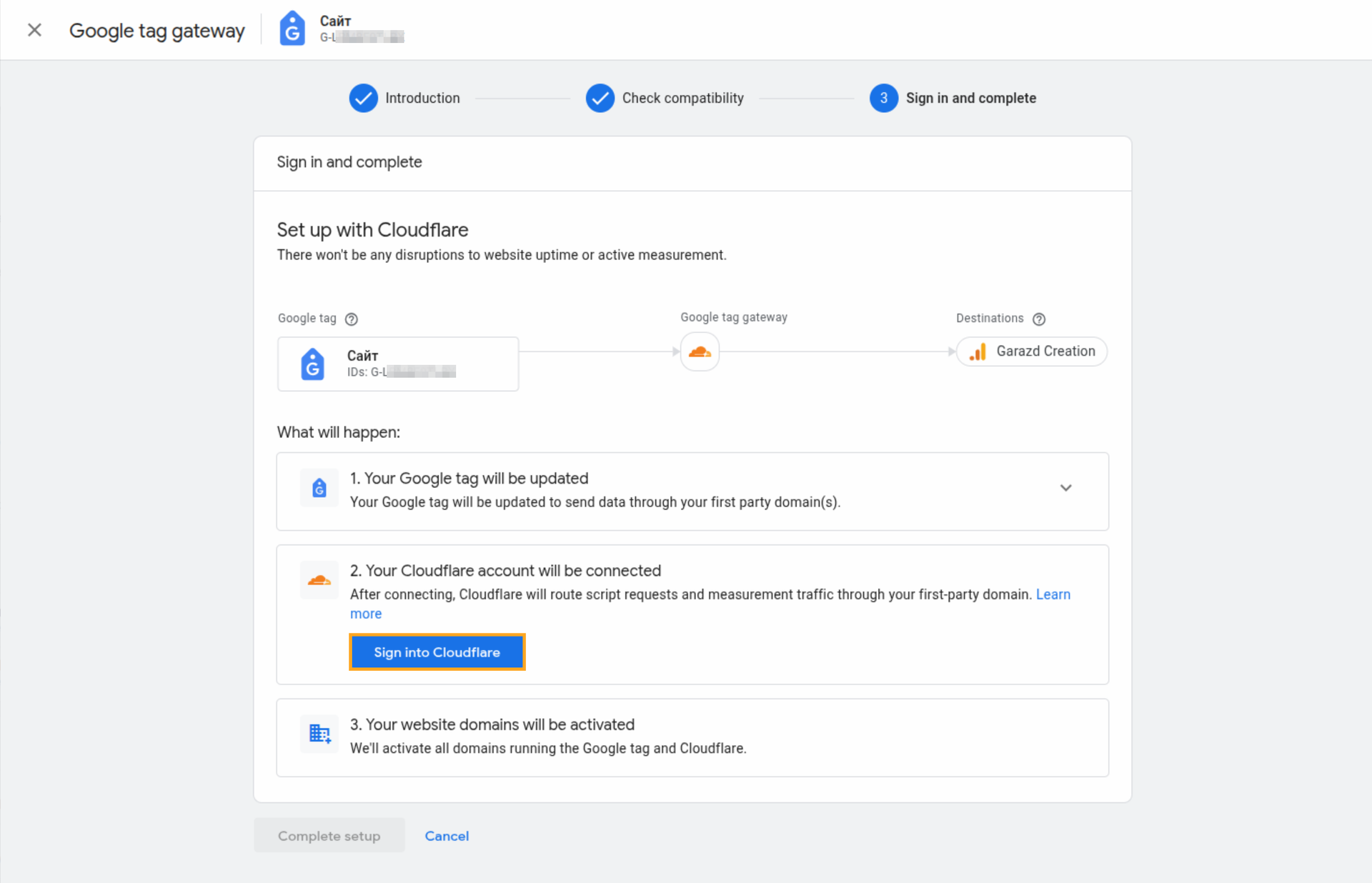
Choose Sign into Cloudflare to authorize your account:
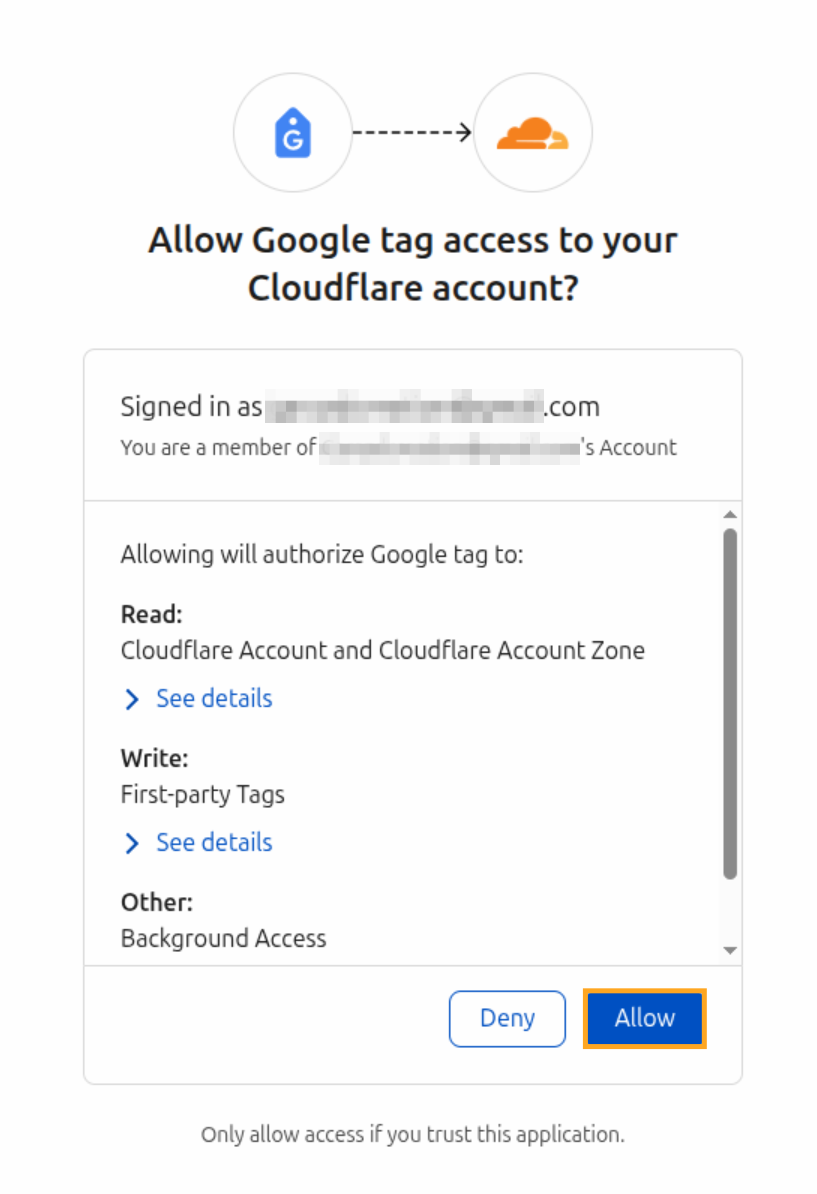
In the authorization window, click Allow:
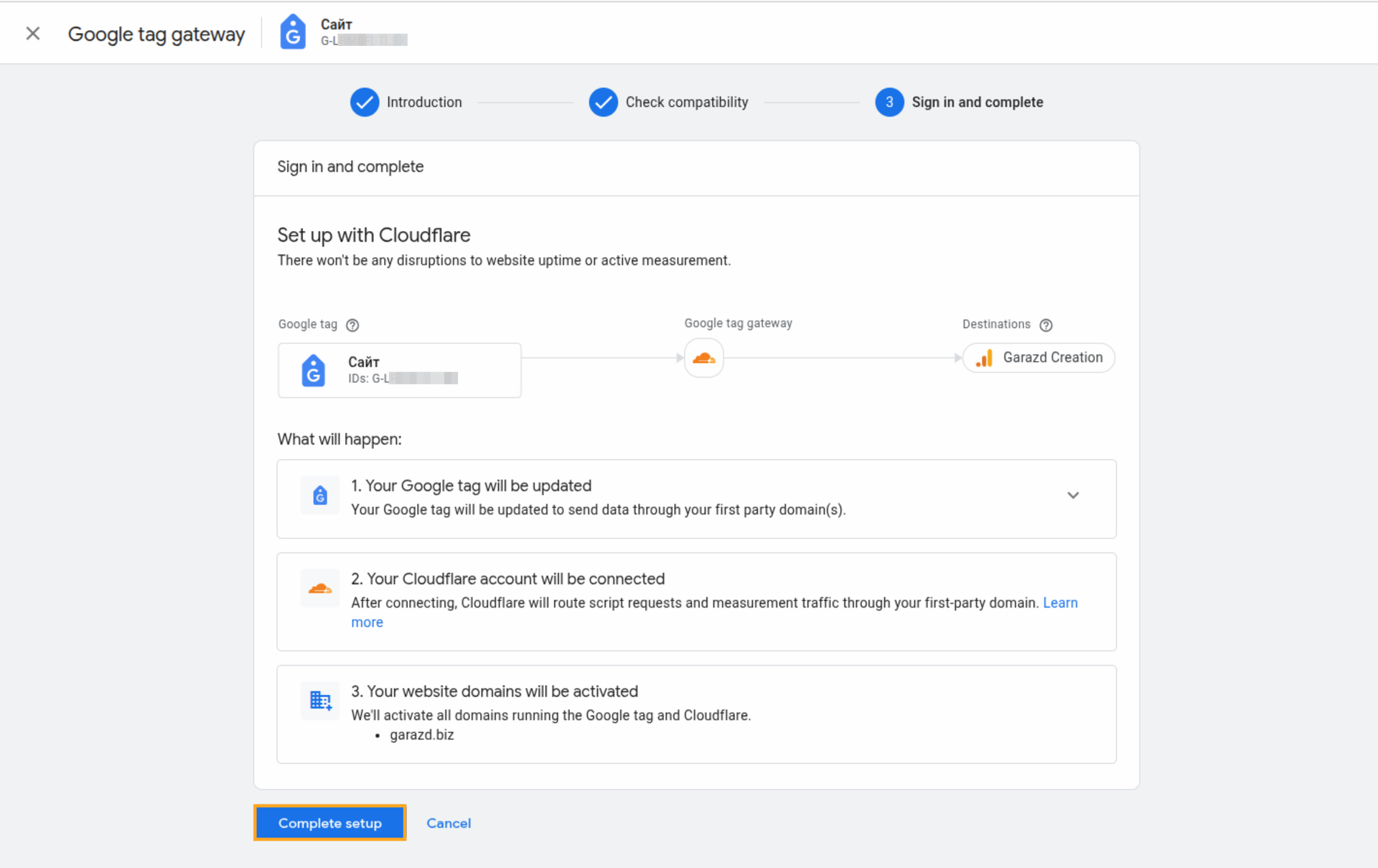
Then click Complete setup:
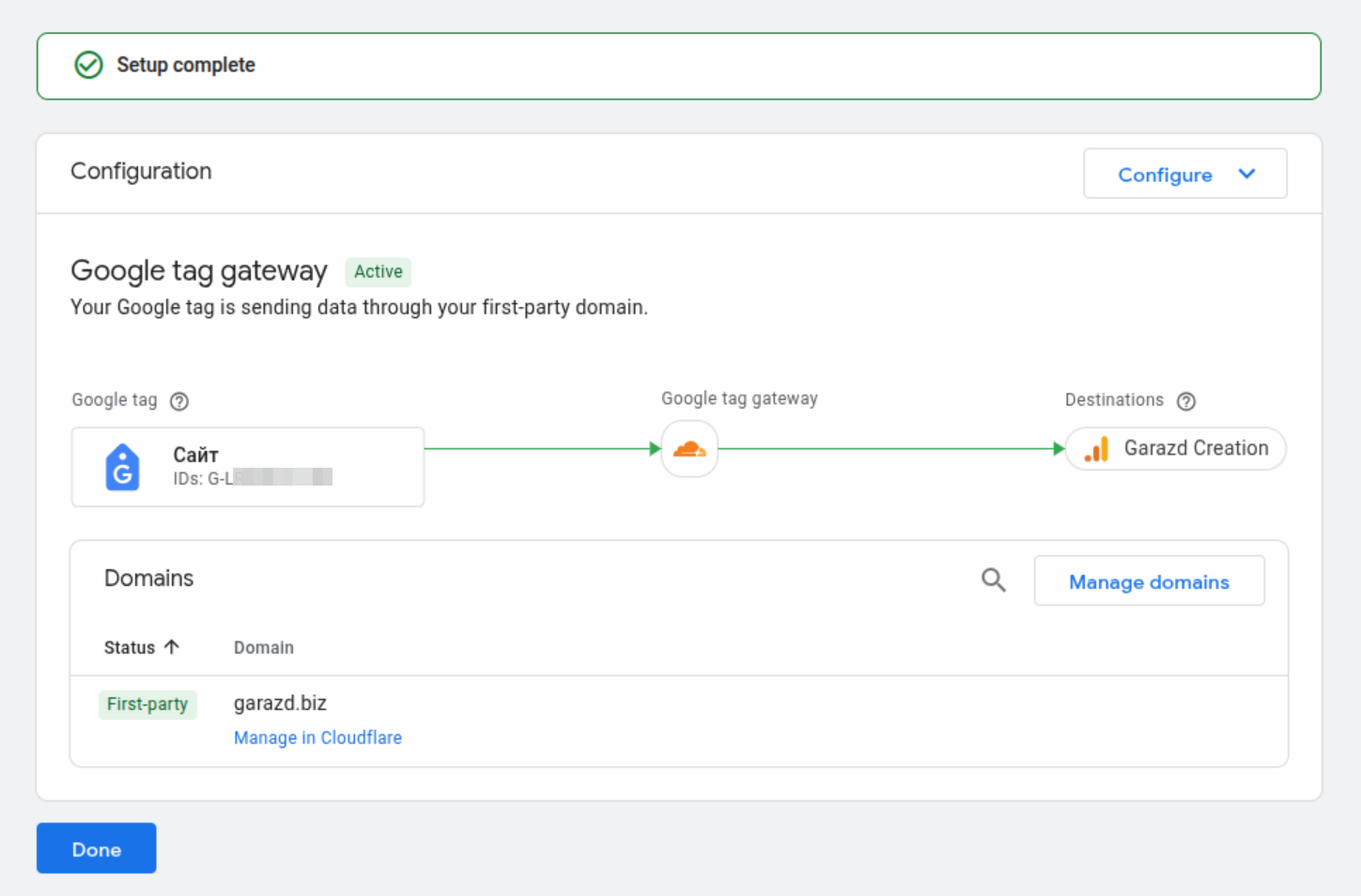
Google-side configuration is finished:

Configuration on the Cloudflare Side
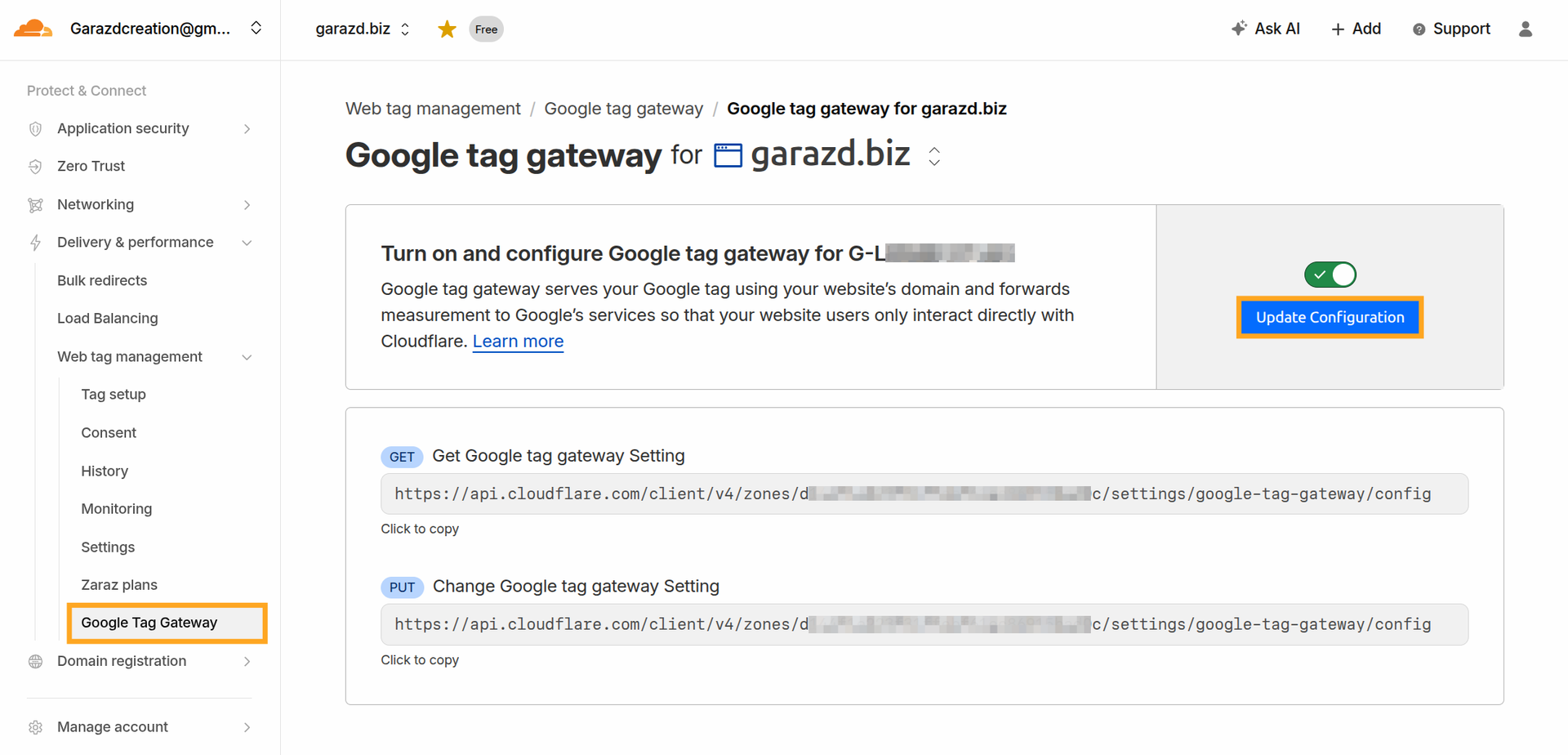
Log in to your Cloudflare account. Go to Delivery & Performance — Web tag management — Google Tag Gateway and click Update Configuration:
Enter the path on your website reserved for the Google Tag Gateway and click Save:
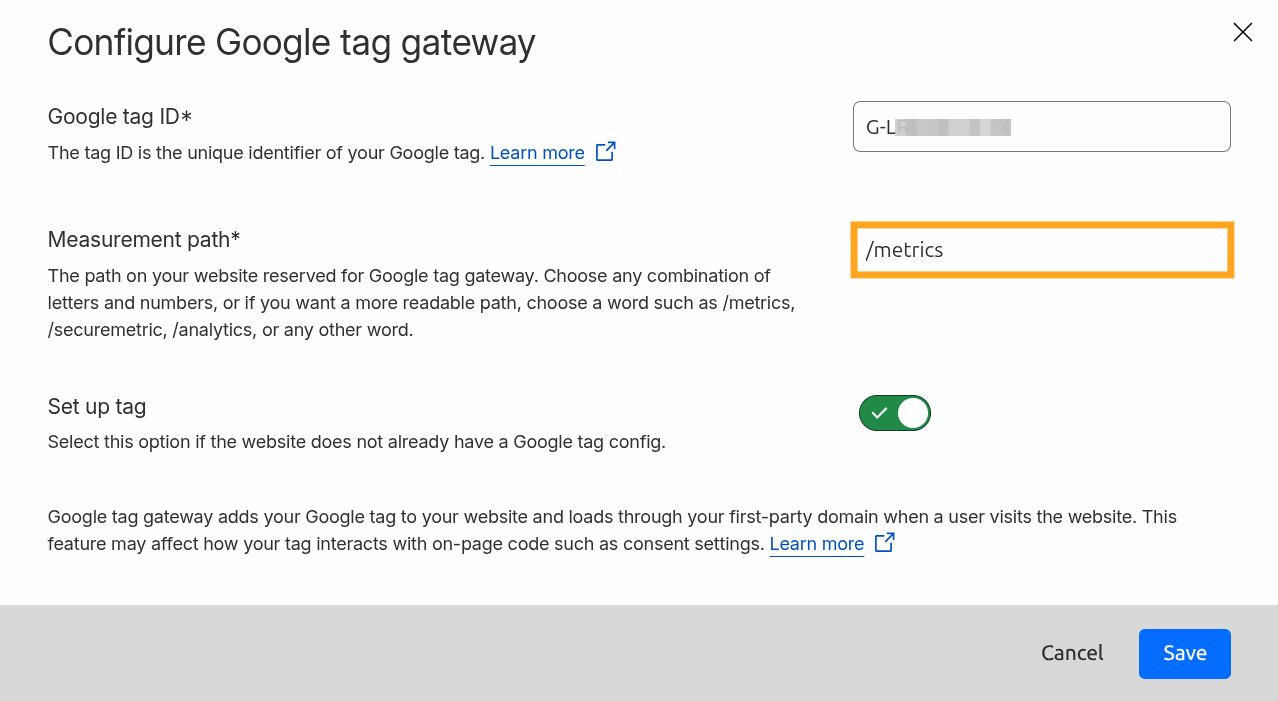
Disable the Set up tag option as the Google Tag script is already added to website pages by the Odoo app:


Activating First-Party Mode in Odoo
Google First-party Mode is included in the following solutions:
- Google Tag Manager Enhanced Conversions
- Google Ads Conversion Tracking
- Google Analytics 4 eCommerce
- GA Measurement Protocol
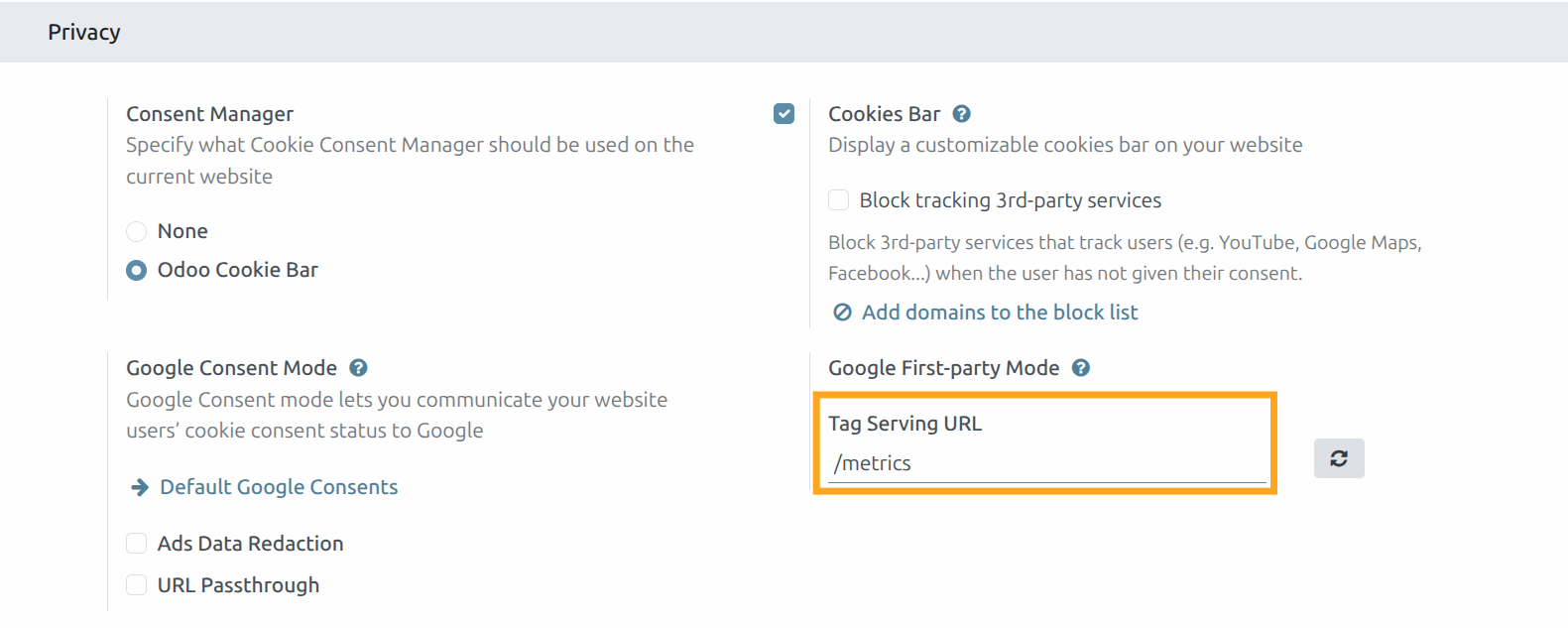
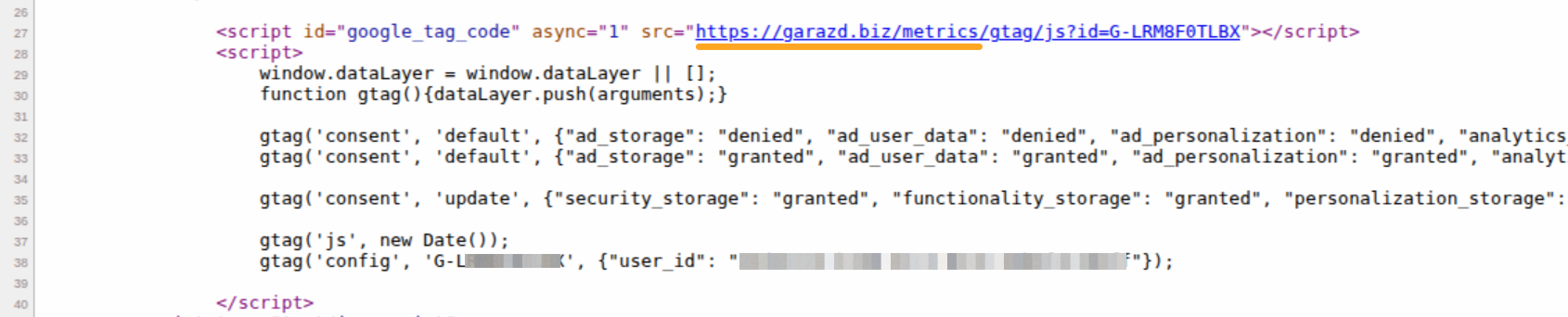
To activate it in Odoo, open the website settings and in the Google First-party Mode section, enter the measurement path in the Tag Serving URL field:

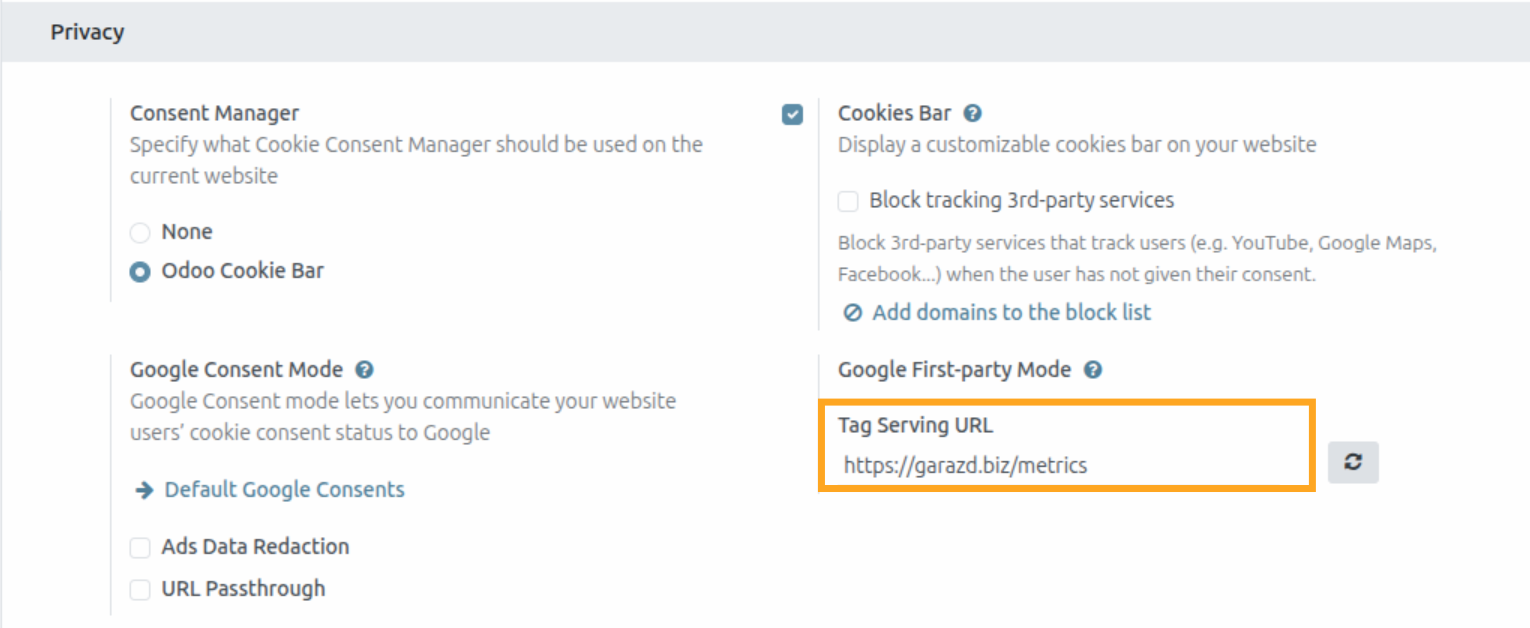
View the result in your website page source code:

Testing
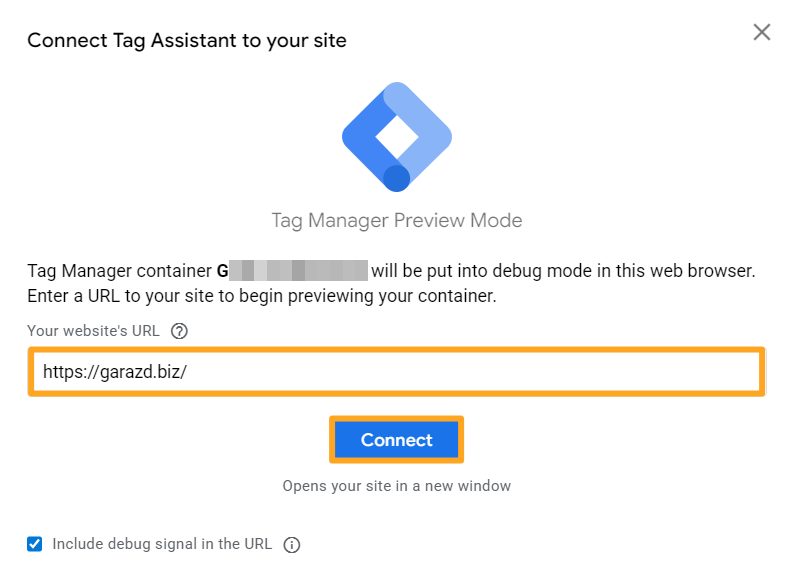
To verify the Google Tag Gateway for advertisers, use Tag Assistant if the Google Tag Manager tag is configured.
Open it, enter your website URL, and click Connect:
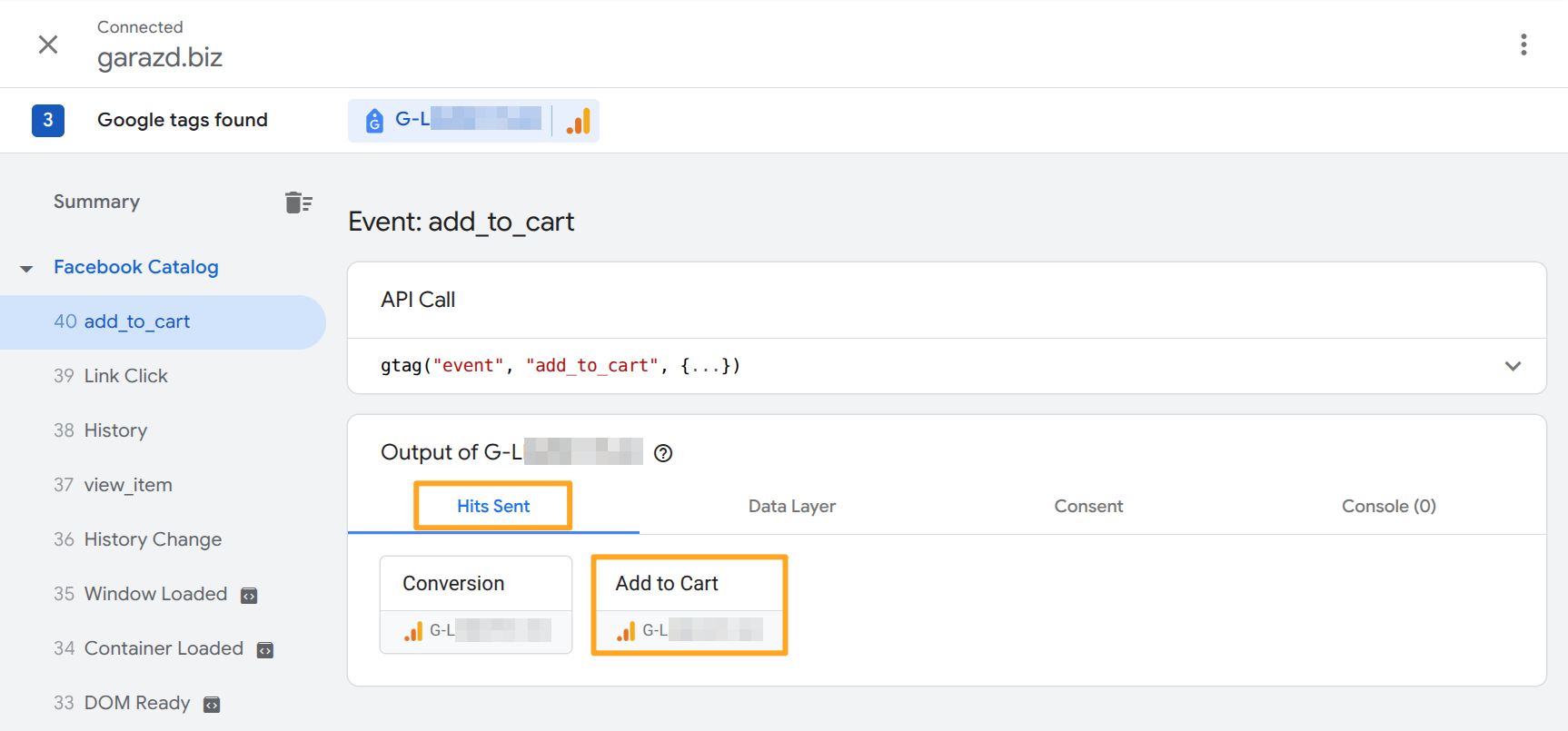
In the Output section under Hits Sent, open one of the hits:
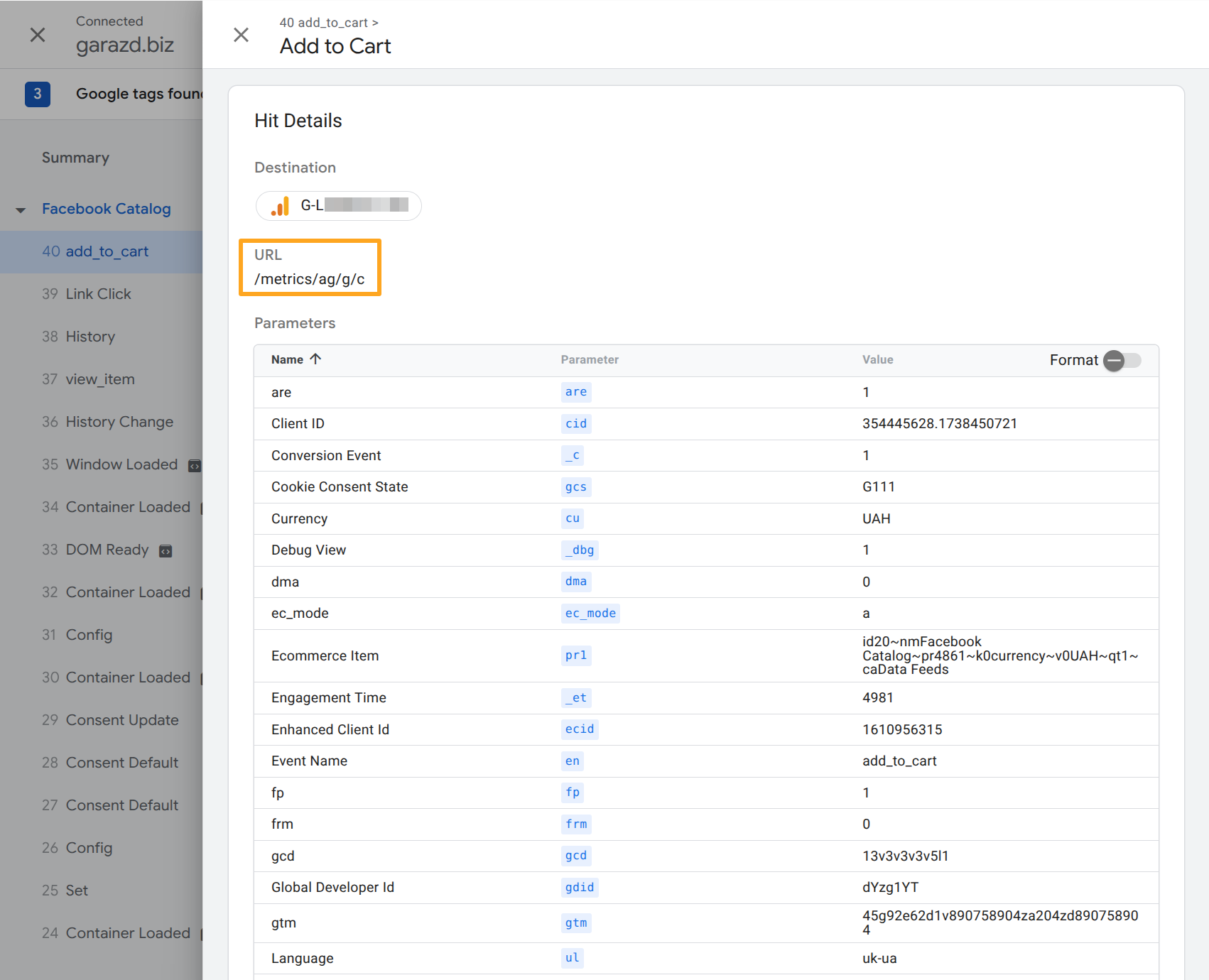
Check the tracking path in the URL field:
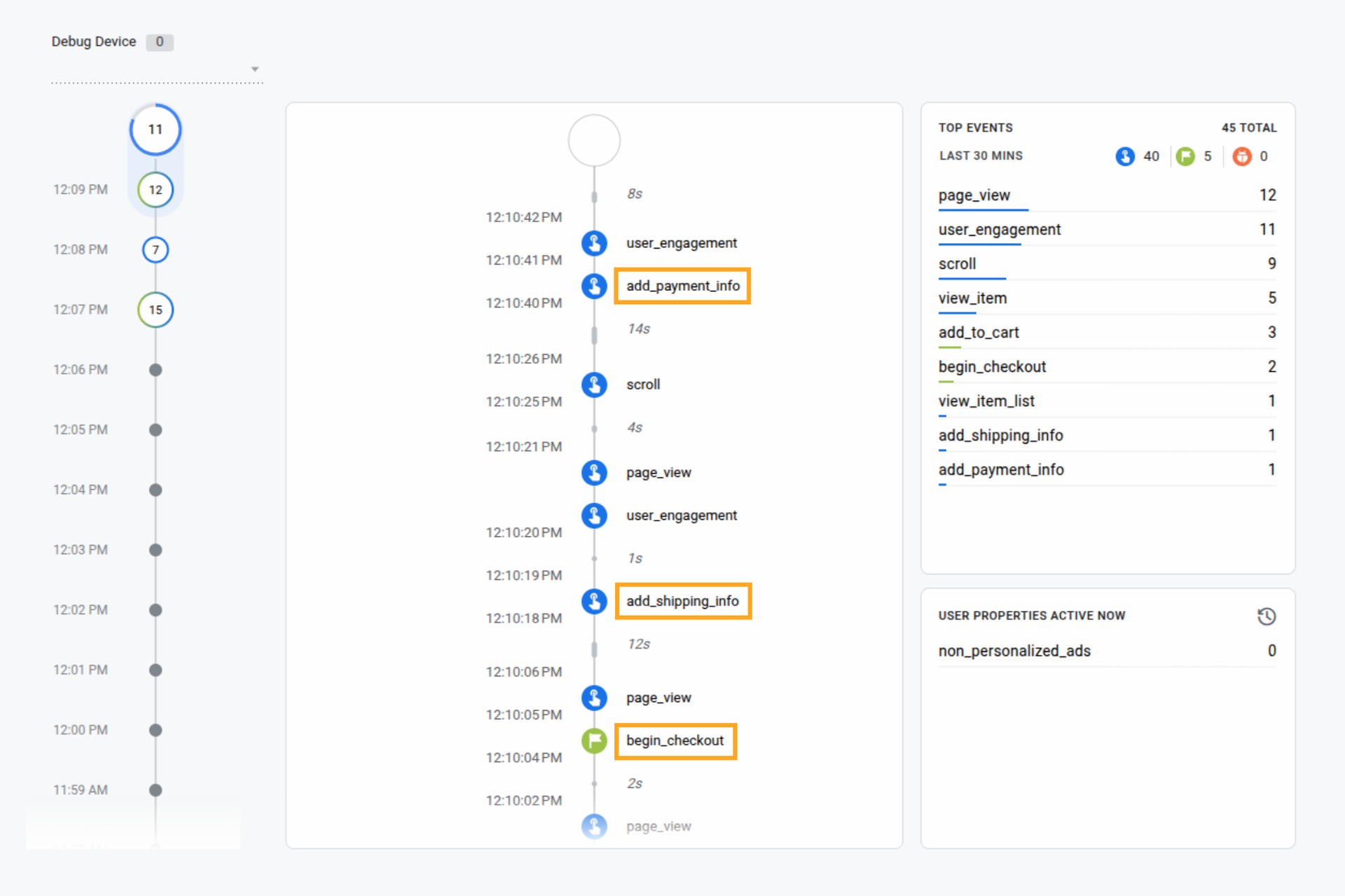
If the Google Analytics 4 tag is configured, use Debug Mode:

Summary
Configuring the Google Tag Gateway through your own domain is a practical step for businesses investing in advertising and seeking maximum data accuracy.
Google First-party mode helps:
- Reduce event loss due to blocking
- Improve conversion tracking stability
- Enhance data quality for campaign optimization
For Odoo eCommerce websites, this is especially important. Accurate tracking of purchases, add-to-cart actions, and other key events directly affects advertising performance in Google Ads and analytics in Google Analytics.
Using a CDN or proxy via Cloudflare, combined with proper configuration of Google Tag or Google Tag Manager, provides greater control over data transmission without complicating your architecture.
As a result, you gain more accurate reports, better ad budget optimization, and a competitive advantage in the e-Commerce environment.