
Odoo Prom Integration - provide product data from Odoo, get orders from Prom.ua
The integration module consists of two parts, which can be implemented either gradually or together. The basic part is a module for generating XML price lists with product information. The second part provides full integration, enabling API-based exchange of product and order data with Prom.
| Availability |
Odoo Online
Odoo.sh
On Premise
|
|---|---|
| Compatibility |
Community
Enterprise
|
| Technical Name | merchant_prom_ua |
| Version | 19.0.1.1.8 |
| License | OPL-1 |
| Category | |
| Support | Free 60 days support and 360 days bug-fixing |
Use Case

Jorem ipsum dolor sit amet, consectetur adipiscing elit. Nunc vulputate libero et velit interdum, ac aliquet odio mattis. Class aptent taciti sociosqu ad litora torquent per conubia nostra, per inceptos himenaeos.
Forem ipsum dolor sit amet, consectetur adipiscing elit. Nunc vulputate libero et velit interdum, ac aliquet odio mattis. Class aptent taciti sociosqu ad litora torquent per conubia nostra, per inceptos himenaeos.
Dorem ipsum dolor sit amet, consectetur adipiscing elit. Nunc vulputate libero et velit interdum, ac aliquet odio mattis.
It is a long established fact that a reader will be distracted by the readable content of a page
Korem ipsum dolor sit amet, consectetur adipiscing elit. Nunc vulputate libero et velit interdum, ac aliquet odio mattis. Class aptent taciti sociosqu ad litora torquent per conubia nostra, per inceptos himenaeos.
Korem ipsum dolor sit amet, consectetur adipiscing elit. Nunc vulputate libero et velit interdum, ac aliquet odio mattis.
Odoo App Installation
Upload modules
Upload modules from the ZIP archive to your Odoo hosting, or a GitHub repository connected there.
Place the unzipped modules in your custom add-on directory and restart the Odoo system service.
Update App List
After restarting, activate the Developer Mode, and go to the Apps menu.

Click on Update Apps List to fetch the new modules in the list.
Activate the App
Install the new module, finding it by name and clicking on the Activate button.
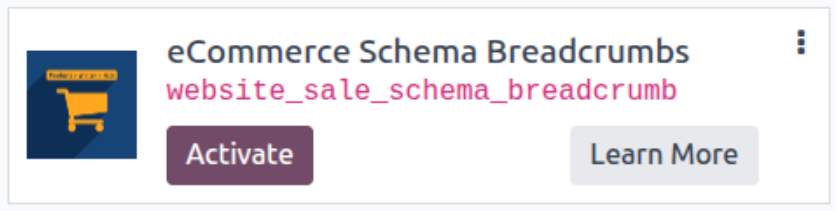
* If you don't see the module, try to remove the default Apps filter from the search bar.
Configuration
Follow the instructions in the module description to complete the installation process and start using the app.
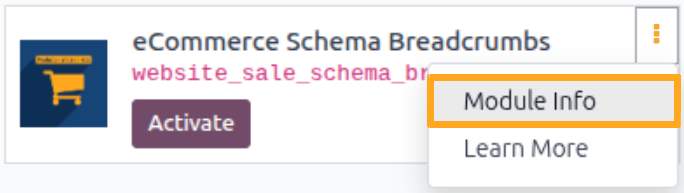

Manual

User Setup
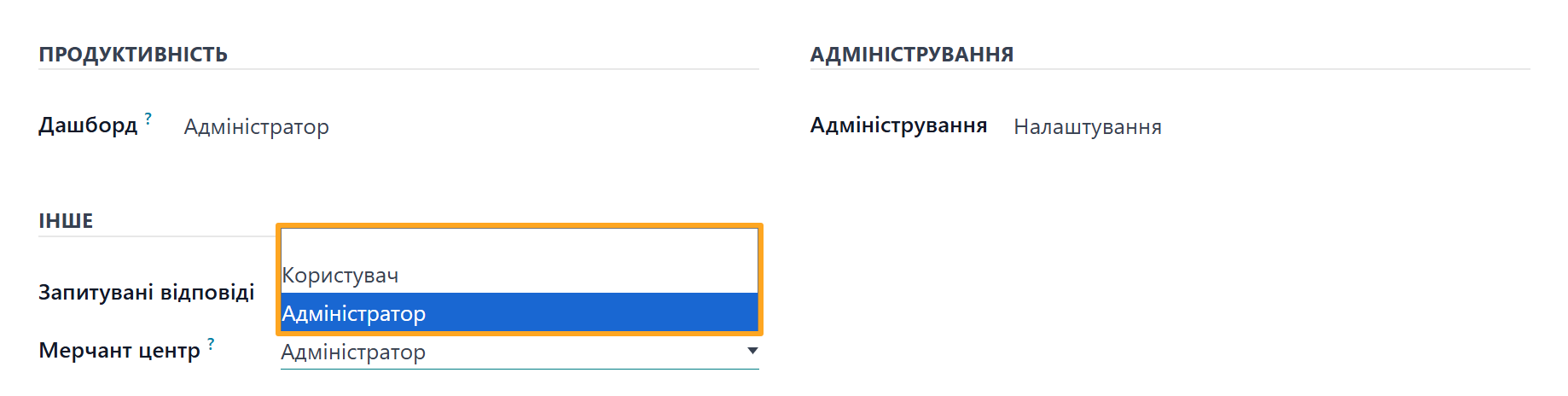
Before starting, grant appropriate access rights to users who will view and manage stores. The module provides two roles:
- User: Can view information and perform limited operations
- Administrator: Has full access rights to all objects
To assign roles, go to the user management menu, select a user, and under the Access Rights tab in the Other section, select a role from the Merchant Center list.
The User role cannot perform the following operations:
- Connect new stores
- Switch store states between Test and Production environments
- Create object mappings manually
- View technical integration details

Adding a Store
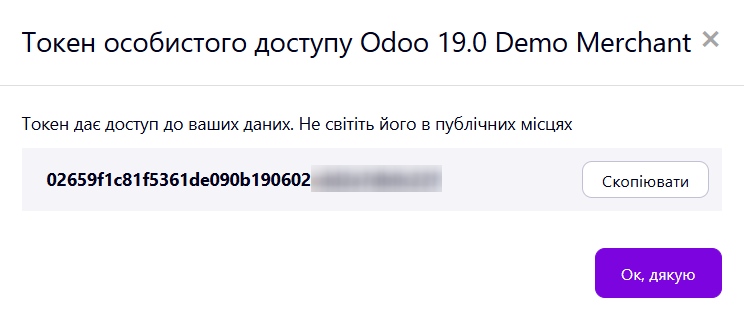
Connect your Prom store to Odoo using an API token from your Prom seller account.
Log in to your Prom seller account and go to Settings — API Token Management.
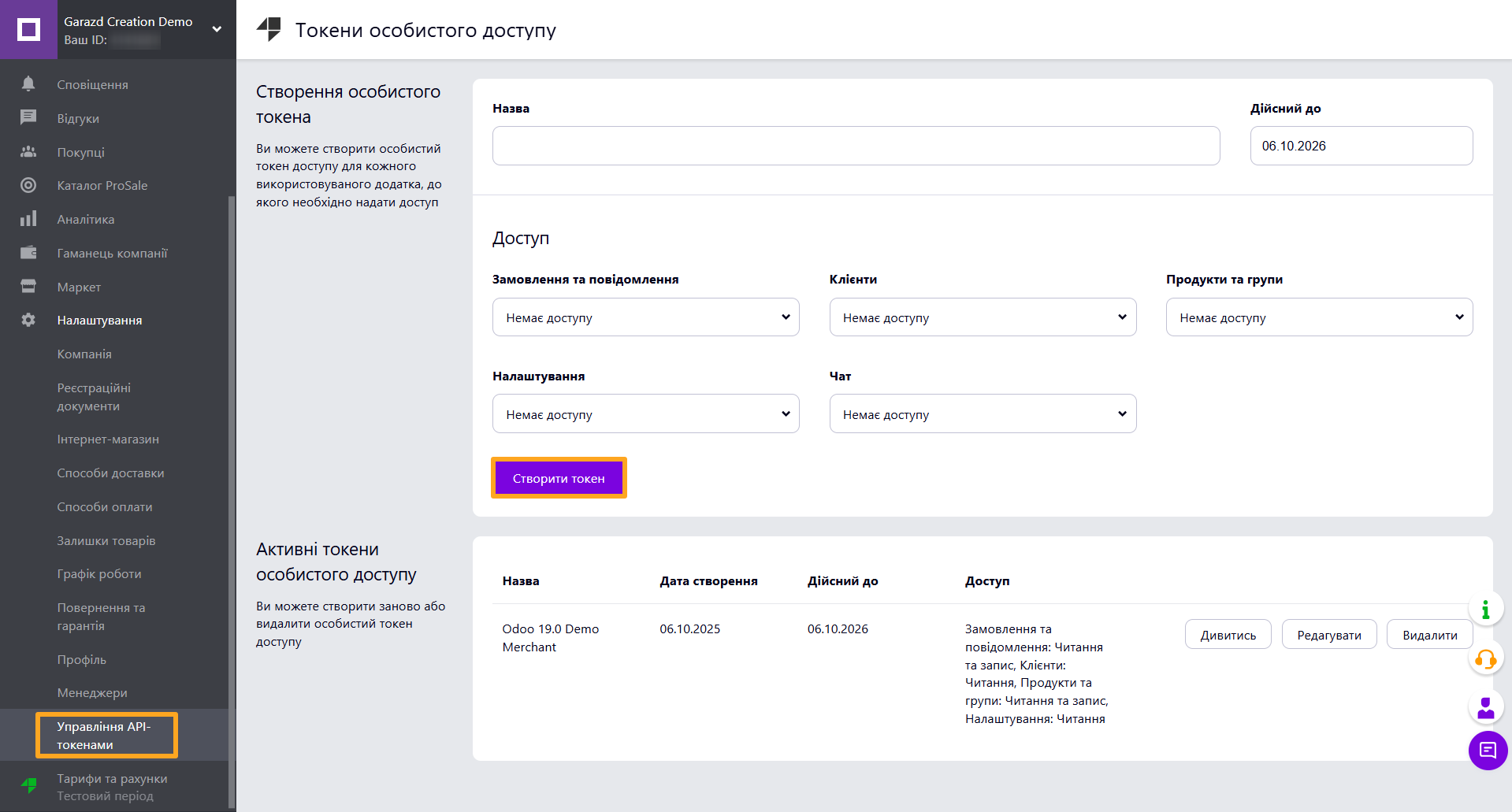
Enter a name, set access options, and click Create Token. Copy the token from the list below by clicking View and then Copy.
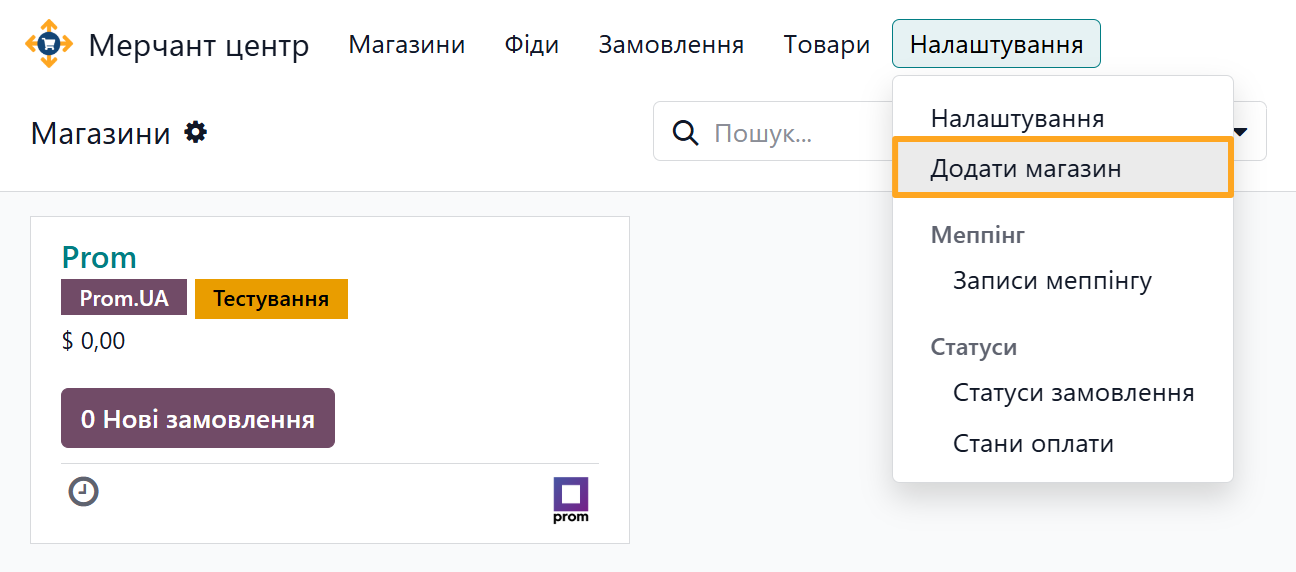
In Odoo, go to Merchant Center — Configuration — Add Store.
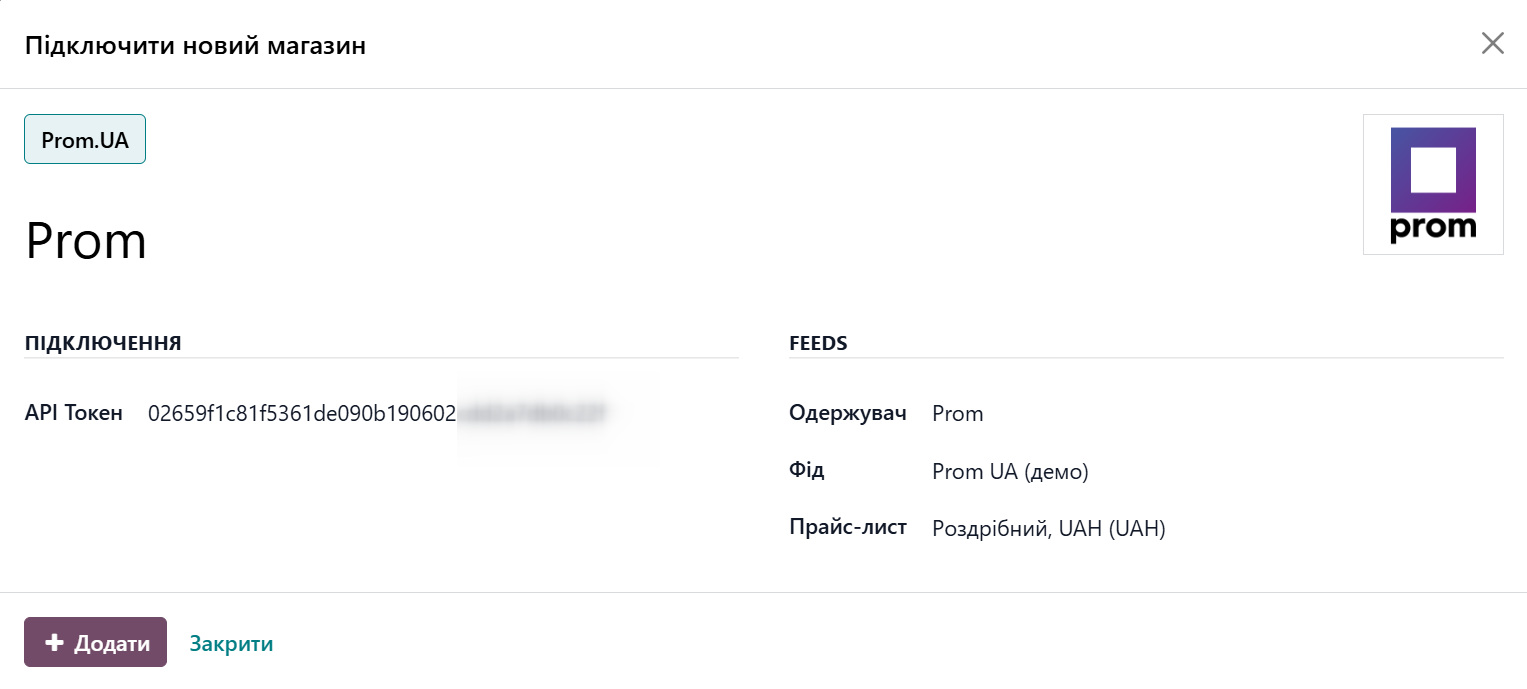
In the wizard, complete the following:
-
01Select Prom.UA as the marketplace type
-
02Enter the store Name
-
03Change the store Logo if needed
-
04Paste the copied API token
-
05Select a product data Feed for this store
-
06Click Add


Integration Modes
The Prom marketplace integration by Garazd Creation supports two operating modes:
- Test Environment
- Production Environment

Test Environment allows you to test features safely. In this mode, Odoo only receives data from your real store without sending updates back to Prom.

Production Environment is full operation mode. Changes to product items, prices, stock levels, and order statuses automatically sync between Odoo and Prom.

Configuration
After adding a store, configure its parameters to start syncing data. Settings are divided into several sections:
- Orders
- Partners
- Shipping
- Payments
- Products
Order Settings
Configure sales order import from Prom and automatic actions:
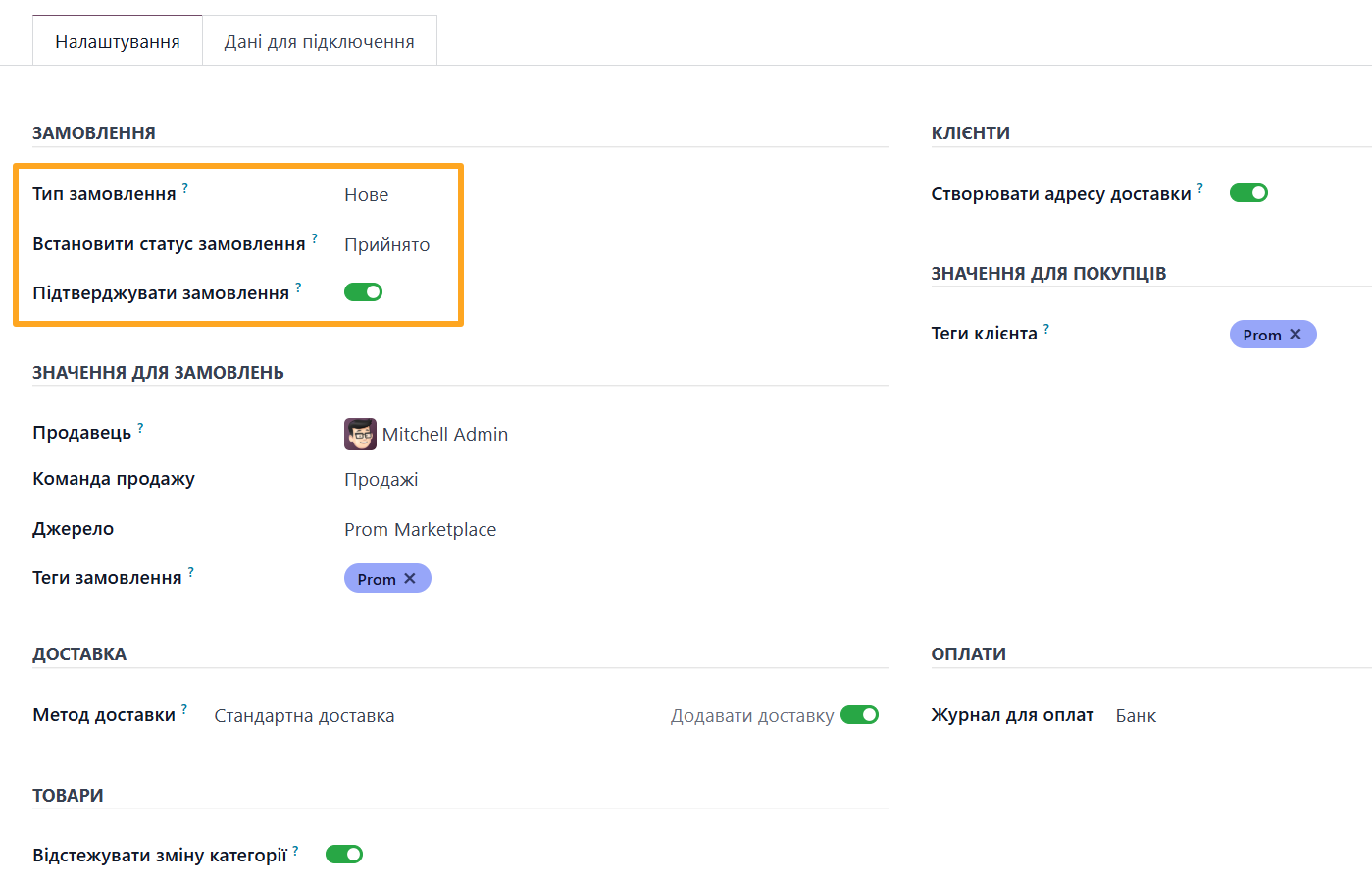
- Order Type: select the status from which to import orders from Prom
- Set Order Status: Choose a status to apply immediately after import
- Confirm Orders: Enable this option to automatically confirm orders in Odoo after import

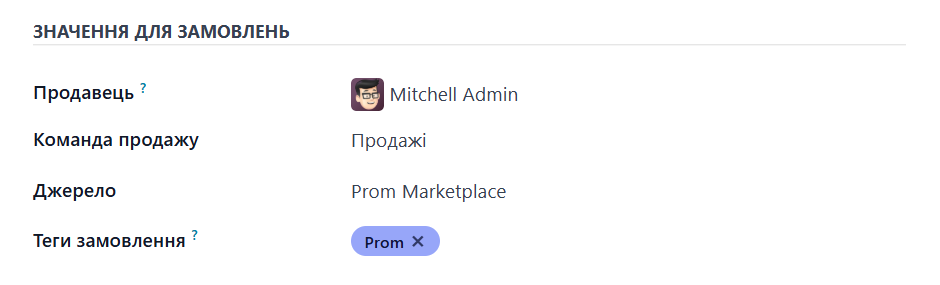
In the Values for Orders section, set default values for imported orders: select a Salesperson, Sales Team, Source, and Order Tags to label and filter sales orders easily.
Partner Settings
The Partners settings section allows you to specify the following parameters.
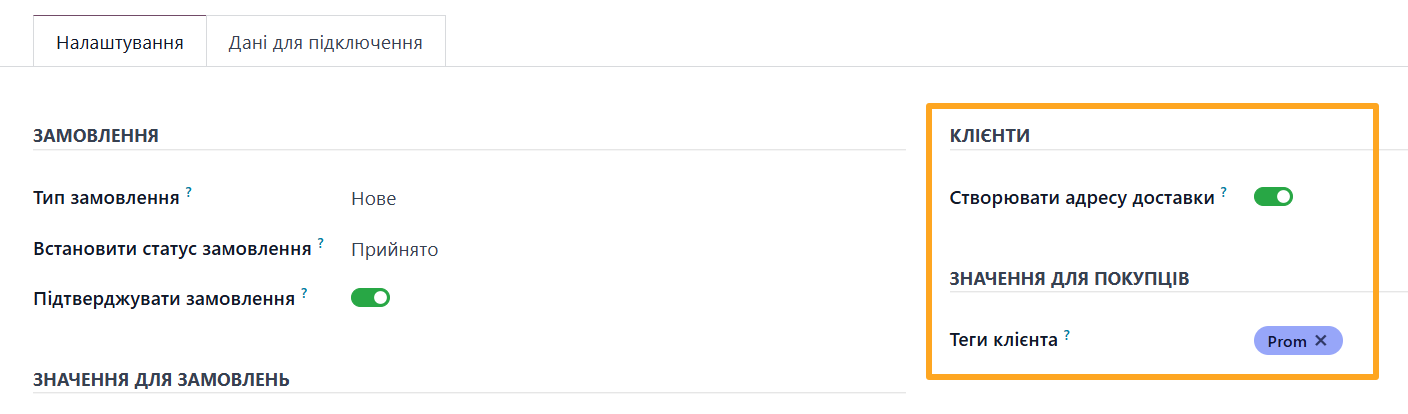
Prom buyers can specify different delivery addresses or alternate recipients. To save both buyer contact details and delivery addresses in Odoo, enable the Create Delivery Address option.
Select Customer Tags to automatically assign to customers created from Prom to identify them easily.
Shipping Settings
Select a Shipping Method to add as a line item in Prom sales orders and enable Add Shipping.

Payment Settings
Select a Payment Journal to automatically record payments made on Prom.ua.

Product Settings
Prom algorithms analyze categories, titles, descriptions, and keywords to determine marketplace product categories, which may sometimes alter your selected category. to get notified if Prom changes a product category, enable the Track Category Changes option under the Products section.



Products
Data exchange for products between Odoo and Prom uses XML data feeds. The module includes a pre-configured XML feed template that meets Prom technical requirements.
To view feeds linked to your stores, go to Merchant Center — Feeds.

Manual Update
The module allows you to manually update product information. To do this, open a product and select the Prom Update action.
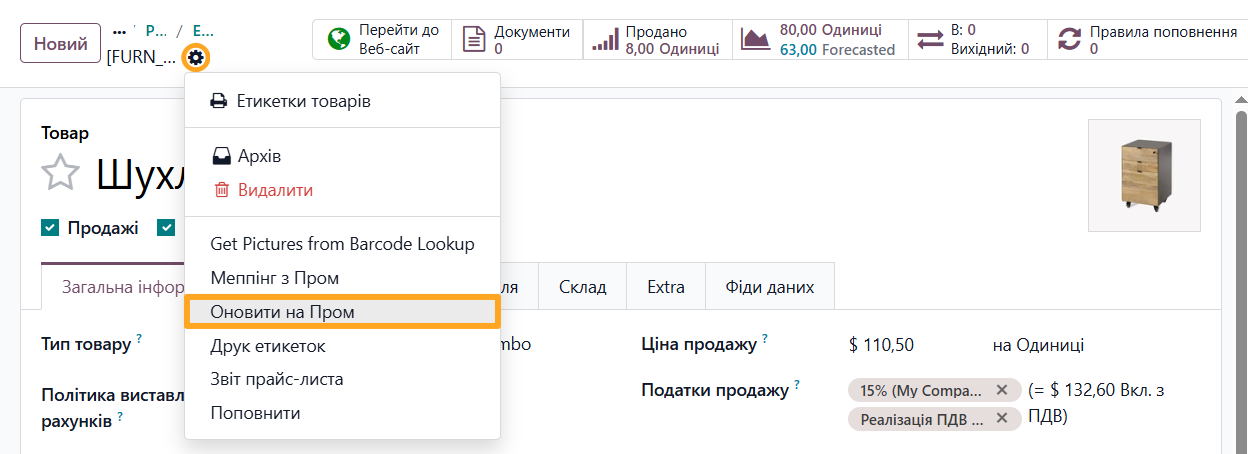
In the pop-up window, select your Prom Store and click Update.


Synchronization
Once configuration is complete, click Sync to run the initial synchronization.
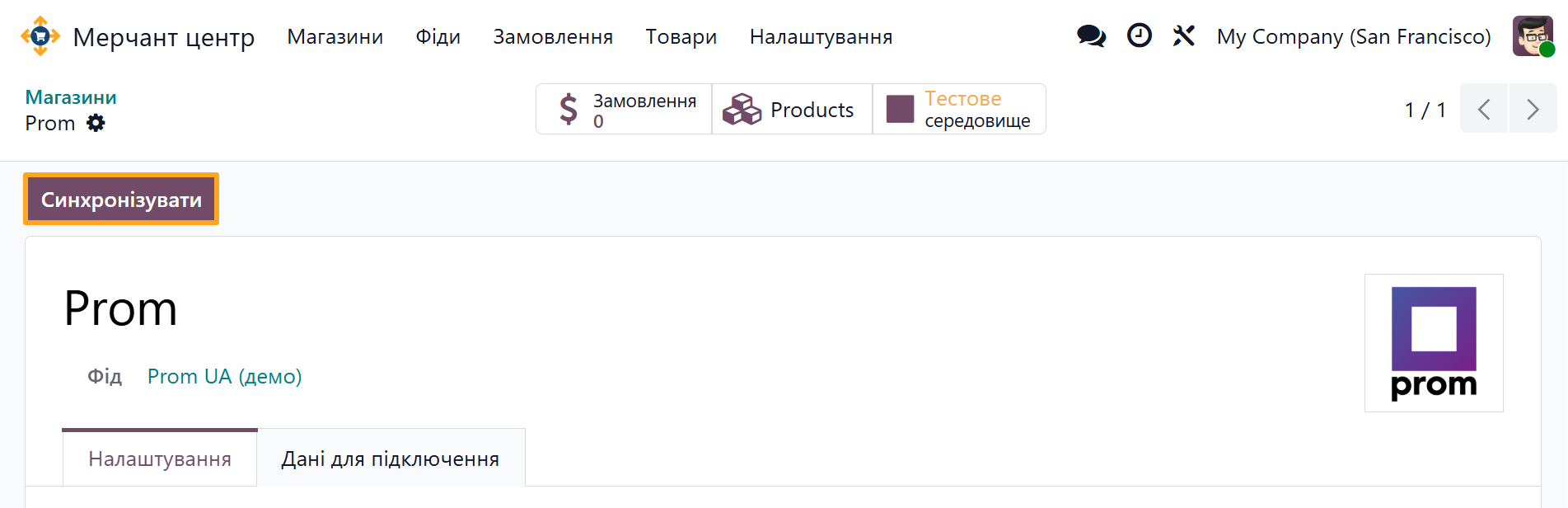
This process links data between Odoo and Prom and imports the following items:
- Product categories
- Order statuses
- Stock levels and prices
- Orders

Sales Orders
Sales orders imported from Prom.ua contain all necessary details:
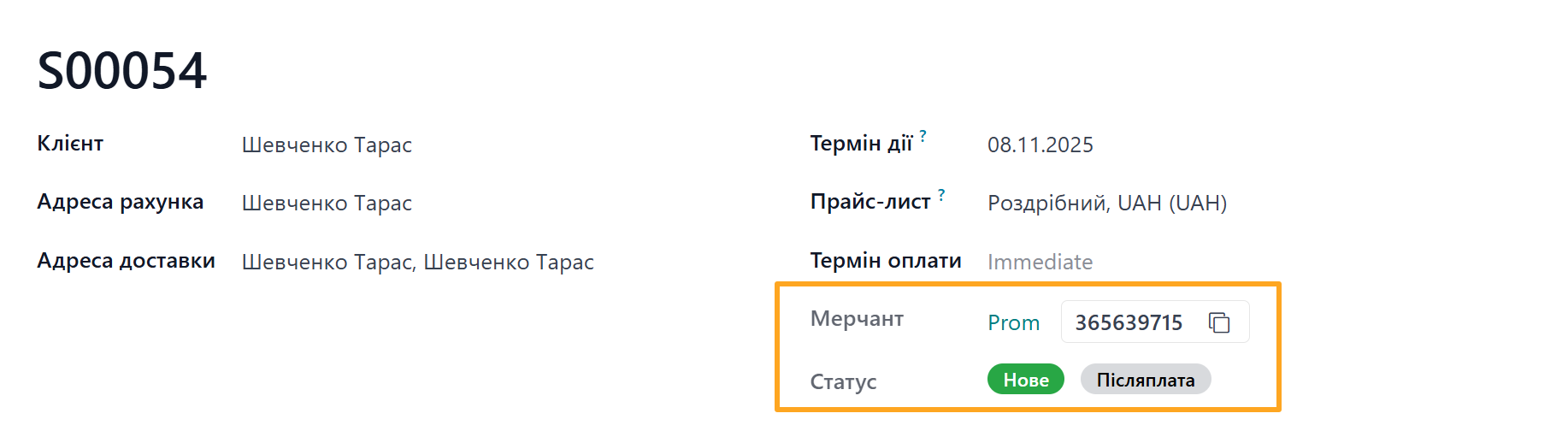
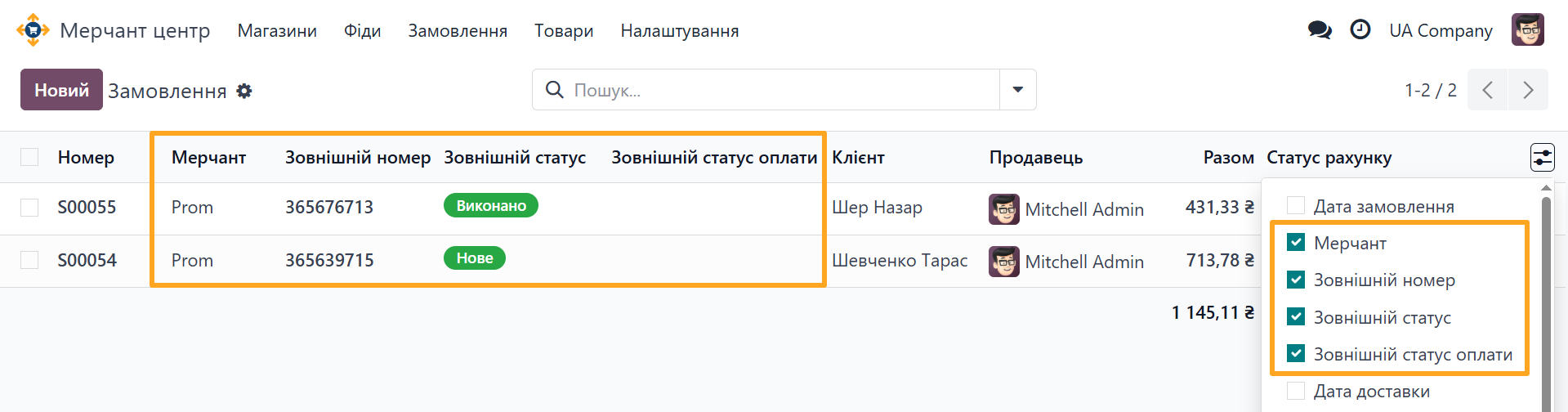
- Merchant: Displays the store name and Prom order number
- Status: Shows the current order status, state, and payment method
You can enable these columns in the list view to see them clearly.
Automatic Status Changes
The module automatically updates order statuses on Prom when actions occur in Odoo:
- Confirming a sales order — Sets status to Accepted
- Confirming delivery and shipping products — Sets status to Completed
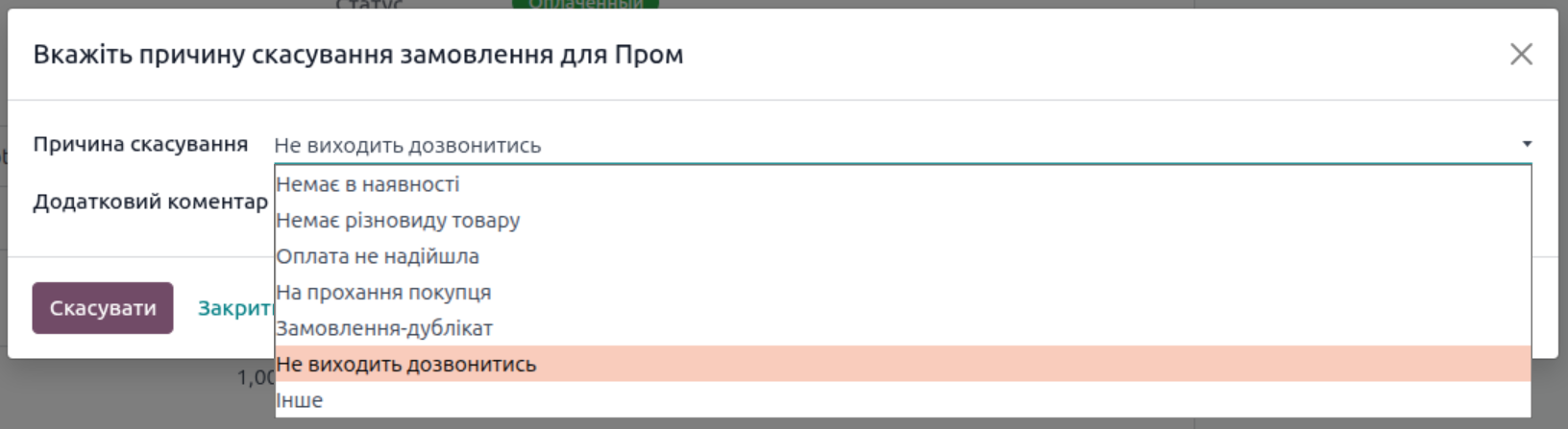
- Canceling a sales order — Sets status to Canceled (a wizard lets you specify a cancellation reason and comment)
Changelog
17.0.1.2.0 2026-06-10
- Add an option to update Prom sale orders which are created in the last X days only.
- Implement logic to sync canceled orders from Prom. To cover cases when a time delay between order placement and cancellation less than syncing period in Odoo.
- Add an option to disable automatic Prom status changing for sale orders.
- Add skipping of the canceled orders uploading.
17.0.1.1.0 2026-02-26
- Implement syncing of the sale order date fields: Date Created, Date Modified.
- Add advanced options to sync sale orders from Prom, such as the Order Date, the last order ID, the sorting order, the limit, etc.
17.0.1.0.3 2026-02-24
- Improve the wizard to add a new store, add the Company field for the multi-company environment.
17.0.1.0.2 2025-12-08
- Improve price parsing for the automatic payment process.
17.0.1.0.1 2025-11-14
- Improve method to update product data, implement dividing by 100 items.
17.0.1.0.0 2025-10-31
- Implement Prom payment processing.
- Add the merchant option to set an initial order status after importing.
- Add a wizard to map products.
17.0.0.9.6 2025-09-26
- Add the merchant option to set an initial order status after importing.
17.0.0.9.5 2025-08-01
- Add the Control Prom Category Change setting.
- Improve the method for product mapping.
- Add a wizard to map products.
17.0.0.9.4 2025-07-29
- Improve the product map method, add the loop to get all the products.
17.0.0.9.3 2025-06-12
- Fix the Prom order status getting.
- Add logging of the Prom product category changing.
17.0.0.9.2 2025-03-29
- Improve Prom order status updating.
- Improve the client and delivery data processing.
17.0.0.9.1 2025-03-19
- Improve the client and delivery data processing.
- Add the merchant fee value getting.
17.0.0.9.0 2024-10-03
- Init version.
18.0.1.1.0 2026-02-24
- Improve the wizard to add a new store, add the Company field for the multi-company environment.
- Implement syncing of the sale order date fields: Date Created, Date Modified.
- Add advanced options to sync sale orders from Prom, such as the Order Date, the last order ID, the sorting order, the limit, etc.
18.0.1.0.3 2025-12-02
- Improve price parsing for the automatic payment process.
18.0.1.0.2 2025-11-14
- Improve method to update product data, implement dividing by 100 items.
18.0.1.0.1 2025-10-29
- Implement Prom payment processing.
18.0.1.0.0 2025-09-26
- Add the merchant option to set an initial order status after importing.
- Add a wizard to map products.
- Add logging of the Prom product category changing.
18.0.0.9.2 2025-04-10
- Fix SO status updates.
18.0.0.9.1 2025-04-01
- Add checking for a Prom category changing.
18.0.0.9.0 2025-03-28
- Migration from 17.0.
19.0.1.1.8 2026-09-15
- Improve UA transaltions.
- Add a demo data.
- Improve the wizard to update product data on Prom.
19.0.1.1.7 2026-08-13
- Add wizard to update single product on Prom UA.
19.0.1.1.6 2026-06-03
- Improve UA translations.
- Add an option to update Prom sale orders which are created in the last X days only.
19.0.1.1.5 2026-05-08
- Implement logic to sync canceled orders from Prom. To cover cases when a time delay between order placement and cancellation less than syncing period in Odoo.
19.0.1.1.4 2026-04-28
- Add an option to disable automatic Prom status changing for sale orders.
19.0.1.1.3 2026-04-16
- Add skipping of the canceled orders uploading.
19.0.1.1.2 2026-02-24
- Improve the wizard to add a new store, add the Company field for the multi-company environment.
19.0.1.1.1 2026-02-16
- Add advanced options to sync sale orders from Prom, such as the Order Date, the last order ID, the sorting order, the limit, etc.
19.0.1.1.0 2026-01-06
- Improve order amount processing.
- Fix a name of the tax field for sale orders.
19.0.1.0.1 2025-11-14
- Improve method to update product data, implement dividing by 100 items.
19.0.1.0.0 2025-11-03
- Migration from 18.0.
Resources

Learn how to configure the full integration with Prom.ua for your sales using API

Automate the import of products, prices, and stock levels from Odoo to Prom.ua