

Automate HR recruitment processes using Odoo integration with the Work.UA service
| Availability |
Odoo Online
Odoo.sh
On Premise
|
|---|---|
| Compatibility |
Community
Enterprise
|
| Technical Name | hr_work_ua |
| Version | 19.0.1.1.1 |
| License | OPL-1 |
| Category | |
| Support | Free 60 days support and 360 days bug-fixing |
Use Case

Jorem ipsum dolor sit amet, consectetur adipiscing elit. Nunc vulputate libero et velit interdum, ac aliquet odio mattis. Class aptent taciti sociosqu ad litora torquent per conubia nostra, per inceptos himenaeos.
Forem ipsum dolor sit amet, consectetur adipiscing elit. Nunc vulputate libero et velit interdum, ac aliquet odio mattis. Class aptent taciti sociosqu ad litora torquent per conubia nostra, per inceptos himenaeos.
Dorem ipsum dolor sit amet, consectetur adipiscing elit. Nunc vulputate libero et velit interdum, ac aliquet odio mattis.
It is a long established fact that a reader will be distracted by the readable content of a page
Korem ipsum dolor sit amet, consectetur adipiscing elit. Nunc vulputate libero et velit interdum, ac aliquet odio mattis. Class aptent taciti sociosqu ad litora torquent per conubia nostra, per inceptos himenaeos.
Korem ipsum dolor sit amet, consectetur adipiscing elit. Nunc vulputate libero et velit interdum, ac aliquet odio mattis.
Odoo App Installation
Upload modules
Upload modules from the ZIP archive to your Odoo hosting, or a GitHub repository connected there.
Place the unzipped modules in your custom add-on directory and restart the Odoo system service.
Update App List
After restarting, activate the Developer Mode, and go to the Apps menu.

Click on Update Apps List to fetch the new modules in the list.
Activate the App
Install the new module, finding it by name and clicking on the Activate button.
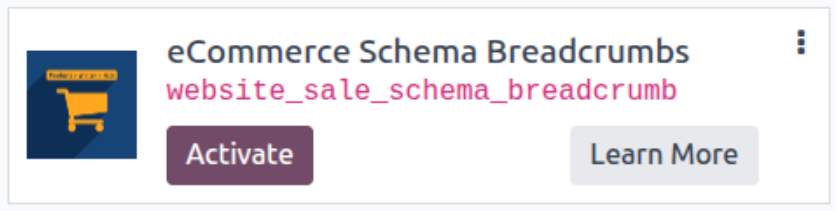
* If you don't see the module, try to remove the default Apps filter from the search bar.
Configuration
Follow the instructions in the module description to complete the installation process and start using the app.
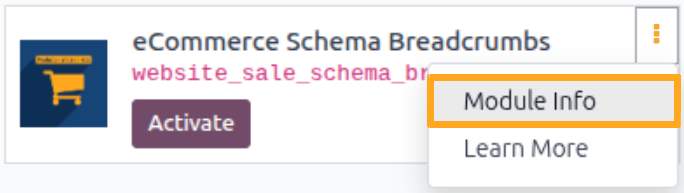

Manual

Account Settings
After installing the module, set up an account and synchronize it with Work.ua to integrate Work.ua into Odoo.
To create a new Work.ua account in Odoo, go to Recruitment — Configuration — Work.UA — Accounts and click New.
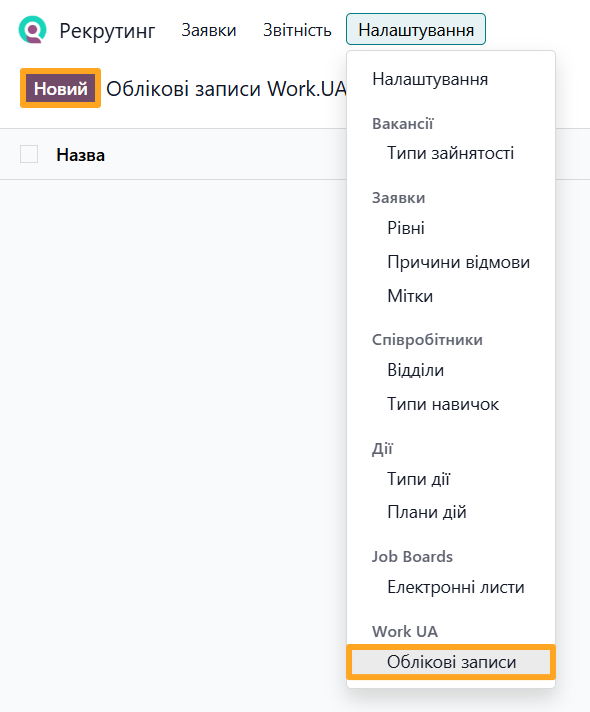
Complete the form:
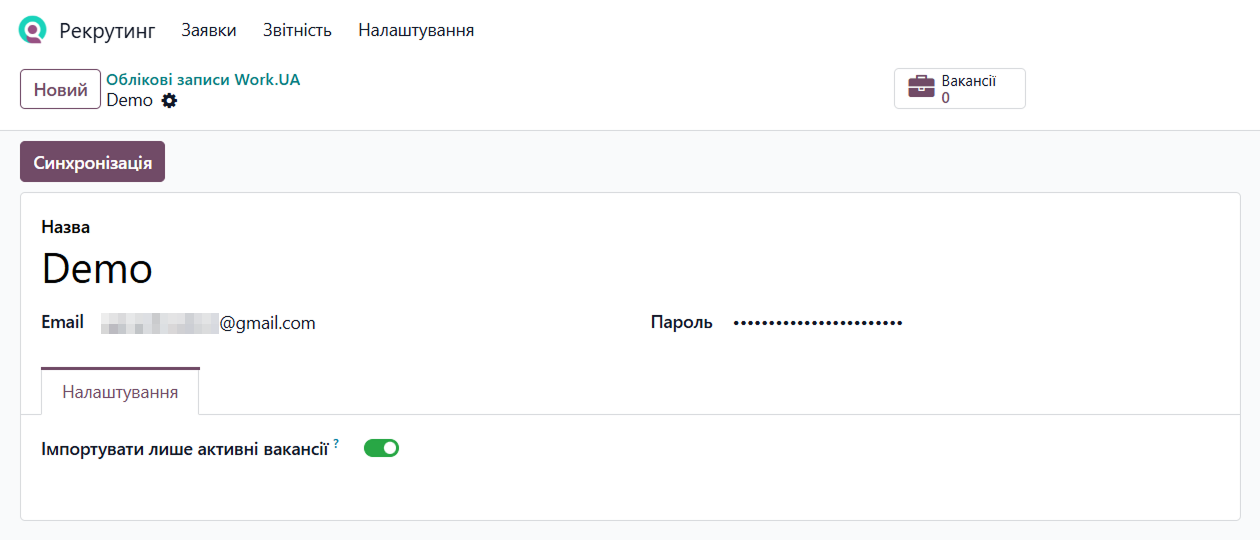
- Enter the account Name and your Work.ua credentials (Email, Password).
- To skip importing hidden job positions, enable Only Active Vacancies on the Options tab.
- Click Synchronization.
This action performs the initial data synchronization with Work.ua. Later, Odoo scheduled actions perform automatic synchronizations.
Scheduled Actions
The module automatically gets data from Work.ua, including catalogs, job positions, and applications. Odoo scheduled actions synchronize this data at configured intervals.

You can adjust the synchronization interval for each scheduled action or run manual synchronization.
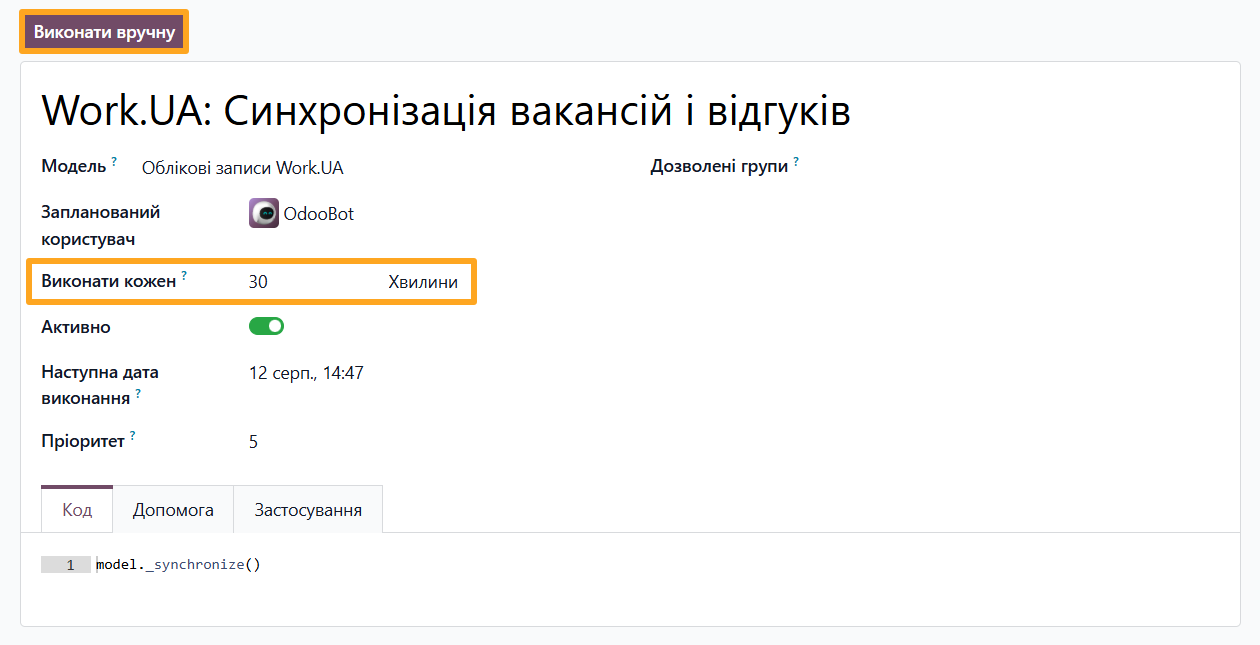
Synchronization Settings
The module adds an UA Service Integration section to the recruitment settings. This section is shared across other recruitment integration modules by Garazd Creation, such as Robota.UA and Djinni.
The following options are available for Work.ua:
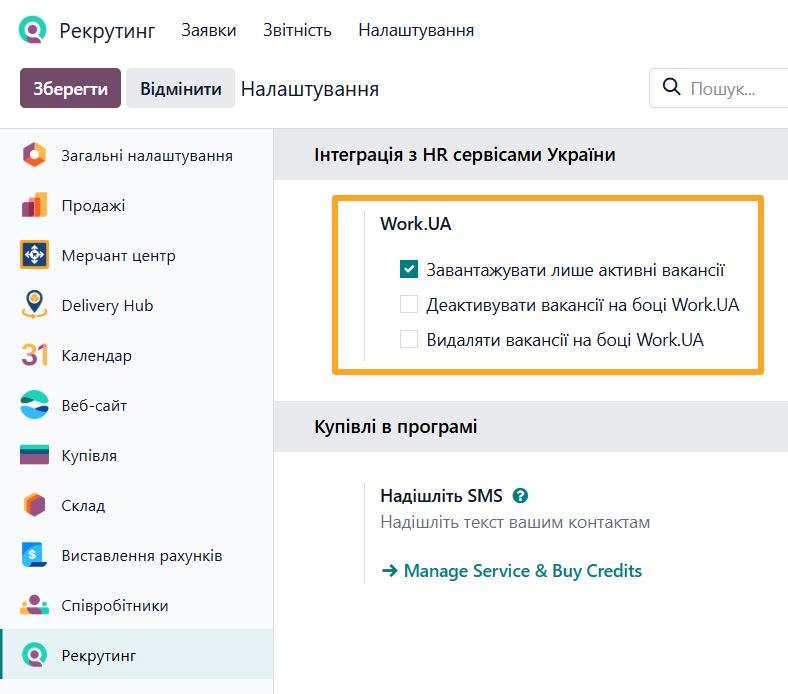
- Upload Only Active Vacancies — Choose whether to synchronize active job positions only or include hidden ones.
- Deactivate Vacancy on Work.UA — Automatically hide job positions on Work.ua when archived in Odoo.
- Delete Vacancy on Work.UA — Automatically delete job positions from Work.ua when deleted in Odoo.


Managing Job Positions
After account synchronization, the module creates job positions in Odoo and fills them with Work.ua data.
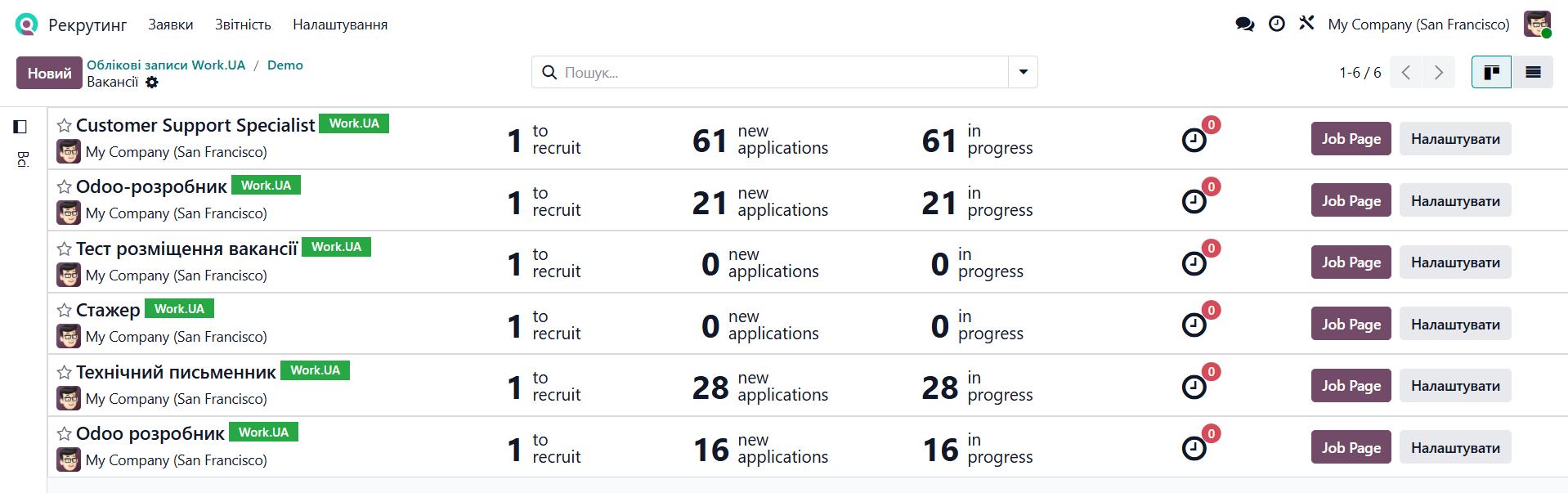
The module allows you to perform the following actions on job positions:
- Publish job positions from Odoo
- Edit job position details
- Refresh job position data from Work.ua
- Manage job position visibility (published/hidden)
- Link an existing Odoo job position to a Work.ua job position
- Delete job positions
Publishing a Job Position
To publish a job position on Work.ua from Odoo, complete the following steps.
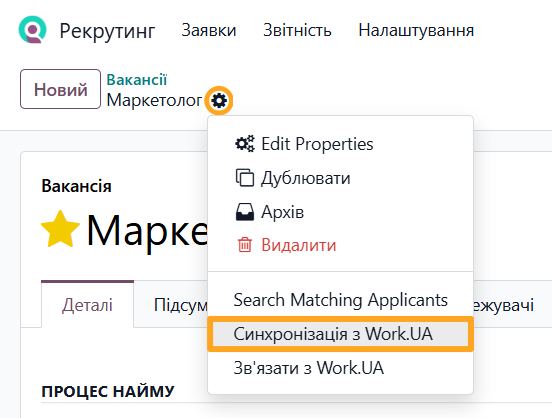
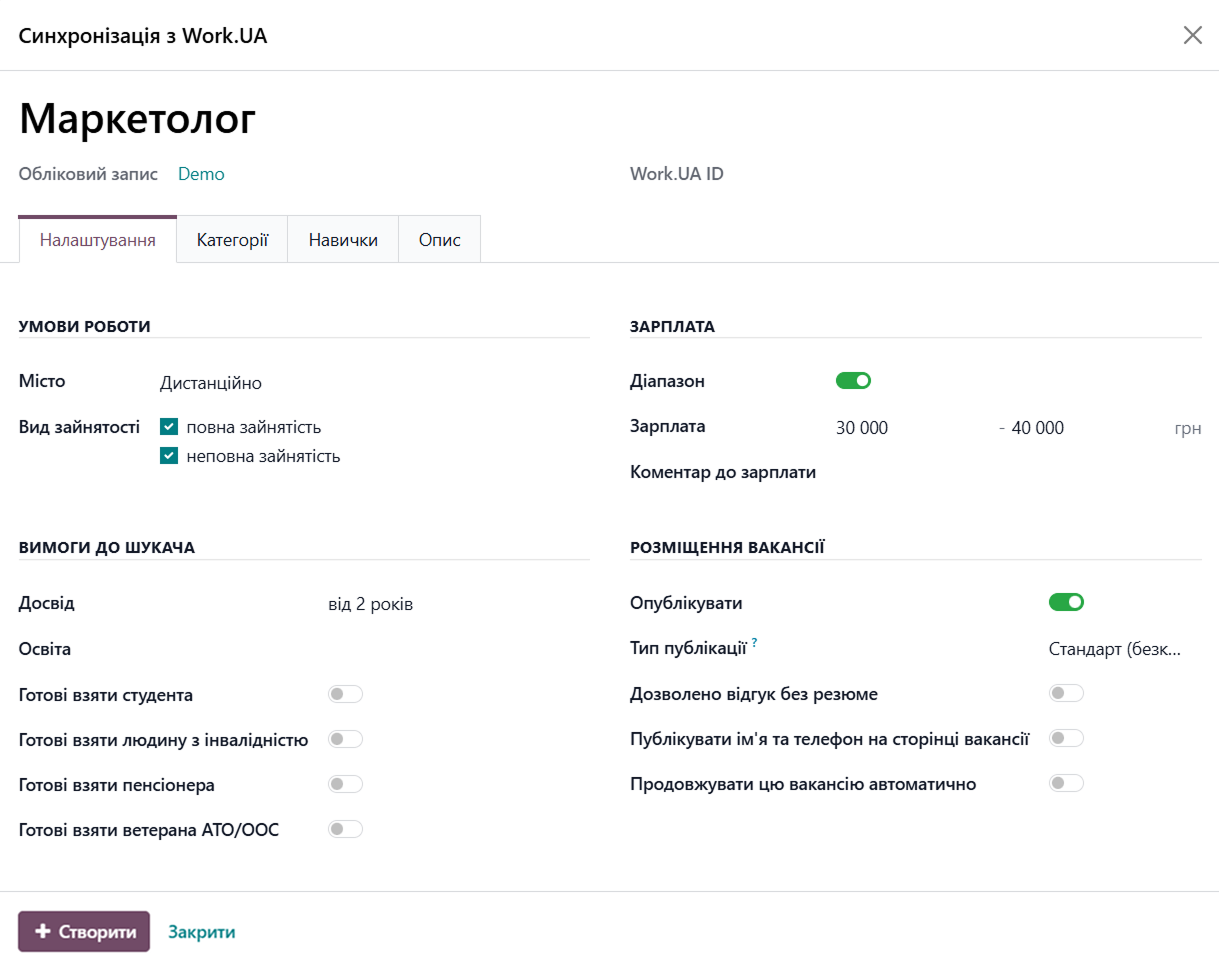
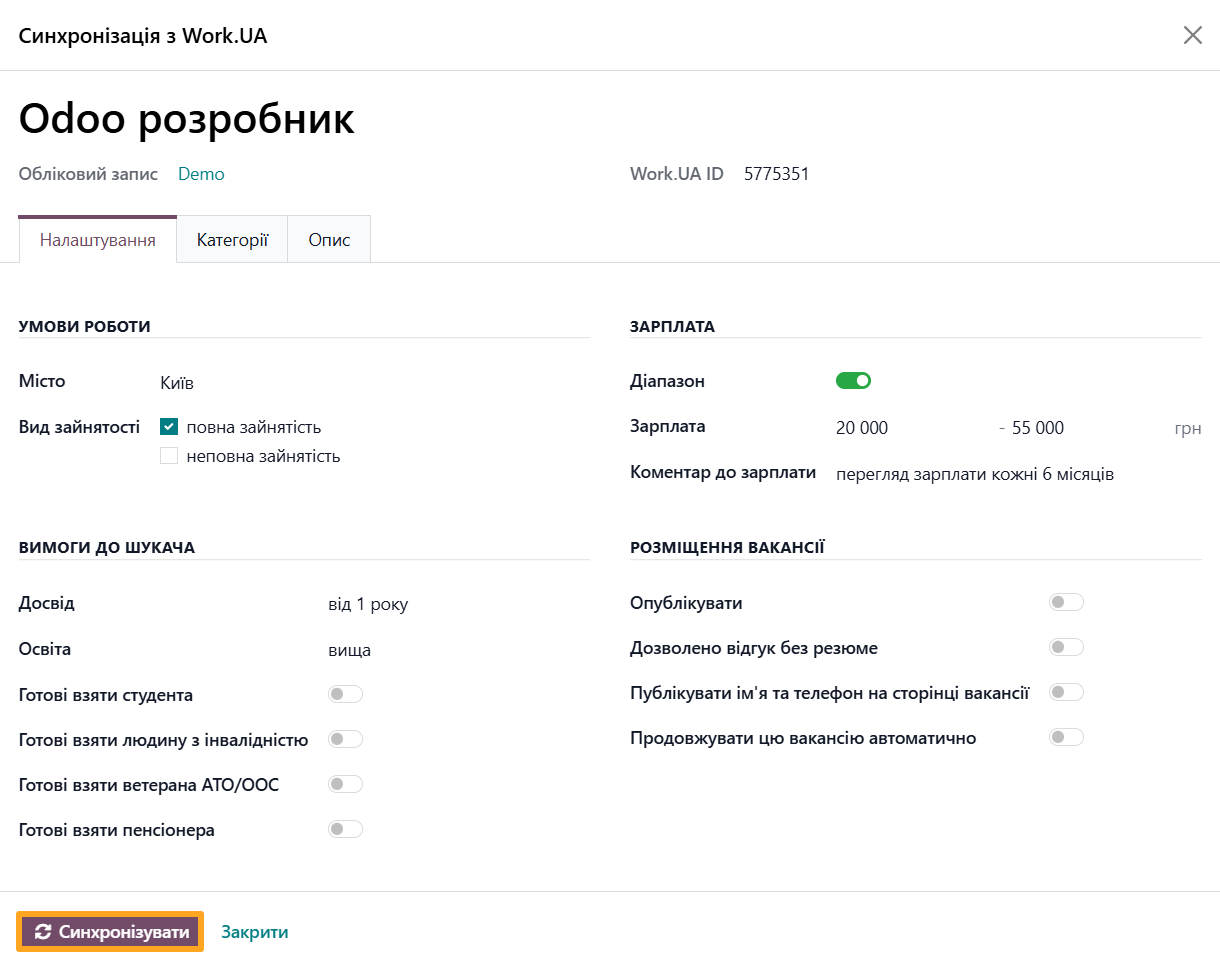
Create a new job position in Odoo or open an existing one, then select the Sync with Work.UA action.
On the Settings tab, complete the Conditions, Salary, Requirements, and Posting sections as needed.

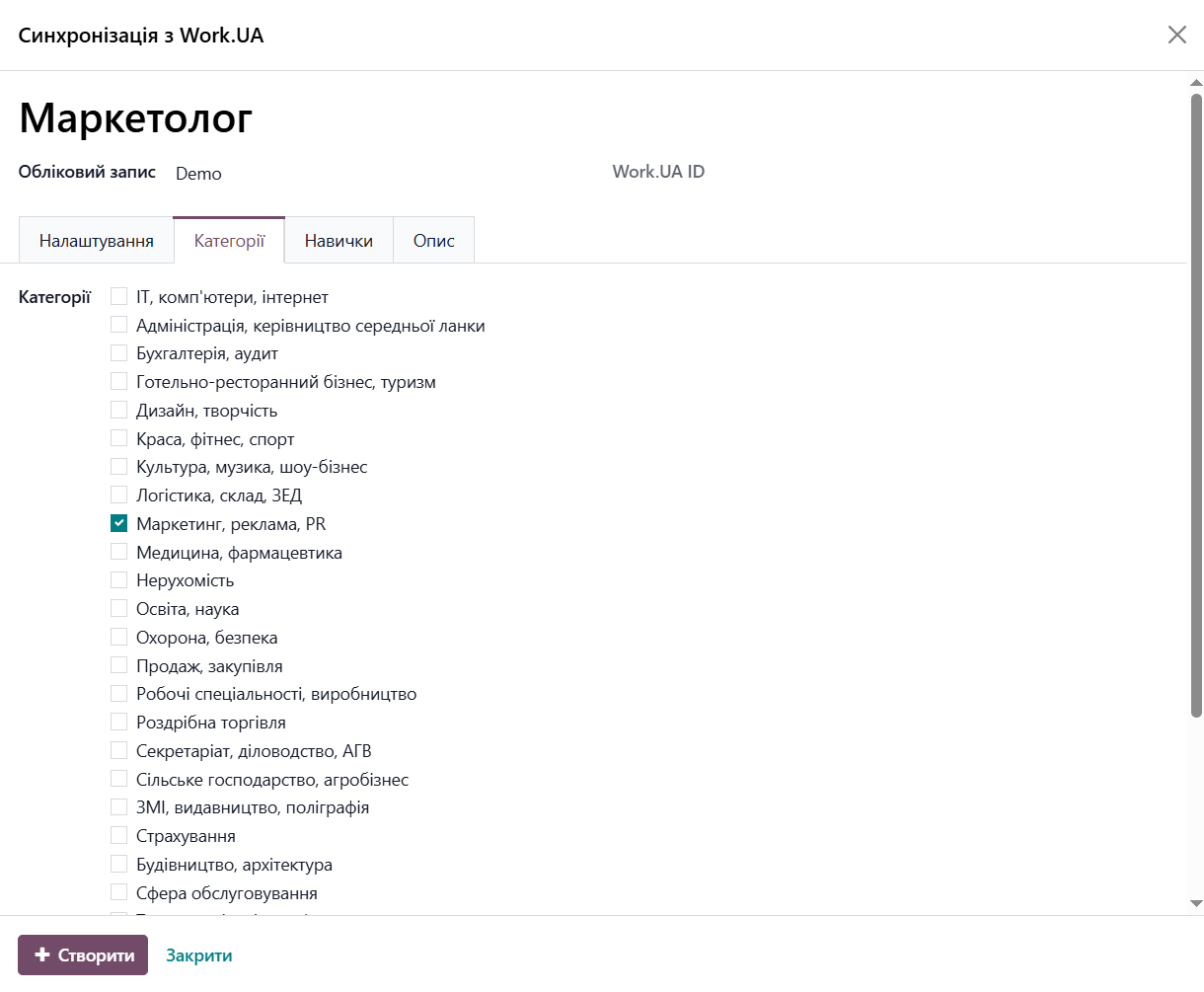
Select relevant job Categories.
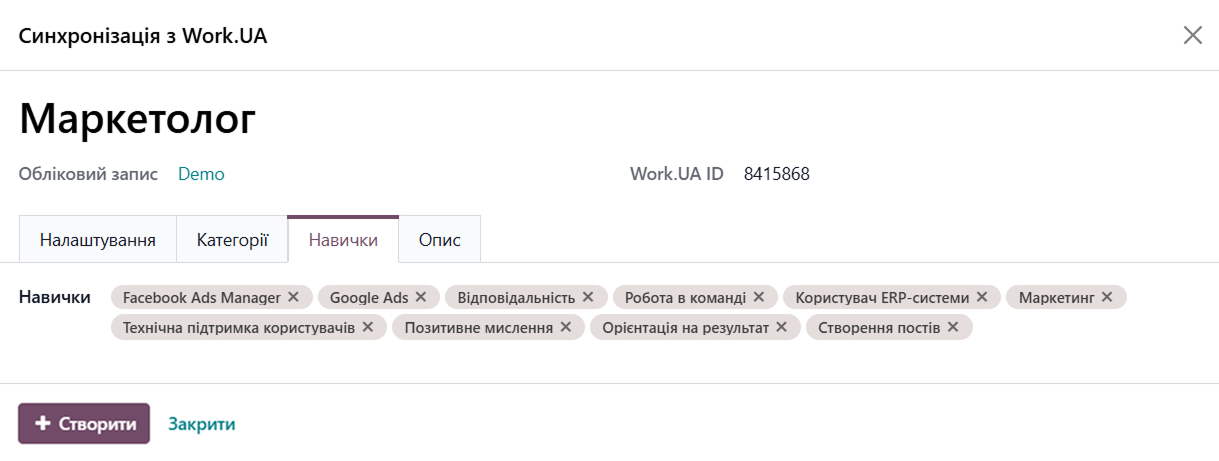
Add desired applicant Skills for the job position.
Add a job Description using HTML formatting as needed.
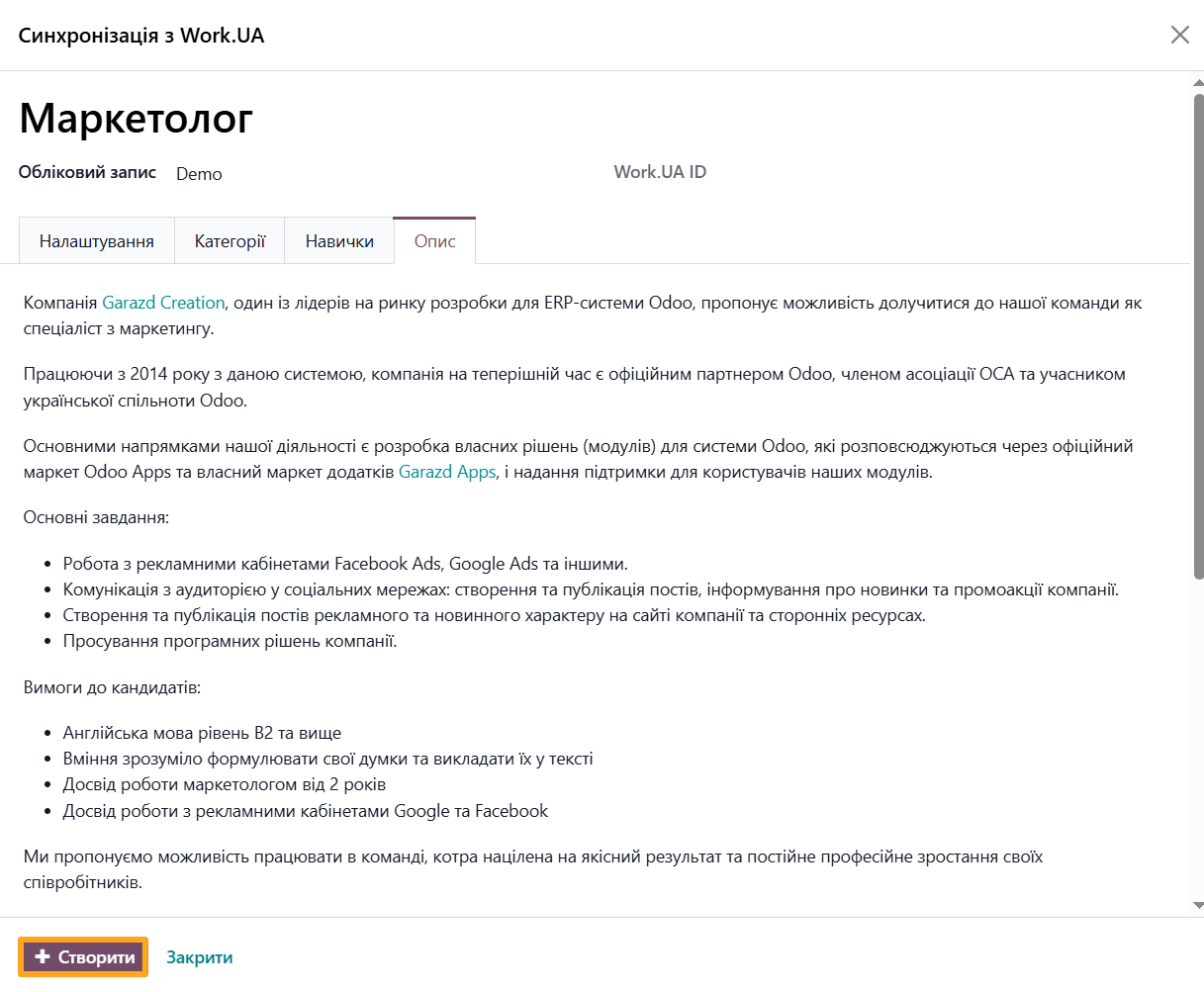
Click Create to publish the job position on the Work.ua website.
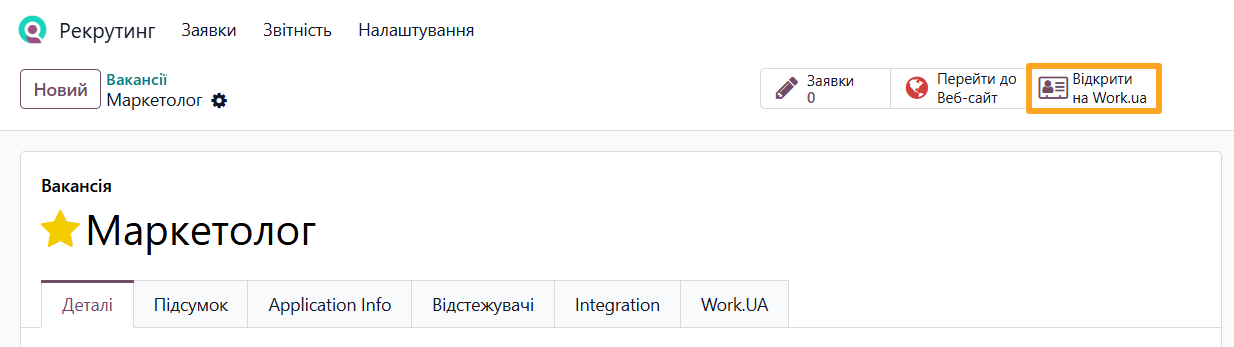
To view the published listing, click Open on Work.ua.
Editing a Job Position
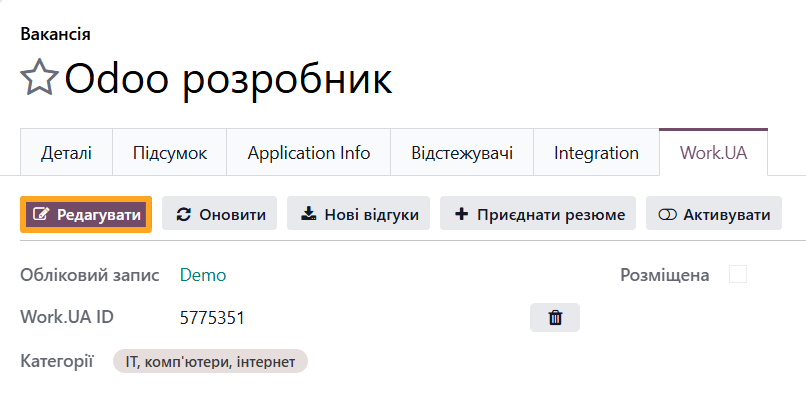
To modify job position details, open the Work.UA tab and click Edit.
After making changes, click Sync to update the listing on Work.ua.
Refreshing a Job Position
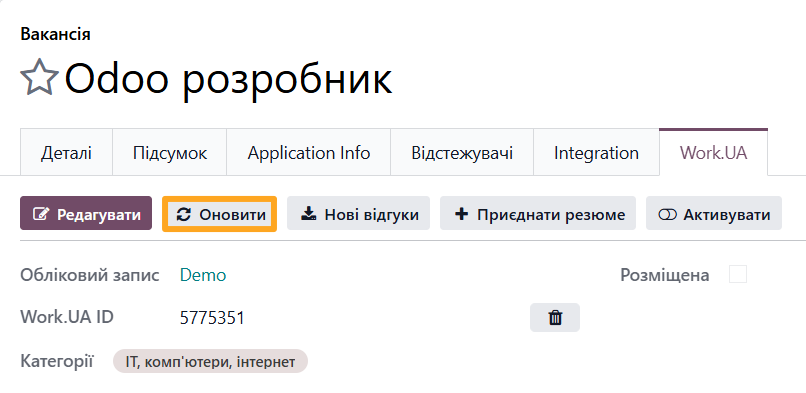
If you updated a job position directly on Work.ua and want to get the latest changes, click Refresh on the Work.UA tab.

Job Position Visibility
Use the action buttons to control listing visibility on Work.ua:
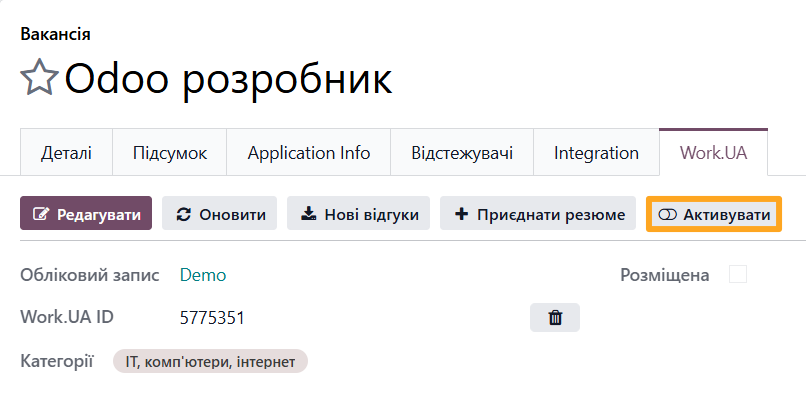
- To publish a hidden job position on Work.ua, click Activate
- To hide an active job position on Work.ua, click Deactivate or Archive the position in Odoo
Linking a Job Position to Work.ua
To prevent duplicate listings, you can link existing job positions in Odoo to matching Work.ua listings. Open the target job position and select the Link with Work.UA action.
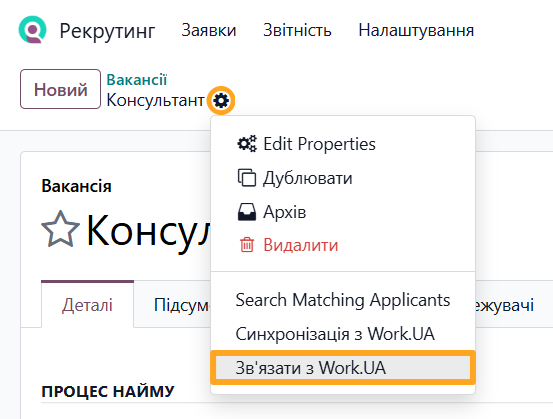
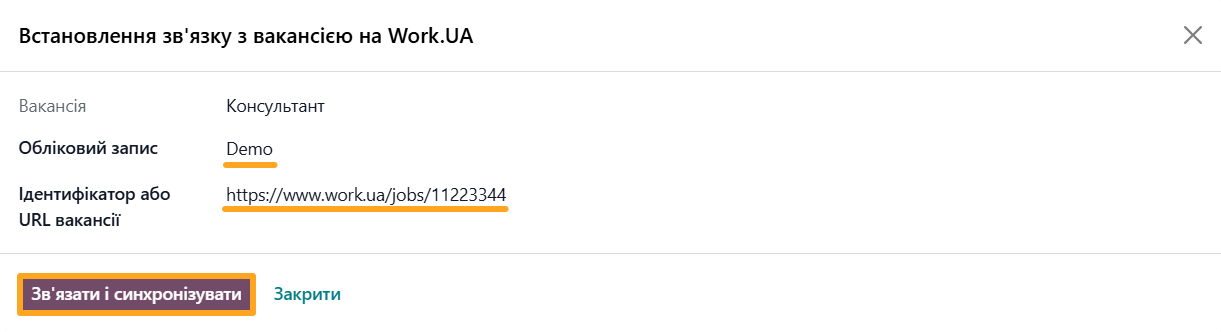
In the pop-up window:
-
01Select the Work.ua account
-
02Paste the job position ID or URL
-
03Click Set and Sync All Jobs
https://www.work.ua/jobs/11223344
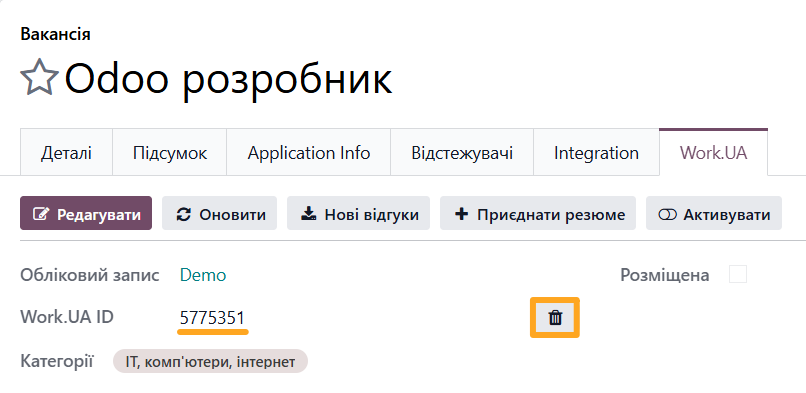
To reassign a Work.ua job position ID to a different Odoo job position:
-
01Open the job position currently linked to Work.ua on the Work.UA tab
-
02Copy the Work.UA ID
-
03Click the delete icon in the Work.UA ID field.
-
04Open the new job position you want to link and select Link with Work.UA
-
05Paste the copied Work.UA ID in the pop-up window
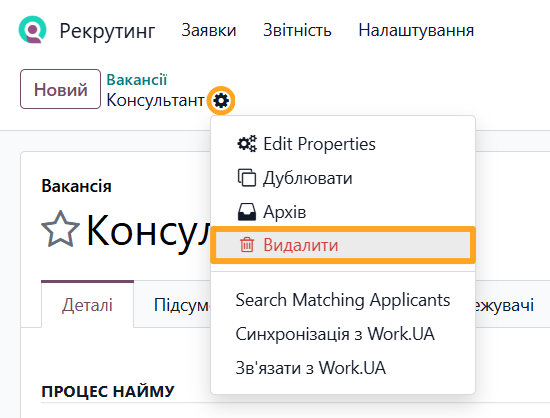
Deleting a Job Position
To delete a job position, select the Delete action.

Applications
For Work.ua job positions, the module imports job applications with full applicant details, including attached resume files.
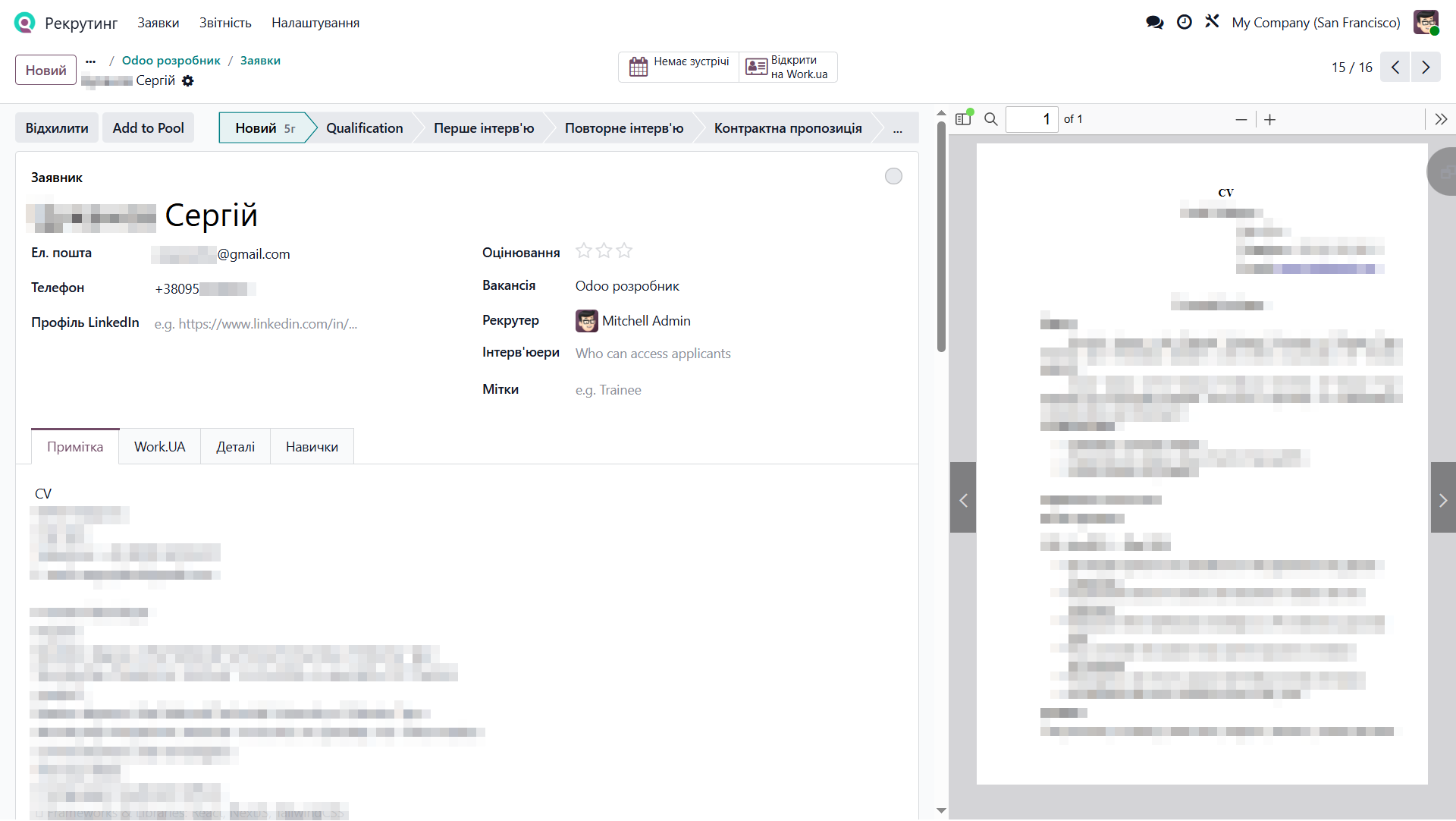
To view applications, open the job position and click Applications at the top of the page.

To view an applicant's response directly on Work.ua, open their application and click Open on Work.ua.

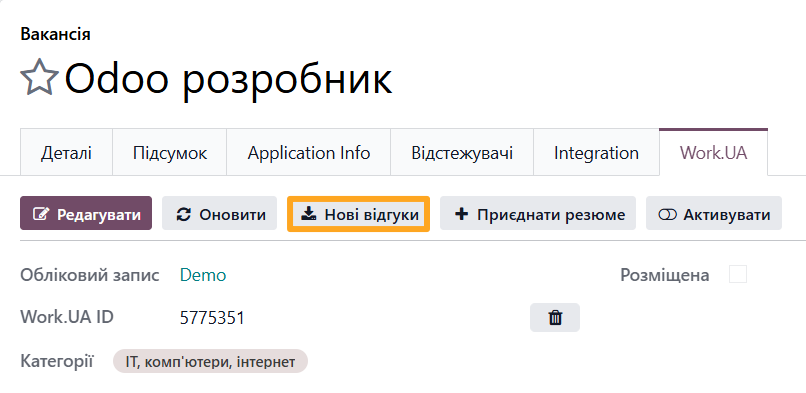
Downloading New Applications
To get new applications manually without waiting for scheduled synchronization, click Get New Responses on the Work.UA tab.
Adding an Application to a Job Position
If you locate an applicant on Work.ua and want to add their resume as an application for a job position, open the corresponding job position on the Work.UA tab and click Add Resume.
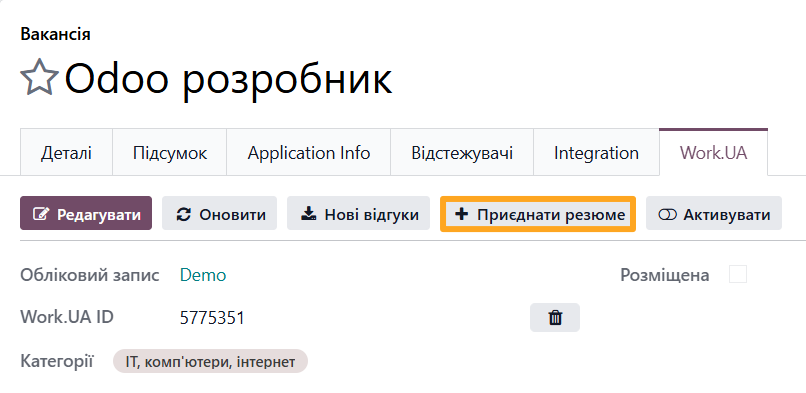
In the pop-up window, paste the Work.ua Resume URL and click Get Resume.

Changelog
15.0.1.1.0 2023-09-13
- Impove a cover letter style.
- Implement specifying of a Work.UA ID by a wizard.
- Improve the method "get_job_responces" to handle the limit of 50 responses.
- Add the button "Open on Work.ua" for applicants.
- Improve empty dates handling.
- Fix updating of refused applicants.
- Implement downloading files attached to a job application.
15.0.1.0.0 2022-09-30
- Migration from 14.0.
14.0.1.2.0 2023-09-13
- Fix updating of refused applicants.
- Implement downloading files attached to a job application.
- Improve empty dates handling.
- Add the button "Open on Work.ua" for applicants.
- Improve the method "get_job_responces" to handle the limit of 50 responses.
- Implement specifying of a Work.UA ID by a wizard.
14.0.1.1.0 2022-09-25
- Improve the API synchronization logic.
14.0.1.0.1 2021-06-25
- Impove synchronization logic.
14.0.1.0.0 2021-05-14
- Init version.
16.0.1.5.1 2025-03-14
- Fix candidate name getting on the job link wizard.
16.0.1.5.0 2024-12-06
- Add a resume uploading by URL.
- Add settings for synchronization.
- Add a candidate photo to the applicant form.
- Implement additional actions with the Work.UA jobs: creating, editing, deactivating, deleting.
16.0.1.4.0 2024-10-03
- Improve the view of a job form for Work.ua data.
- Implement additional actions with the Work.UA jobs: creating, editing, deactivating, deleting.
16.0.1.3.0 2023-09-13
- Add the button "Open on Work.ua" for applicants.
- Improve the method "get_job_responces" to handle the limit of 50 responses.
- Implement downloading files attached to a job application.
16.0.1.2.0 2023-09-11
- Impove a cover letter style.
- Fix updating of refused applicants.
- Improve empty dates handling.
16.0.1.1.0 2023-07-05
- Implement specifying of a Work.UA ID by a wizard.
16.0.1.0.0 2023-01-03
- Migration from 15.0.
17.0.1.2.2 2025-03-14
- Fix candidate name getting on the job link wizard.
17.0.1.2.1 2024-12-07
- Improve the wizard to link a Work.ua job.
17.0.1.2.0 2024-10-16
- Add a resume uploading by URL.
- Add settings for synchronization.
- Add a candidate photo to the applicant form.
- Improve API requests.
17.0.1.1.1 2024-08-07
- Improve additional actions with the job synchronization.
- Improve the view of a job form for Work.ua data.
17.0.1.1.0 2024-07-03
- Implement additional actions with the Work.UA jobs: creating, editing, deactivating, deleting.
17.0.1.0.1 2024-05-27
- Add hadling for getting of an absent attachment for applicants.
17.0.1.0.0 2024-02-02
- Migration from 16.0.
18.0.1.0.1 2025-03-14
- Fix candidate name getting on the job link wizard.
18.0.1.0.0 2024-11-22
- Migration from 17.0.
19.0.1.1.1 2026-09-16
- Improve views.
- Improve UA translations.
19.0.1.1.0 2026-08-13
- Add an action to refresh vacancy data from Work.ua.
- Add an action to download the latest vacancy responses from Work.ua.
- Improve synchronization with Work.ua.
- Implement syncing of applicant skills for a job.
19.0.1.0.2 2026-06-25
- Add button to unlink Work.UA reference for vacancy on job form.
- Add buttons to activate/deactivate vacancy on Work.UA from job form.
19.0.1.0.1 2026-03-31
- Fix synchronization of job responses bug.
19.0.1.0.0 2025-10-24
- Migration from 18.0.
Resources


Automate your recruitment process by integrating the Work.ua job search service with Odoo