
Import product data to the Prom.ua marketplace through XML data feeds
| Availability |
Odoo Online
Odoo.sh
On Premise
|
|---|---|
| Compatibility |
Community
Enterprise
|
| Technical Name | product_data_feed_prom_ua |
| Version | 19.0.1.0.0 |
| License | OPL-1 |
| Category | |
| Support | Free 60 days support and 360 days bug-fixing |
Use Case

Jorem ipsum dolor sit amet, consectetur adipiscing elit. Nunc vulputate libero et velit interdum, ac aliquet odio mattis. Class aptent taciti sociosqu ad litora torquent per conubia nostra, per inceptos himenaeos.
Forem ipsum dolor sit amet, consectetur adipiscing elit. Nunc vulputate libero et velit interdum, ac aliquet odio mattis. Class aptent taciti sociosqu ad litora torquent per conubia nostra, per inceptos himenaeos.
Dorem ipsum dolor sit amet, consectetur adipiscing elit. Nunc vulputate libero et velit interdum, ac aliquet odio mattis.
It is a long established fact that a reader will be distracted by the readable content of a page
Korem ipsum dolor sit amet, consectetur adipiscing elit. Nunc vulputate libero et velit interdum, ac aliquet odio mattis. Class aptent taciti sociosqu ad litora torquent per conubia nostra, per inceptos himenaeos.
Korem ipsum dolor sit amet, consectetur adipiscing elit. Nunc vulputate libero et velit interdum, ac aliquet odio mattis.
Odoo App Installation
Upload modules
Upload modules from the ZIP archive to your Odoo hosting, or a GitHub repository connected there.
Place the unzipped modules in your custom add-on directory and restart the Odoo system service.
Update App List
After restarting, activate the Developer Mode, and go to the Apps menu.

Click on Update Apps List to fetch the new modules in the list.
Activate the App
Install the new module, finding it by name and clicking on the Activate button.
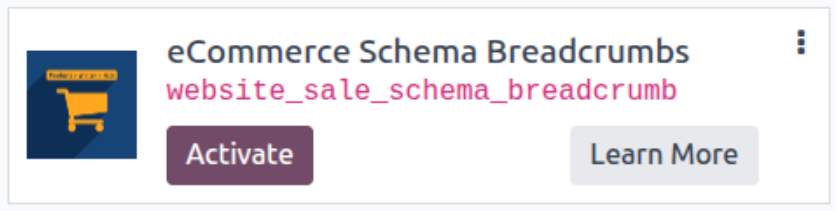
* If you don't see the module, try to remove the default Apps filter from the search bar.
Configuration
Follow the instructions in the module description to complete the installation process and start using the app.
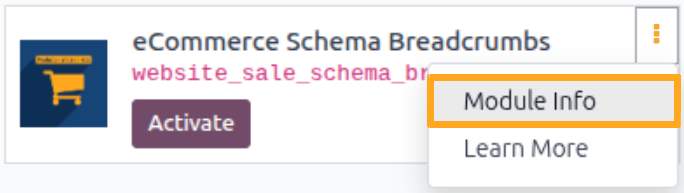

Manual

Prom UA Product Categories
To build the feed correctly, use official Prom.ua product categories.
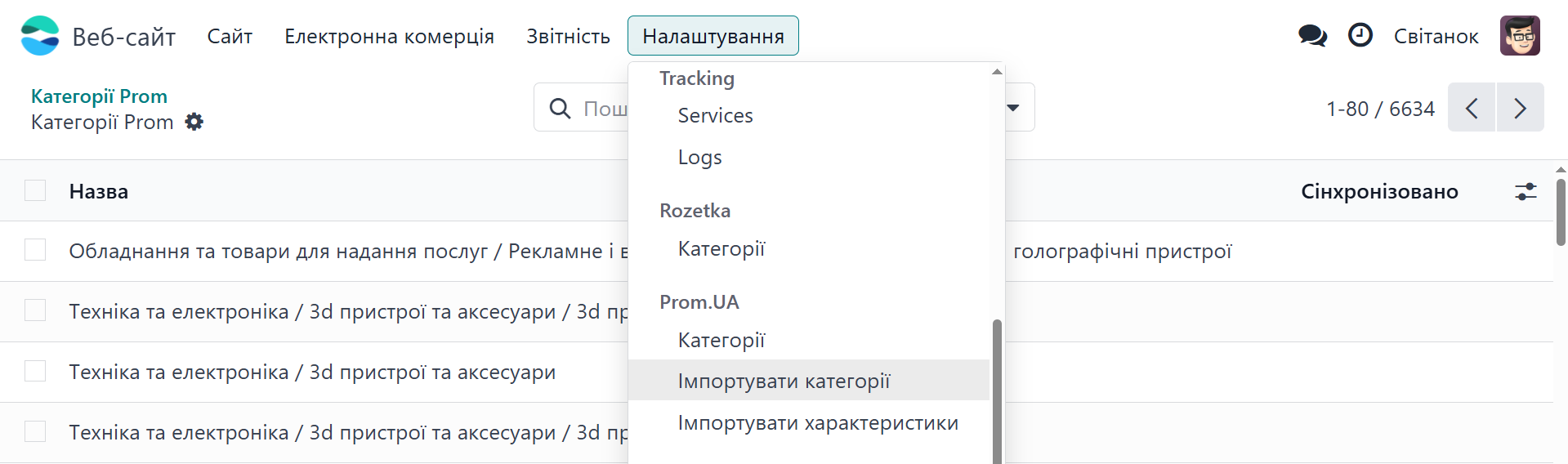
To import categories, go to Website — Configuration — Prom.UA and click Import Categories.
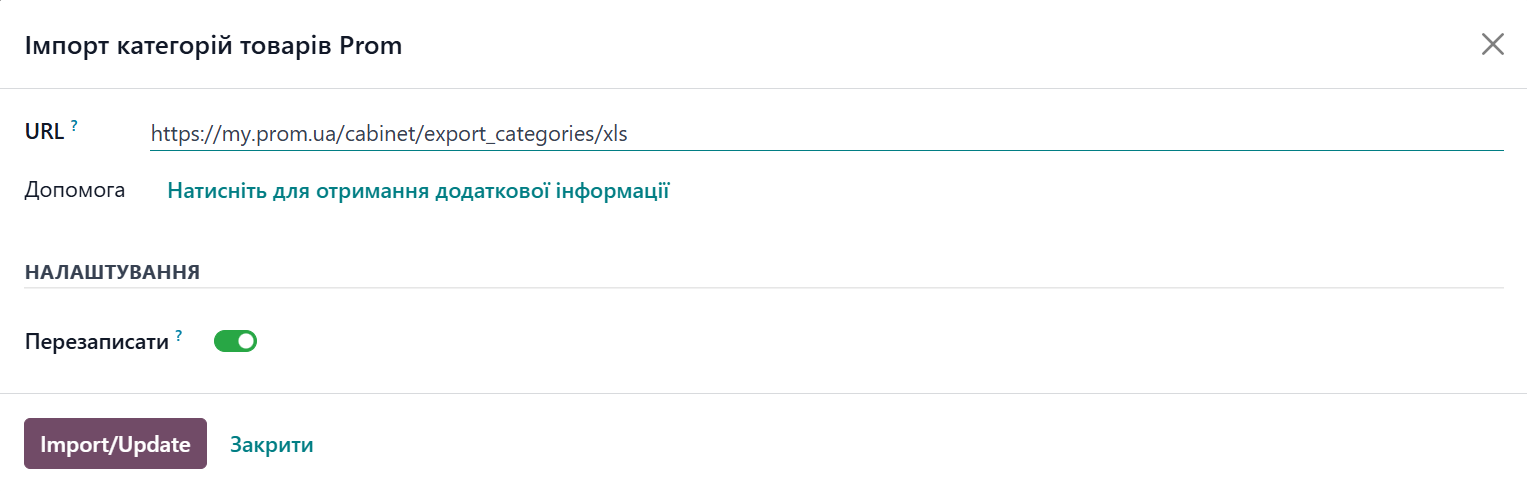
In the pop-up window, click Import/Update to download the categories.

Product Setup
After importing categories, assign them to your products. To do this, open a product and select the product Category on the Data Feeds tab in the Prom.UA section.
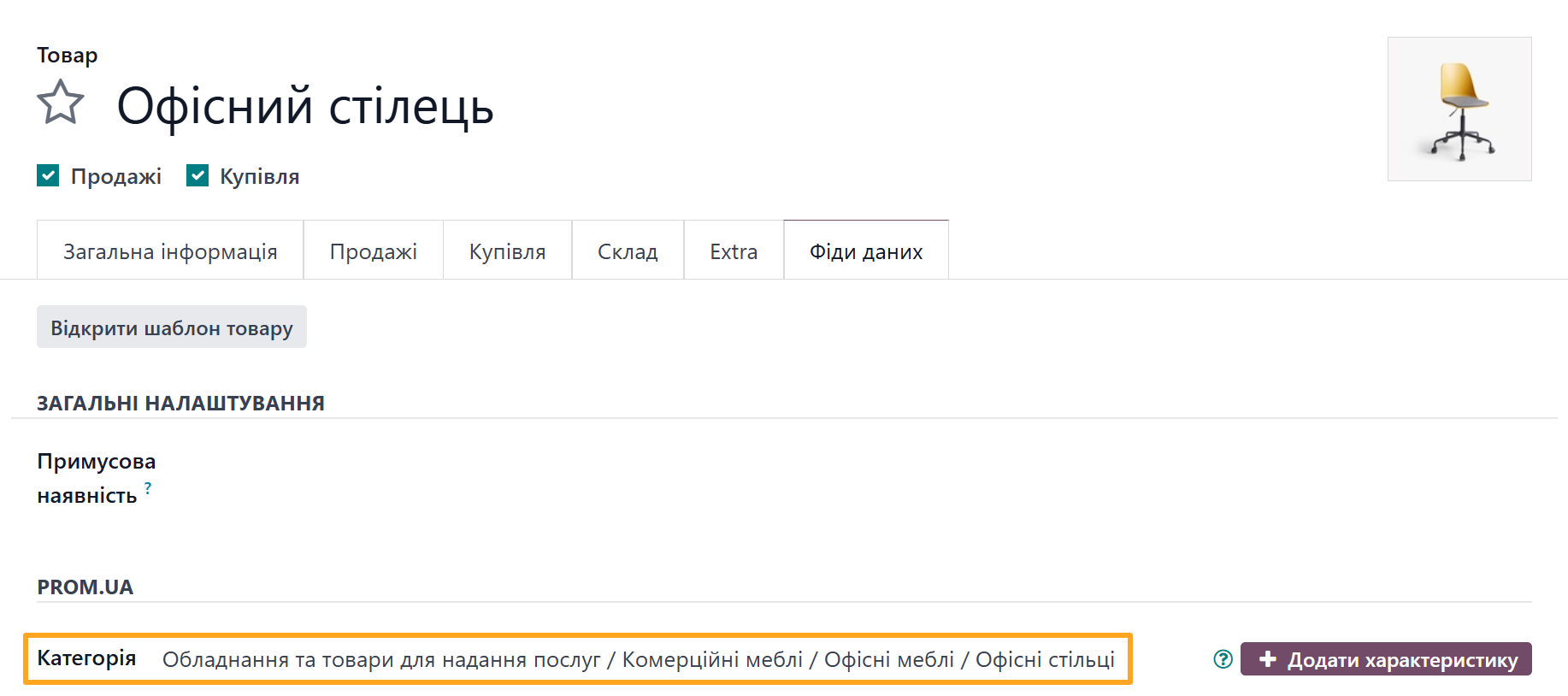
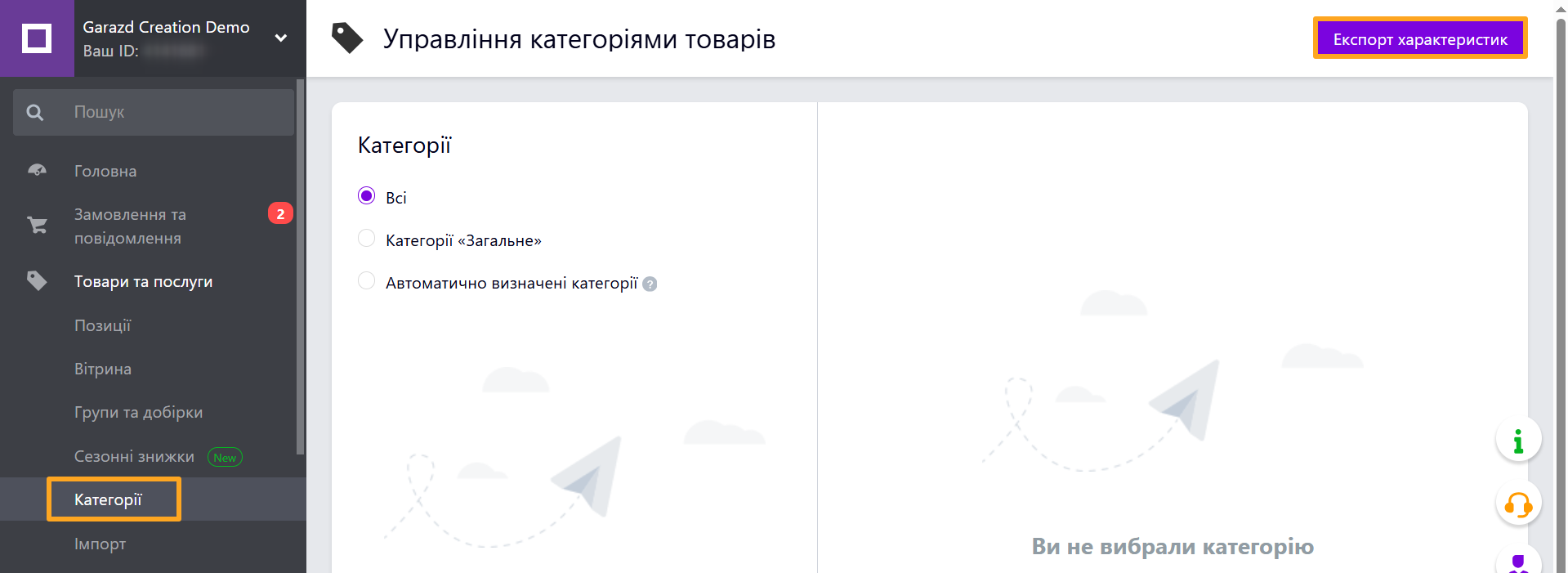
To import attributes for the selected category, log in to your Prom seller account, go to Products and Services — Categories, and click Export Characteristics.
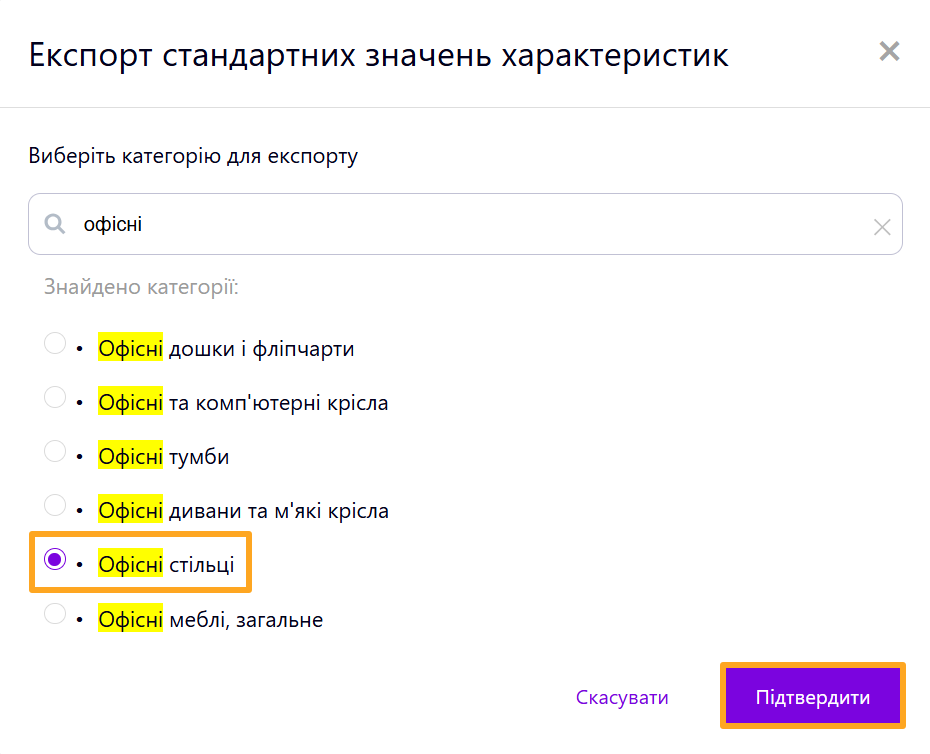
Find your category and click Confirm.
Copy the URL with attributes and return to Odoo.

To import attributes, go to Website — Configuration — Prom.UA — Import Characteristics.
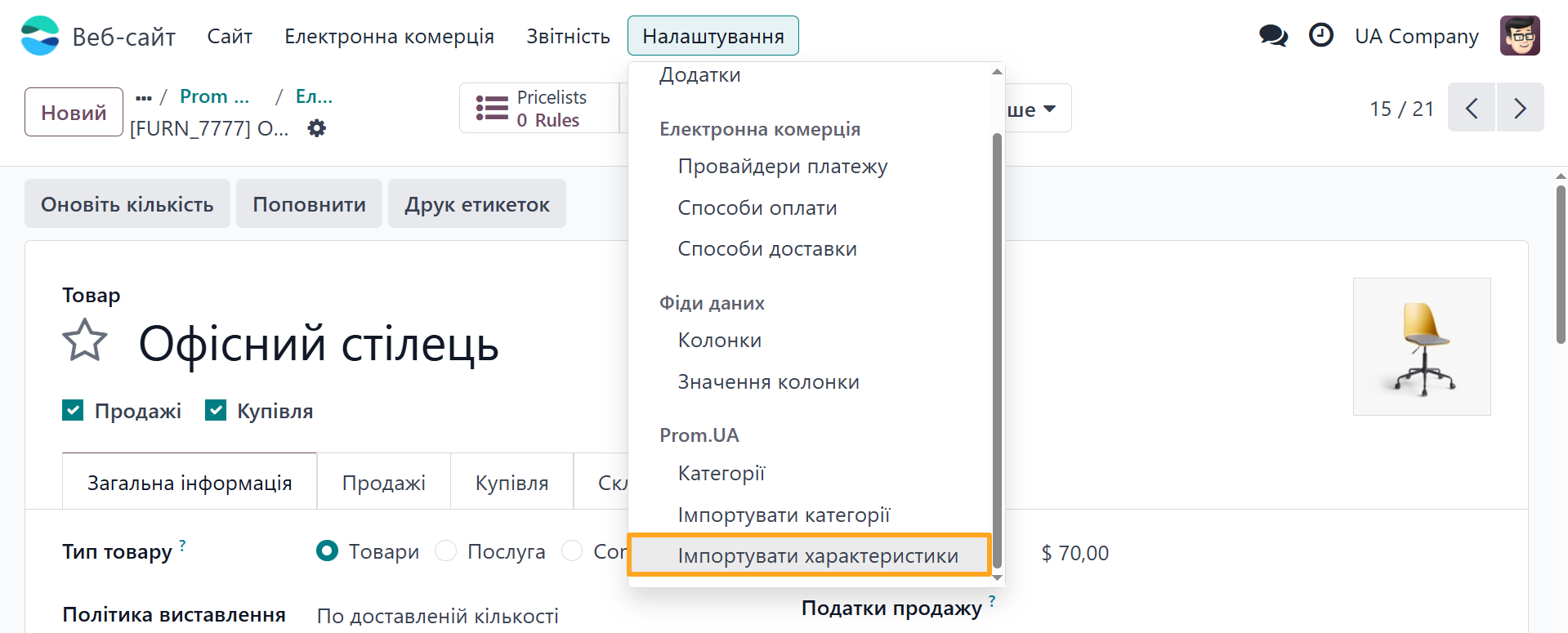
Return to the product and select the desired characteristics.
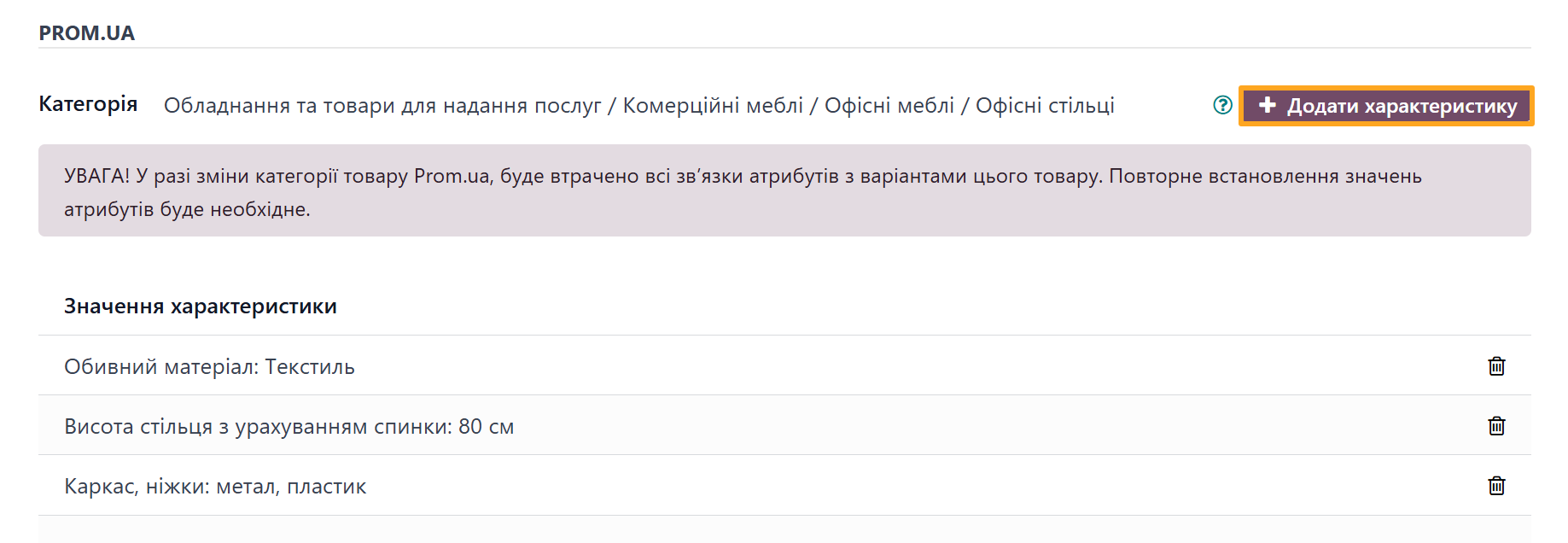
Complete the remaining product fields for Prom.UA in the same section:
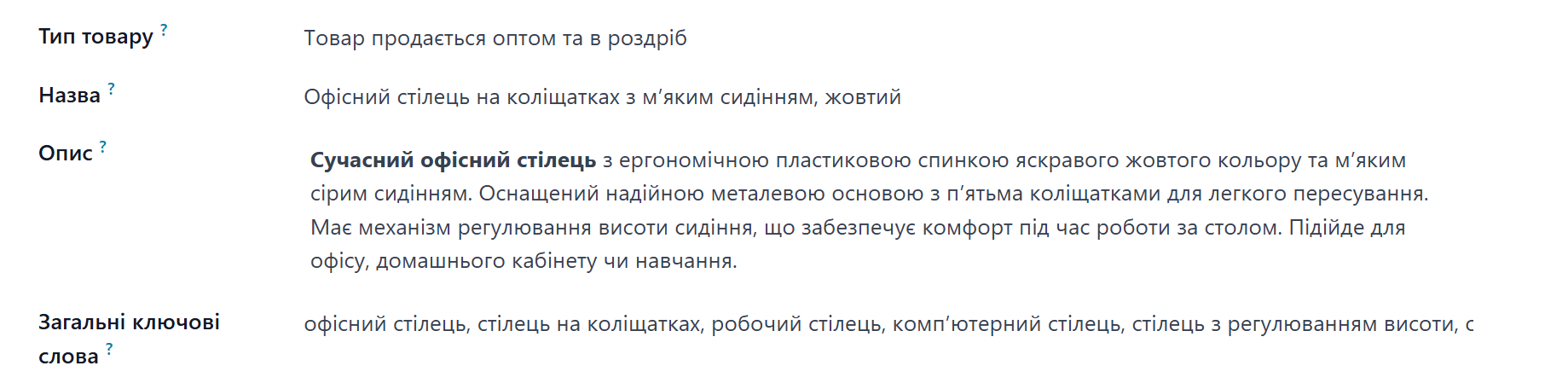
- Product Type: Select one of the values from the list.
- Name and Description: Fill in these fields if you want a different title or description on Prom than in Odoo.
- General Keywords: Enter search terms and phrases to help buyers find your product on Prom.


Feed Configuration
To prepare a feed, go to Website — eCommerce — Product Data Feeds.
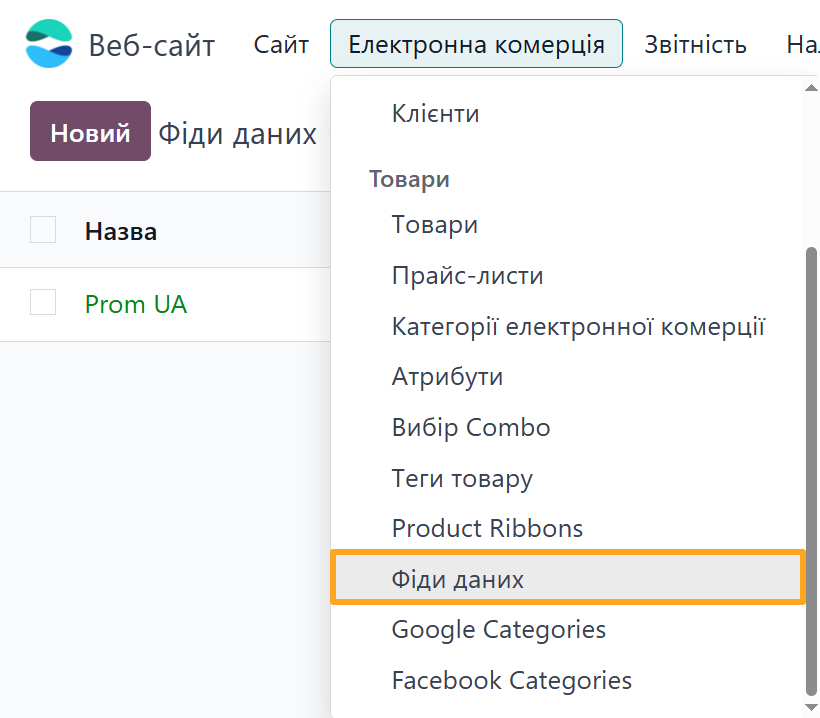
The module includes a pre-configured feed template matching Prom requirements.

Feed Products
Use the Item Filter to specify which products to include in the feed.
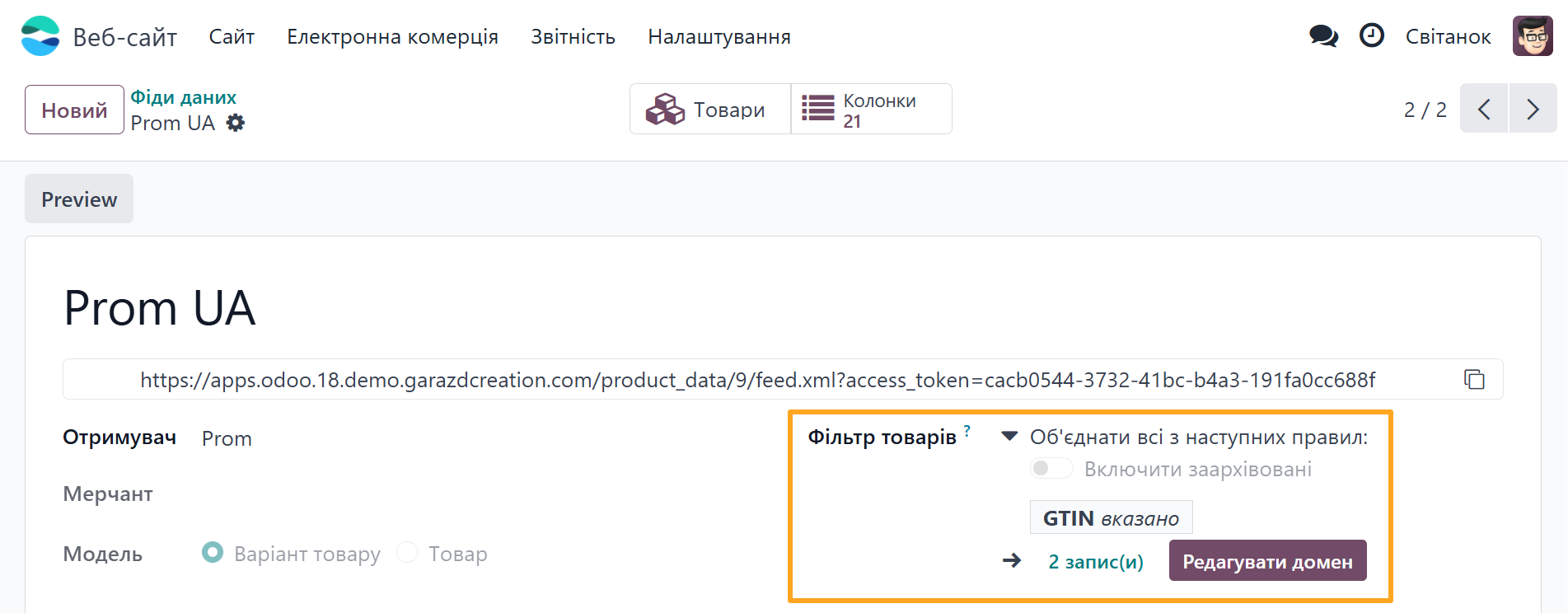
Click the Products button at the top of the form to view the filtered product list.

Feed Prices
Before connecting the feed to Prom.ua, set up product prices. Go to the Settings tab and in the Prices section, select a Pricelist.
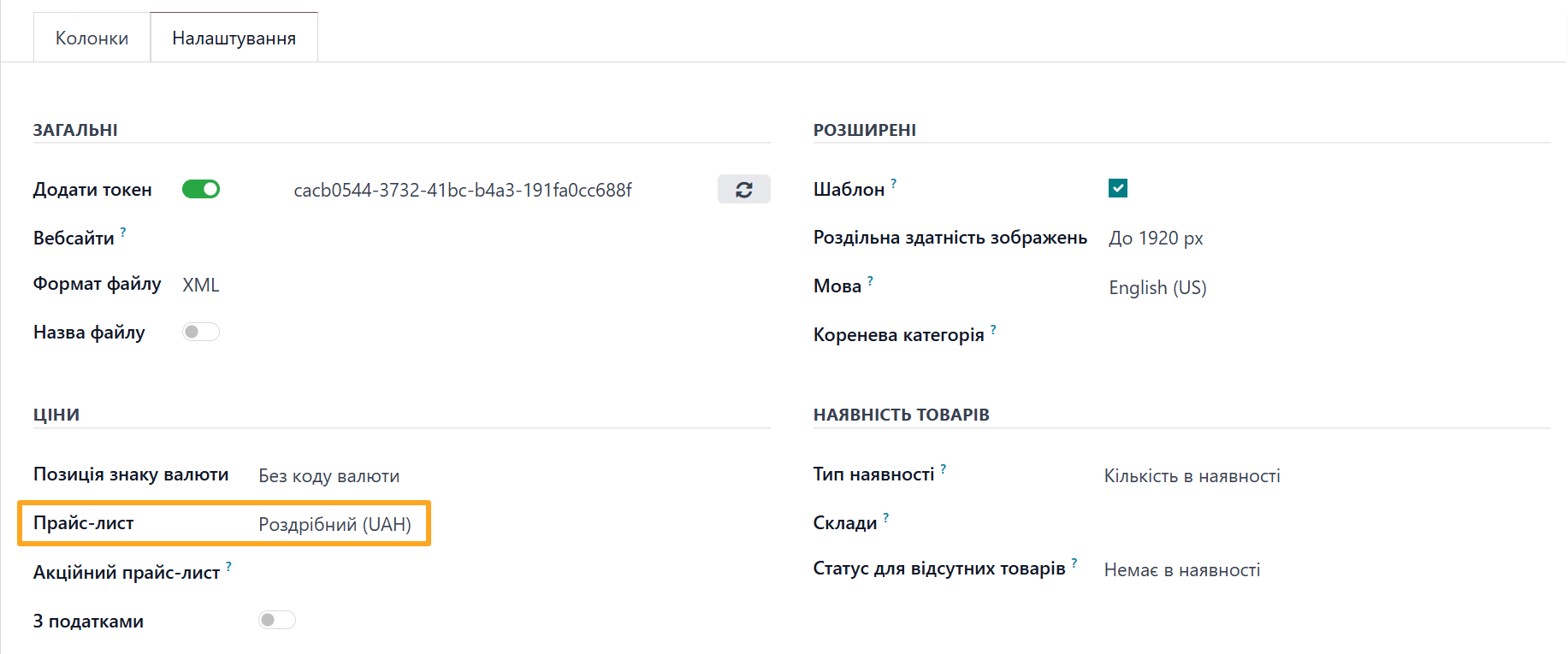
To include promotional prices in the feed, select a pre-configured pricelist with lower prices in the Sale Pricelist field.
Stock Locations
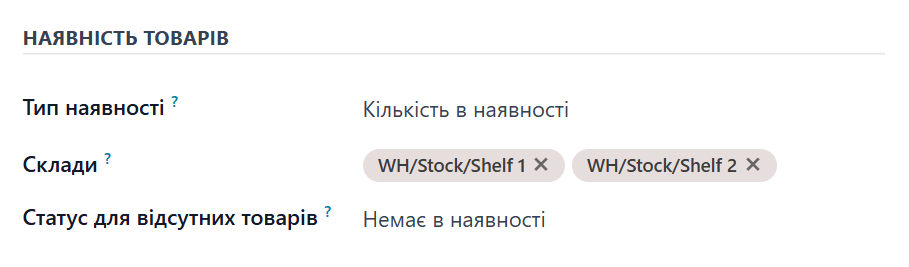
Select specific warehouses (locations) to calculate stock levels and product availability for the feed.
Go to the Settings tab and select the desired Stock Locations in the Stock section. As a result, the module calculates stock levels for the data feed using only the specified locations.
Preview
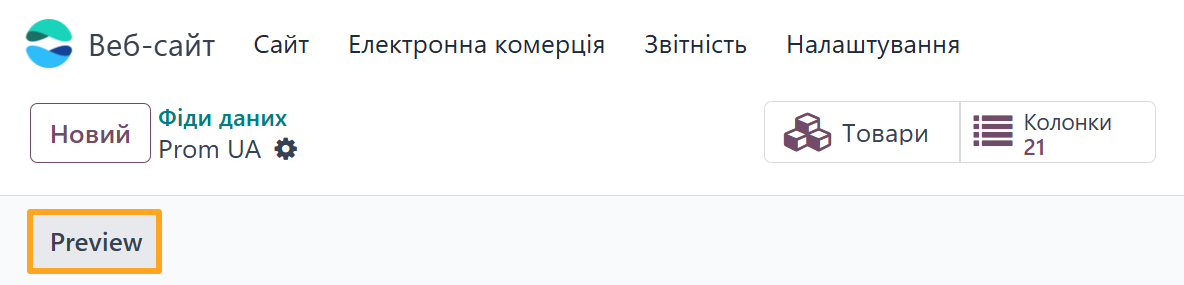
Click Preview to check the feed configuration before publishing.

Columns
The module includes data feed columns preconfigured according to Prom requirements. These columns map to standard fields and use native Odoo product management logic. You can reconfigure the feed columns through the user interface to map them to your custom product fields.
To manage columns, click the Columns button at the top of the page.


Linking Existing Prom Products
If you created products on Prom before connecting the Odoo feed, importing the feed directly may create duplicate items. Follow these steps to link existing Prom products to Odoo.
Log in to your Prom seller account and export your products to an XLS file.
Products created directly on Prom do not have values in the Product ID column.

Fill in the Product ID column with the corresponding product IDs from Odoo. You can find the ID in the Odoo URL when viewing a product, e.g., yourwebsite.com/odoo/products/5.
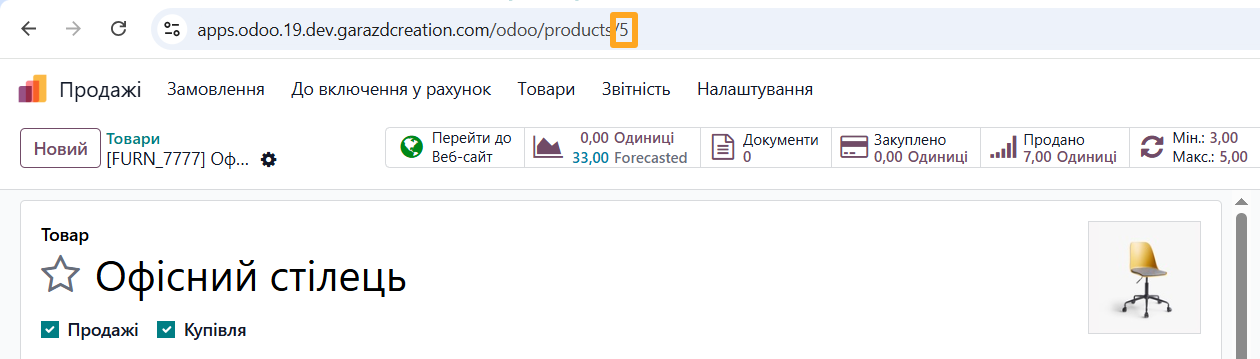
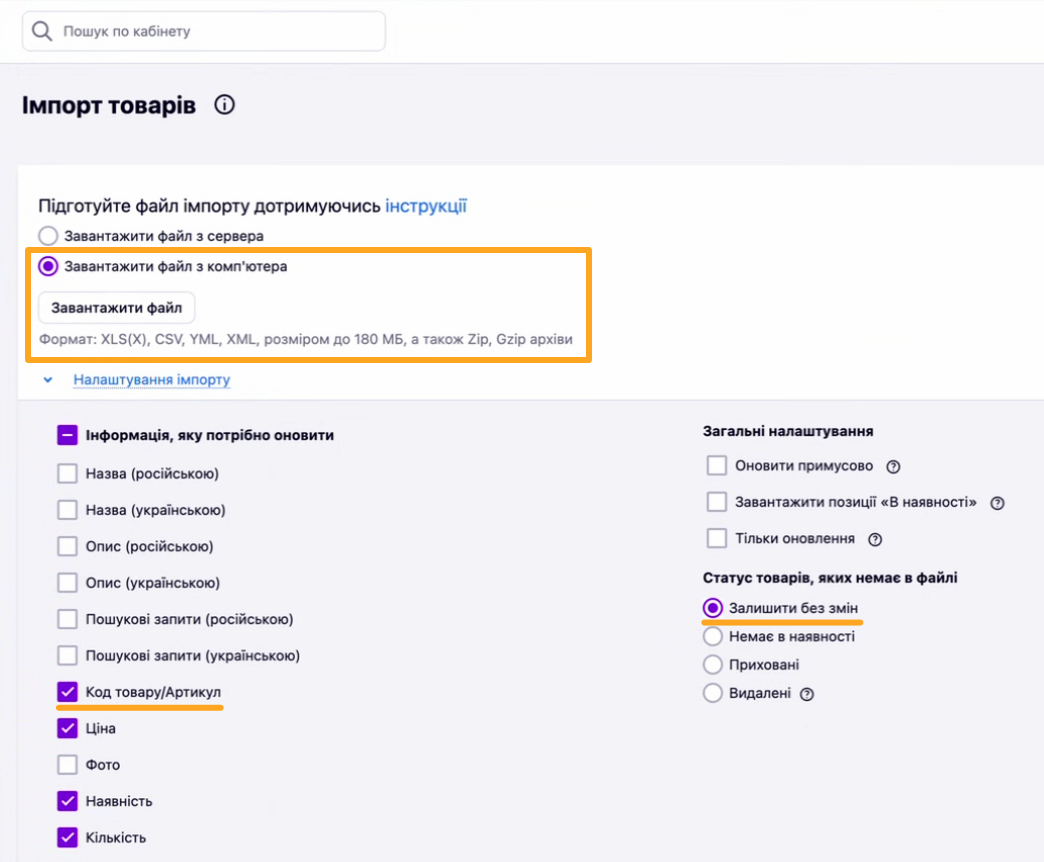
After entering the values, save the file and import it into the Prom seller dashboard:
-
01Go to Products and Services — Import
-
02Select Upload file from computer
-
03Upload the updated XLS file
-
04Enable the Product Code/SKU and Leave unchanged options in the import settings
-
05Click the Start Import button at the top of the page
Once external IDs are linked, you can connect the feed to update products automatically.

Connecting the Feed
To connect a data feed to Prom UA, you need a configured data feed and an active store on the marketplace.
To add a product feed to your Prom UA account, first copy the data feed URL in Odoo.

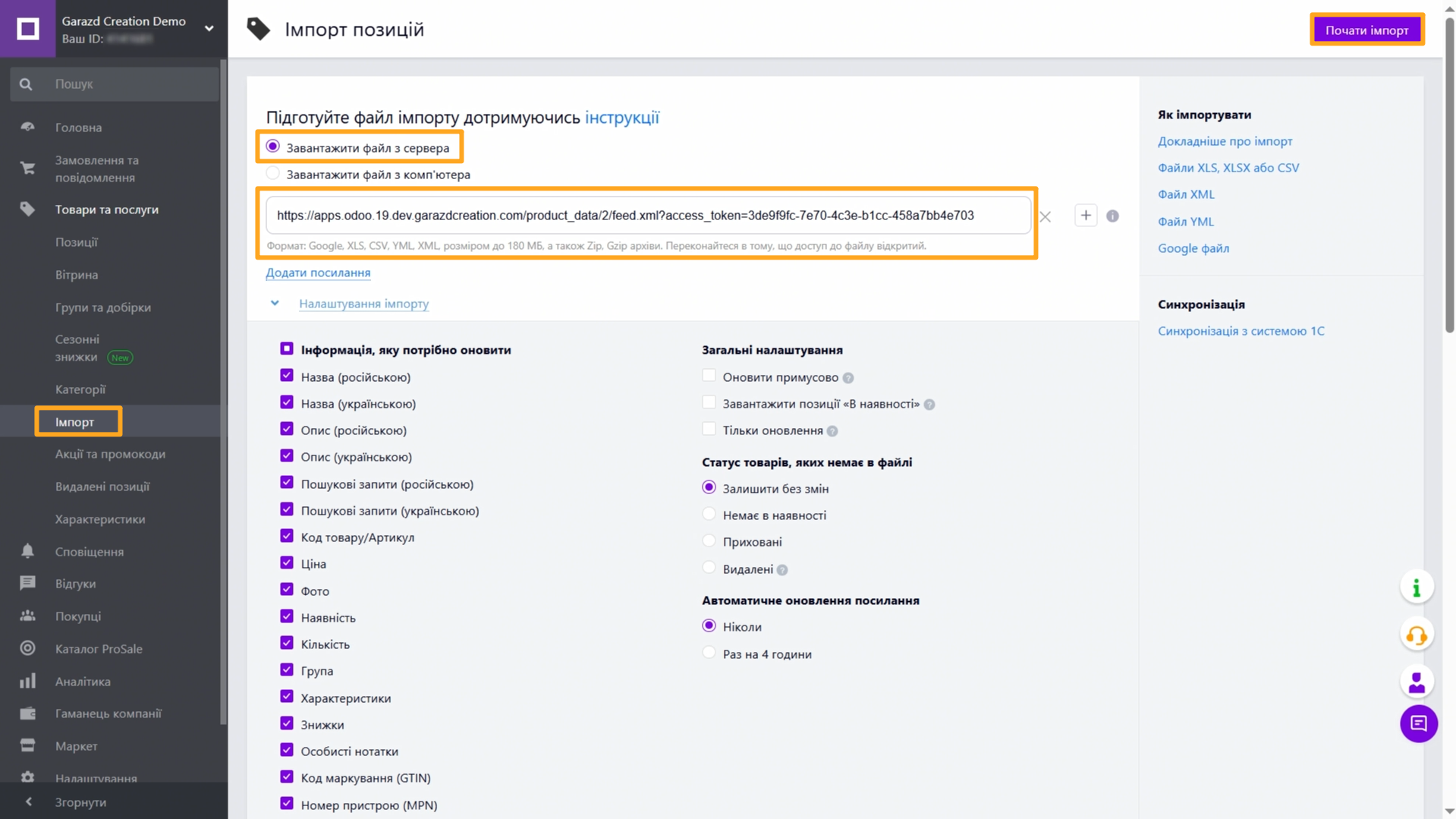
Next, go to your Prom seller account and open Products and Services — Import.
-
01Select the Upload file from server option
-
02Paste the feed URL from Odoo into the field
-
03Configure import parameters and data update frequency according to your needs
-
04Click Start Import
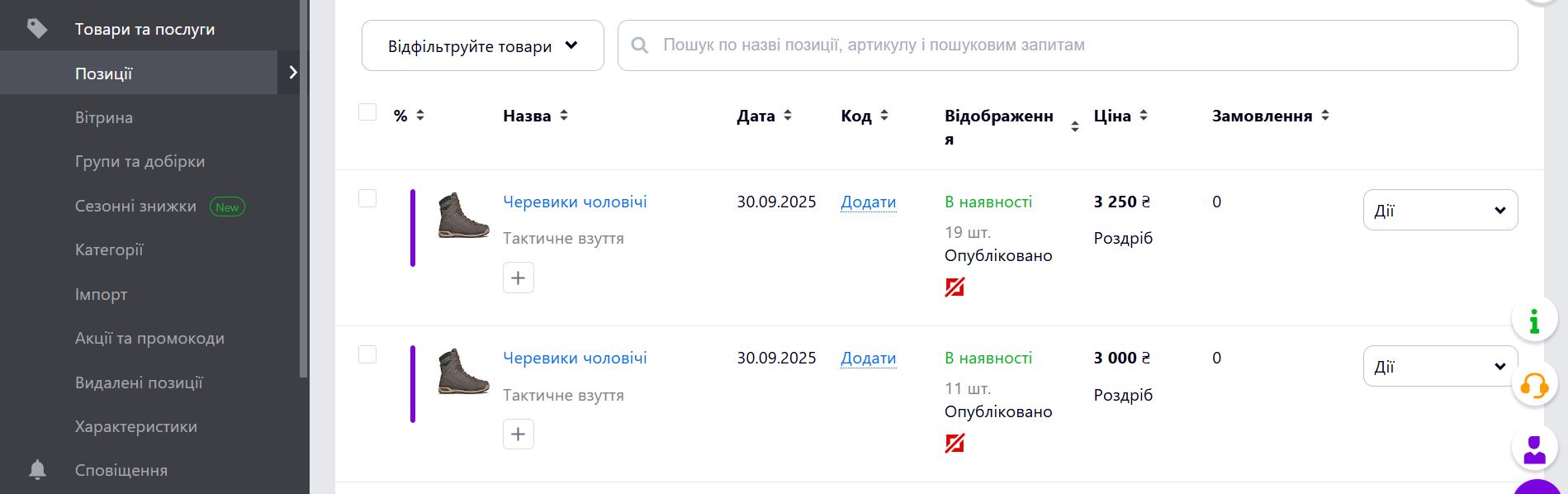
Wait for the upload to complete — your products are now in Prom UA.
Changelog
14.0.1.0.0 2023-05-17
- Init version.
15.0.1.0.0 2023-06-07
- Migration from 14.0.
16.0.1.0.0 2023-06-07
- Migration from 15.0.
18.0.1.1.3 2025-10-13
- Improve data records for Prom feed columns.
- Implement linking of Prom product groups to Odoo eCommerce categories.
18.0.1.1.2 2025-10-10
- Improve data feed template data.
- Improve the "picture" feed column processing.
18.0.1.1.1 2025-04-01
- Add the Forces Category field to indicate that category is changed on Prom.ua side.
18.0.1.1.0 2025-03-28
- Improve Prom.UA product category views.
- Fix the wholesale price column processing.
- Add the "group_id" column to specify a product template.
- Rebuild from the CSV to the XML feed format.
18.0.1.0.0 2024-10-26
- Migration from 16.0.
17.0.1.1.2 2025-10-31
- Improve data records for Prom feed columns.
- Implement linking of Prom product groups to Odoo eCommerce categories.
- Improve the "picture" feed column processing.
17.0.1.1.1 2025-06-12
- Add the Forces Category field to indicate that category is changed on Prom.ua side.
17.0.1.1.0 2025-01-29
- Improve Prom.UA product category views.
- Fix the wholesale price column processing.
- Add the "group_id" column to specify a product template.
17.0.1.0.0 2025-01-22
- Migration from 16.0.
19.0.1.0.0 2025-10-23
- Migration from 18.0.
Resources



Automate the import of products, prices, and stock levels from Odoo to Prom.ua

How to Automate Your Launch on Europe’s Leading Marketplace

A new module has been released that allows you to import products from Odoo ERP to the Prom.ua marketplace using CSV data feed.