

Looking for a convenient and reliable solution to integrate Odoo with Nova Poshta? Need an Odoo module that takes the specifics of the Ukrainian market into account? Do you work with multiple accounts and process a large number of shipments to individuals and organizations? The module by Garazd Creation provides extensive capabilities. Find out what they are in this blog post.
Order Delivery
The Nova Poshta integration solution by Garazd Creation provides two ways to add delivery to a sales order. The first one integrates with the standard workflow by adding a delivery line to the list of order products.
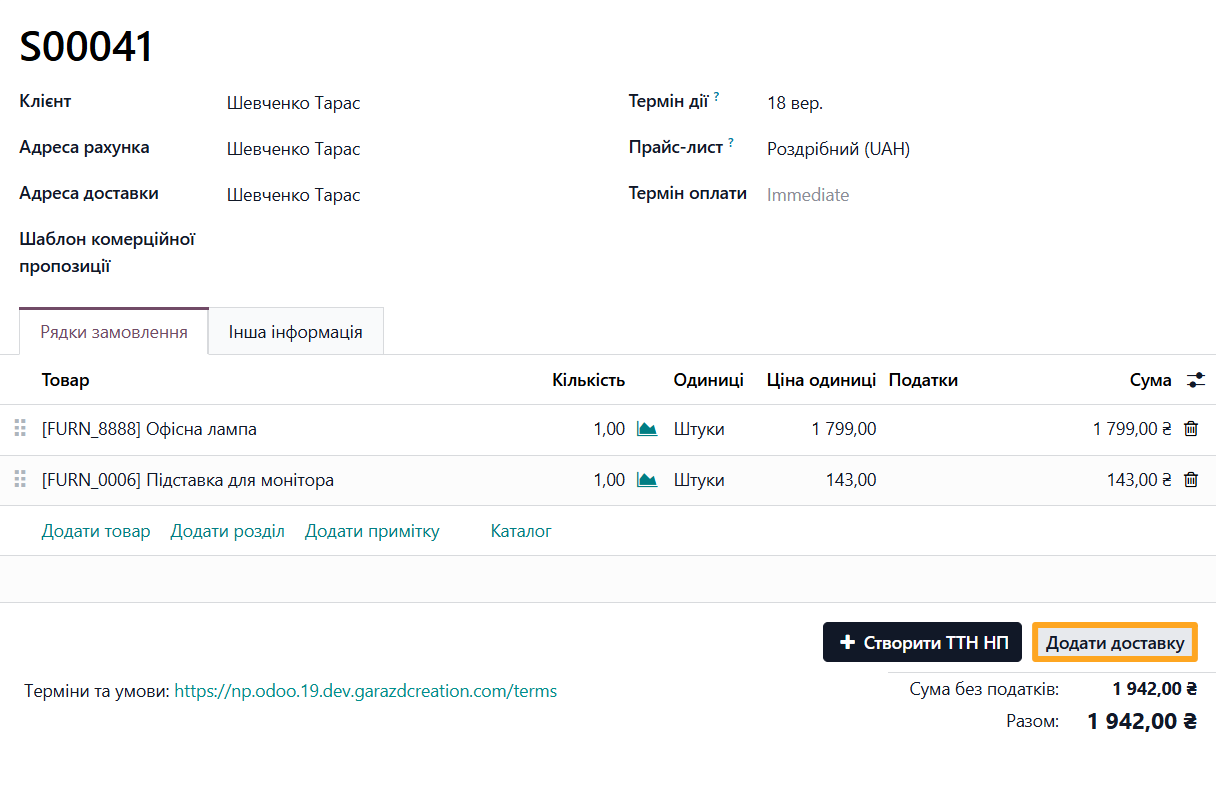
Click Add Shipping and select a Shipping Method connected to Nova Poshta. If the customer already has Nova Poshta contact and address details, the module automatically fills them in and calculates the delivery cost.
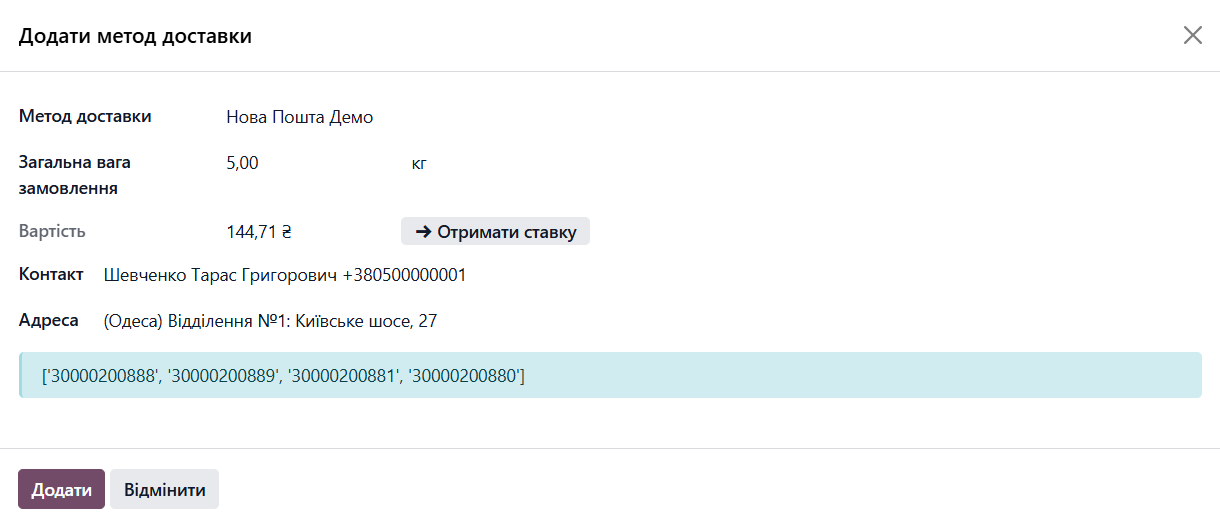
If the customer has no Nova Poshta data, you can add it in the same window.
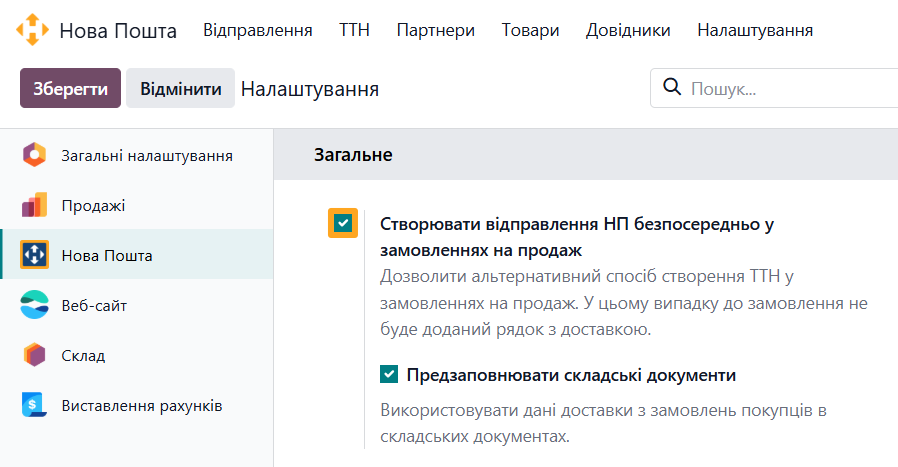
The alternative delivery workflow is more adapted to the needs of Ukrainian businesses. It lets you add delivery without creating a delivery line in the order product list. A separate delivery line increases the total order amount, which may not suit some businesses. To enable this workflow, open the Nova Poshta settings and enable Create TTN directly in Sales.
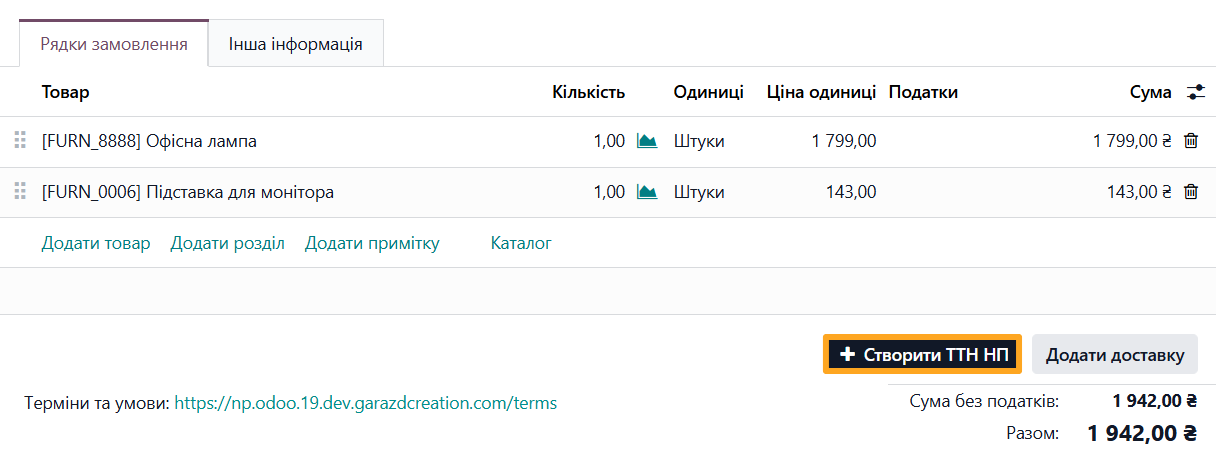
Then click Create TTN NP to enter shipment details in a convenient wizard without adding a delivery line.
When you confirm a sales order, the module creates an inventory document. The module also automatically transfers the shipment data from the sales order to this document. Open the Additional Info tab to view the data.
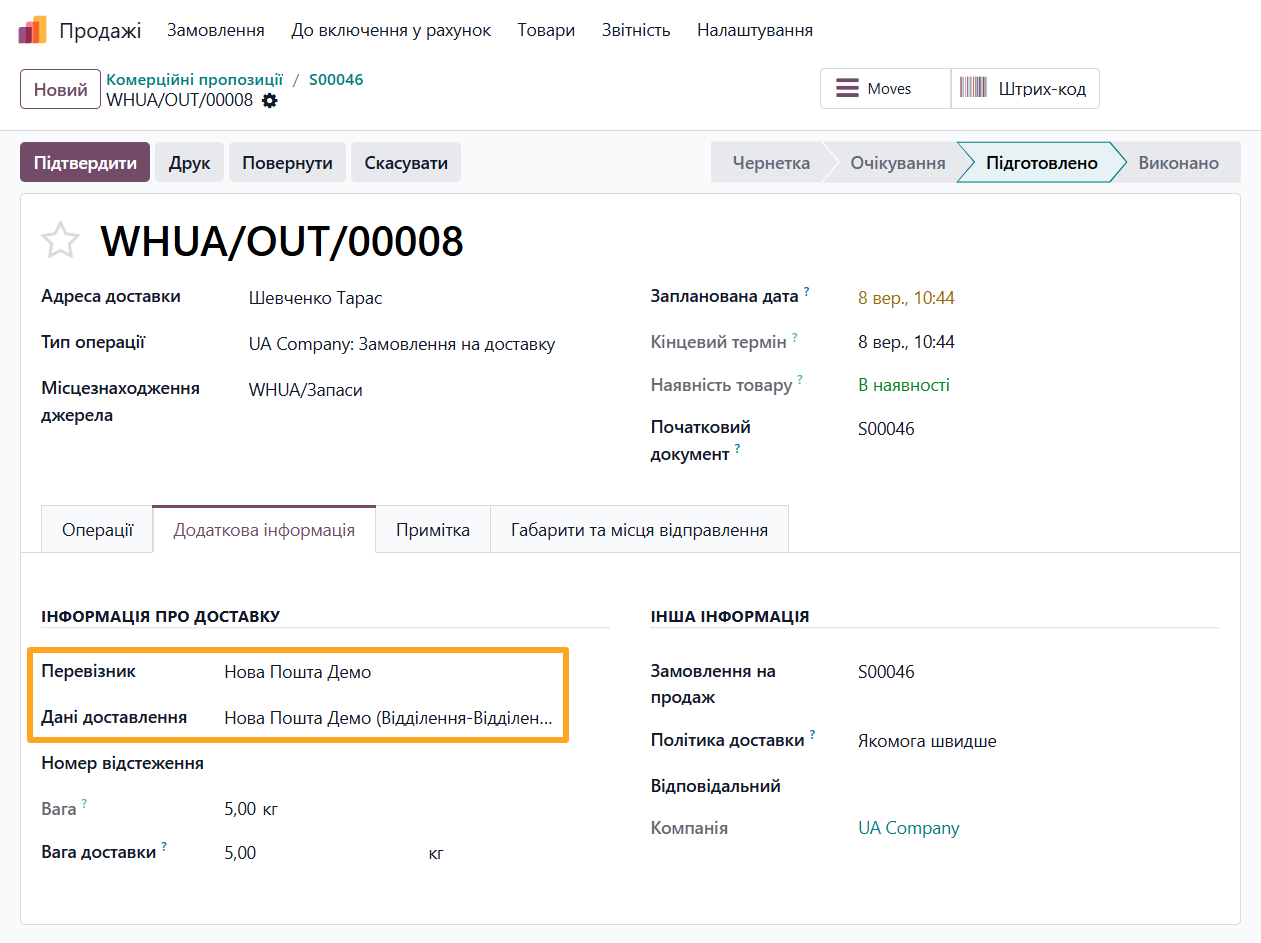
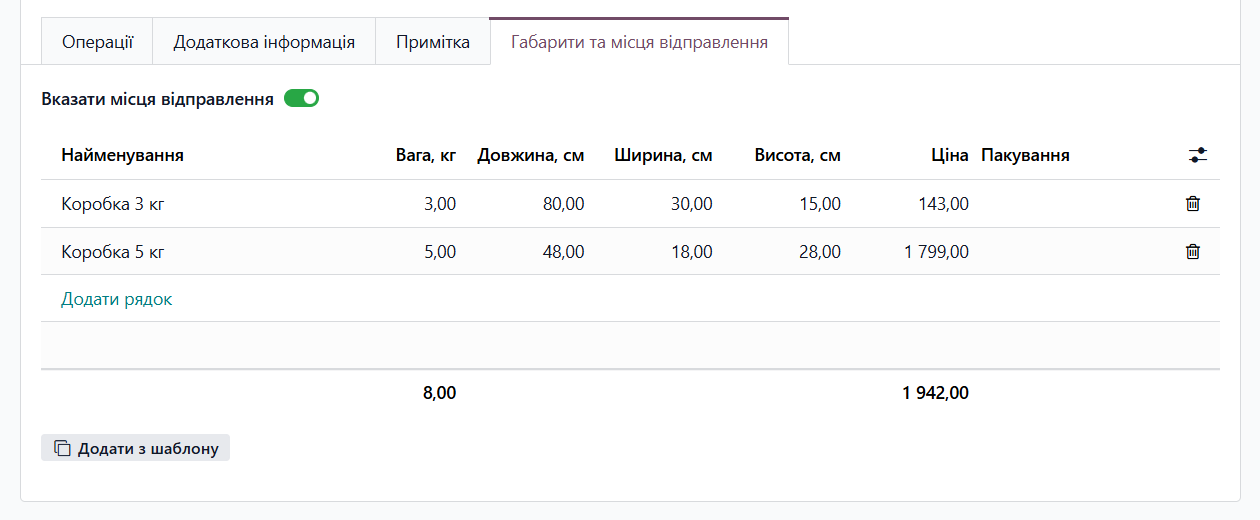
Pay attention to the new Dimensions and Seats tab. You can use it to add detailed information about each shipping place while collecting and packing products.
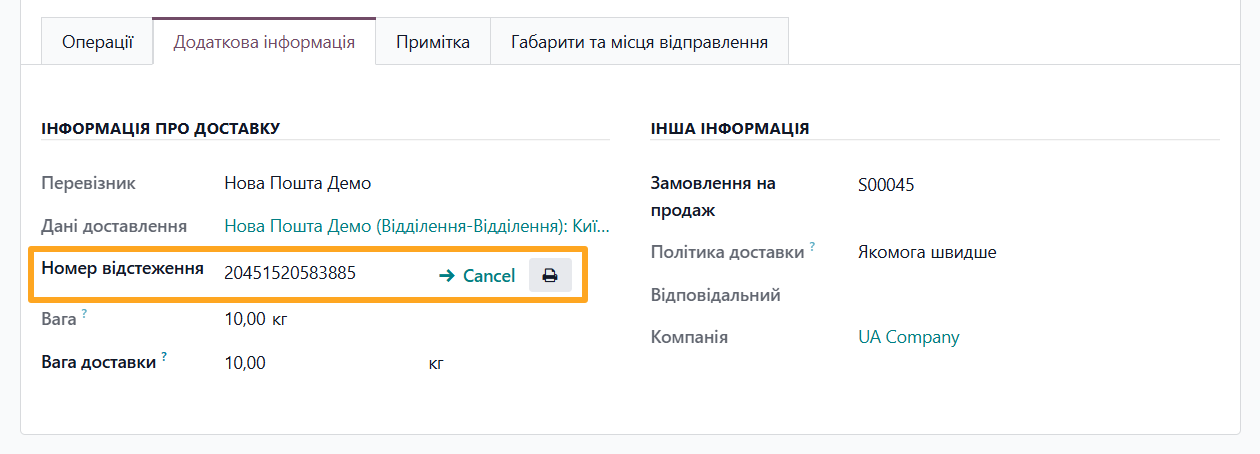
The module automatically creates the Nova Poshta express waybill after you confirm the inventory document. On the Additional Info tab, you can view the express waybill number in the Tracking Reference field, print the label, or cancel the waybill.
The buttons at the top of the inventory document let you manually check the shipment status on the Nova Poshta website and view the waybill created in Odoo.

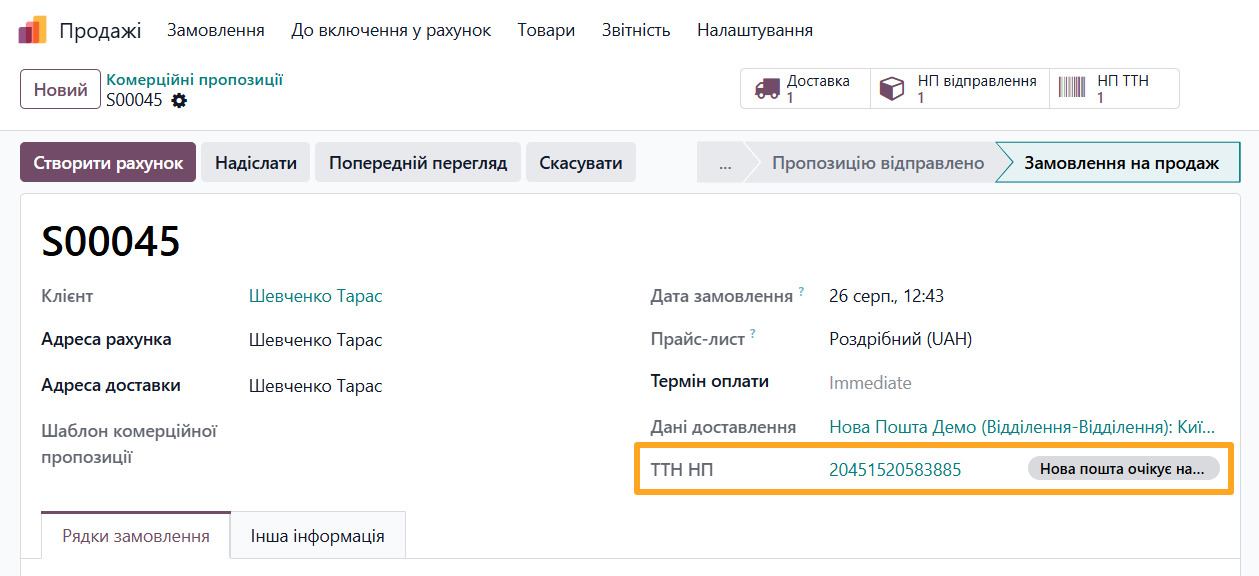
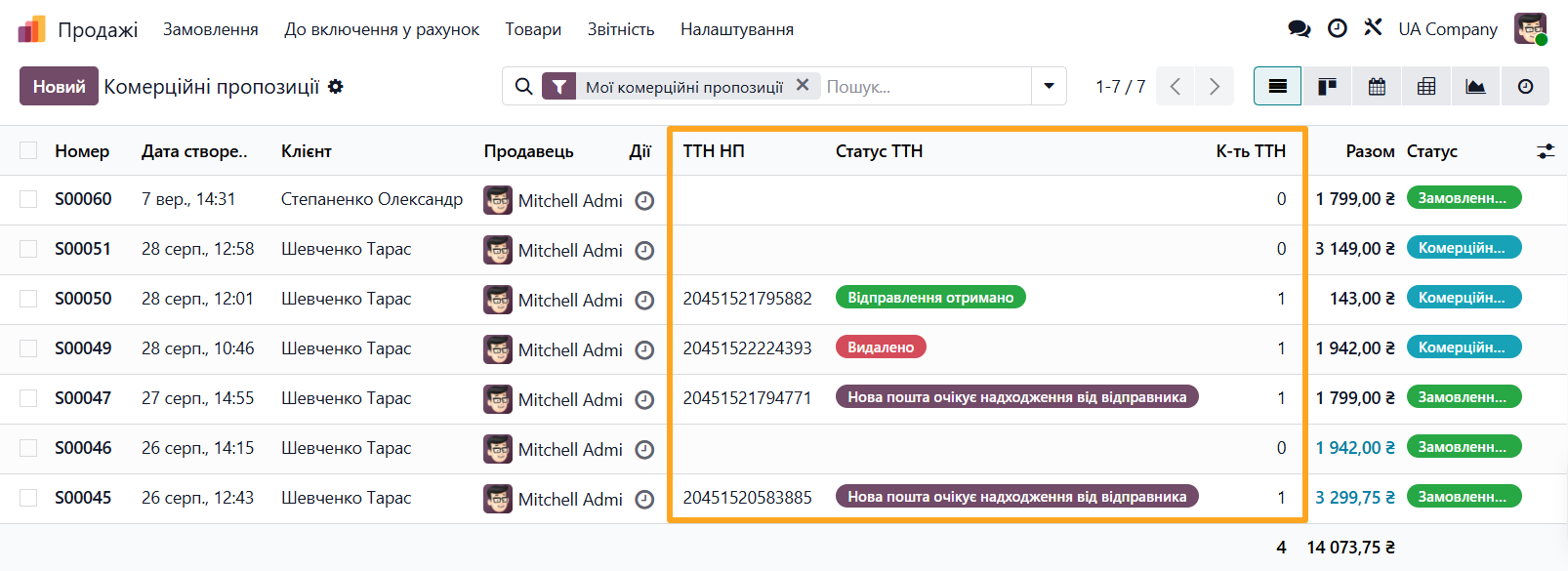
After you create the express waybill, its number and status appear on the sales order form and in the sales order list columns.
Quick Shipment Creation
The quick shipment creation wizard provides an alternative way to enter data for Nova Poshta deliveries. You can use it to create shipments linked to customer orders or other Odoo documents (with additional extension modules). You can also use the wizard independently for internal company needs, such as sending documents to business partners.

In the wizard:
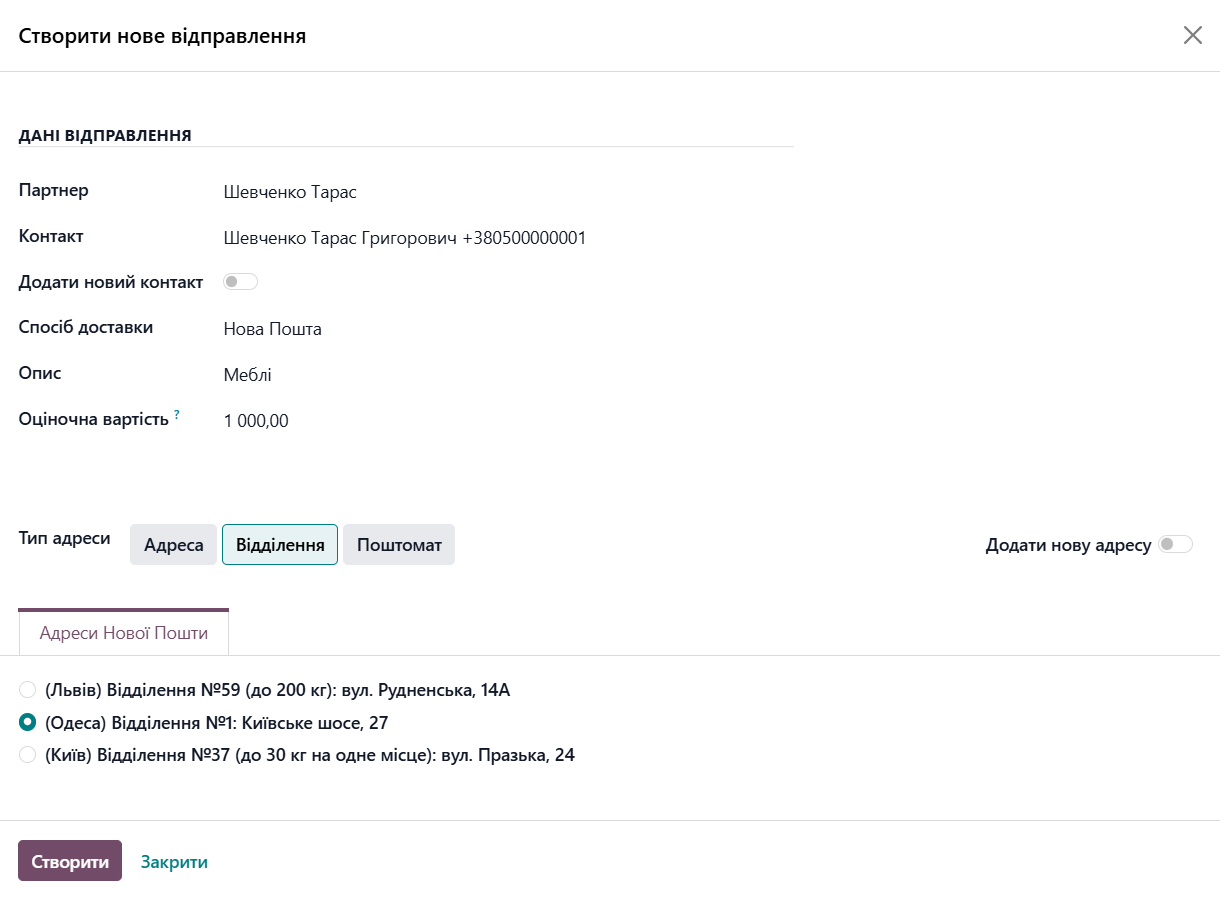
- Select a Partner
- Select a contact person in the Contact field
- Select the Delivery Method linked to your Nova Poshta account
- Enter a shipment Description
- Enter the Assessed Cost
- Select the recipient address from the list or create a new one by clicking Add New Address
- Click Create
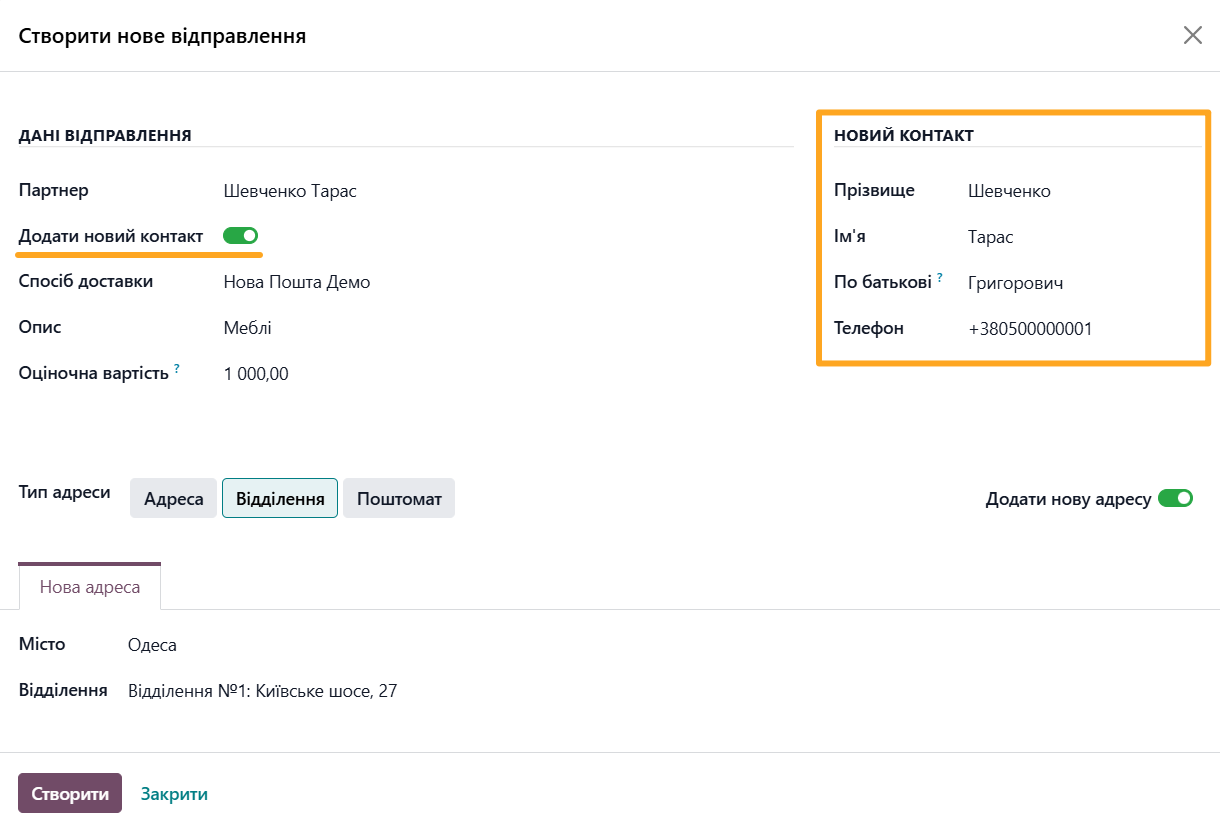
If you have not added a contact person yet, enable Add New Contact and enter the required details in the corresponding section.
Shipment Options
The module automatically fills shipment data based on the customer order and default values configured for the account. After creating the document, you can update the sender and recipient information and other shipment parameters.
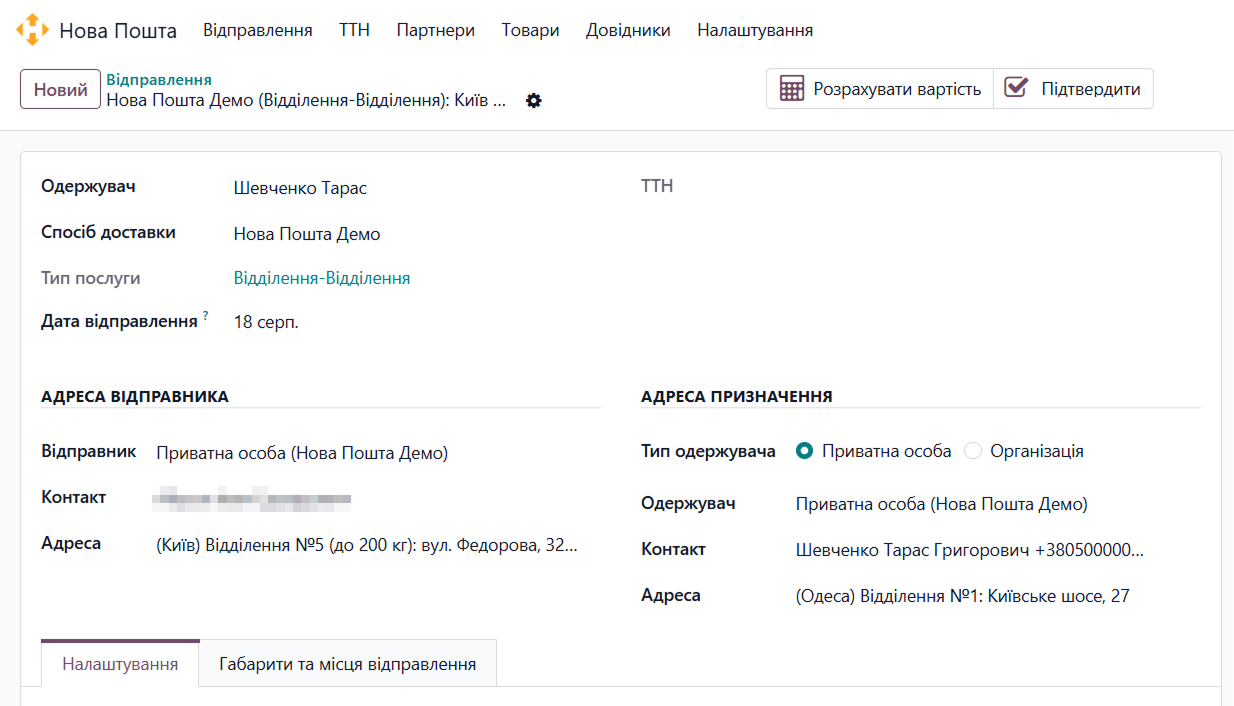
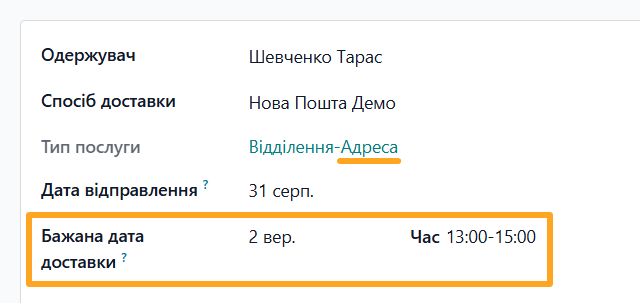
The Service Type is automatically determined based on the sender and recipient address types. When necessary, specify the planned Shipment Date so that the recipient can see it after you create the express waybill.
For shipments delivered to an address, also specify the Preferred Delivery Date and select the Time Interval when the courier should deliver the order.
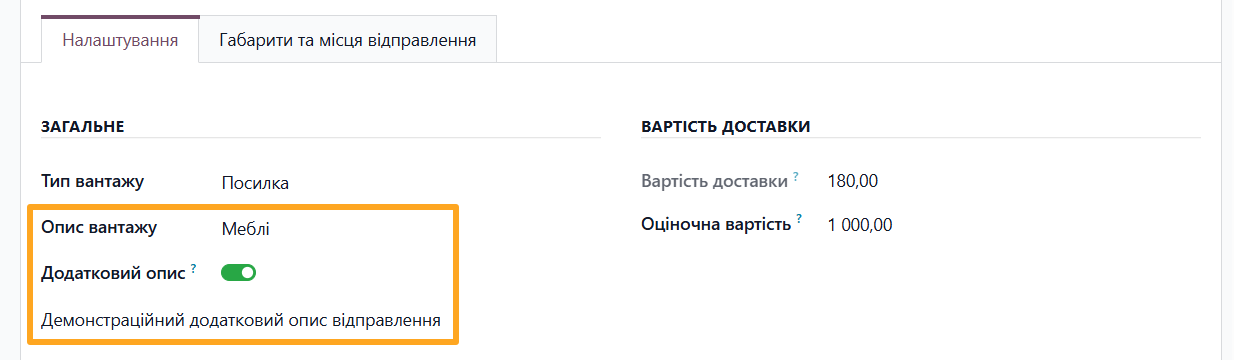
On the Settings tab, enter a general Cargo Description for the shipment. Use the Additional Description option to provide more detailed information.
Seats
You must provide the dimensional and weight characteristics of shipments when using Nova Poshta.

When you create a shipment from a sales order, the module automatically fills in the Calculated Weight and Volume based on the values configured for the products.
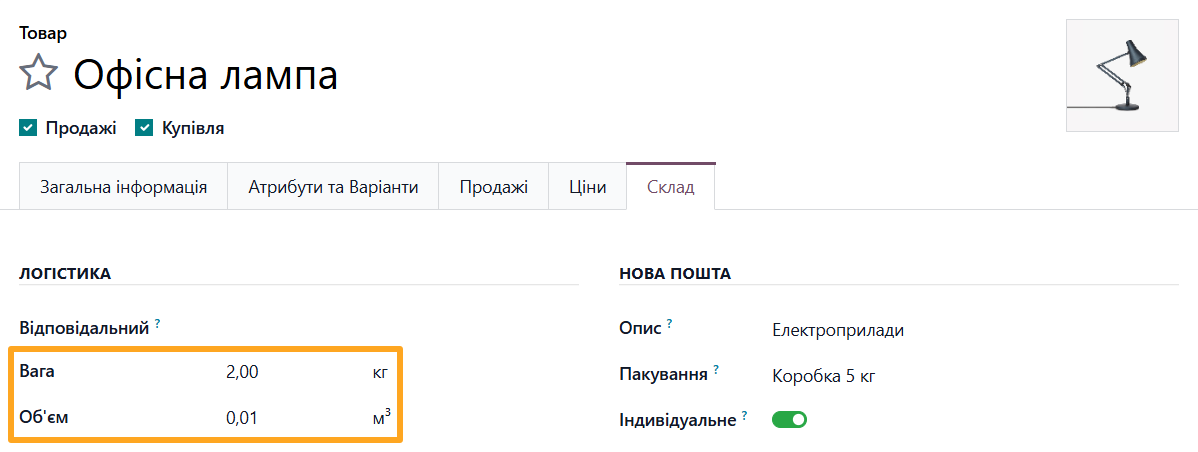
You can override the calculated values when necessary and enter the weight and volume manually using the Manual Weight and Manual Volume fields. When you transmit the total dimensional and weight characteristics, you must also specify the total number of shipping places (Seats Amount).
You must provide detailed information for each shipping place when you send a shipment to a Parcel Locker. In other cases, this information is optional. Enable Specify Shipping Seats to describe each shipping place. Enter the values manually or use prepared templates by clicking Add from Templates.
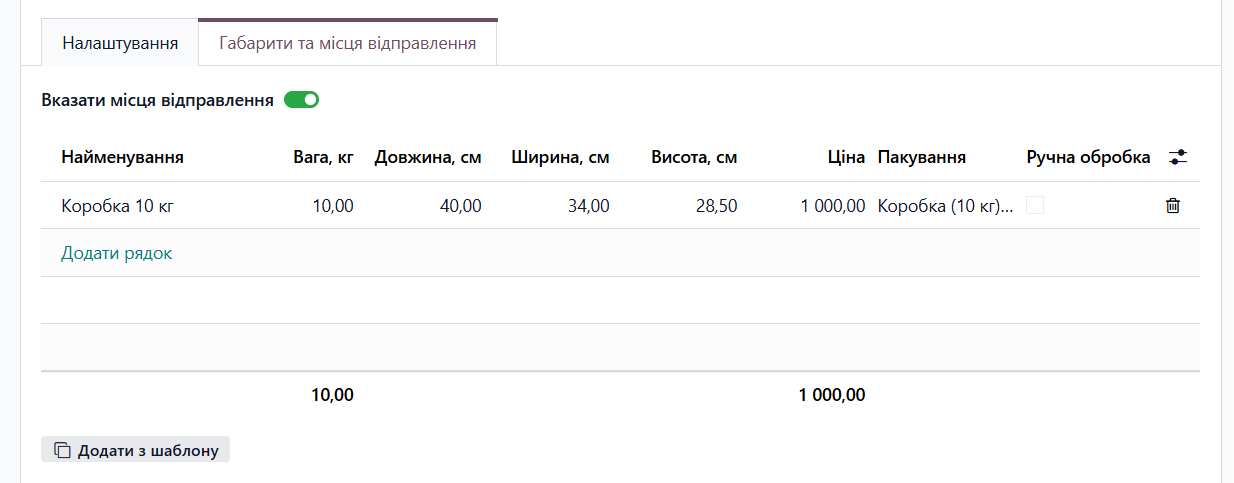
When necessary, modify the template values and select Nova Poshta packaging (complete packaging directory under Configuration — NP Packaging).
The Manual option marks a shipping place as non-conveyable. This means that the place cannot be processed on an automated sorting line.
Cash on Delivery
To use the Cash on Delivery service, open the Settings tab and go to Backward Delivery:
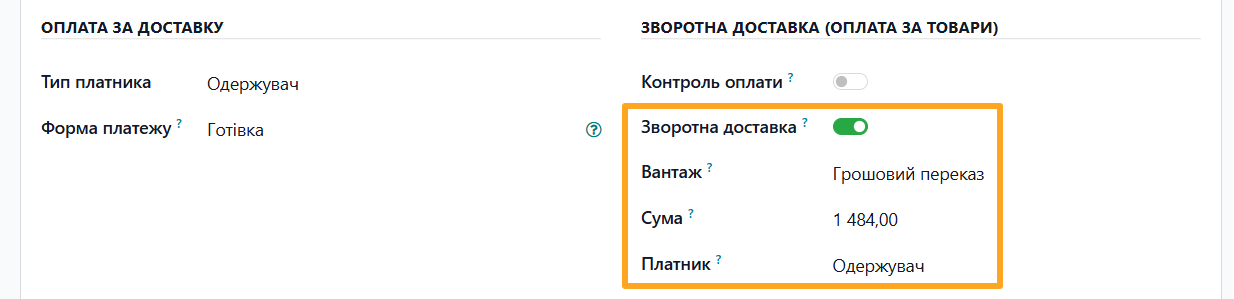
- Enable Backward
- Select Money Transfer as the Cargo
- Enter the Amount
- Select the Payer for this service
Business Options
Legal entities and individual entrepreneurs can sign an agreement with Nova Poshta and become business customers. Nova Poshta offers these customers additional services that the solution supports:
- Non-cash Payment
- Payment Control
- Local Express
Non-Cash Payment
Non-cash payment lets you pay Nova Poshta for delivery services by transferring funds from your company bank account. To use this service, select Non-Cash as the payment method.

Payment Control
The Payment Control service credits payments for shipped products to the company bank account. The Garazd Creation solution automatically records payments for orders shipped with this service. Complete the following steps to activate this feature in Odoo:
- Open the business customer account and enable Payment Control in the Backward section.
- Select an Account Journal. You can select a journal with the Bank or Cash type. The module posts the amount specified in the shipment to this journal.
- Select a Delivery Method connected to the business customer account.
- Link the shipment to the customer's Sales Order.
- On the Settings tab, enable Payment Control and enter the Amount.
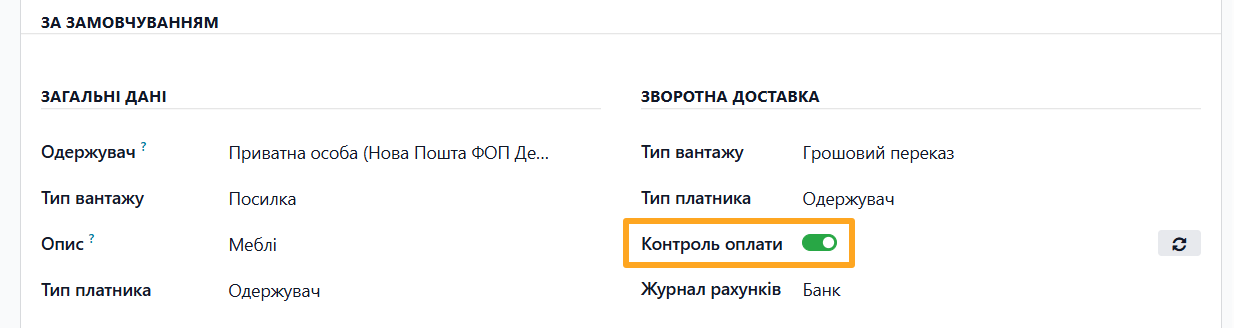
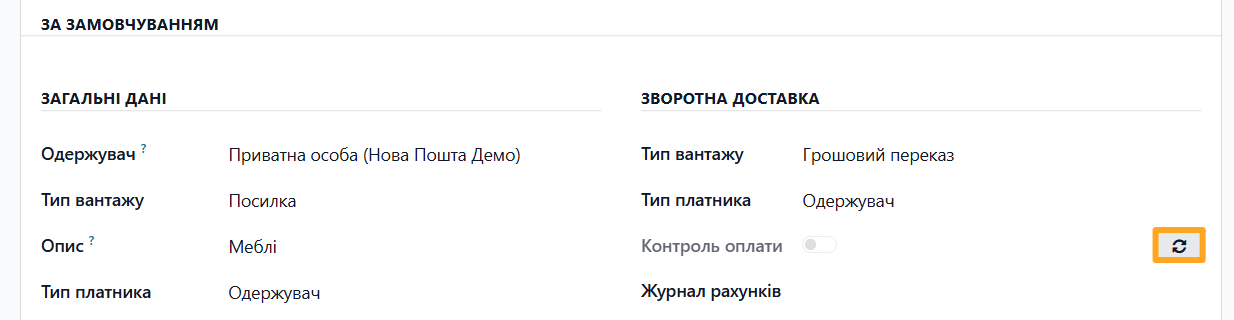
If Payment Control remains inactive even though you have an agreement with Nova Poshta, refresh the data by clicking the corresponding button.
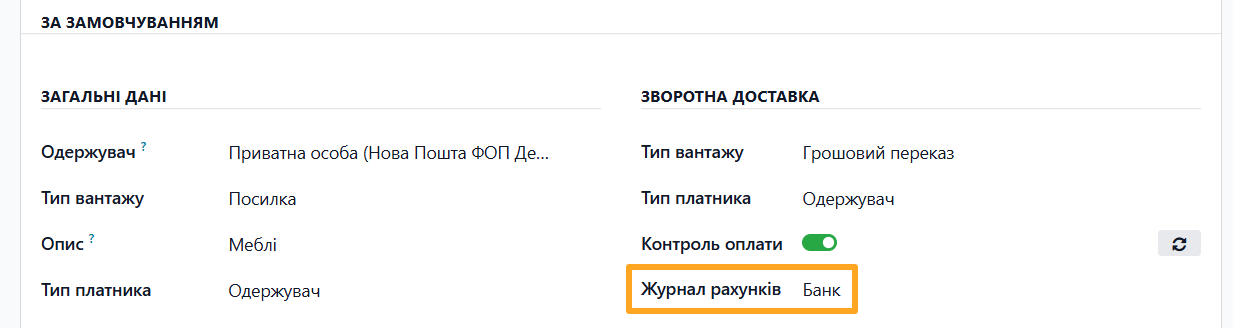

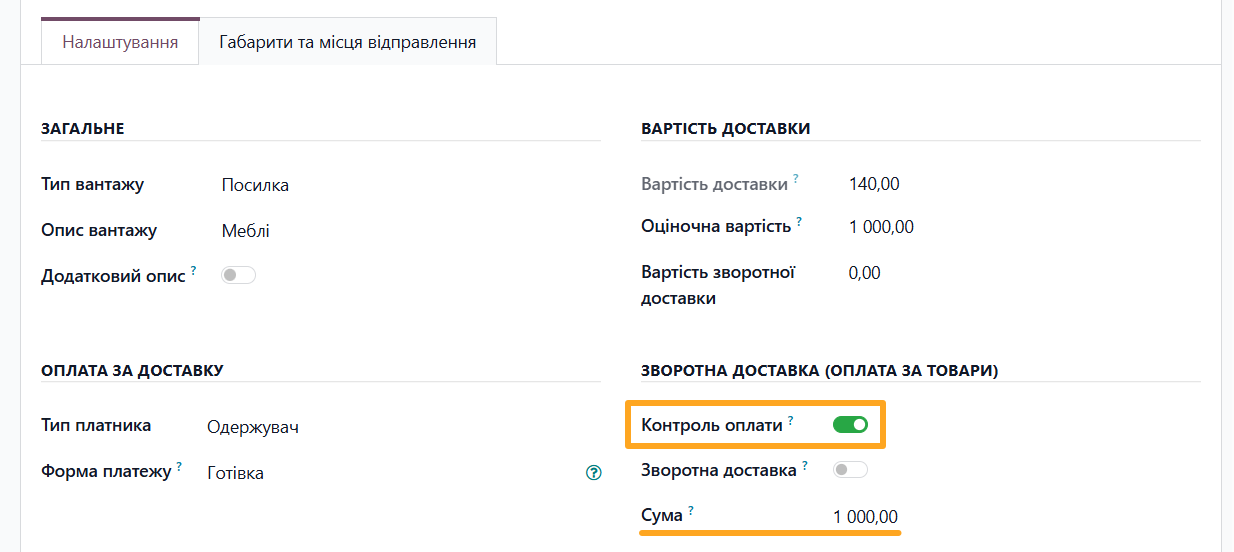
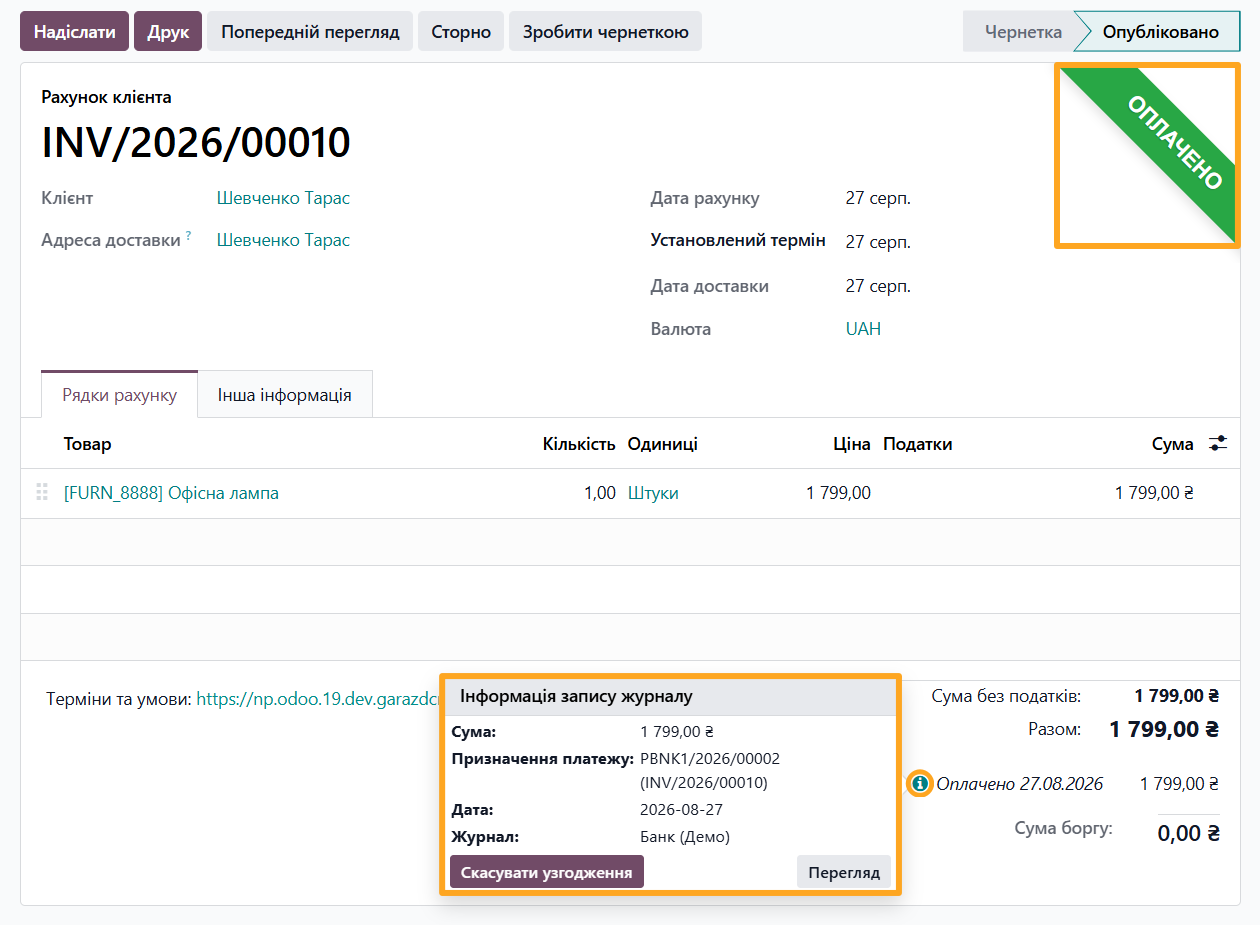
After the recipient receives a shipment with these settings, the module processes it automatically. The module creates an invoice if one does not already exist. It then records the payment in the journal specified in the account and links the invoice and payment.
Local Express
The Local Express service provides same-day delivery within Kyiv at a time convenient for the recipient.
To use this service, select a Nova Poshta business account and enable Local Express on the Settings tab of the shipment.
Shipment Actions
After entering all required shipment data, calculate the delivery cost using the button at the top of the page.

Click Confirm to send the shipment information to Nova Poshta and create the express waybill.
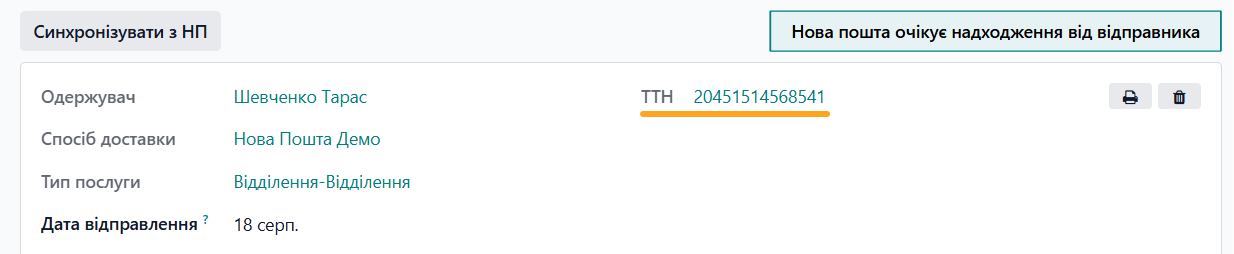
If you change the shipment data after creating the express waybill, click Sync with NP to synchronize the changes with Nova Poshta.
To print the waybill label, use the button in the TTN field.
Express Waybills (TTN)
You can find all waybills created in Odoo or linked to the system under Nova Poshta — Documents.

Express Waybill Actions
You can perform the following operations on express waybills:
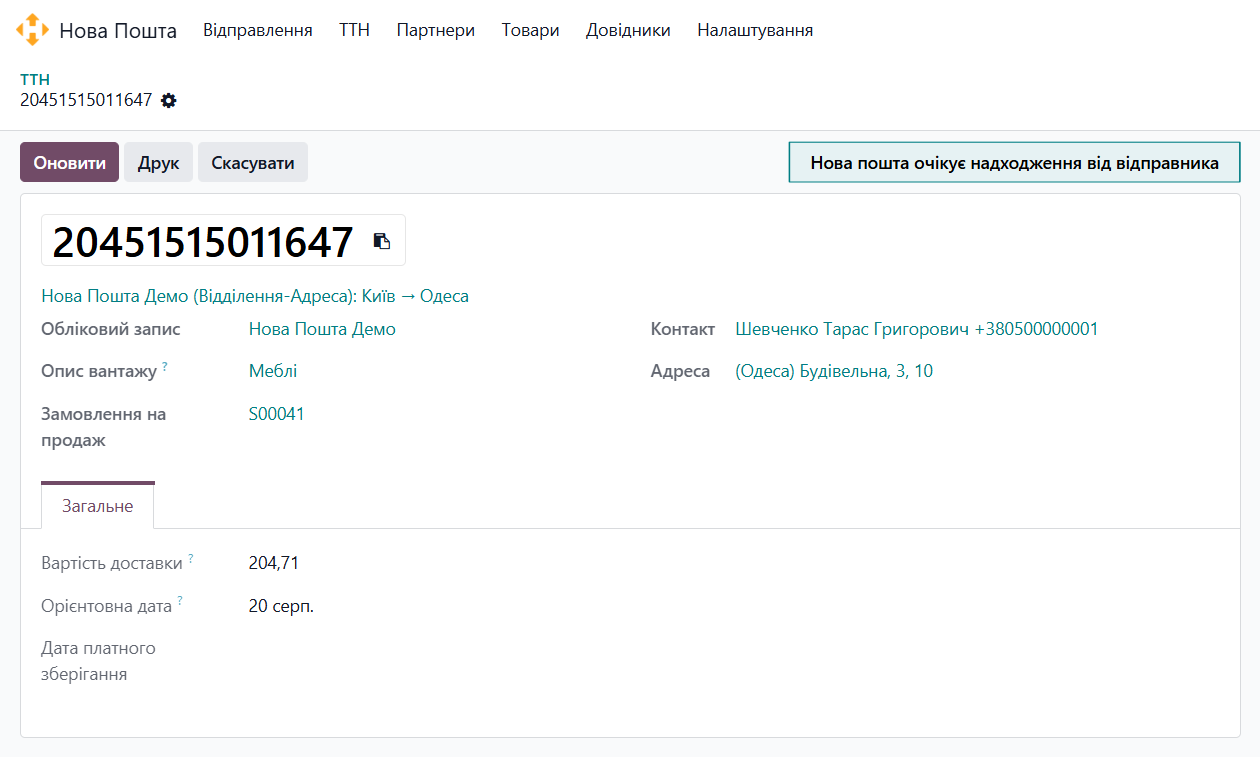
- View and update the status
- Print labels and the printed waybill form
- Cancel
Link an Express Waybill
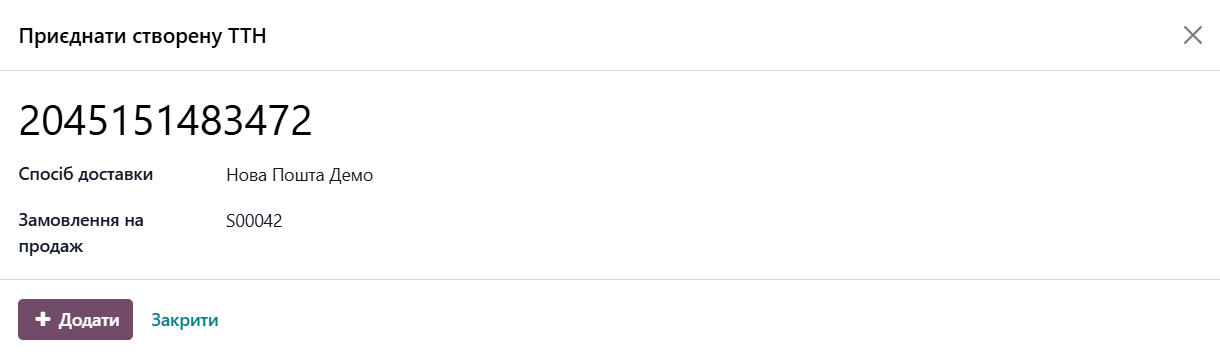
The Garazd Creation solution lets you link a waybill created outside Odoo. It can be a shipment created from any Nova Poshta account. Open the waybill list and click Link TTN.
Shipment information appears on the corresponding tab.
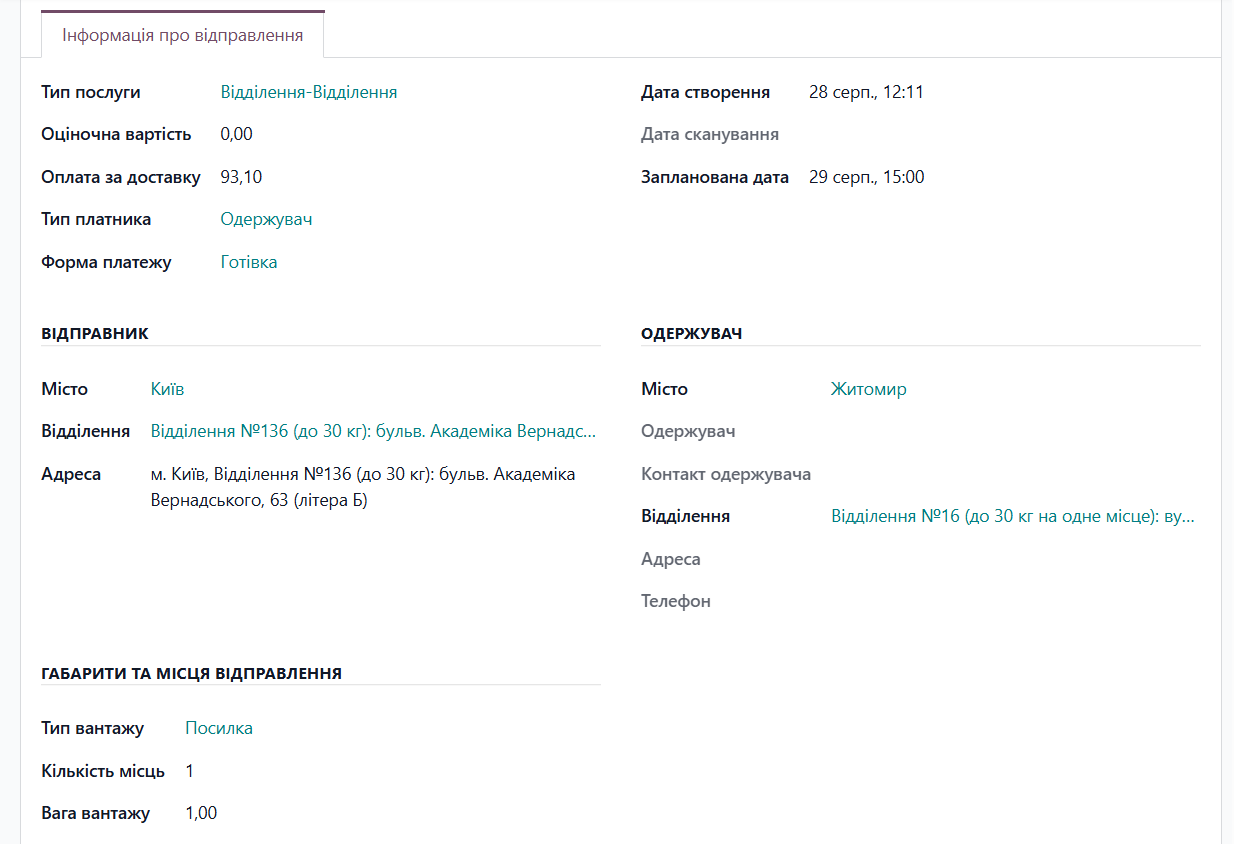
The solution tracks the status of the linked waybill and updates it together with waybills created in Odoo. You can also update the status manually.
When you link an express waybill, you can connect it to a sales order in two ways:
- Select the sales order in the wizard
- Run the Link an Existing TTN action from the sales order form
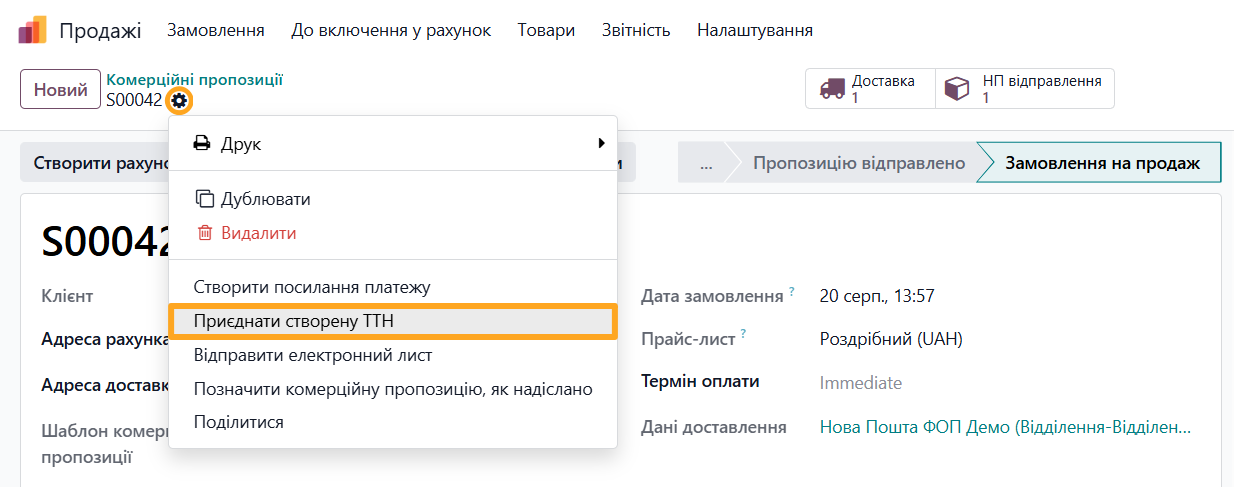
Linked and created waybills are available from the sales order through the NP TTN button.

Summary
Implementing a comprehensive delivery automation solution allows Ukrainian businesses to manage their entire logistics cycle directly in the ERP system. By synchronizing Odoo with the Nova Poshta API, you can calculate shipment costs, flexibly configure dimensions and shipping places using packaging templates, generate waybills instantly, and automate financial operations through the integrated Payment Control service with automatic payment registration in your database.
Explore all the benefits of logistics automation and faster order shipping with the Garazd Creation module, which brings order processing, label printing, and express waybill status tracking together in a single convenient interface.