
Manage POS user's access rights to Points, Sessions, and Orders
Restrictions apply only to users with the Point of Sale/User role. Once configured, users can see only allowed points of sale, their sales orders, and related payments. Users with the Point of Sale/Manager role have full access to all points of sale, POS sales orders, sessions, and payments.
You can set this up directly on the user form.
| Availability |
Odoo Online
Odoo.sh
On Premise
|
|---|---|
| Compatibility |
Community
Enterprise
|
| Technical Name | pos_user_restrict |
| Version | 20.0.1.0.1 |
| License | LGPL-3 |
| Category |
|
| Support | Free 60 days support and 360 days bug-fixing |
Use Case

Jorem ipsum dolor sit amet, consectetur adipiscing elit. Nunc vulputate libero et velit interdum, ac aliquet odio mattis. Class aptent taciti sociosqu ad litora torquent per conubia nostra, per inceptos himenaeos.
Forem ipsum dolor sit amet, consectetur adipiscing elit. Nunc vulputate libero et velit interdum, ac aliquet odio mattis. Class aptent taciti sociosqu ad litora torquent per conubia nostra, per inceptos himenaeos.
Dorem ipsum dolor sit amet, consectetur adipiscing elit. Nunc vulputate libero et velit interdum, ac aliquet odio mattis.
It is a long established fact that a reader will be distracted by the readable content of a page
Korem ipsum dolor sit amet, consectetur adipiscing elit. Nunc vulputate libero et velit interdum, ac aliquet odio mattis. Class aptent taciti sociosqu ad litora torquent per conubia nostra, per inceptos himenaeos.
Korem ipsum dolor sit amet, consectetur adipiscing elit. Nunc vulputate libero et velit interdum, ac aliquet odio mattis.
Odoo App Installation
Upload modules
Upload modules from the ZIP archive to your Odoo hosting, or a GitHub repository connected there.
Place the unzipped modules in your custom add-on directory and restart the Odoo system service.
Update App List
After restarting, activate the Developer Mode, and go to the Apps menu.

Click on Update Apps List to fetch the new modules in the list.
Activate the App
Install the new module, finding it by name and clicking on the Activate button.
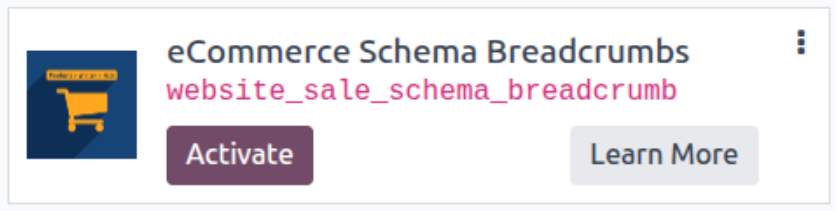
* If you don't see the module, try to remove the default Apps filter from the search bar.
Configuration
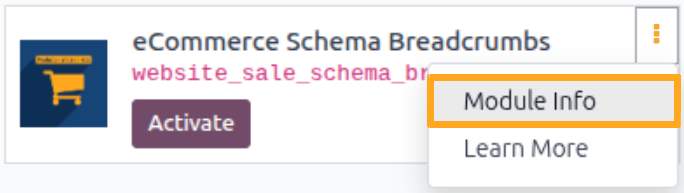
Follow the instructions in the module description to complete the installation process and start using the app.

Manual

Configuration
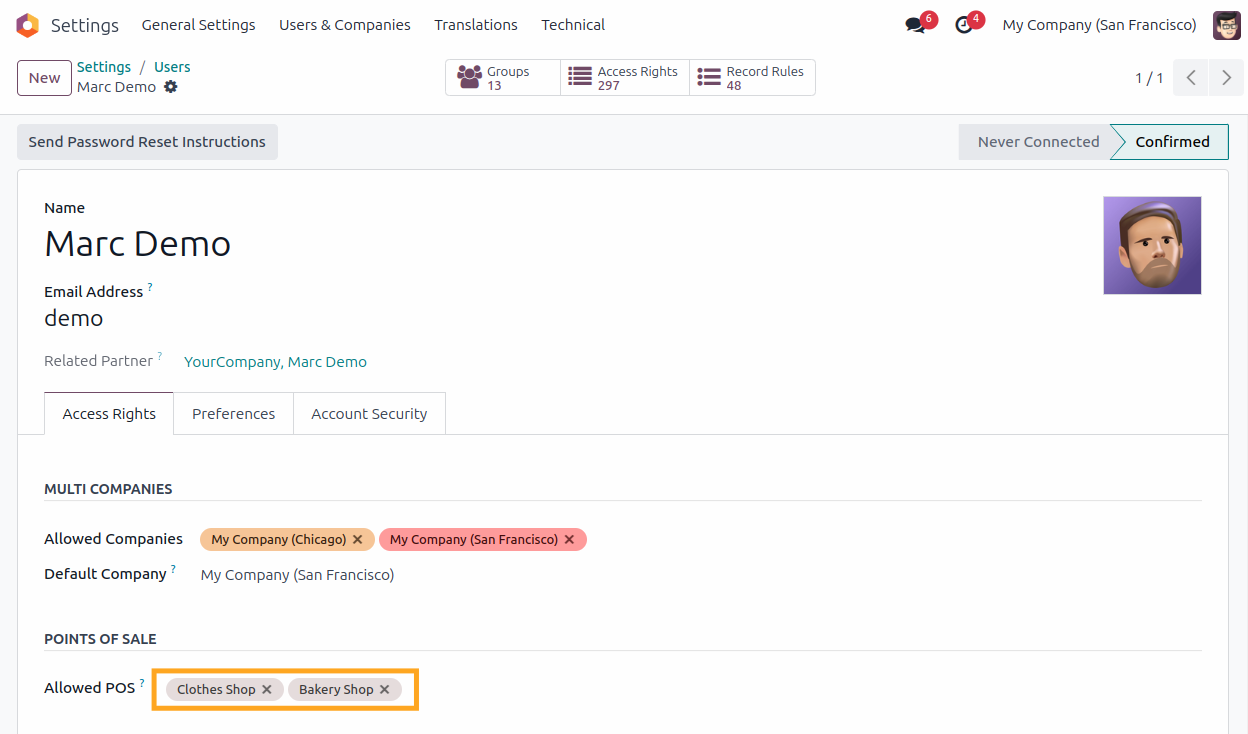
To restrict Point of Sale (POS) user rights in Odoo, go to user settings, select a user, and enable the Restricted POS User group.

Then, in the Allowed POS field, select the points of sale this user can access.

Changelog
14.0.1.0.1 2023-04-20
- Remove deprecetad methods.
14.0.1.0.0 2020-10-01
15.0.1.0.2 2022-07-30
- Remove deprecetad methods.
15.0.1.0.1 2021-12-01
- Move demo data files to the data directory.
15.0.1.0.0 2021-11-05
- Migration from the version 14.0
- Add security rules for POS sessions.
- Add demo data and tests.
16.0.1.0.0 2022-09-14
- Migration from 15.0.
17.0.1.0.0 2023-12-12
- Migration from 16.0.
18.0.1.1.0 2025-02-24
- Improve security access, add the "Restricted POS User" group to be compatible with standard POS tests.
18.0.1.0.0 2024-09-03
- Migration from 17.0.
19.0.1.0.0 2025-09-18
- Migration from 18.0.
20.0.1.0.1 2026-10-12
- Fix access right rules for restricted user.
20.0.1.0.0 2026-10-06
- Migration from 19.0.