

Post Odoo jobs on Indeed
Use Case

Jorem ipsum dolor sit amet, consectetur adipiscing elit. Nunc vulputate libero et velit interdum, ac aliquet odio mattis. Class aptent taciti sociosqu ad litora torquent per conubia nostra, per inceptos himenaeos.
Forem ipsum dolor sit amet, consectetur adipiscing elit. Nunc vulputate libero et velit interdum, ac aliquet odio mattis. Class aptent taciti sociosqu ad litora torquent per conubia nostra, per inceptos himenaeos.
Dorem ipsum dolor sit amet, consectetur adipiscing elit. Nunc vulputate libero et velit interdum, ac aliquet odio mattis.
It is a long established fact that a reader will be distracted by the readable content of a page
Korem ipsum dolor sit amet, consectetur adipiscing elit. Nunc vulputate libero et velit interdum, ac aliquet odio mattis. Class aptent taciti sociosqu ad litora torquent per conubia nostra, per inceptos himenaeos.
Korem ipsum dolor sit amet, consectetur adipiscing elit. Nunc vulputate libero et velit interdum, ac aliquet odio mattis.
Odoo App Installation
Upload modules
Upload modules from the ZIP archive to your Odoo hosting, or a GitHub repository connected there.
Place the unzipped modules in your custom add-on directory and restart the Odoo system service.
Update App List
After restarting, activate the Developer Mode, and go to the Apps menu.

Click on Update Apps List to fetch the new modules in the list.
Activate the App
Install the new module, finding it by name and clicking on the Activate button.
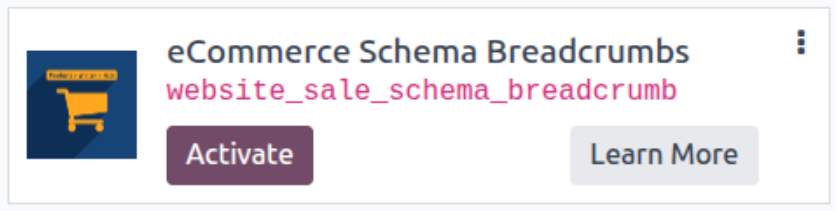
* If you don't see the module, try to remove the default Apps filter from the search bar.
Configuration
Follow the instructions in the module description to complete the installation process and start using the app.
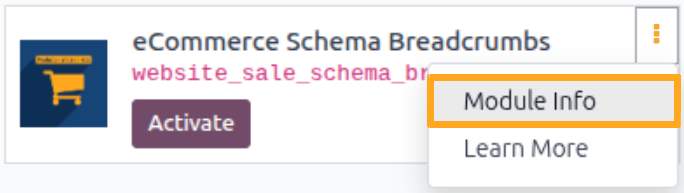

Manual

Job Configuration
After installing the module, first fill in additional data for jobs that should be included in the feed. The module adds the Integration tab to the job configuration:
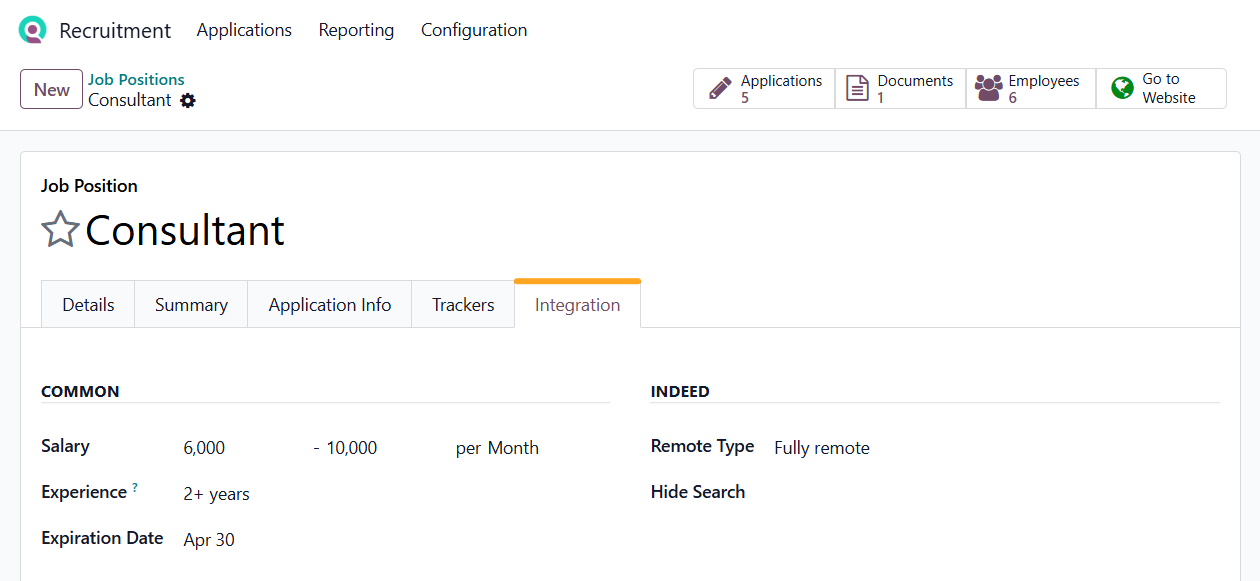
Common Data
In the Common section, fields shared across HR integrations from Garazd Creation modules are available:
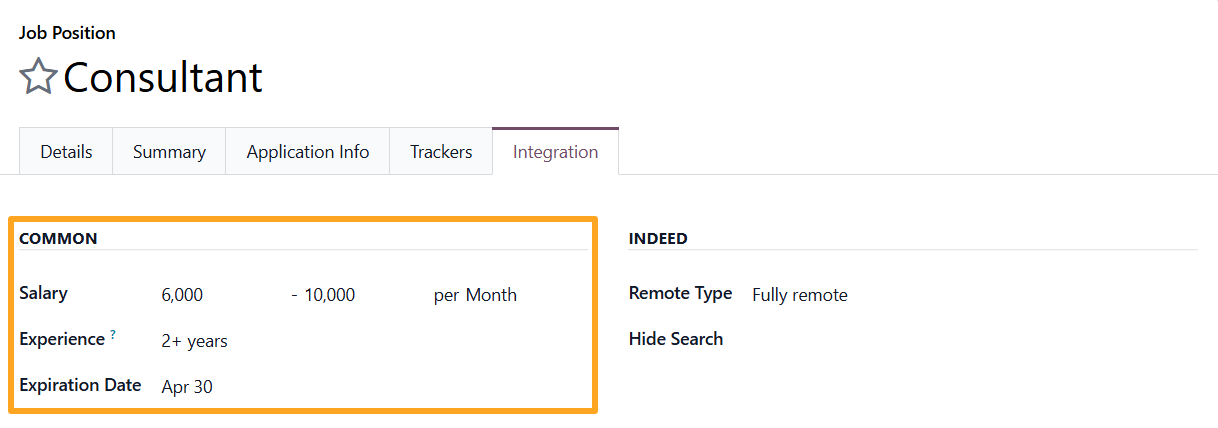
- Specify the salary range for the job
- Enter the minimum required experience
- Select the job expiration date

Indeed Data
Some HR services require specific data formats. Fields for such data are grouped into sections named after the service.
In the Indeed section, the following fields are available:
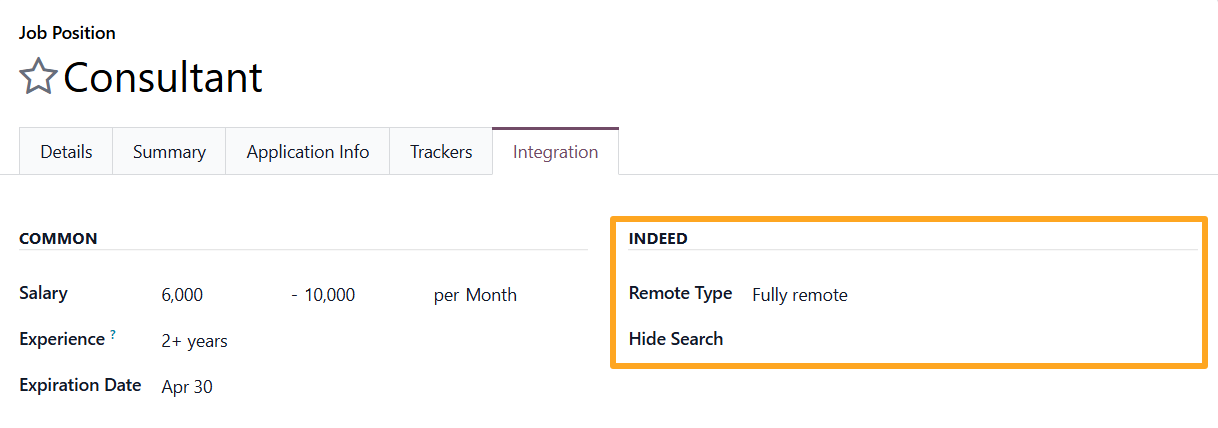
Remote Type - type of remote work:
- Fully remote - the employee works remotely or from home
- Hybrid remote - the employee works both in-office and remotely on a consistent basis
- COVID-19 - the employee temporarily works remotely due to COVID-19-related circumstances
Hide Search — defines whether the job appears in Indeed search results. If it should be hidden, a reason code must be specified:
- CONFIDENTIAL_JOB - confidential jobs that should not appear in Indeed search
- TALENT_POOL - jobs not currently open but used to build a candidate pool
- OPT_OUT — rare or exceptional cases not covered by other codes


Feed Configuration
To configure the job feed, open the list via Recruitment - Configuration - HR Job Feeds - Indeed:
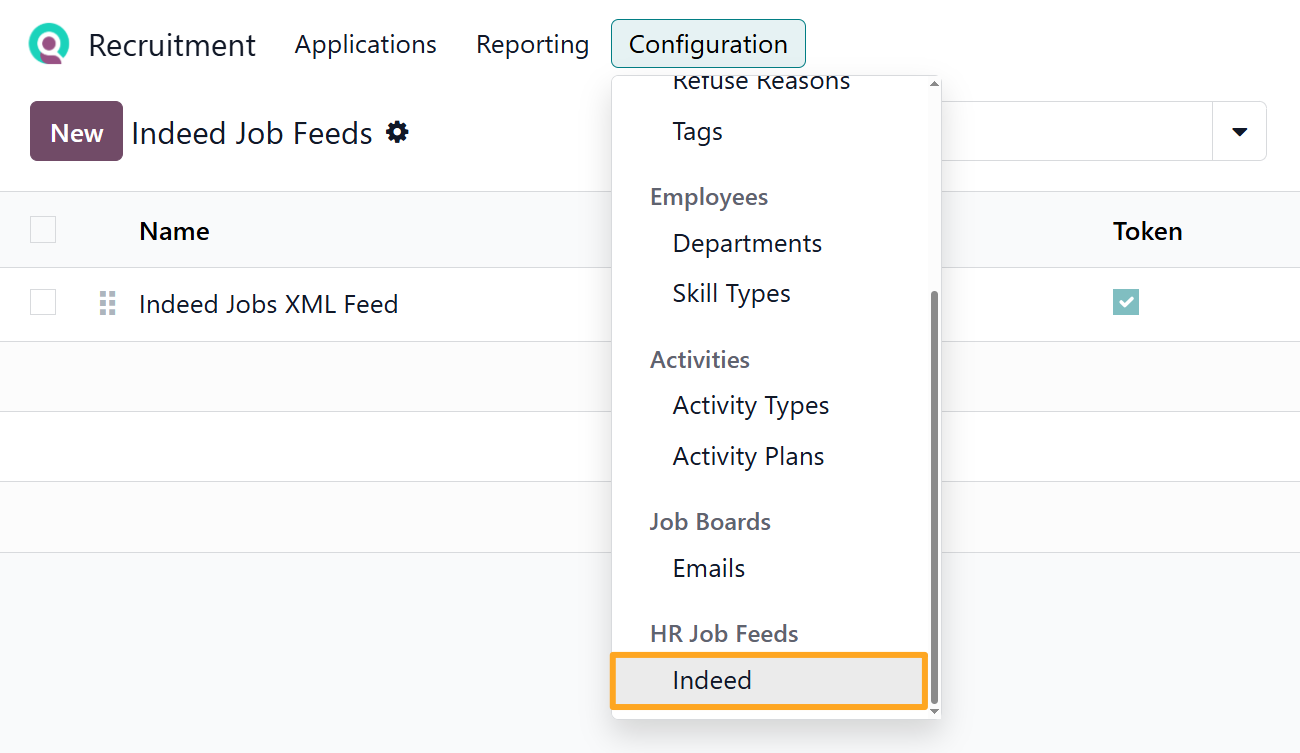
The module includes a ready-made feed template configured according to Indeed requirements.
Item Filters
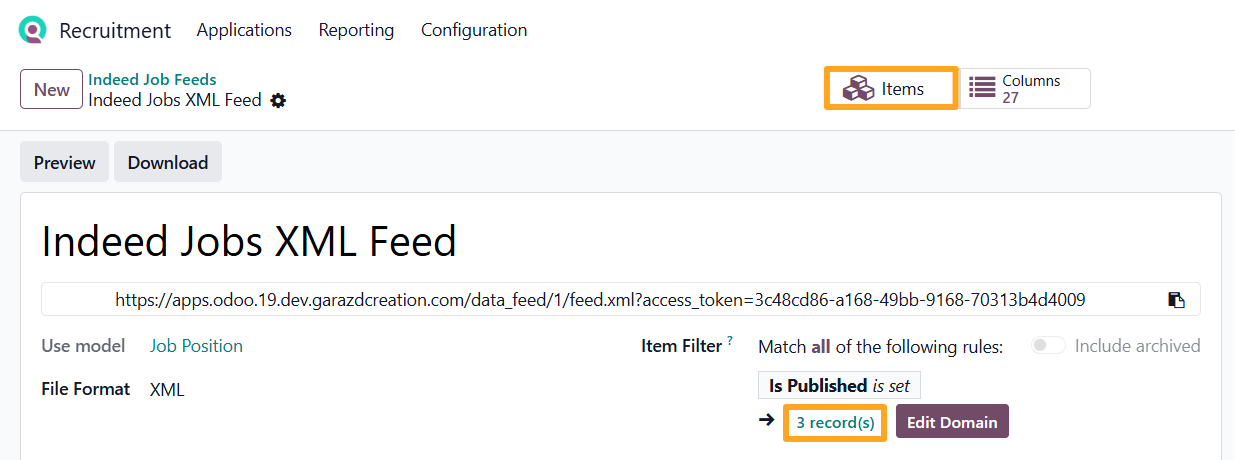
First, it is necessary to define which job positions are included in the feed. Use the Item Filter for this purpose:
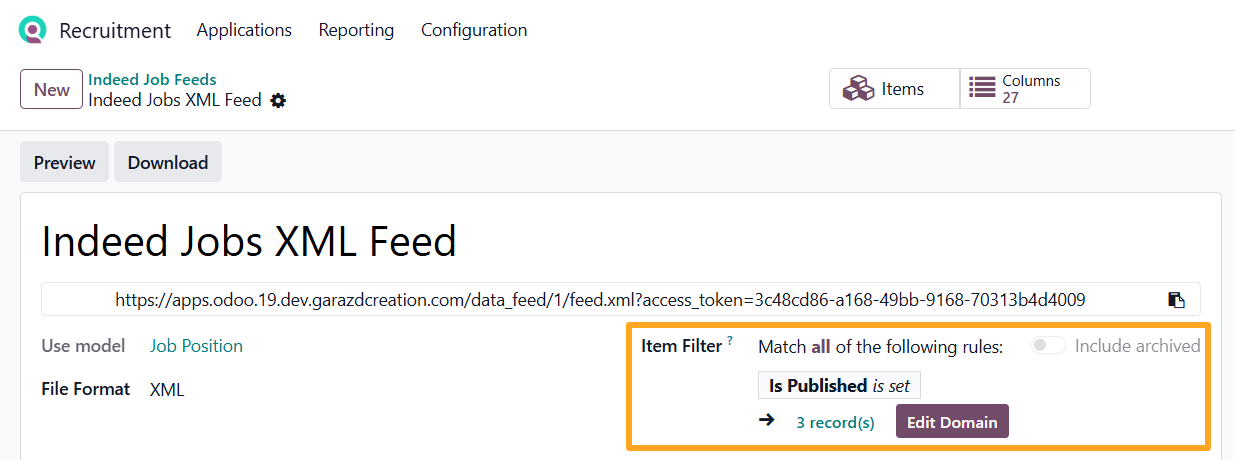
Click Edit Domain to add selection filters for the feed.
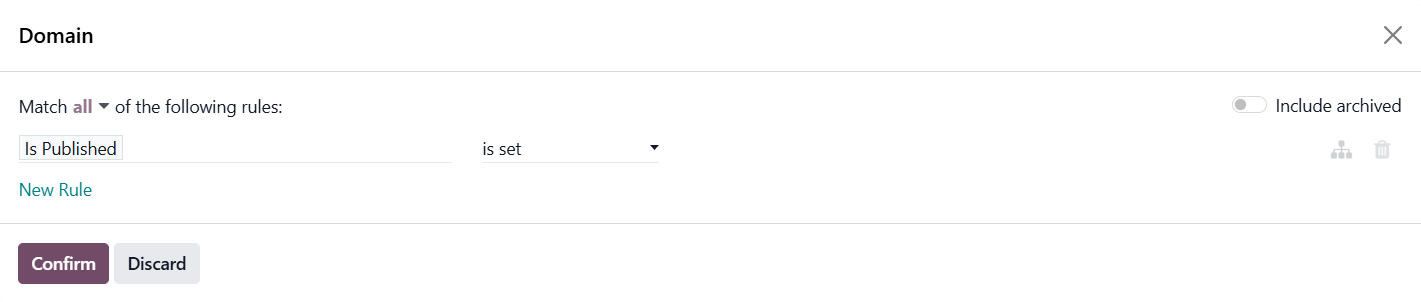
Click Confirm to save the changes. The number of jobs included in the feed is automatically recalculated based on the filter domain. To view the feed jobs list, click the link with the number of records or use the Items button at the top of the feed form:
Columns
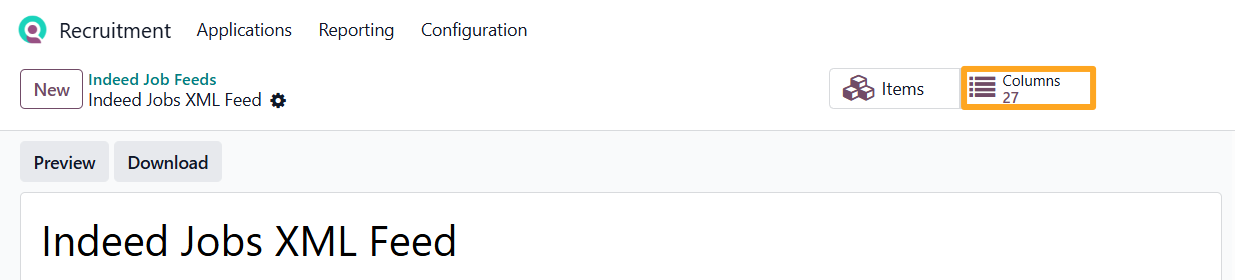
The solution includes preconfigured feed columns aligned with Indeed requirements and mapped to standard Odoo fields.
To manage columns, click the Columns button at the top of the page:

Preview
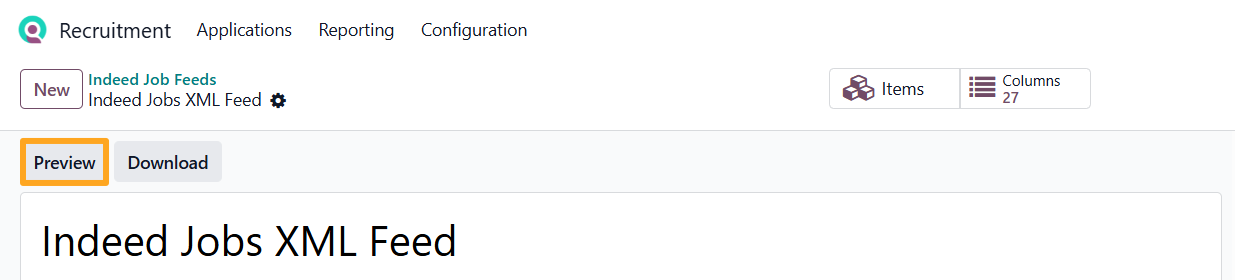
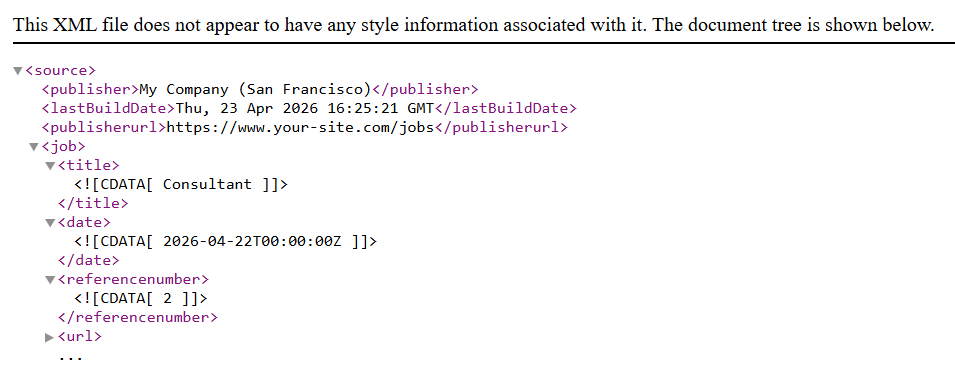
Before connecting the feed to Indeed, click Preview to check the configuration result:
XML file:

Feed Connection
To connect the XML feed to Indeed, first copy the URL:
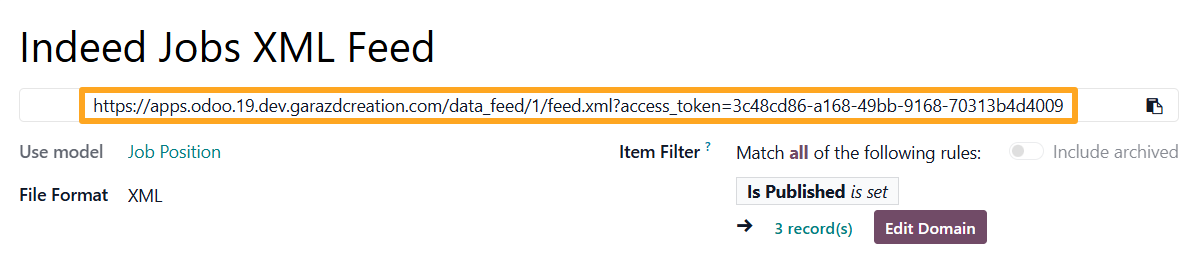
Instructions on publishing the XML feed are available in the official documentation: https://docs.indeed.com/indeed-apply/xml-feed#publish-the-xml-feed.
Changelog
19.0.1.0.0 2026-03-20
- Migration from 18.0.
18.0.1.0.0 2026-03-17
- Init version.
17.0.1.0.0 2026-08-21
- Migration from 19.0.
20.0.1.0.0 2026-09-28
- Migration from 19.0.
Resources


Automate your recruitment process by integrating the Work.ua job search service with Odoo