
Connect to Epicentr Marketplace and provide your product data through XML feeds
The module simplifies Epicentr integration, minimizes error risks, and helps keep product data up to date across your online store.
| Availability |
Odoo Online
Odoo.sh
On Premise
|
|---|---|
| Compatibility |
Community
Enterprise
|
| Technical Name | product_data_feed_epicentr |
| Version | 20.0.1.0.0 |
| License | OPL-1 |
| Category | |
| Support | Free 60 days support and 360 days bug-fixing |
Use Case

Jorem ipsum dolor sit amet, consectetur adipiscing elit. Nunc vulputate libero et velit interdum, ac aliquet odio mattis. Class aptent taciti sociosqu ad litora torquent per conubia nostra, per inceptos himenaeos.
Forem ipsum dolor sit amet, consectetur adipiscing elit. Nunc vulputate libero et velit interdum, ac aliquet odio mattis. Class aptent taciti sociosqu ad litora torquent per conubia nostra, per inceptos himenaeos.
Dorem ipsum dolor sit amet, consectetur adipiscing elit. Nunc vulputate libero et velit interdum, ac aliquet odio mattis.
It is a long established fact that a reader will be distracted by the readable content of a page
Korem ipsum dolor sit amet, consectetur adipiscing elit. Nunc vulputate libero et velit interdum, ac aliquet odio mattis. Class aptent taciti sociosqu ad litora torquent per conubia nostra, per inceptos himenaeos.
Korem ipsum dolor sit amet, consectetur adipiscing elit. Nunc vulputate libero et velit interdum, ac aliquet odio mattis.
Odoo App Installation
Upload modules
Upload modules from the ZIP archive to your Odoo hosting, or a GitHub repository connected there.
Place the unzipped modules in your custom add-on directory and restart the Odoo system service.
Update App List
After restarting, activate the Developer Mode, and go to the Apps menu.

Click on Update Apps List to fetch the new modules in the list.
Activate the App
Install the new module, finding it by name and clicking on the Activate button.

* If you don't see the module, try to remove the default Apps filter from the search bar.
Configuration
Follow the instructions in the module description to complete the installation process and start using the app.
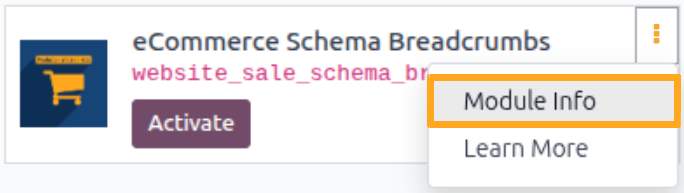

Manual

Feed Configuration
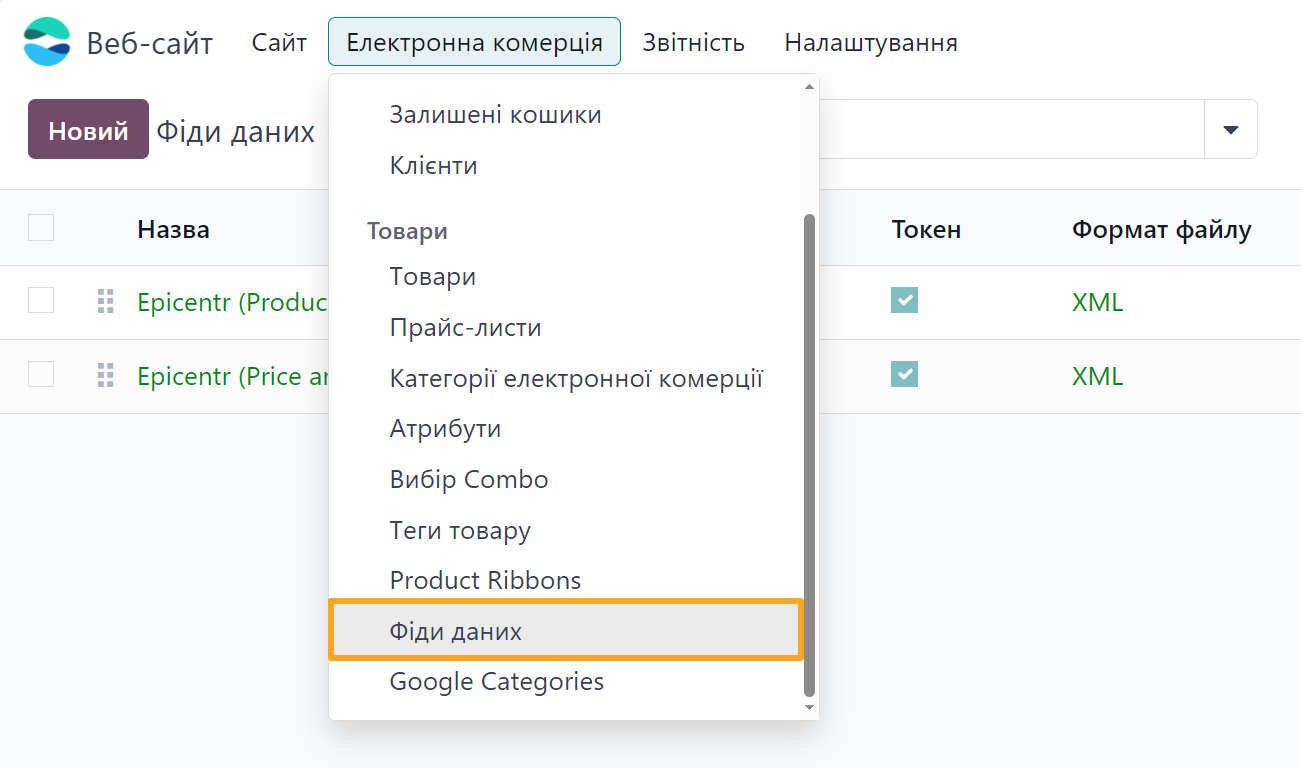
After installing the module, open the feed list and prepare one for your needs. Go to the Website — eCommerce — Products — Product Data Feeds menu.
The module includes two ready-to-use data feed templates configured to meet Epicentr Marketplace requirements.
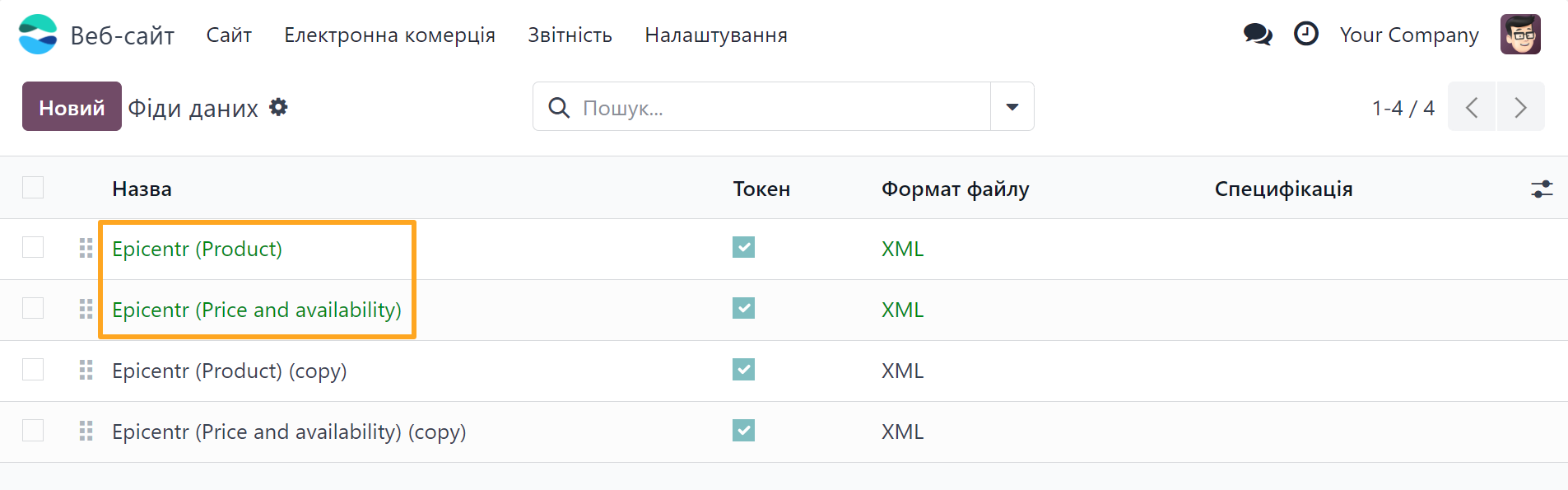

- Product — the template for products (main feed)
- Price and availability — the template for prices and stock (dependent on the main feed)

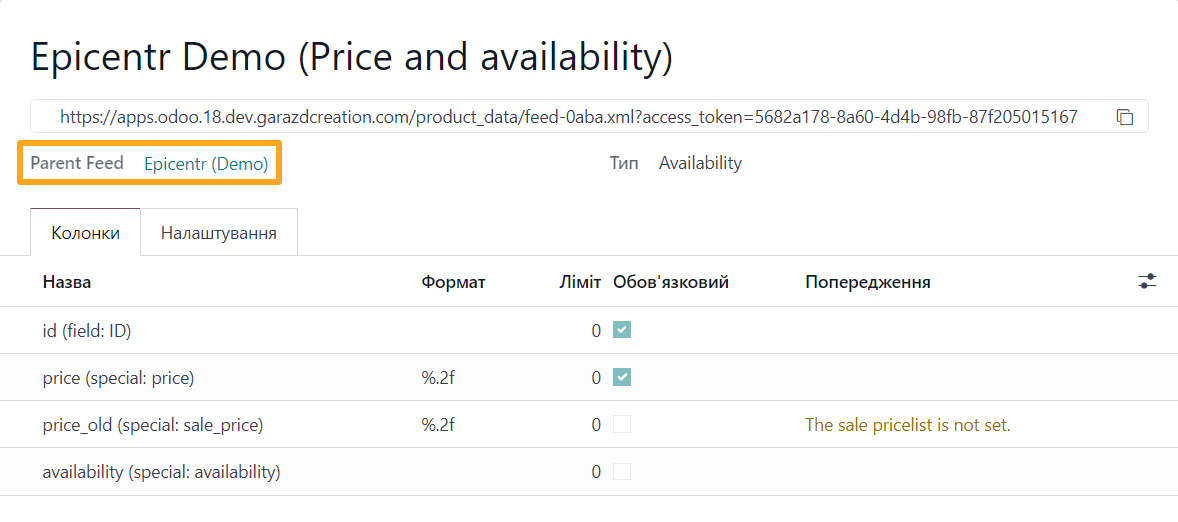
The Price and Availability template requires no additional configuration; it automatically links to the main product feed.
Feed Products
First, determine which products to include in the data feed. Use the Item Filter to set the selection filters.
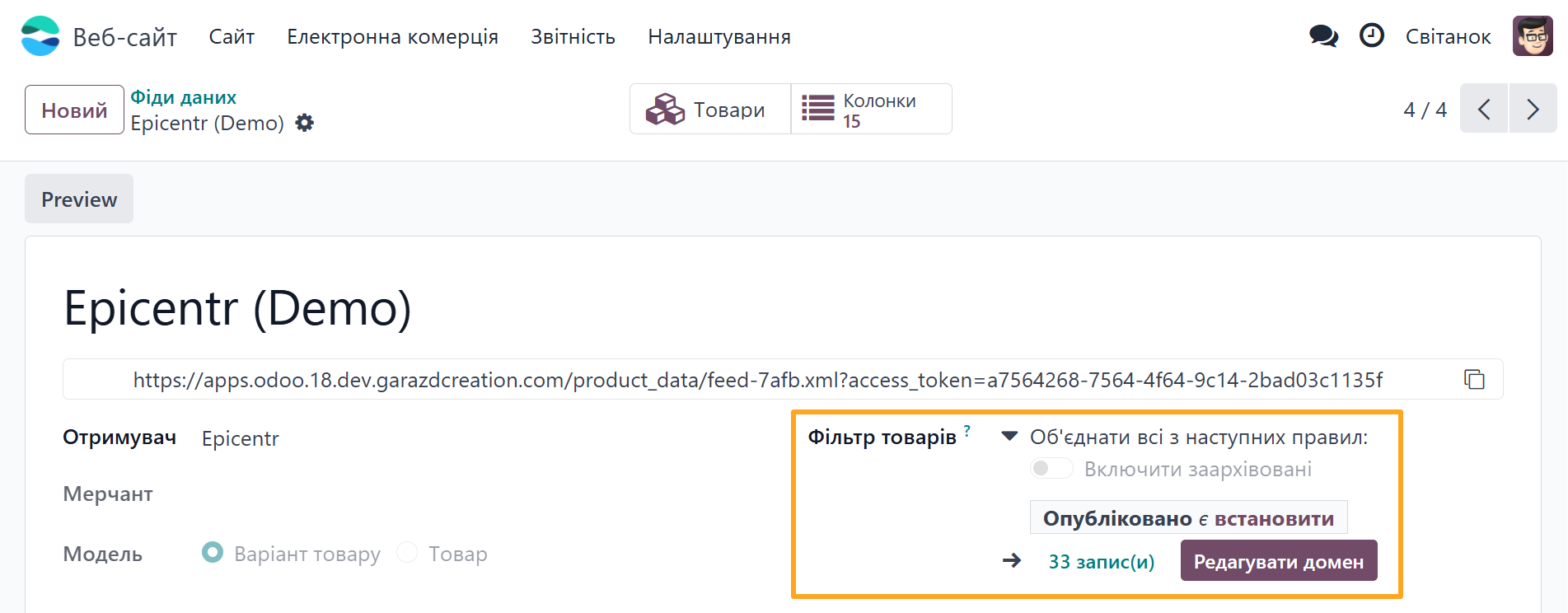
Click Edit Domain to add product filters for the data feed.
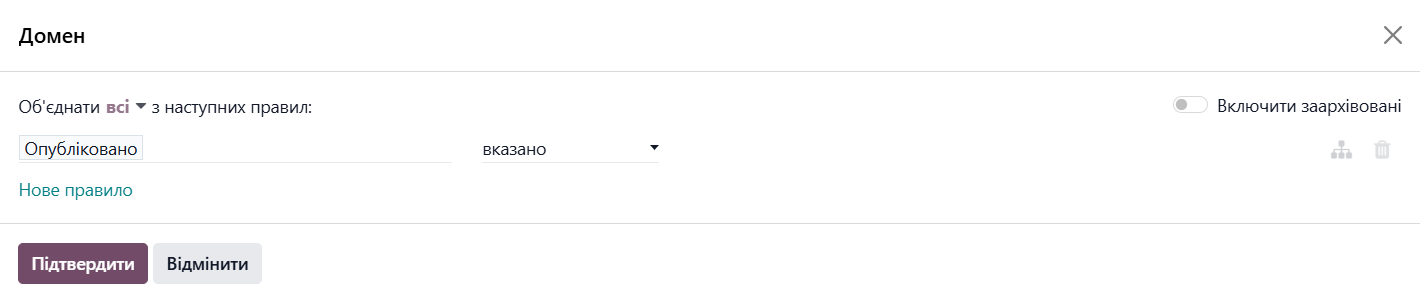
Click Confirm to save the changes. The module automatically recalculates the number of products included in the feed according to the selected filters. To manage feed products, click the link with the number of records or use the Items button at the top of the feed form.

Feed Prices
Before connecting the feed to Epicentr, configure product prices. Go to the Settings tab and, in the Prices section, select a Pricelist. This pricelist determines product prices.
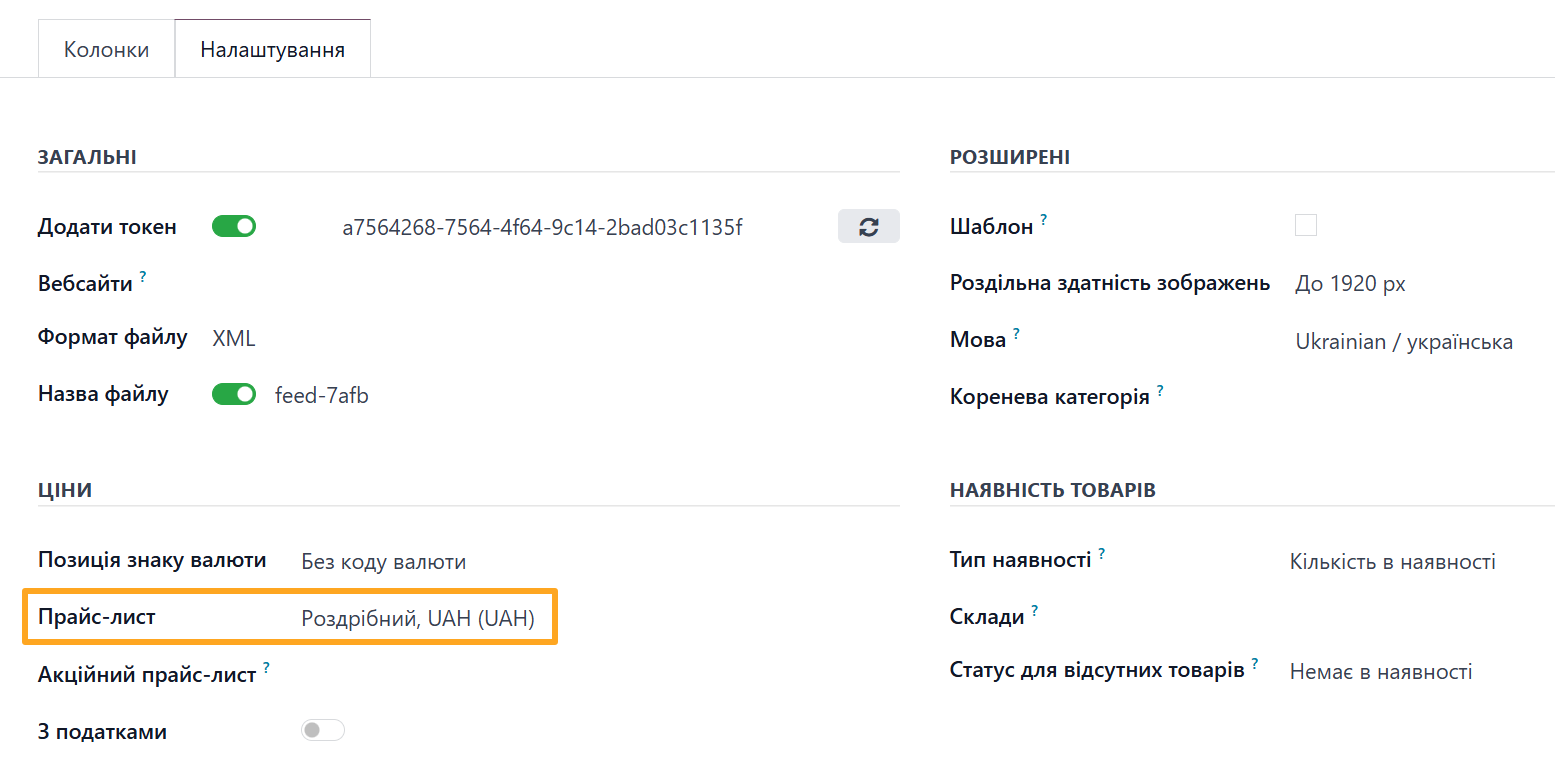
To include promotional prices in the data feed, set the Sale Pricelist field. Configure this pricelist in advance and define discounted prices for products.
Stock Locations
The module allows you to select warehouses (stock locations) to calculate on-hand quantities and product availability statuses.
Go to the Settings tab, Stock section. Select the desired Stock Locations in the field.
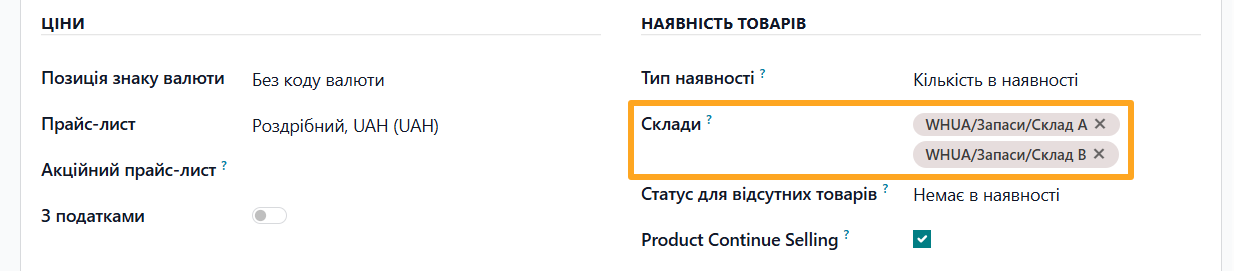
As a result, the module calculates stock levels for the data feed using only the specified stock locations.
If a product is out of stock at the specified locations, the Out of Stock Mode parameter determines the availability status to specify:
- Out of Stock
- Available for Order
Caching
If your feed contains a large product list, processing can take a long time, and the external system may time out waiting for a response. Install the extension to cache data feeds, set update frequencies, and split large product processing into smaller parts.


Feed Columns
The module includes data feed columns preconfigured according to Epicentr Marketplace requirements. These columns map to standard fields and use native Odoo product management logic. You can reconfigure the feed columns through the Odoo UI to map them to your custom product fields.
To manage columns, click the Columns button at the top of the feed form.

The list of available feed columns is in the table below.
| Column Name | Column Description |
|---|---|
id |
Unique product identifier |
category |
Epicentr Product Category |
name |
Product name |
name_ua |
Product name in Ukrainian |
description |
Product description |
description_ua |
Product description in Ukrainian |
price |
Product price from pricelist or product card |
price_old |
Product sale price from pricelist |
availability |
Product availability status based on the quantity in stock |
picture |
URL list of all product images |
brand |
Product brand name |
product_weight |
Product weight |
product_length |
Product length |
product_width |
Product width |
product_height |
Product height |
barcode |
Product barcode |
country_of_origin |
Product country of origin |

Product Configuration
You can configure the data feed for Epicentr at the product level. Odoo product data feed modules by Garazd Creation include extensions that allow you to enrich your products in Odoo with additional information and share it via the feed:
- Extra Fields for Data Feeds — adds fields for product characteristics
- Product Data Feed — adds specific settings according to the analytics system or marketplace
Below are the product settings relevant to Epicentr.
Origin and Dimensions
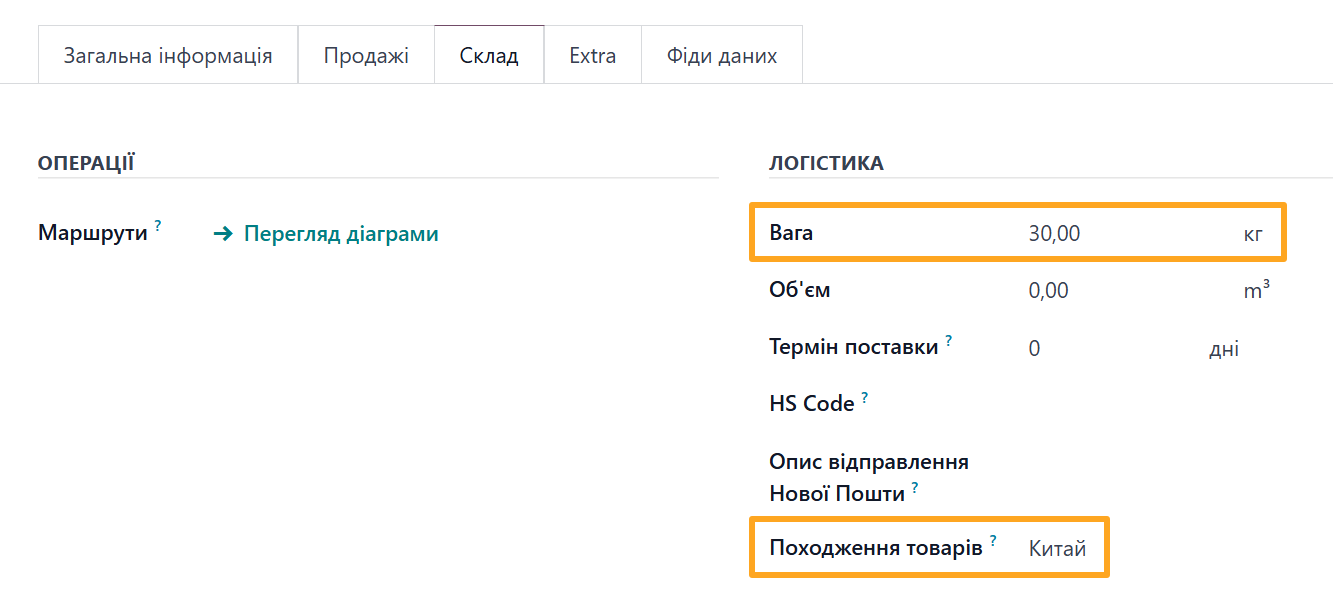
Specify product Weight and Origin of Goods on the Inventory tab under the Logistics section.
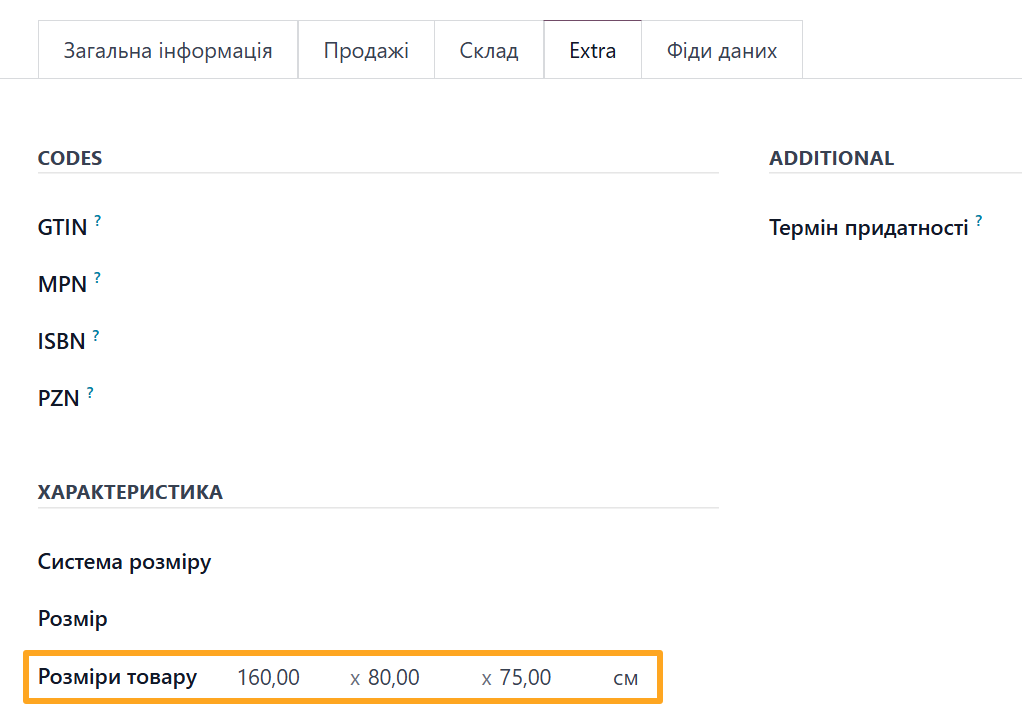
Enter product dimensions on the Extra tab under the Characteristics section.
Categories and Attributes
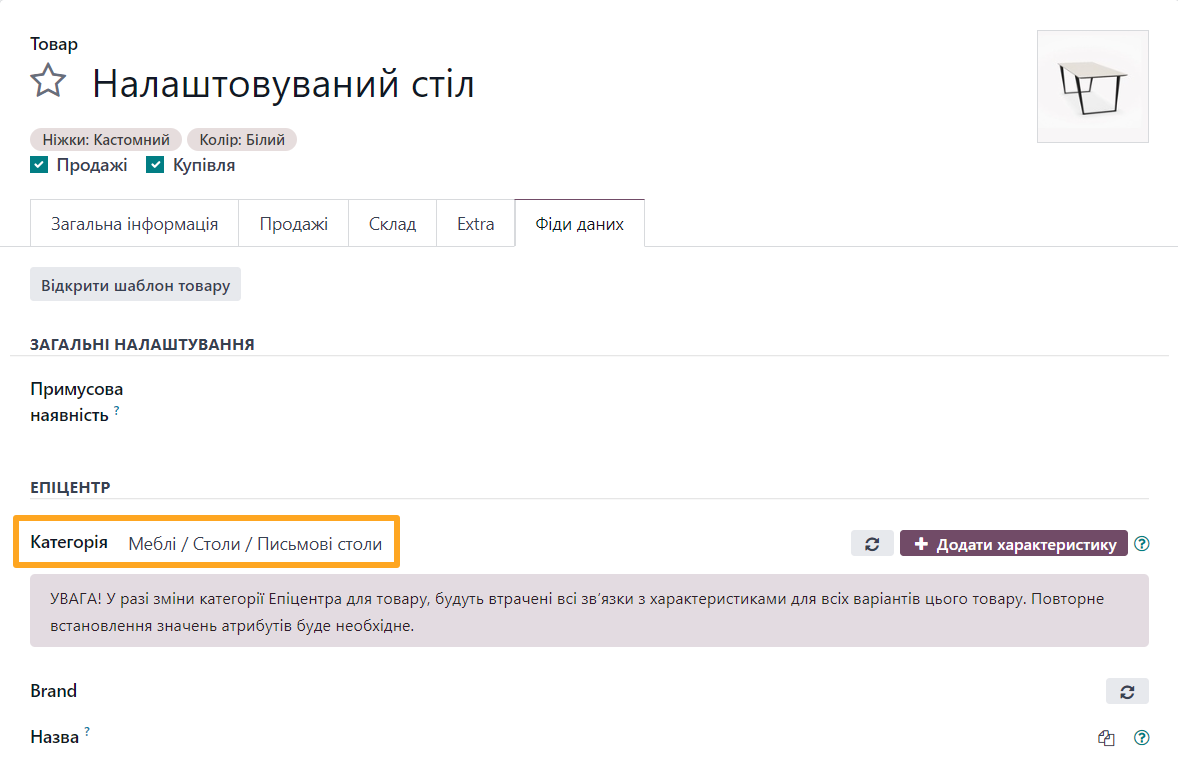
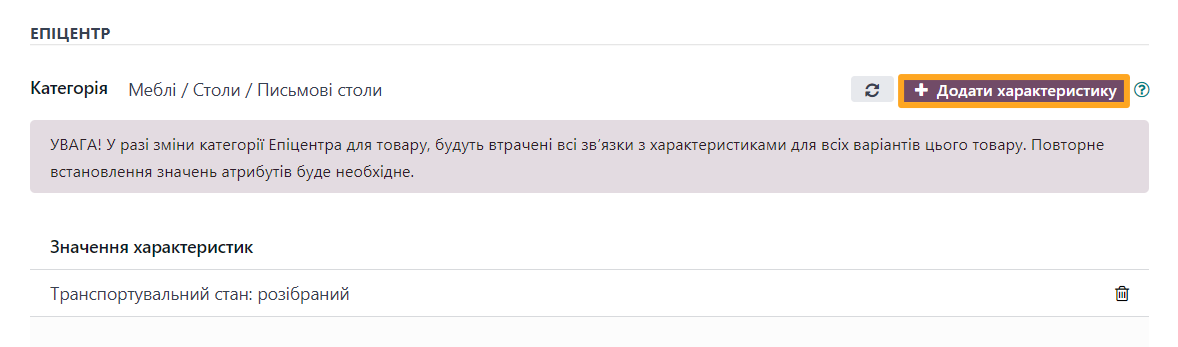
Assign corresponding Epicentr Marketplace categories and attributes to your products. Open a product form, go to the Data Feeds tab, and select a Category in the Epicentr section.
Next, synchronize attributes to start importing characteristics for the selected product category.
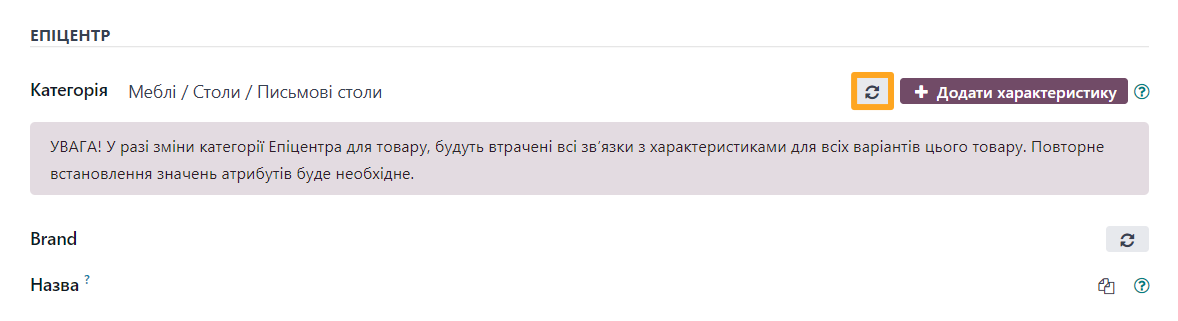
Click Add Attribute to enrich the product description according to Epicentr Marketplace requirements.
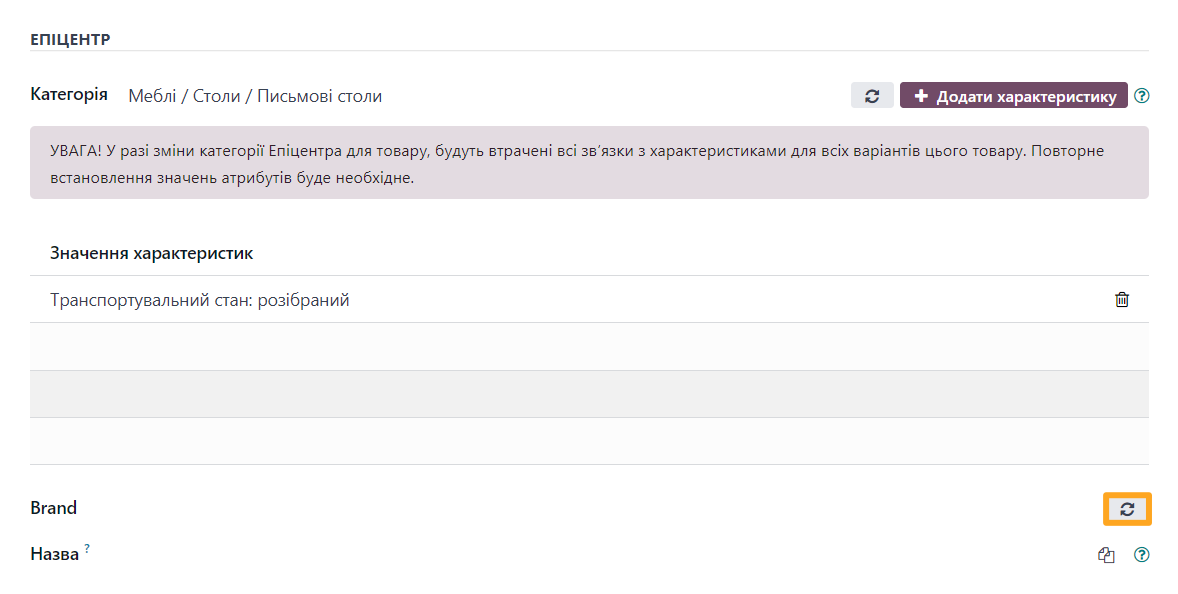
Specify the product brand after clicking the synchronization button to fetch the brand list from Epicentr Marketplace.
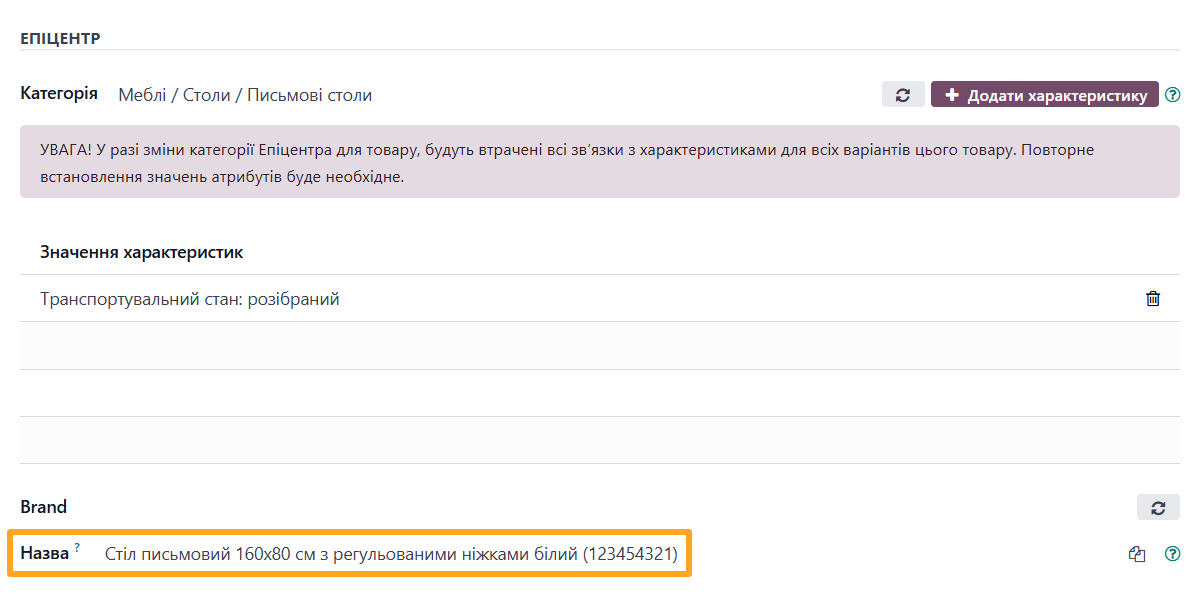
Enter the product Name according to marketplace requirements.

Feed Connection
Epicentr Marketplace retrieves product data using an XML data feed and automatically updates prices and stock levels. Before connecting the data feed to the marketplace, you can preview the generated XML file in Odoo.
Feed Preview
Click the Preview button on the feed form to view your configuration output.

Product Import
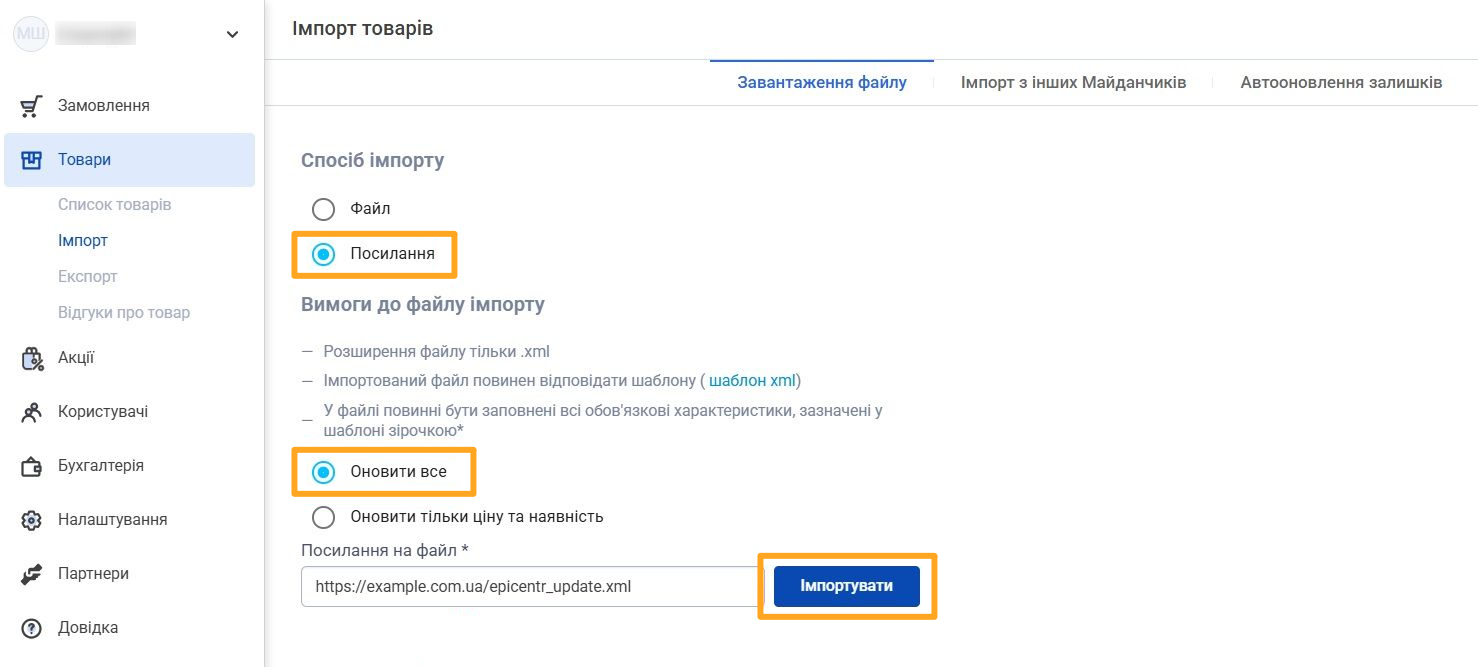
To add a product feed to your Epicentr account, first copy the required data feed URL in Odoo.

Then log in to your Epicentr seller account and follow these steps:
-
01Go to the Products — Import menu
-
02Select Link as the Import Method on the File Upload tab
-
03Select the Update All option and paste the Odoo feed URL into the corresponding field
-
04Click Import
Wait for the download to complete. You can view imported products in the same Products section under the Product List menu.

Auto-updating Stock
To automatically update product prices and stock levels, copy the corresponding feed URL from Odoo.

Then in your Epicentr account:
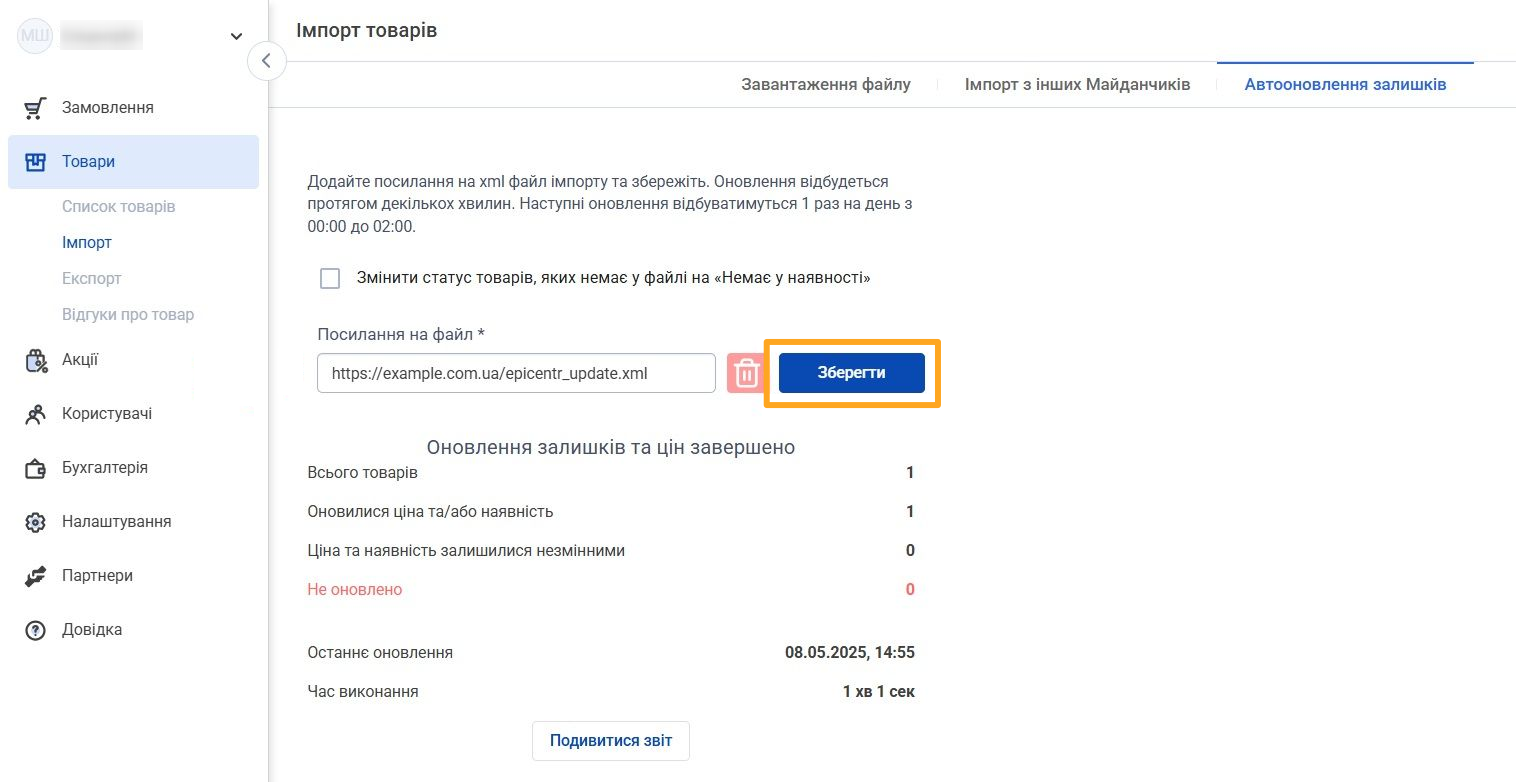
-
01Go to the Products — Import menu
-
02Go to the Automatic Stock Updates tab
-
03Paste the copied feed URL into the File Link field
-
04Click Save

Advanced Settings
The module automatically synchronizes reference catalogs using Odoo scheduled actions. You can view this list in the Settings — Technical — Automation — Scheduled Actions menu.
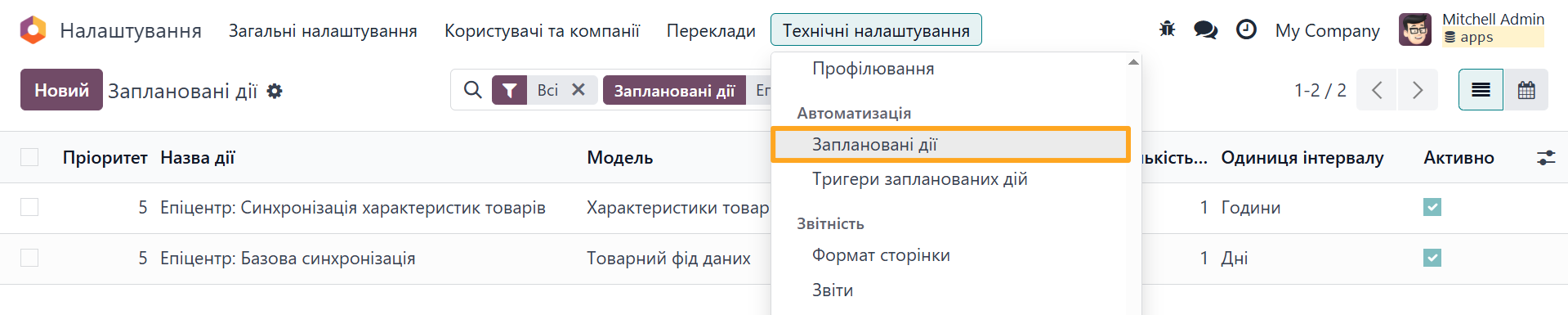
The following synchronization actions are scheduled for the module:
- Epicentr: Attribute and Brand Synchronization — imports Epicentr Marketplace brands and product attributes once an hour.
- Epicentr: Base Synchronization — imports product categories once a day.
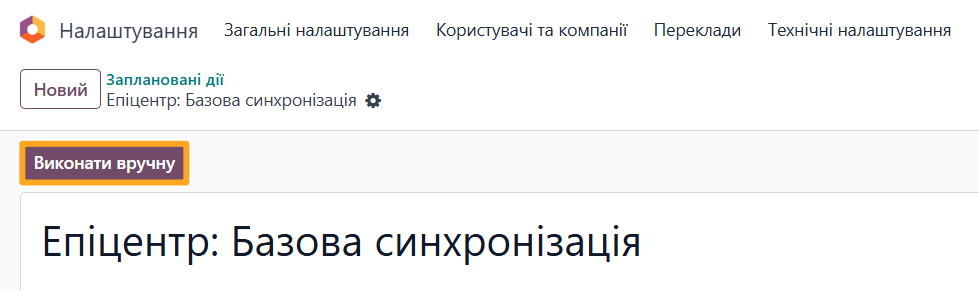
To update data manually, open a scheduled action and click Run Manually.
Changelog
18.0.1.2.1 2026-01-09
- Add a button to sync brands from the product form.
- Improve Epicentr category synchronization.
18.0.1.2.0 2026-01-05
- Improve logic to sync and use the Epicentr Product Brands.
18.0.1.1.0 2025-11-21
- Improved handling of the Epicenter attributes and alternative product names.
- Improve product views.
18.0.1.0.0 2025-11-03
- Migration from 16.0.
19.0.1.0.0 2026-01-09
- Migration from 18.0.
20.0.1.0.0 2026-09-28
- Migration from 19.0.
Resources




How to Automate Your Launch on Europe’s Leading Marketplace