
Integrate EasyPay Online Payments into your Odoo e-Commerce
Use this module to add a new integration with the EasyPay payment service.
| Availability |
Odoo Online
Odoo.sh
On Premise
|
|---|---|
| Compatibility |
Community
Enterprise
|
| Technical Name | payment_easy_pay |
| Version | 20.0.1.0.0 |
| License | OPL-1 |
| Category | |
| Support | Free 60 days support and 360 days bug-fixing |
Use Case

Jorem ipsum dolor sit amet, consectetur adipiscing elit. Nunc vulputate libero et velit interdum, ac aliquet odio mattis. Class aptent taciti sociosqu ad litora torquent per conubia nostra, per inceptos himenaeos.
Forem ipsum dolor sit amet, consectetur adipiscing elit. Nunc vulputate libero et velit interdum, ac aliquet odio mattis. Class aptent taciti sociosqu ad litora torquent per conubia nostra, per inceptos himenaeos.
Dorem ipsum dolor sit amet, consectetur adipiscing elit. Nunc vulputate libero et velit interdum, ac aliquet odio mattis.
It is a long established fact that a reader will be distracted by the readable content of a page
Korem ipsum dolor sit amet, consectetur adipiscing elit. Nunc vulputate libero et velit interdum, ac aliquet odio mattis. Class aptent taciti sociosqu ad litora torquent per conubia nostra, per inceptos himenaeos.
Korem ipsum dolor sit amet, consectetur adipiscing elit. Nunc vulputate libero et velit interdum, ac aliquet odio mattis.
Odoo App Installation
Upload modules
Upload modules from the ZIP archive to your Odoo hosting, or a GitHub repository connected there.
Place the unzipped modules in your custom add-on directory and restart the Odoo system service.
Update App List
After restarting, activate the Developer Mode, and go to the Apps menu.

Click on Update Apps List to fetch the new modules in the list.
Activate the App
Install the new module, finding it by name and clicking on the Activate button.
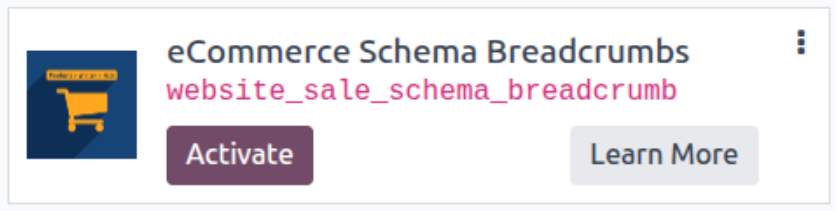
* If you don't see the module, try to remove the default Apps filter from the search bar.
Configuration
Follow the instructions in the module description to complete the installation process and start using the app.
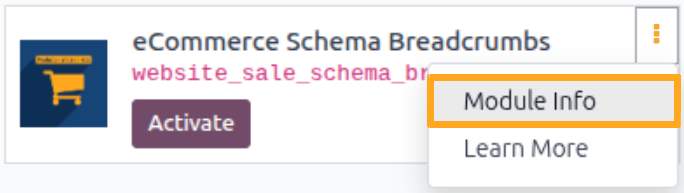

Manual

Configuration
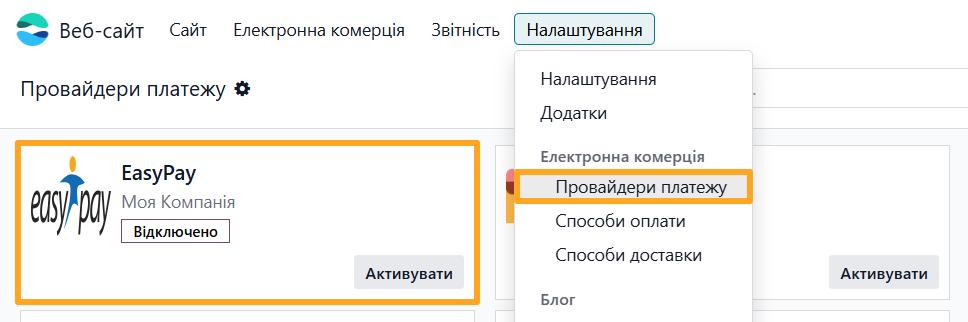
After installing the module, go to the Website — Configuration — Payment Providers menu and open EasyPay.
Testing
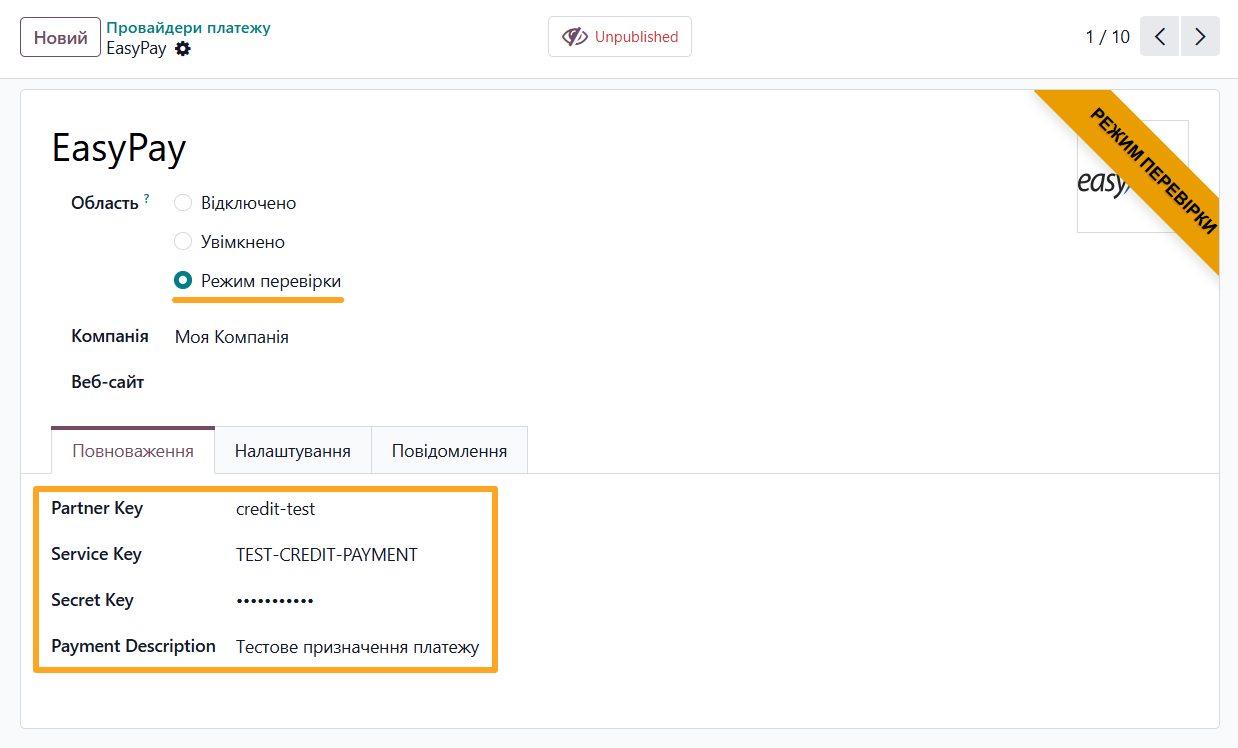
To test the EasyPay payment provider, perform the following actions:
-
01Set the payment provider state to Test Mode
-
02Enter the EasyPay test keys and a default Payment Description on the Credentials tab
-
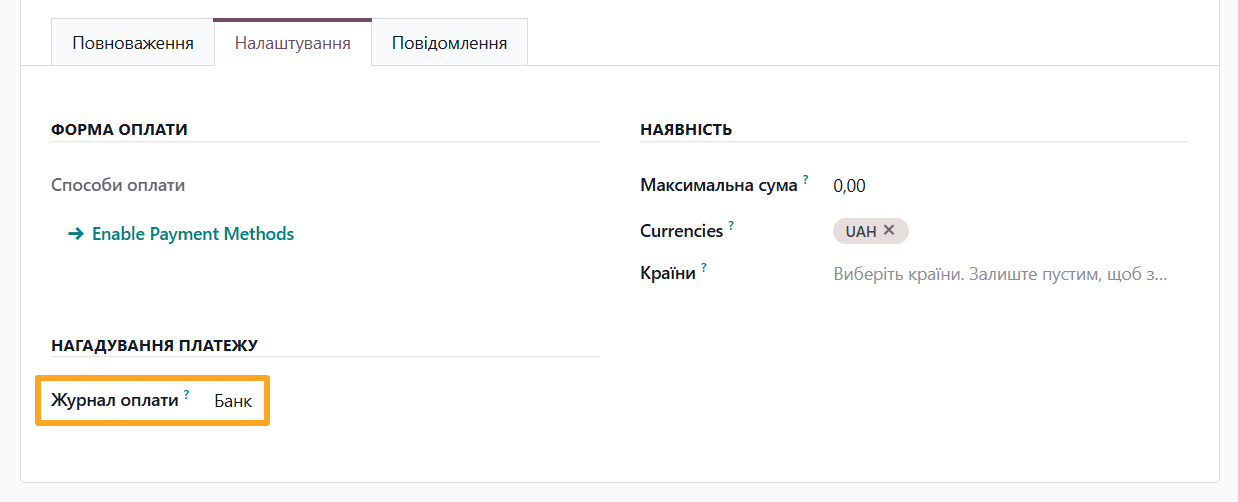
03Select a Payment Journal on the Configuration tab

Activation
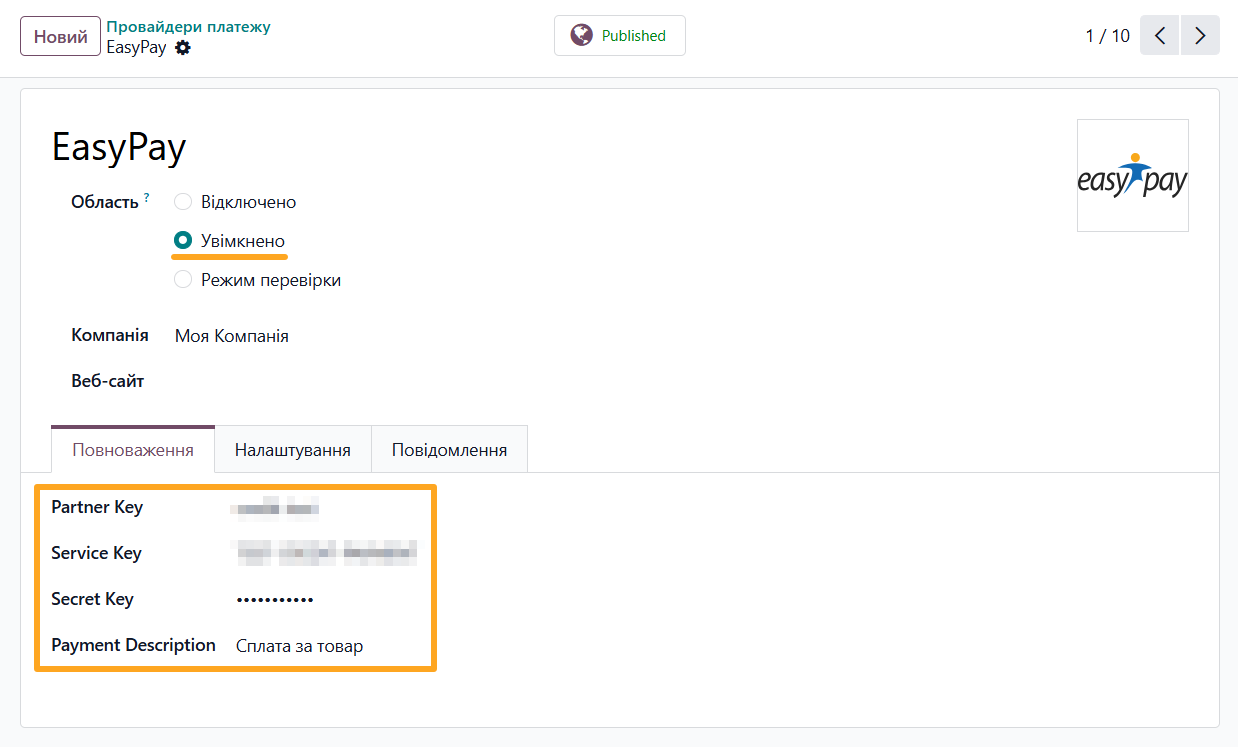
To switch the EasyPay payment provider to live mode:
-
01Change the provider state to Enabled
-
02Enter your EasyPay keys and a default Payment Description on the Credentials tab
-
03Select a Payment Journal on the Configuration tab (if you have not done so already)
Publishing the Payment Method
Odoo websites display only active payment methods from published payment providers. Go to one of the following ways:
- The Enable Payment Methods link on the payment provider Configuration tab
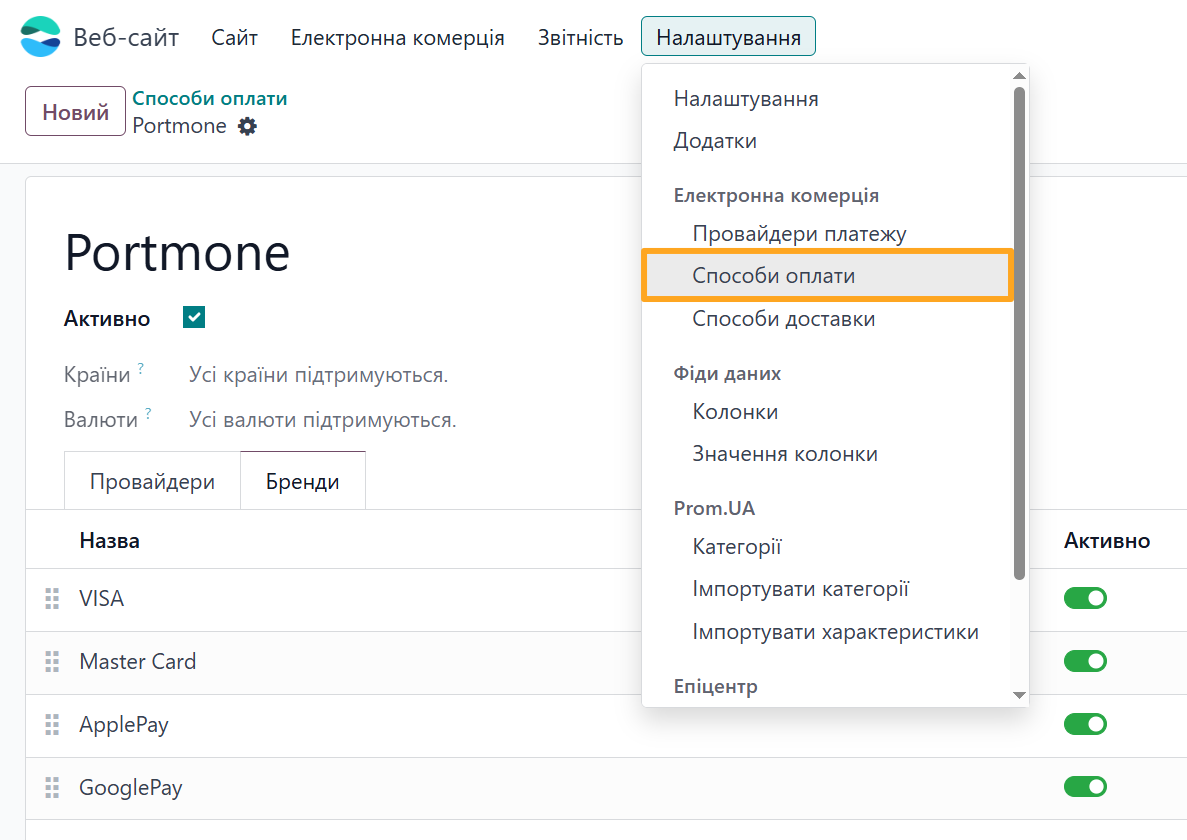
- The Website — Configuration — eCommerce — Payment Methods menu
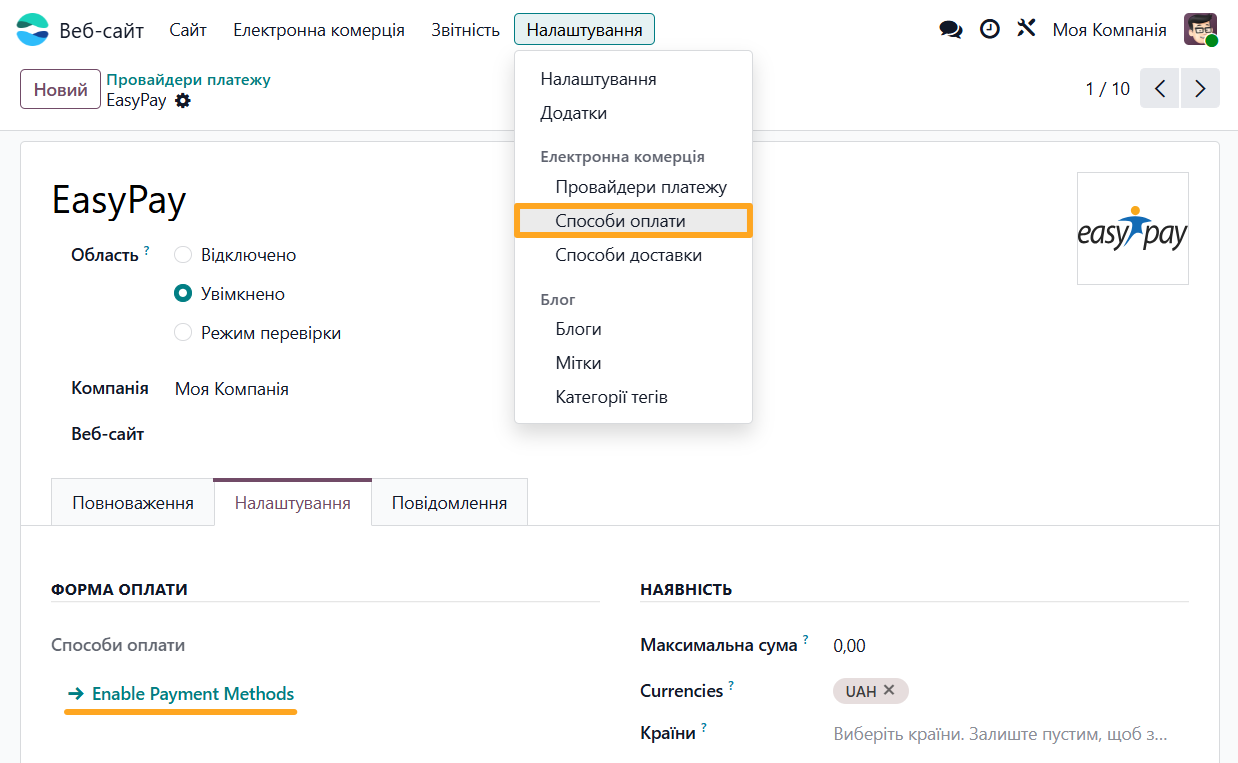
Activate EasyPay to make this payment method available on the website.
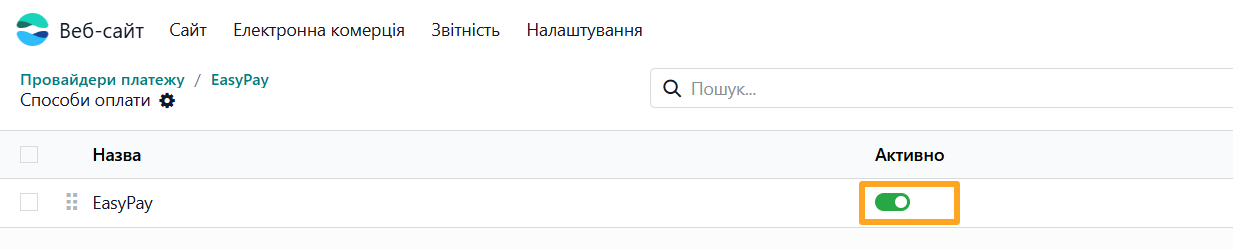


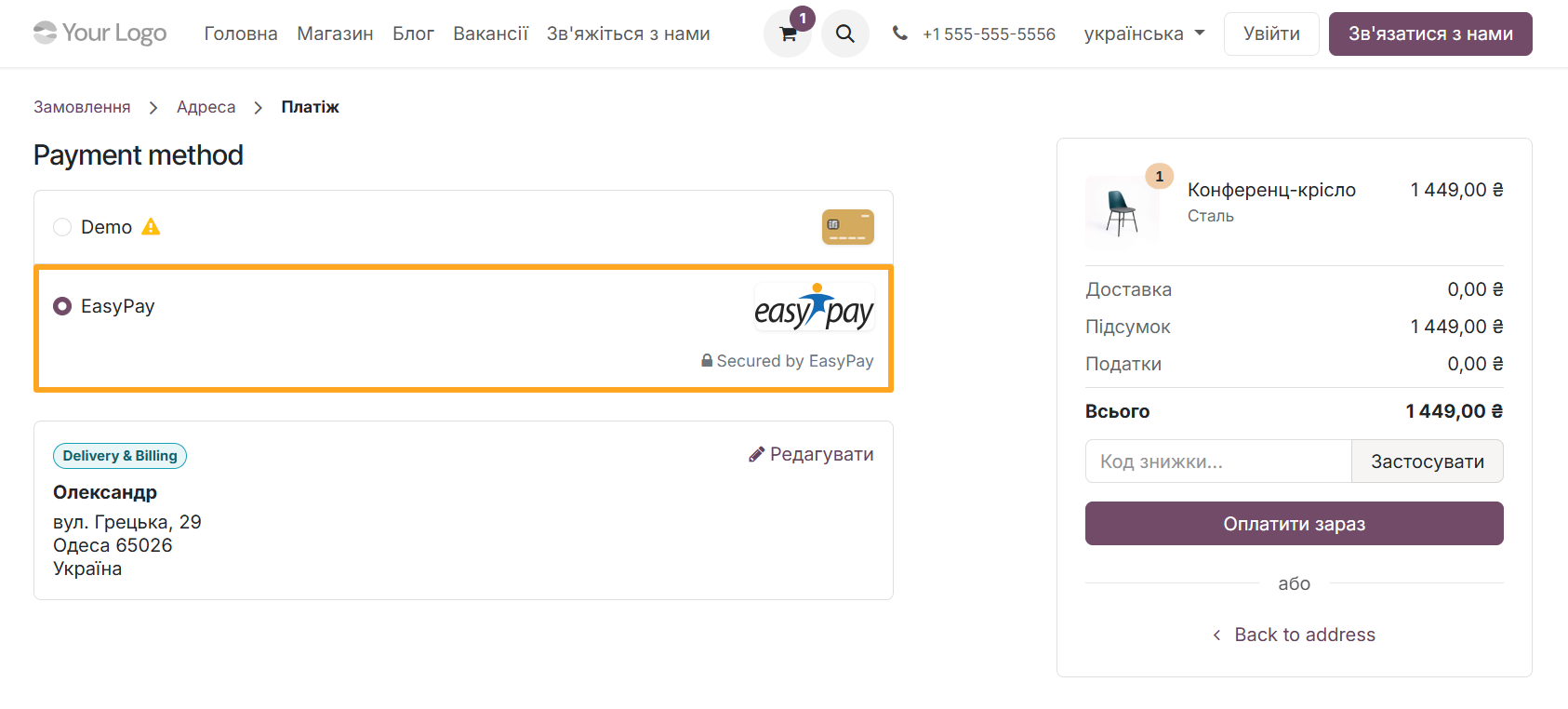
Payment Methods
Once set up, the new payment method appears on your website and becomes available for customer payments.


Additional Settings
Payment Brands
For each payment provider, it is possible to display available payment method types such as VISA, MasterCard, Apple Pay, Google Pay, and others.
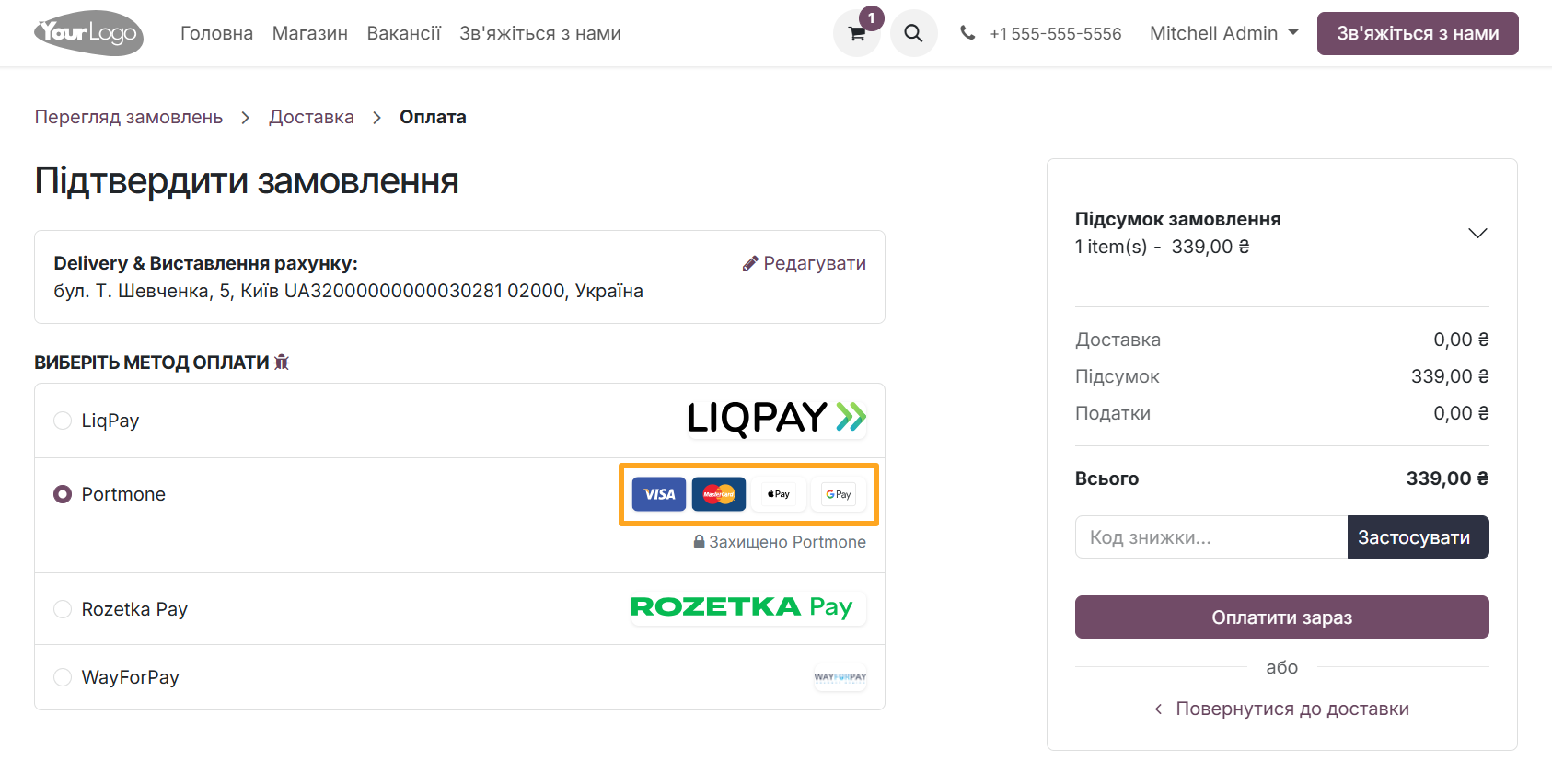
To configure this, go to Website — Configuration — Payment Methods, then select the payment provider and, on the Brands tab, add the desired payment method types.

Countries
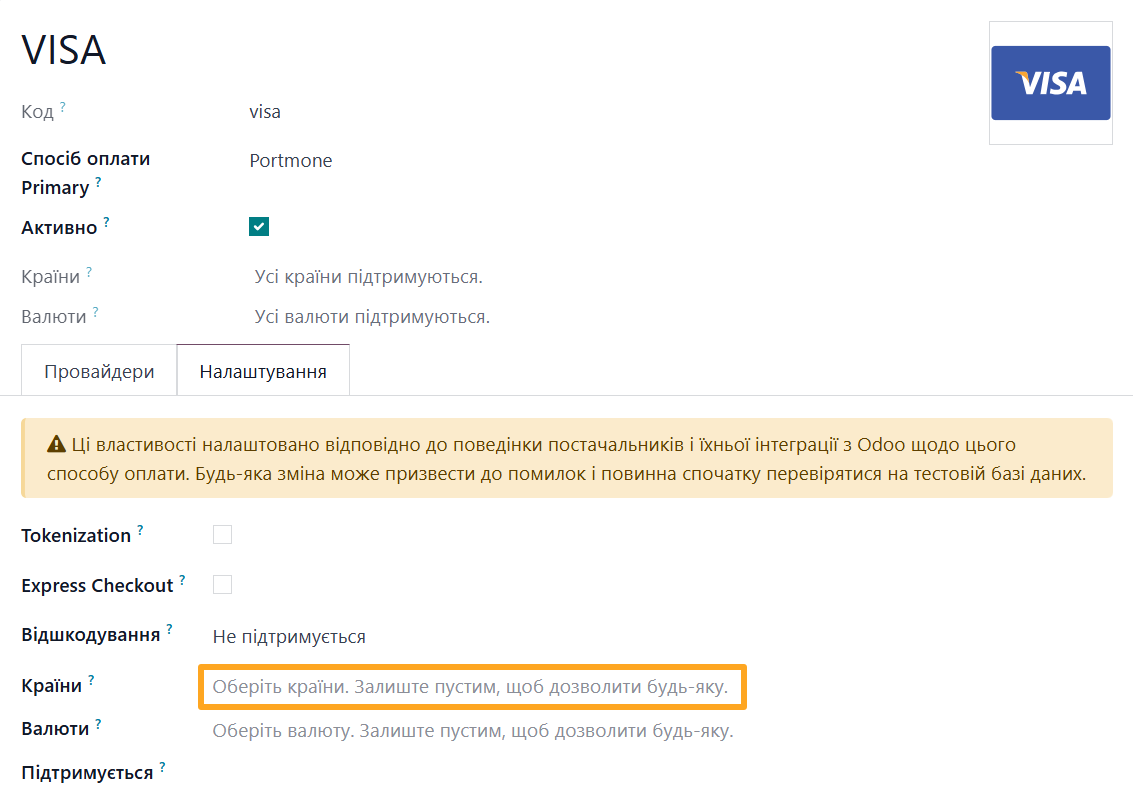
If needed, specify the list of countries where this payment method is available so that customers see up-to-date information.
Changelog
19.0.1.0.0 2025-12-29
- Migration from 18.0.
18.0.1.0.0 2025-12-29
- Init version.
20.0.1.0.0 2026-09-23
- Migration from 19.0.