

Provide your Odoo product data to ChatGPT to appear in AI search results and, keep it actual and up-to-date
Get ready-made feeds developed according to the ChatGPT Product Feed Spec to promote your products in the top AI chat. Configure your data feed through our Odoo solution using the familiar interface, without needing developer support.
| Availability |
Odoo Online
Odoo.sh
On Premise
|
|---|---|
| Compatibility |
Community
Enterprise
|
| Technical Name | product_data_feed_chatgpt |
| Version | 20.0.1.0.0 |
| License | OPL-1 |
| Category | |
| Support | Free 60 days support and 360 days bug-fixing |
Use Case

Jorem ipsum dolor sit amet, consectetur adipiscing elit. Nunc vulputate libero et velit interdum, ac aliquet odio mattis. Class aptent taciti sociosqu ad litora torquent per conubia nostra, per inceptos himenaeos.
Forem ipsum dolor sit amet, consectetur adipiscing elit. Nunc vulputate libero et velit interdum, ac aliquet odio mattis. Class aptent taciti sociosqu ad litora torquent per conubia nostra, per inceptos himenaeos.
Dorem ipsum dolor sit amet, consectetur adipiscing elit. Nunc vulputate libero et velit interdum, ac aliquet odio mattis.
It is a long established fact that a reader will be distracted by the readable content of a page
Korem ipsum dolor sit amet, consectetur adipiscing elit. Nunc vulputate libero et velit interdum, ac aliquet odio mattis. Class aptent taciti sociosqu ad litora torquent per conubia nostra, per inceptos himenaeos.
Korem ipsum dolor sit amet, consectetur adipiscing elit. Nunc vulputate libero et velit interdum, ac aliquet odio mattis.
Odoo App Installation
Upload modules
Upload modules from the ZIP archive to your Odoo hosting, or a GitHub repository connected there.
Place the unzipped modules in your custom add-on directory and restart the Odoo system service.
Update App List
After restarting, activate the Developer Mode, and go to the Apps menu.

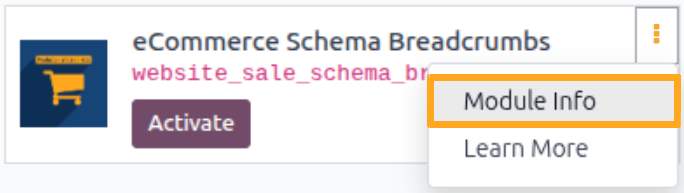
Click on Update Apps List to fetch the new modules in the list.
Activate the App
Install the new module, finding it by name and clicking on the Activate button.
* If you don't see the module, try to remove the default Apps filter from the search bar.
Configuration
Follow the instructions in the module description to complete the installation process and start using the app.

Manual

Advantages
The ChatGPT Product Feeds module offers the following advantages:
- Two ready-made feed templates
- Up to 52 feed columns
- Product reviews and ratings
- Related product list
- Product compliance and disclaimer information
- Shipping data
- Availability and Inventory
- Price and Promotions

Feed Configuration
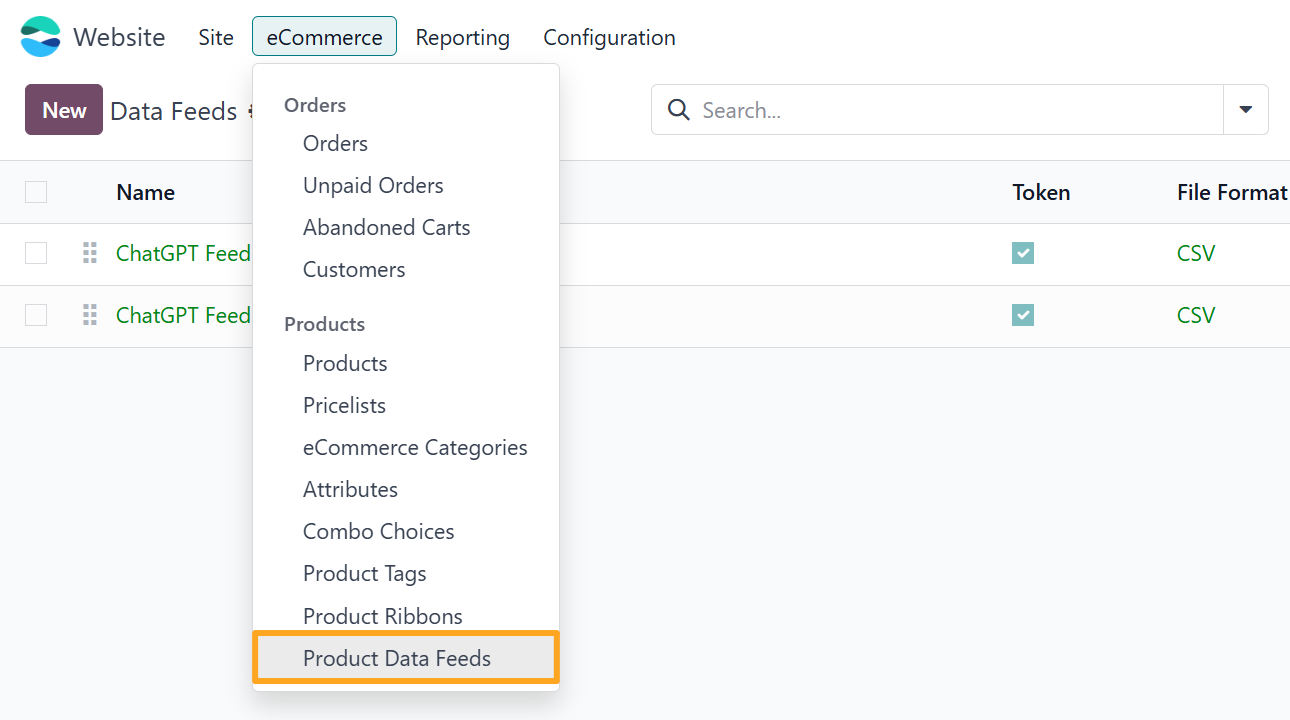
After installing the module, open the feed list to prepare one of them for your needs. Go to the Website — eCommerce — Products — Product Data Feeds menu.
The module comes with two ready-to-use data feed templates configured according to OpenAI requirements.
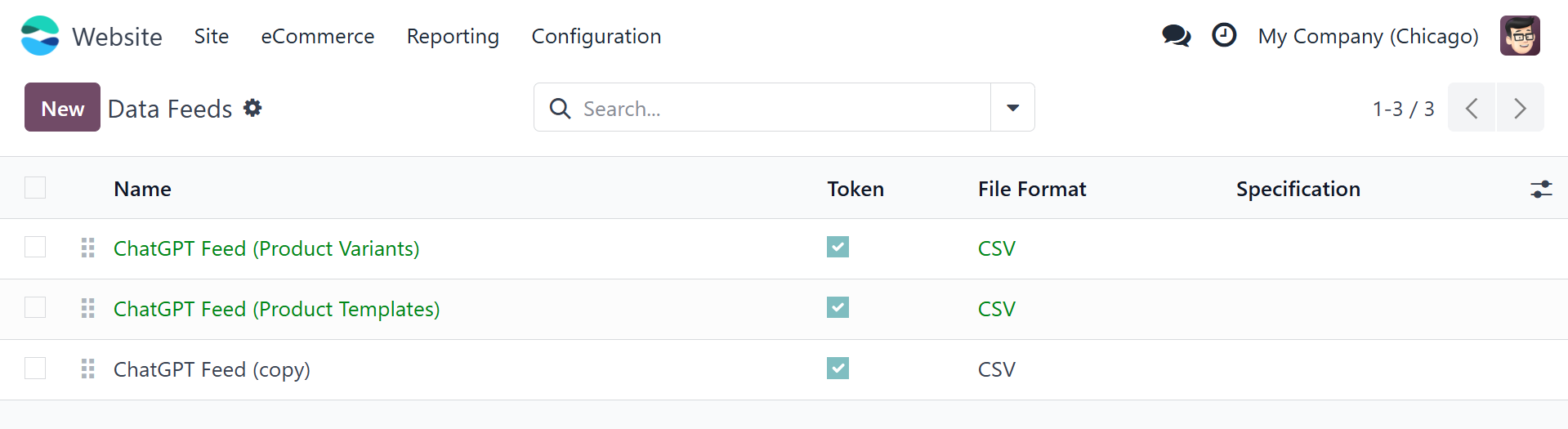

If Odoo products have attributes and multiple variants, use the ChatGPT Feed (Product Variants) template.
If you manage products in Odoo at the product template level without variants, use the ChatGPT Feed (Product Templates).

Feed Products
First, determine which products to include in the data feed. Use the Item Filter to set the selection filters.
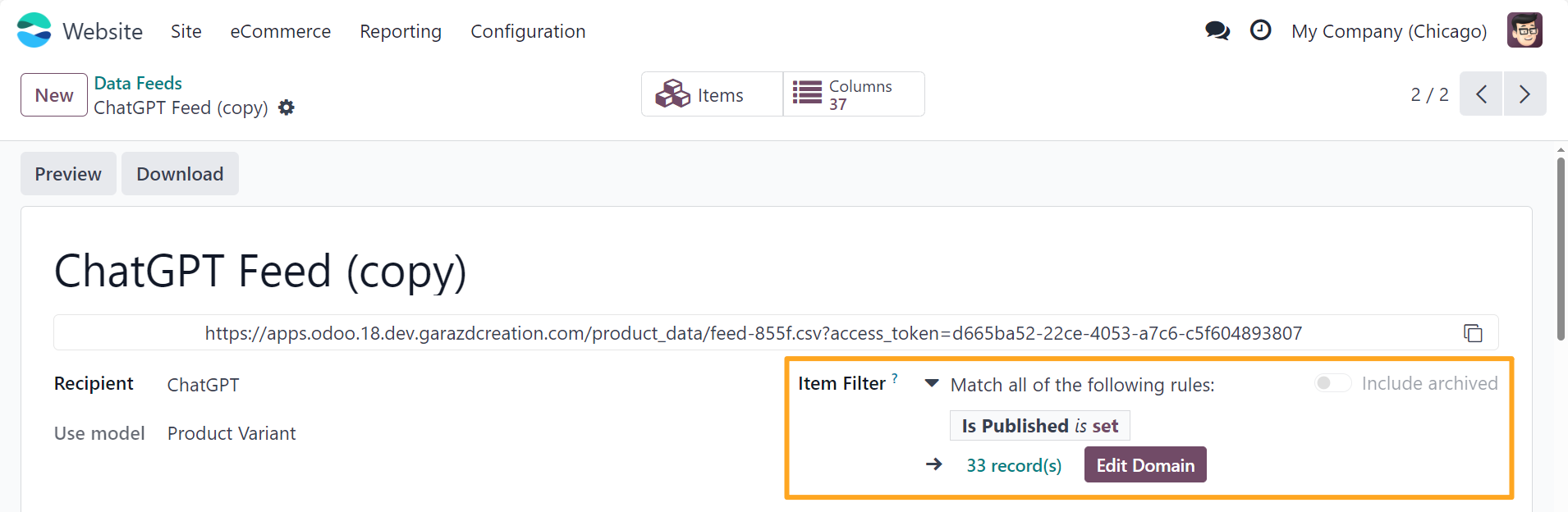
Click Edit Domain to add product filters for the data feed.
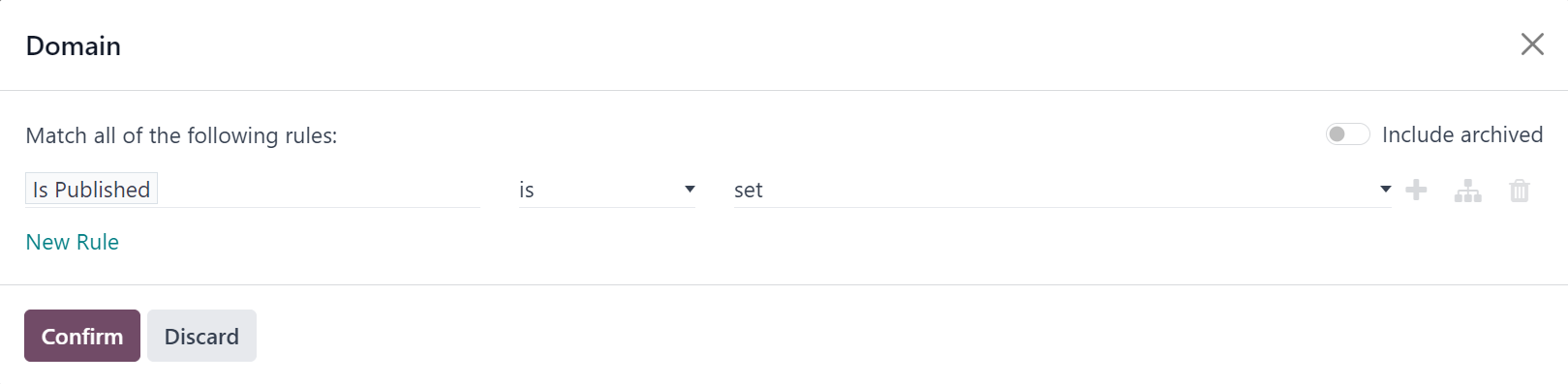
Click Confirm to save the changes. The module automatically recalculates the number of products included in the feed according to the selected filters.
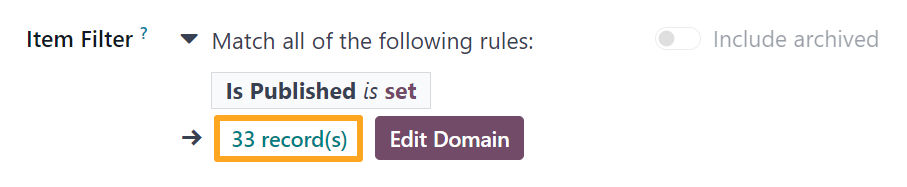
To manage feed products, click the link with the number of records or use the Items button at the top of the feed form.

Price Configuration
Before connecting the feed to ChatGPT, configure product prices. Go to the Settings tab and, in the Prices section, select a Pricelist. This pricelist determines product prices.
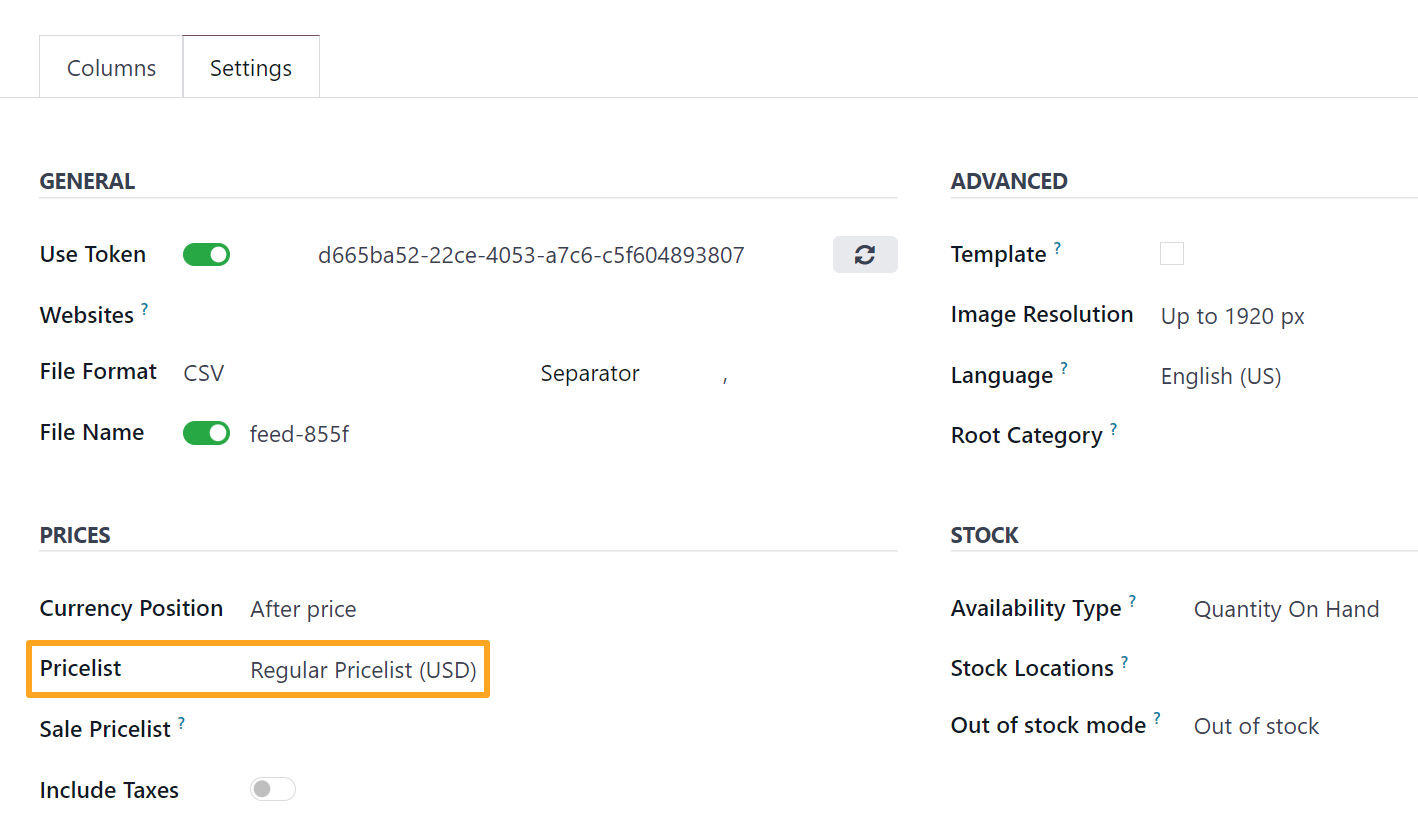
To include promotional prices in the data feed, set the Sale Pricelist field. Configure this pricelist in advance and define discounted prices for products.
Stock Locations
The module allows you to select warehouses (stock locations) to calculate on-hand quantities and product availability statuses.
Go to the Settings tab, Stock section. Select the desired Stock Locations in the field.
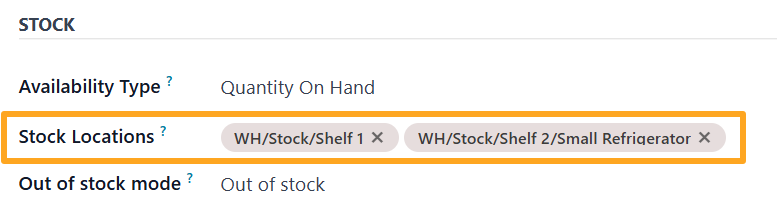
As a result, the module calculates stock levels for the data feed using only the specified stock locations.
If a product is out of stock at the specified locations, the Out of Stock Mode parameter determines the availability status to specify:
- Out of Stock — sets the product availability status to
out of stock - Available for Order — sets the product availability status to
preorder
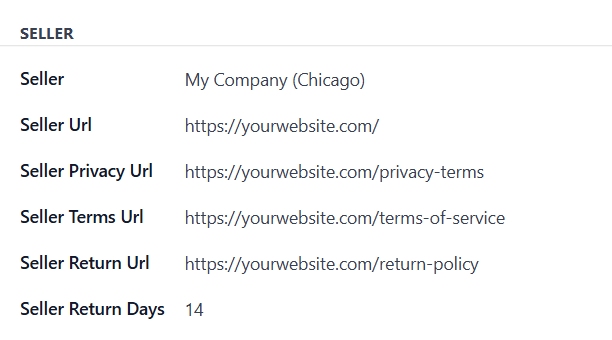
Seller Information
OpenAI requires seller information in product feeds. Specify your company, shop link, seller policies, and the number of return days based on your return policy.
Product Shipping
The module lets you pass shipping cost details to ChatGPT for all feed products and for specific items.
In the Shipping section on the Settings tab, specify a global shipping cost for all products if applicable to your business.
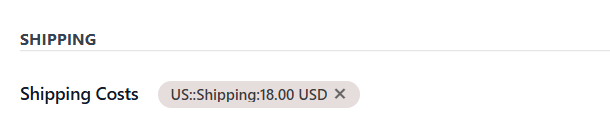
In the shipping cost creation form, specify:
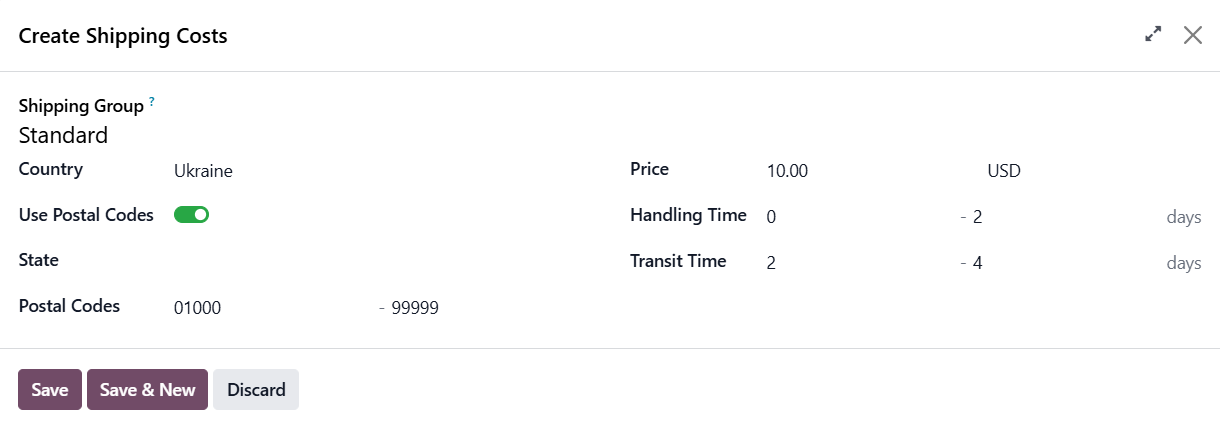
- Shipping Group: shipping group for this cost
- Country: country for which you set the cost
- Use Postal Codes: whether to use postal code restrictions
- State: region where this cost applies
- Postal Codes: postal code range
- Price: shipping cost and currency
- Handling Time: product handling period in days
- Transit Time: transit period in days
If a different delivery cost is required for a specific product, refer to the Product Configuration section.
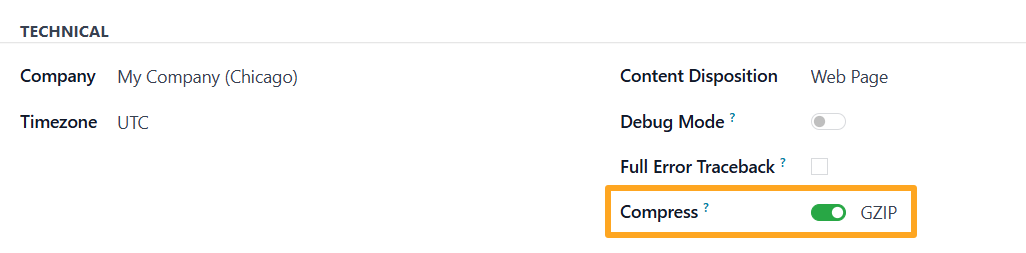
Technical
Another requirement for ChatGPT product feeds is GZIP file compression.


Feed Columns
The module includes data feed columns preconfigured according to OpenAI requirements. These columns map to standard fields and use native Odoo product management logic. You can reconfigure the feed columns through the Odoo UI to map them to your custom product fields.
To manage columns, click the Columns button at the top of the page.

The module allows you to add up to three custom product variants to the feed. For example, add columns for the Fabric product attribute.
Create a new column for the product attribute name:
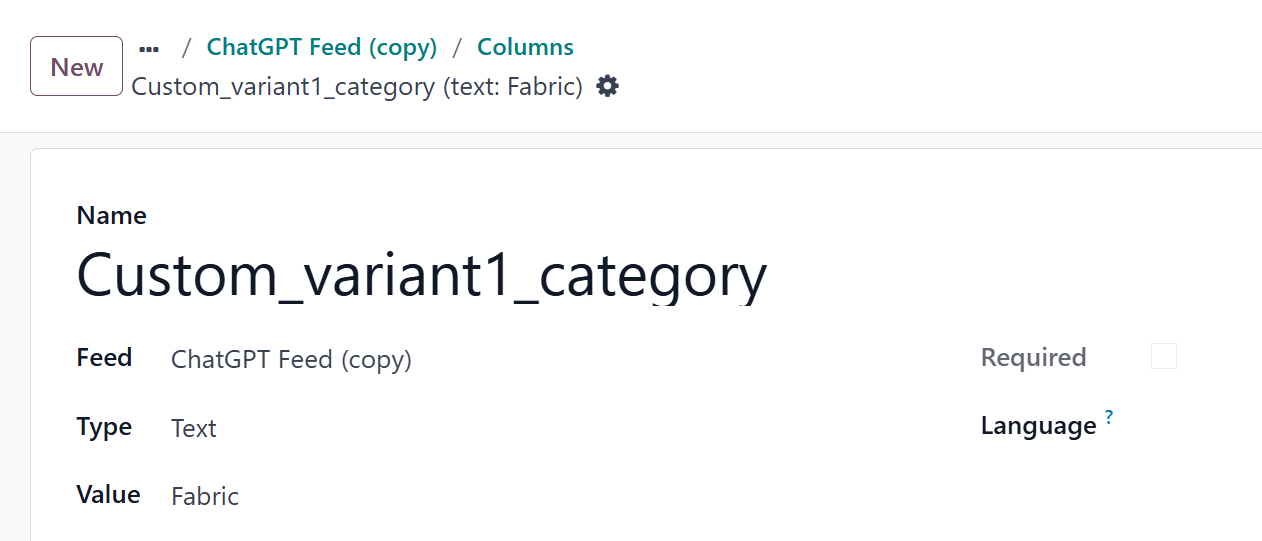
- Enter the custom_variant1_category column name
- Select the Text column type
- Enter the attribute name in the Value field
Add another column, this time for the attribute value:
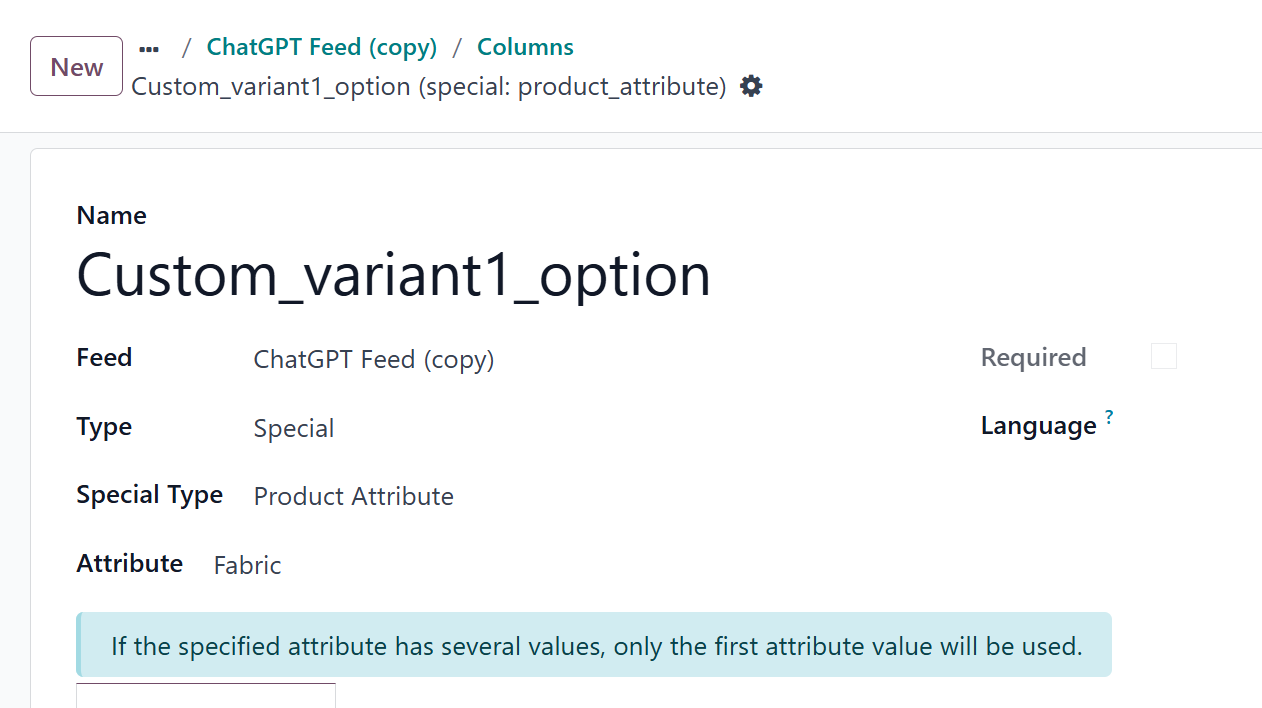
- Enter the custom_variant1_option column name
- Select the Special Type column type
- Choose the Product Attribute special type
- Select the Attribute
The column name for the option (attribute value) uses the following format: custom_variantX_option, where X is the option number from 1 to 3 that corresponds to the category.

Product Configuration
You can configure the data feed for ChatGPT at the product level. Odoo product data feed modules by Garazd Creation include extensions that allow you to enrich your products in Odoo with additional information and share it via the feed:
- Product Brands for Data Feeds — adds the ability to specify the product brand
- Number Fields for Data Feeds — adds fields for international numbers and product codes
- Product Data Feed — adds specific settings according to the analytics system or marketplace
Below are the product settings relevant to ChatGPT.
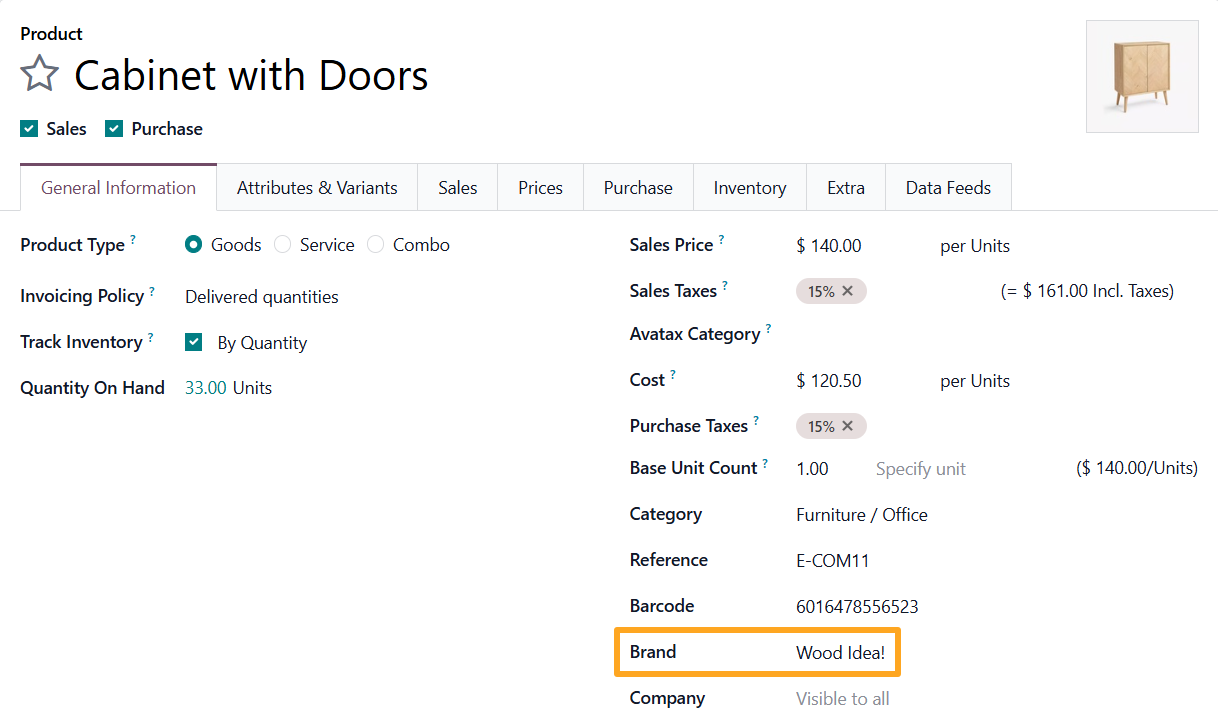
Brand
To specify a brand, open a product, go to the General Information tab, and fill in the Brand field.
Codes and Characteristics
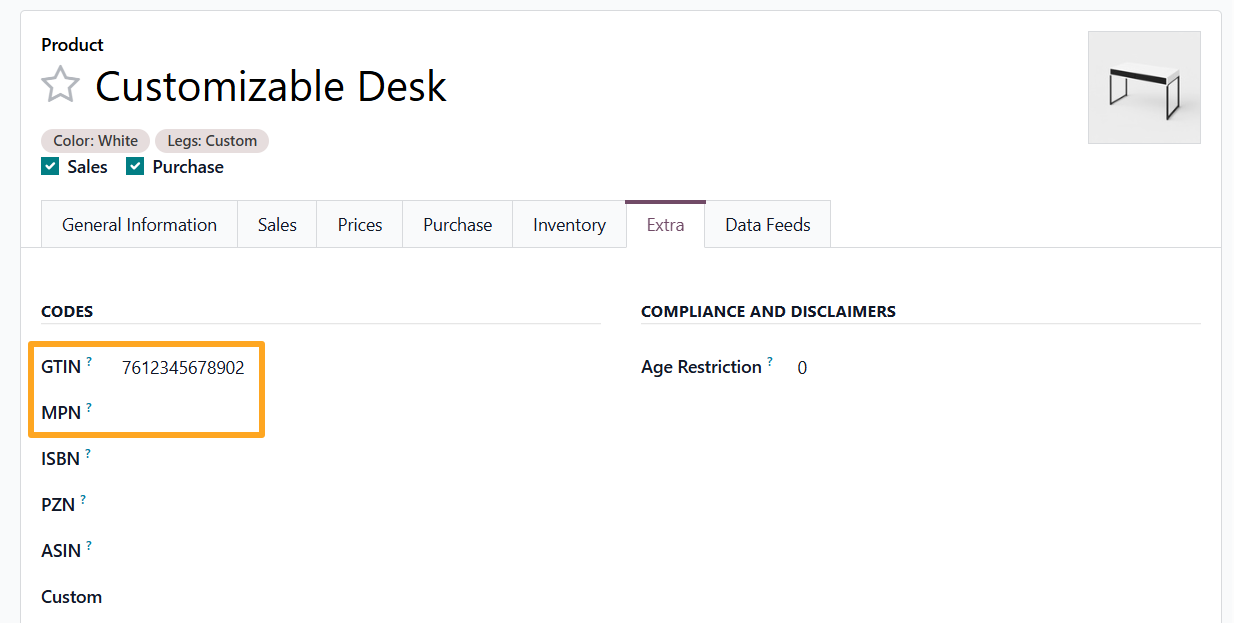
Specify product codes, such as GTIN and MPN, on the Extra tab in the Codes section.
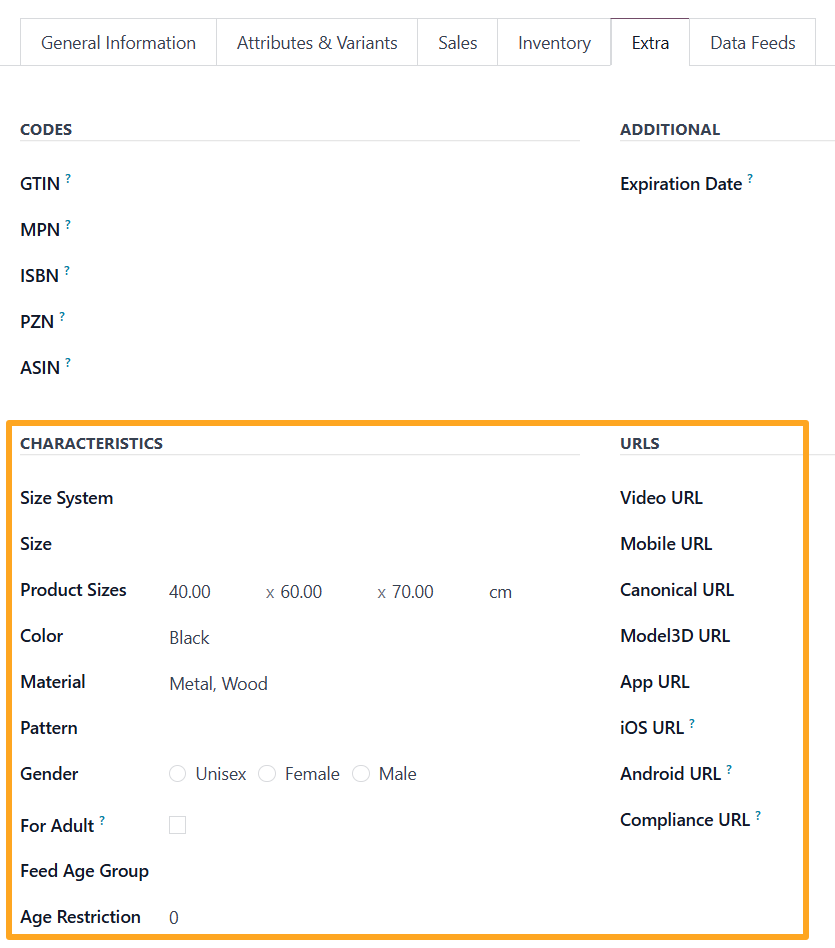
In the Characteristics and URLs sections, specify the product characteristics and the URL links.
ChatGPT Options
ChatGPT-specific options are located on the Data Feeds tab under the ChatGPT section.
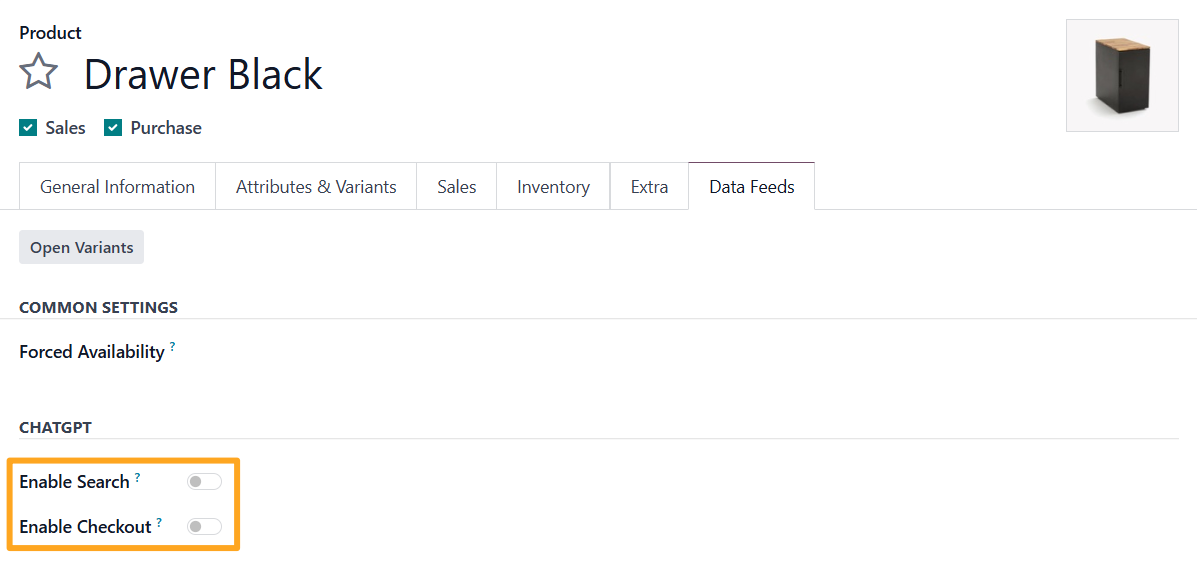
The Enable Search option controls whether a product can appear in ChatGPT search results. If enabled, use the Enable Checkout option to choose whether to allow direct purchases inside ChatGPT.
Shipping
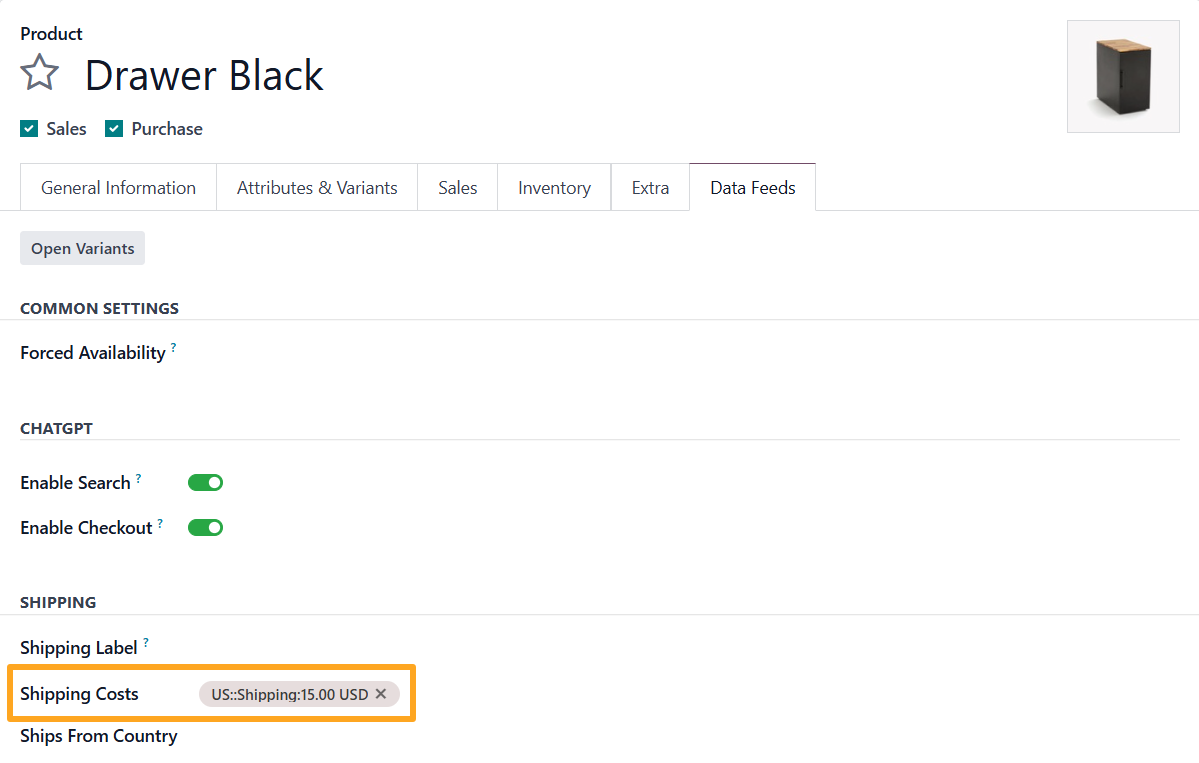
To specify shipping costs for a particular product, go to the Data Feeds tab and fill in the Shipping Costs field in the Shipping section.

Connecting the Feed
Before connecting the data feed to ChatGPT, click Preview to review the configuration result.

After configuration is complete, copy the feed URL.

Next, sign in to the ChatGPT Merchant account and paste the copied URL into the appropriate field.
Changelog
18.0.1.0.0 2025-12-18
- Init version.
19.0.1.0.0 2026-01-06
- Migration from 18.0.
20.0.1.0.0 2026-09-23
- Migration from 19.0.
Resources


How to Automate Your Launch on Europe’s Leading Marketplace