

Universal tool for generating data feeds from any Odoo models
| Availability |
Odoo Online
Odoo.sh
On Premise
|
|---|---|
| Compatibility |
Community
Enterprise
|
| Technical Name | garazd_data_feed_pro |
| Version | 20.0.1.0.0 |
| License | OPL-1 |
| Category | |
| Support | Free 60 days support and 360 days bug-fixing |
Use Case

Jorem ipsum dolor sit amet, consectetur adipiscing elit. Nunc vulputate libero et velit interdum, ac aliquet odio mattis. Class aptent taciti sociosqu ad litora torquent per conubia nostra, per inceptos himenaeos.
Forem ipsum dolor sit amet, consectetur adipiscing elit. Nunc vulputate libero et velit interdum, ac aliquet odio mattis. Class aptent taciti sociosqu ad litora torquent per conubia nostra, per inceptos himenaeos.
Dorem ipsum dolor sit amet, consectetur adipiscing elit. Nunc vulputate libero et velit interdum, ac aliquet odio mattis.
It is a long established fact that a reader will be distracted by the readable content of a page
Korem ipsum dolor sit amet, consectetur adipiscing elit. Nunc vulputate libero et velit interdum, ac aliquet odio mattis. Class aptent taciti sociosqu ad litora torquent per conubia nostra, per inceptos himenaeos.
Korem ipsum dolor sit amet, consectetur adipiscing elit. Nunc vulputate libero et velit interdum, ac aliquet odio mattis.
Odoo App Installation
Upload modules
Upload modules from the ZIP archive to your Odoo hosting, or a GitHub repository connected there.
Place the unzipped modules in your custom add-on directory and restart the Odoo system service.
Update App List
After restarting, activate the Developer Mode, and go to the Apps menu.

Click on Update Apps List to fetch the new modules in the list.
Activate the App
Install the new module, finding it by name and clicking on the Activate button.

* If you don't see the module, try to remove the default Apps filter from the search bar.
Configuration
Follow the instructions in the module description to complete the installation process and start using the app.
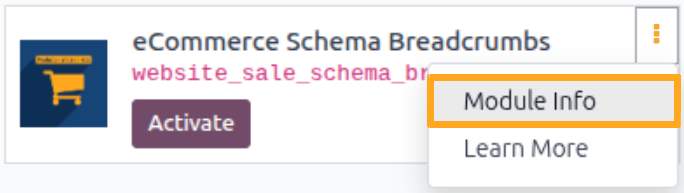

Manual

Description
A data feed is a structured set of data that is automatically and regularly transferred from one system to another for synchronization, updating, or processing of information.
This solution provides a user-friendly UI to create and manage data feeds for any model in Odoo and generate a structured data file in the XML or CSV formats.

So the Universal Data Feeds app enables creating not only product feeds but also, for instance, price, stock, order, customer, and event feeds. That can be used for different purposes, such as building a source for e-commerce, analytics, and advertising platform, providing your partners with the relevant data, etc. The solution supports any Odoo models in data feeds and serves as a universal tool for creating data streams tailored to your business's specific needs.

Data Feed Adding
After the app installation, a new Data Feeds menu is added:
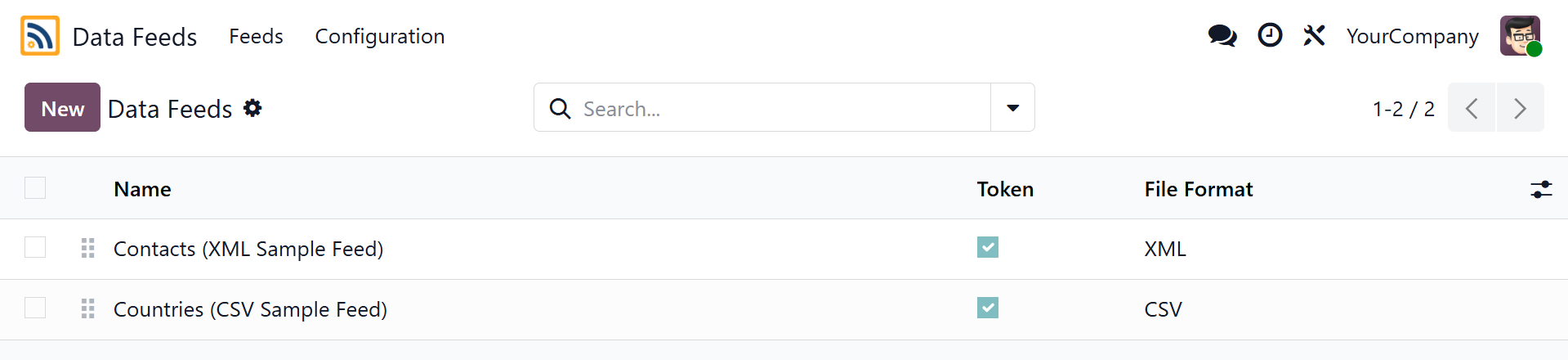
Open this menu and click New to add a new data feed.
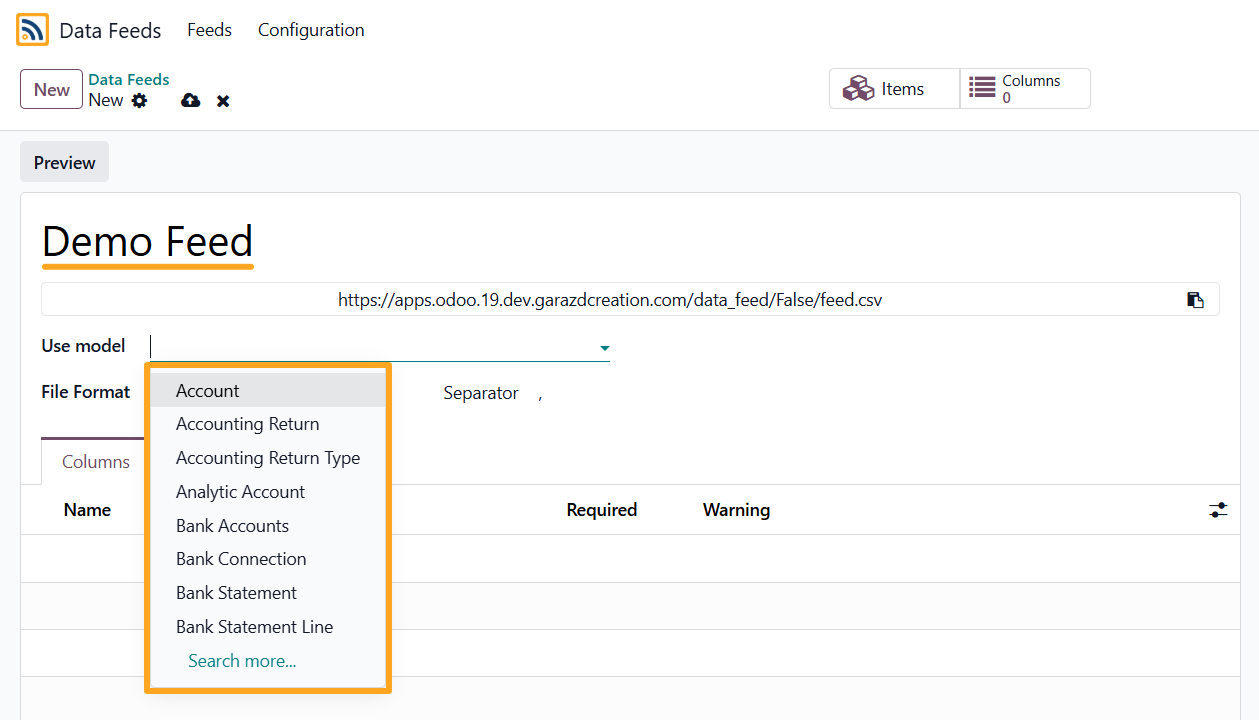
First, enter a name and select a model:
File Format
Next, select the File Format:
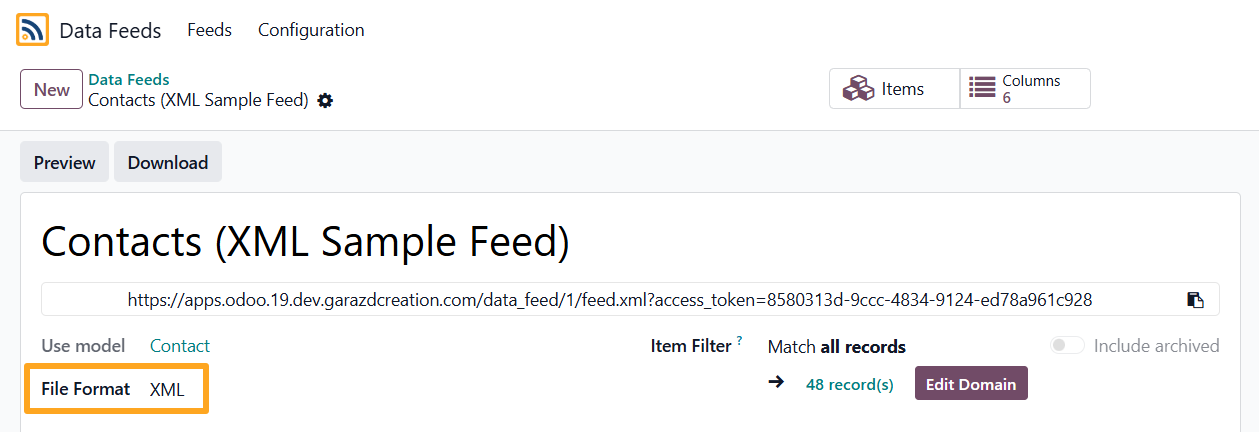
Currently, the following formats are available: XML, CSV, and TSV. This list will be expanded.
If CSV or TSV is selected, specify the Separator:

Item Filters
In the Item Filter section, the number of filtered records is displayed according to the selected model:
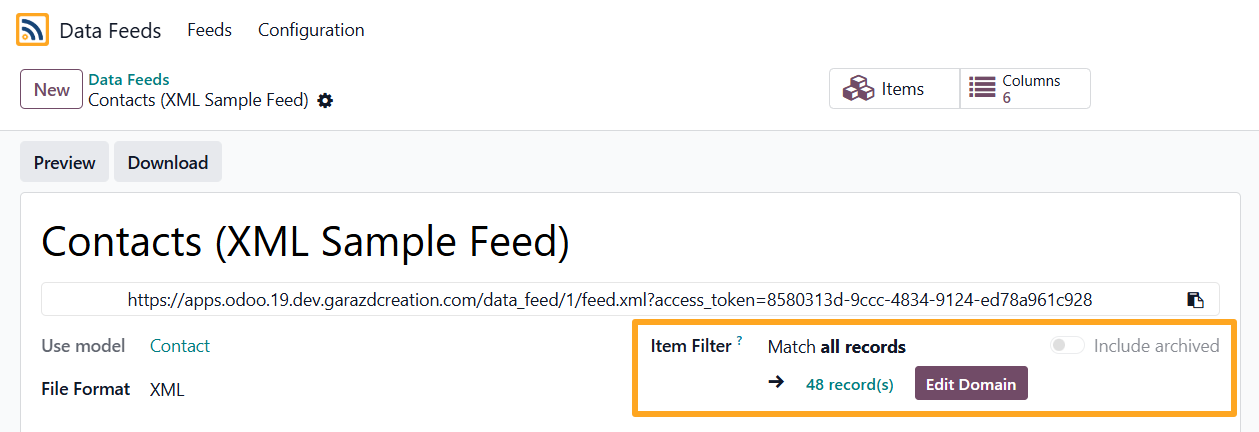
Click Edit Domain to modify the filters:
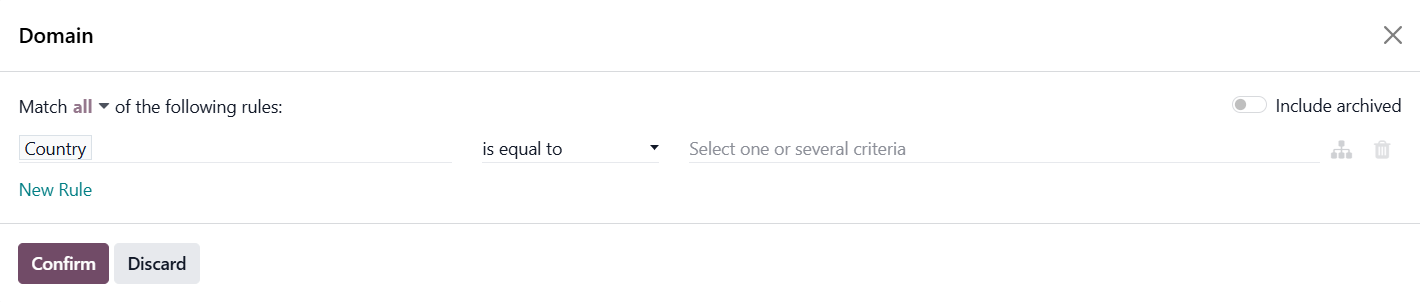
Save the changes by clicking Confirm. The number of records included in the feed is recalculated based on the selected filters.
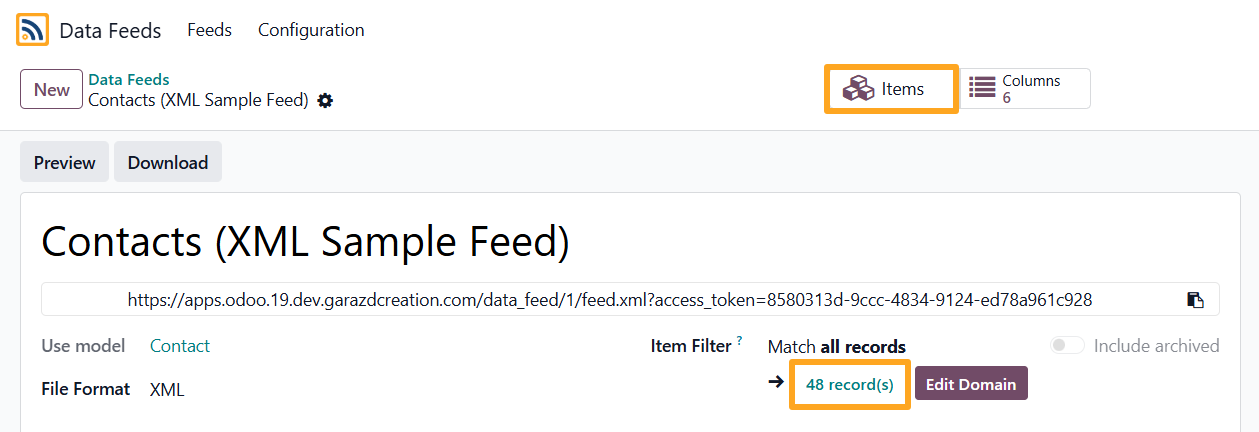
To view the list of feed records, click the link with the record count or the Items button at the top of the page:
Feed Columns
The next step is to configure which information (within the selected model) should be included in the data feed. To do this, open the list of columns by clicking the Columns button at the top of the page:

In the list, click New to add a new column and fill in the following fields:
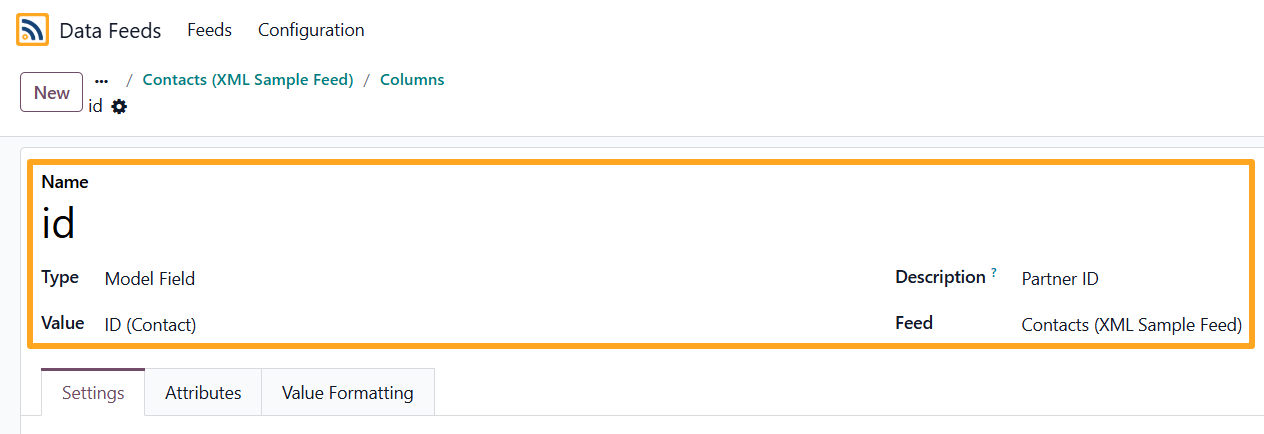

Column Settings
To build a column hierarchy, open the Settings tab and select a Parent Column if the current column is its child.
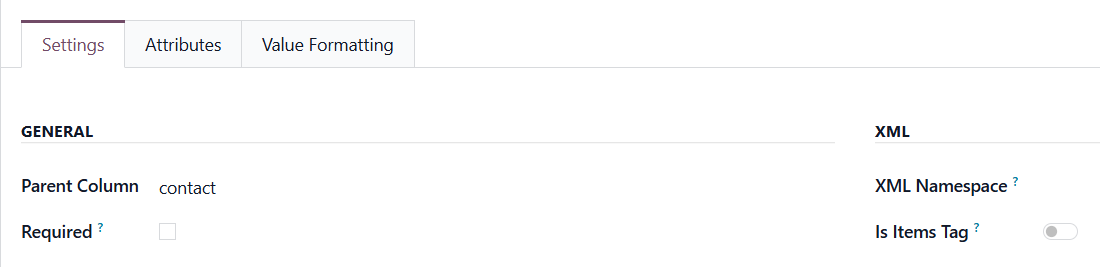
If the column is mandatory, enable the Required option.
If needed, add an XML Namespace, and if the column is a root tag, enable the Is Items Tag option.

Attributes
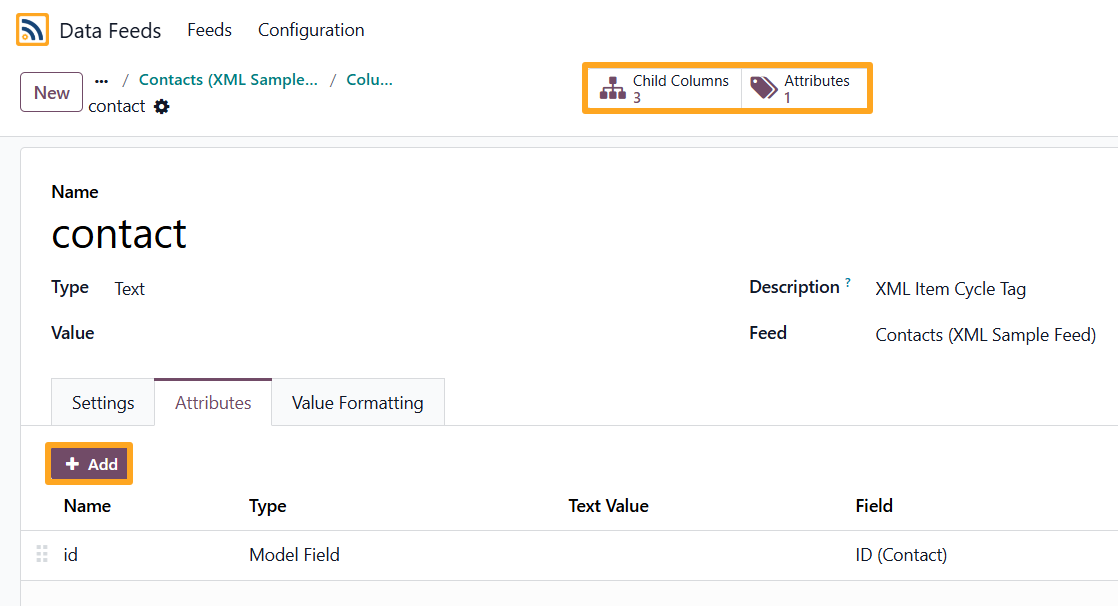
If the file format is XML, attributes can be added to columns. To do this, open the Attributes tab and click Add. The list of attributes can also be viewed by clicking the Attributes button at the top of the page, and the Child Columns button is used to display the list of child columns, if any exist:
Value Formatting
The Value Formatting tab allows you to:
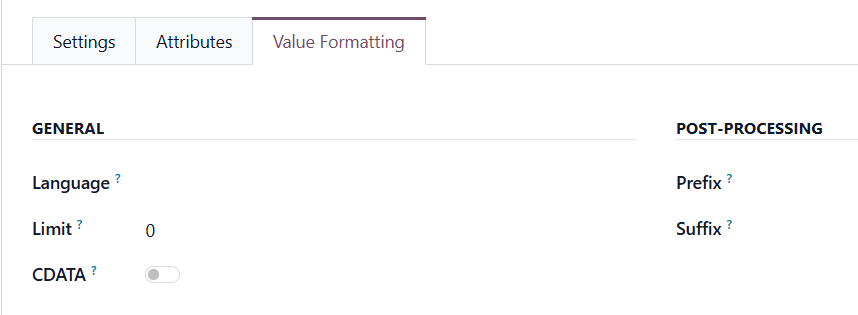
- Language - specify the language for the column’s value
- Limit - limit the number of characters in the column
- CDATA - convert the value to CDATA format
- Prefix - add the specified text before the column value
- Suffix - add the specified text after the column value
Feed Settings
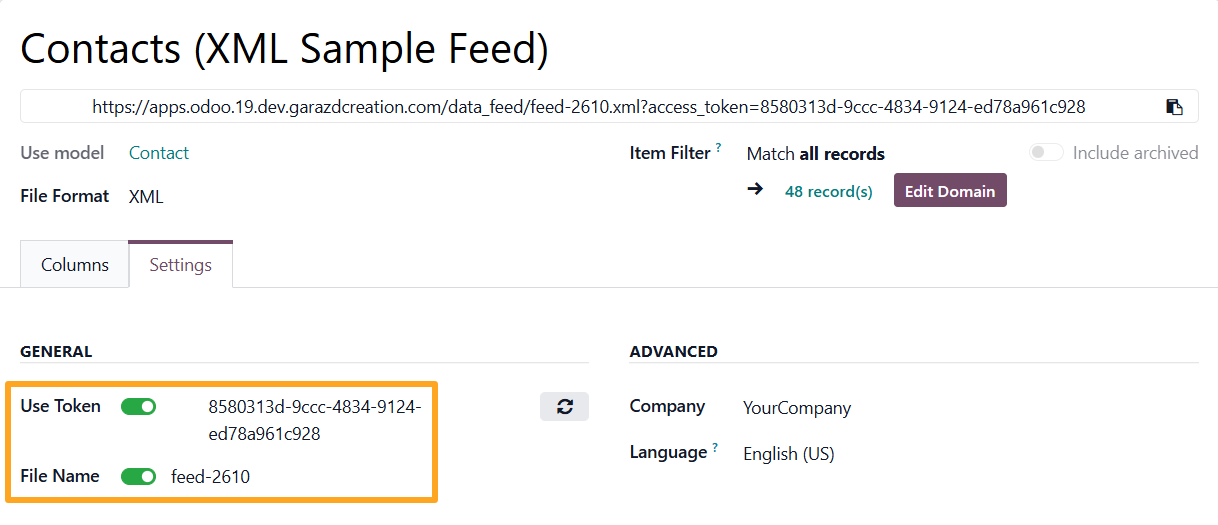
The solution allows you to protect the data feed with an access token. To do this, enable the Use Token option.
Some services require file names to be unique. Enable the File Name option and enter a custom file name, or keep the automatically generated one:
Feed URL
Before connecting the feed, the Universal Data Feeds app allows previewing the result of the configuration. Click Preview to open the file:

XML file:
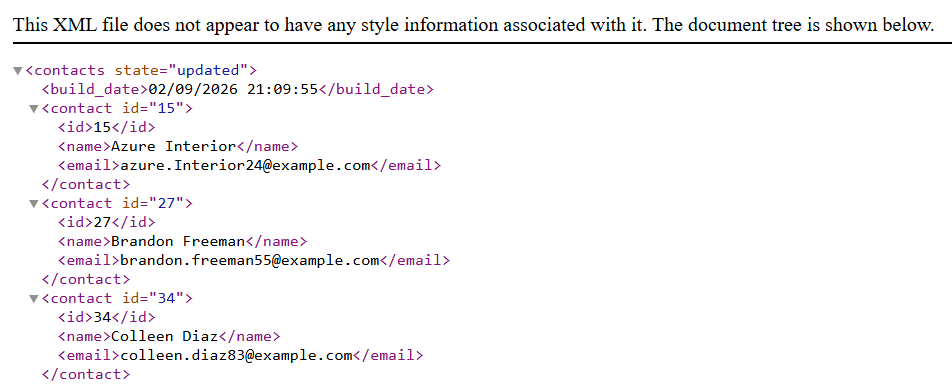
To connect the data feed, first copy the feed URL:

Paste this URL into the corresponding field of the receiving service.
Changelog
18.0.1.0.1 2026-04-21
- Add Product Data Feed module to dependencies.
18.0.1.0.0 2026-01-06
- Init version.
19.0.1.0.1 2026-04-21
- Add Product Data Feed module to dependencies.
19.0.1.0.0 2026-01-07
- Migration from 18.0.
17.0.1.0.2 2026-05-12
- Remove the dependency for Product Feeds. Implement adding the Product Feeds menu via the post init hook.
17.0.1.0.1 2026-04-21
- Add Product Data Feed module to dependencies.
17.0.1.0.0 2026-01-07
- Migration from 18.0.
20.0.1.0.0 2026-09-28
- Migration from 19.0.
Resources

How to Automate Your Launch on Europe’s Leading Marketplace