Integrate your Odoo Online website with Google Analytics 4 to track eCommerce events
A key benefit of this module is its full compatibility, which allows it to install directly on the Odoo Online (SaaS) cloud platform.
| Availability |
Odoo Online
Odoo.sh
On Premise
|
|---|---|
| Compatibility |
Community
Enterprise
|
| Technical Name | online_google_analytics |
| Version | 20.0.1.0.0 |
| License | Other proprietary |
| Category | |
| Support | Free 60 days support and 360 days bug-fixing |
Use Case

Jorem ipsum dolor sit amet, consectetur adipiscing elit. Nunc vulputate libero et velit interdum, ac aliquet odio mattis. Class aptent taciti sociosqu ad litora torquent per conubia nostra, per inceptos himenaeos.
Forem ipsum dolor sit amet, consectetur adipiscing elit. Nunc vulputate libero et velit interdum, ac aliquet odio mattis. Class aptent taciti sociosqu ad litora torquent per conubia nostra, per inceptos himenaeos.
Dorem ipsum dolor sit amet, consectetur adipiscing elit. Nunc vulputate libero et velit interdum, ac aliquet odio mattis.
It is a long established fact that a reader will be distracted by the readable content of a page
Korem ipsum dolor sit amet, consectetur adipiscing elit. Nunc vulputate libero et velit interdum, ac aliquet odio mattis. Class aptent taciti sociosqu ad litora torquent per conubia nostra, per inceptos himenaeos.
Korem ipsum dolor sit amet, consectetur adipiscing elit. Nunc vulputate libero et velit interdum, ac aliquet odio mattis.
Odoo App Installation
Upload modules
Upload modules from the ZIP archive to your Odoo hosting, or a GitHub repository connected there.
Place the unzipped modules in your custom add-on directory and restart the Odoo system service.
Update App List
After restarting, activate the Developer Mode, and go to the Apps menu.

Click on Update Apps List to fetch the new modules in the list.
Activate the App
Install the new module, finding it by name and clicking on the Activate button.
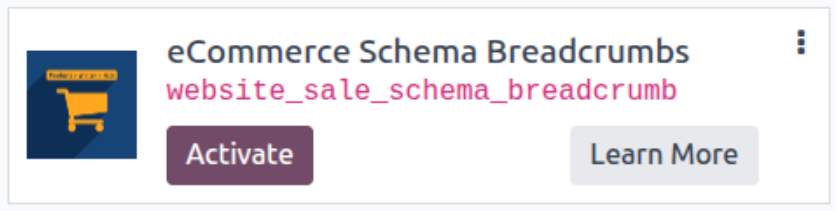
* If you don't see the module, try to remove the default Apps filter from the search bar.
Configuration
Follow the instructions in the module description to complete the installation process and start using the app.

Manual

Installation and Update
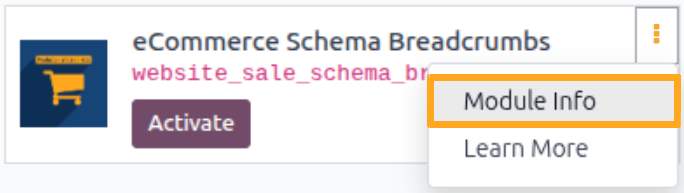
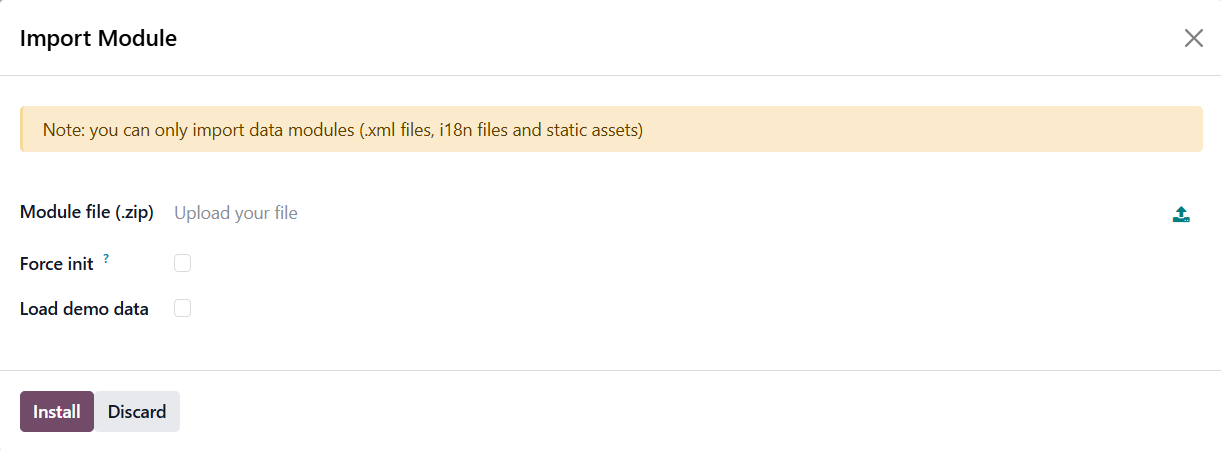
To install the module in Odoo Online, activate Developer Mode and click Import Module in the Apps menu.

In the import wizard, upload the module ZIP file to the Module file field and click Install.

Updating the Module
To update the module in Odoo Online, click Import Module again and upload the ZIP file with the new module version in the wizard.

Uninstalling the Module
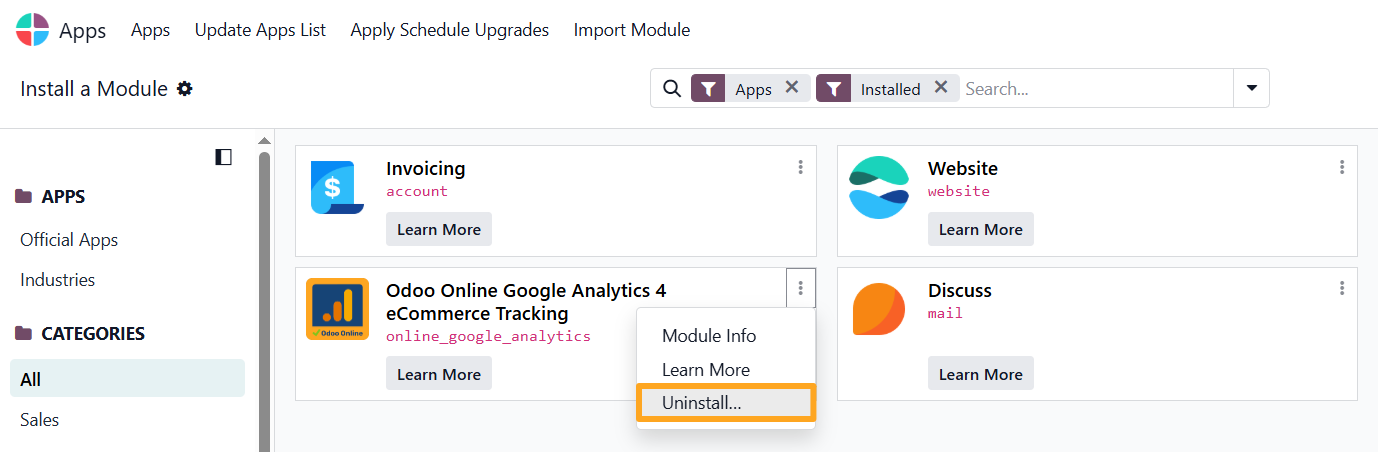
To remove the module from Odoo Online, select the Uninstall action.


Getting the Measurement ID
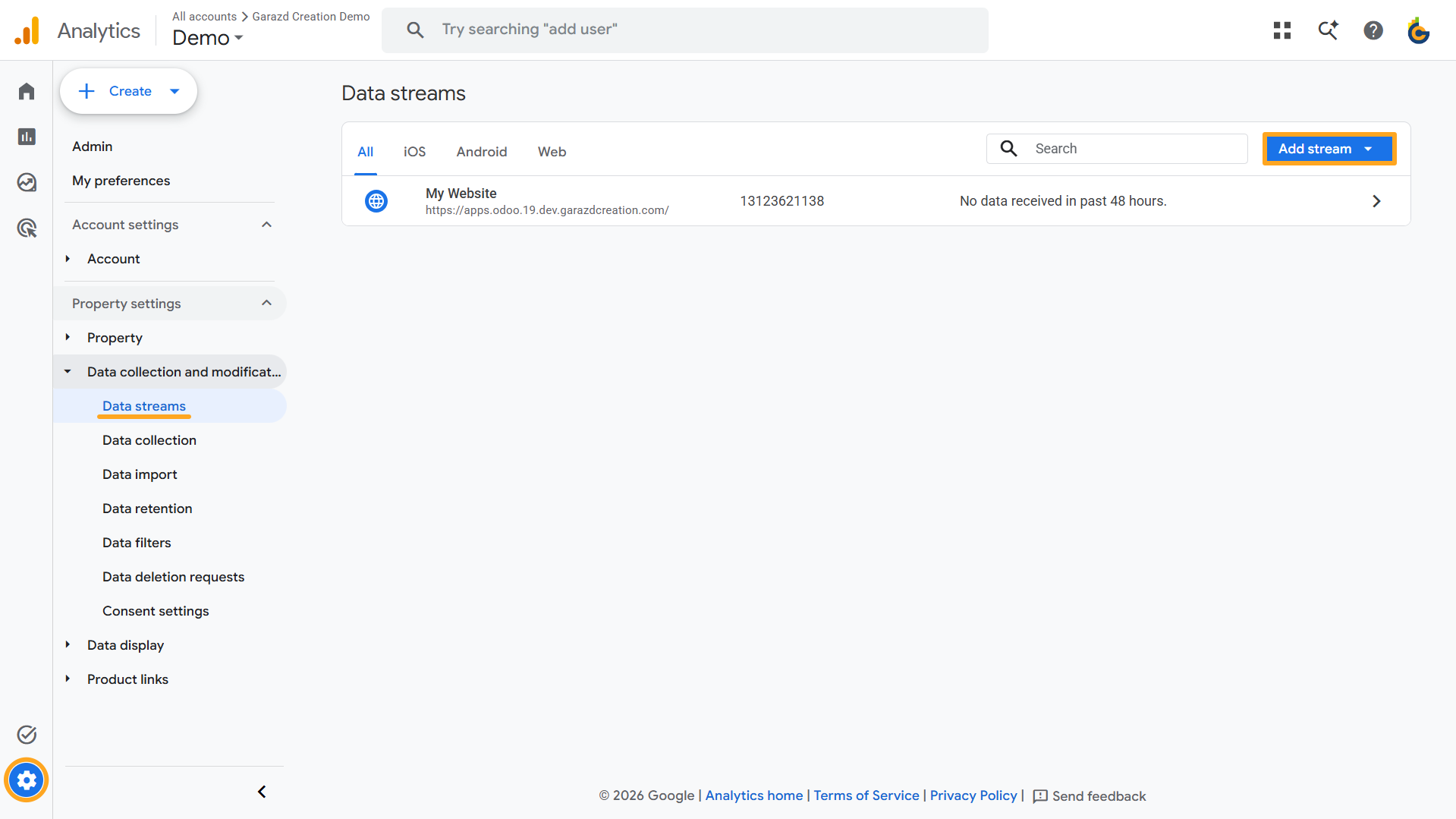
To obtain a tag ID in Google Analytics, log in to your account and navigate to Admin — Data Collection and Modification — Data Streams. If you do not have a data stream yet, create one by clicking Add Stream.
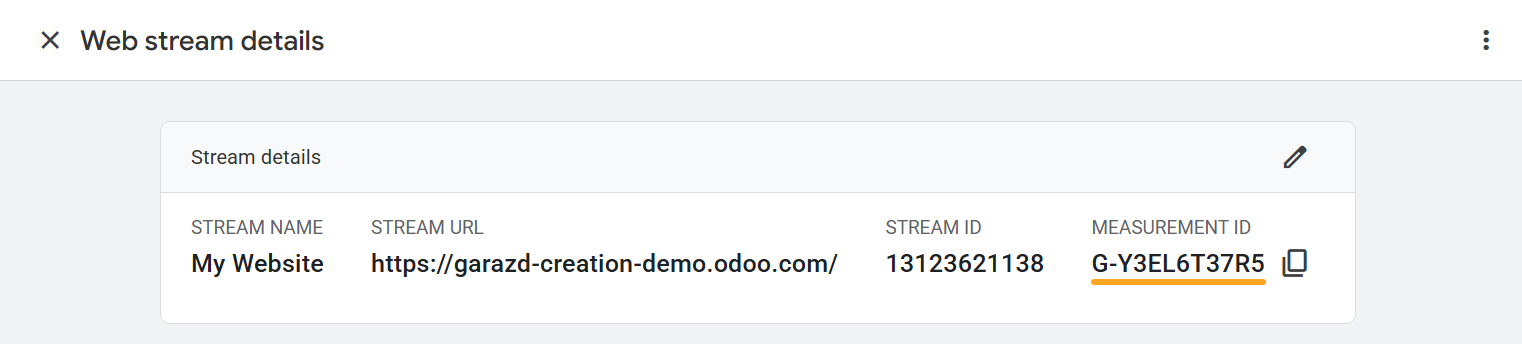
Open the data stream and copy the Measurement ID.

Tracking Activation
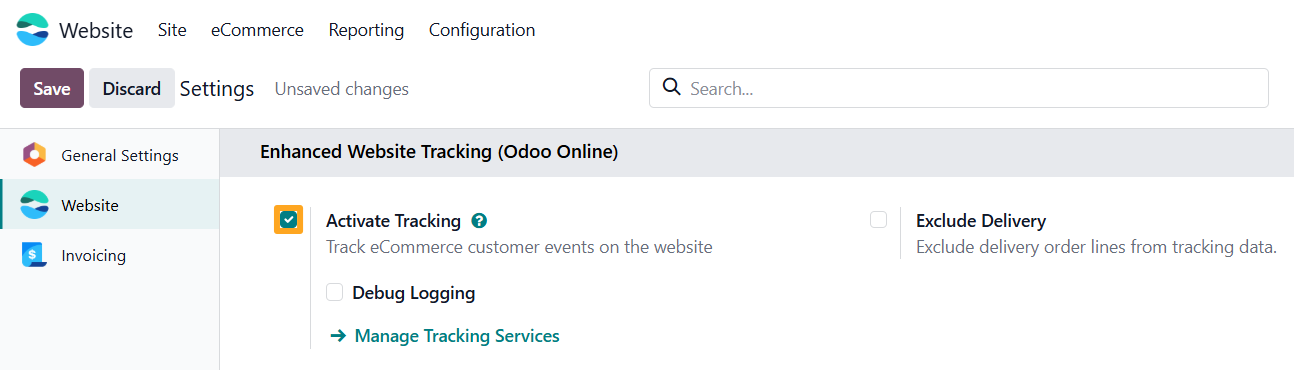
After installing the module, go to the website settings and, in the Enhanced Website Tracking (Odoo Online) section, enable the Activate Tracking option.

Tracking Configuration
The module allows you to track e-commerce events on your website and send them to Google along with product information and user-provided data. Additionally, you can store this data in internal Odoo logs for website analysis and monitoring. These features are implemented at the tracking service level. Add and configure a tracking service for your Odoo website.
Adding a Tracking Service
To add a new tracking service for the Odoo website, navigate to Website — Configuration — Tracking (Odoo Online) — Services and click New.
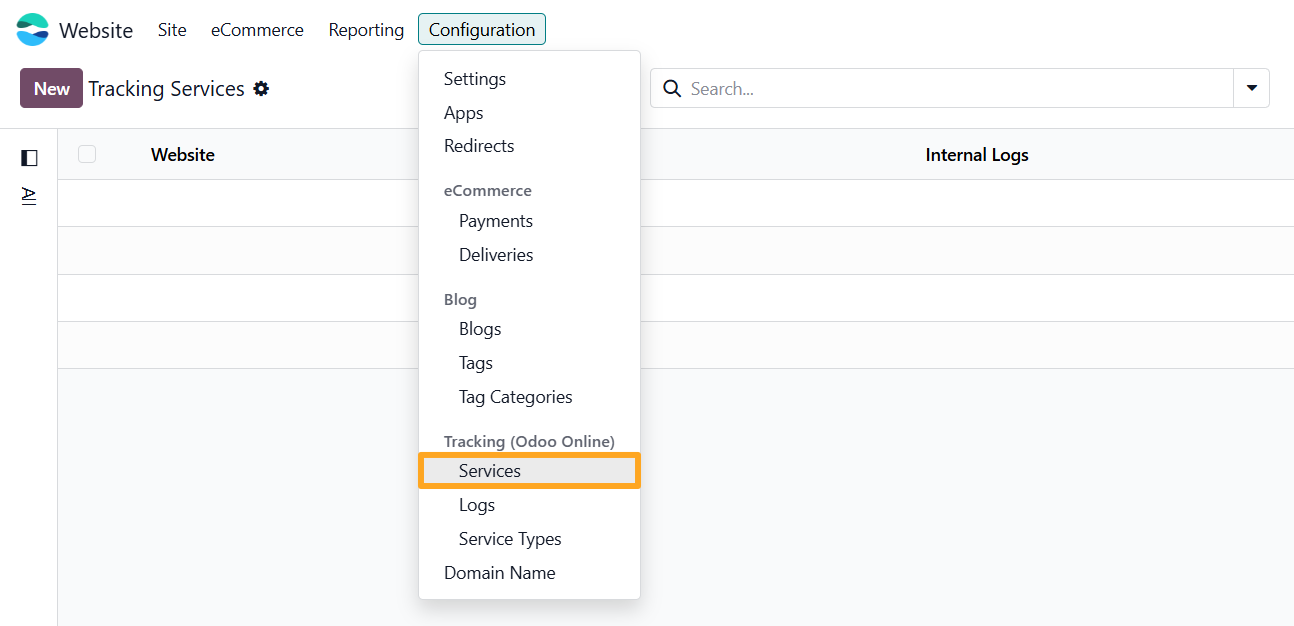
Fill in the following fields in the new tracking service:
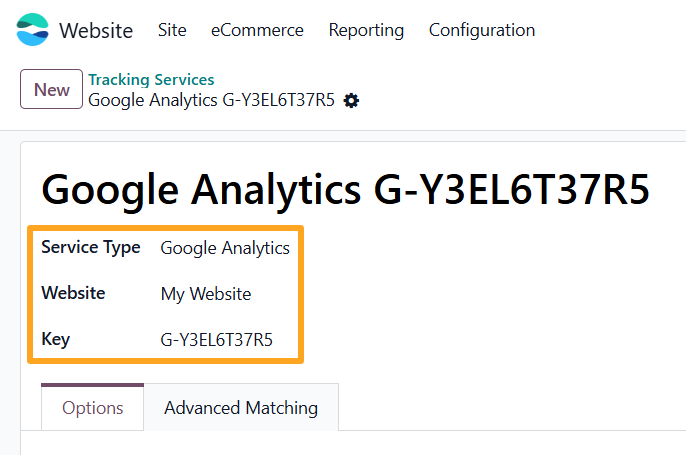
- Select Google Analytics as the Service Type
- Specify a Website (if using multiple websites)
- Paste your GA4 Measurement ID into the Key field
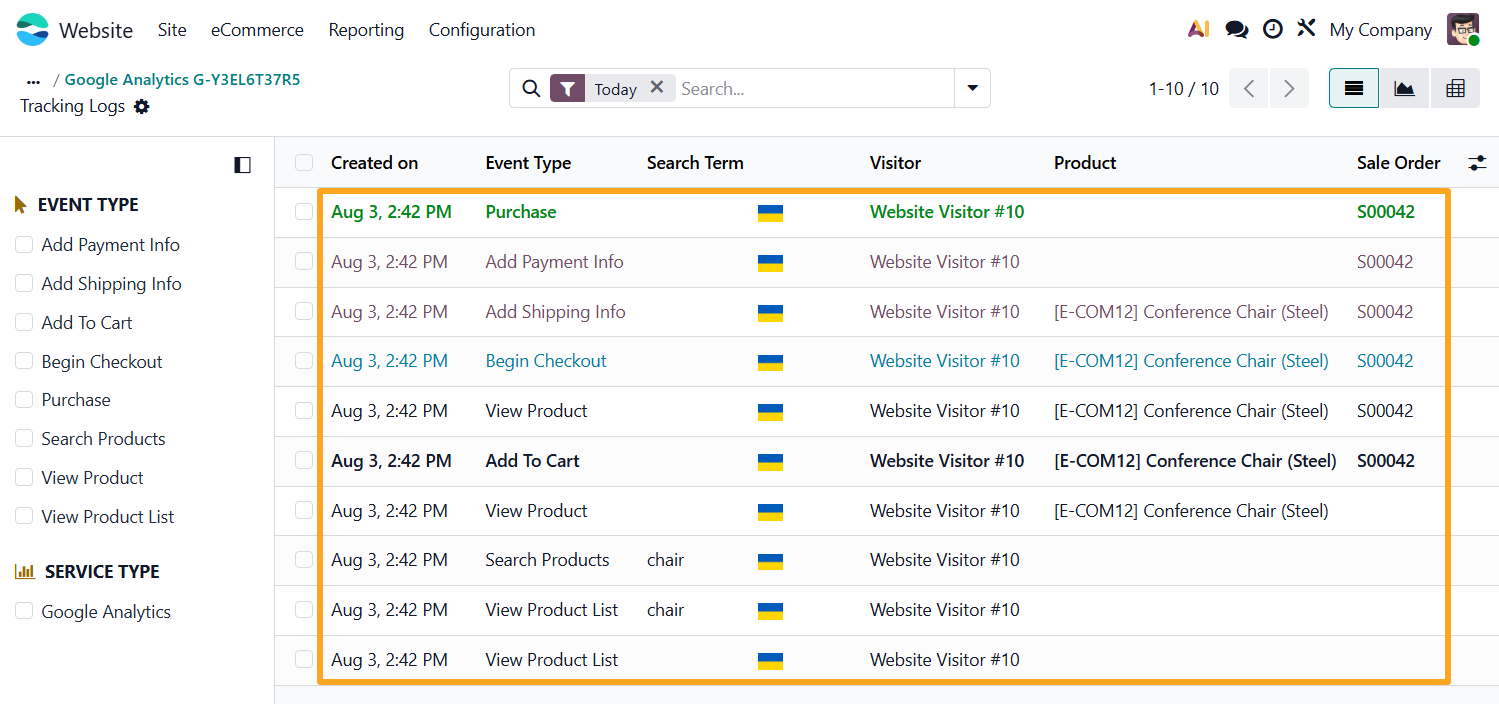
Tracking Logs
The module includes an internal logging feature. To activate it, enable the Internal Logs option.
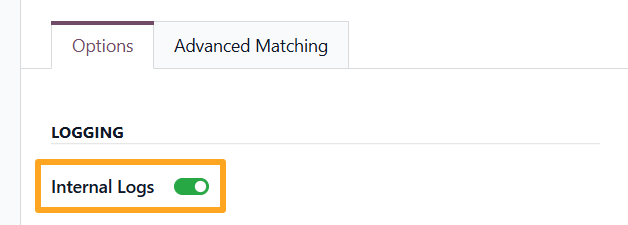
To view logs, go to the Website — Configuration — Tracking (Odoo Online) — Logs menu or click the Logs button at the top of the form.

The module supports the following tracking events:
- Add Payment Info
- Add Shipping Info
- Add To Cart
- Begin Checkout
- Purchase
- Search Products
- View Product
- View Product List
Excluding Delivery
Odoo logic adds a delivery line to the sales order during website checkout. This can increase the total order amount and affect analytics. To exclude the delivery line from tracking data and prevent sending it to Google Analytics via the tracking service, open the website settings and enable Exclude Delivery in the Enhanced Website Tracking (Odoo Online) section.


Google Consent Mode
The module integrates with the native Odoo Cookies Bar and updates the Google Consent Mode V2 settings by granting essential or optional cookies.
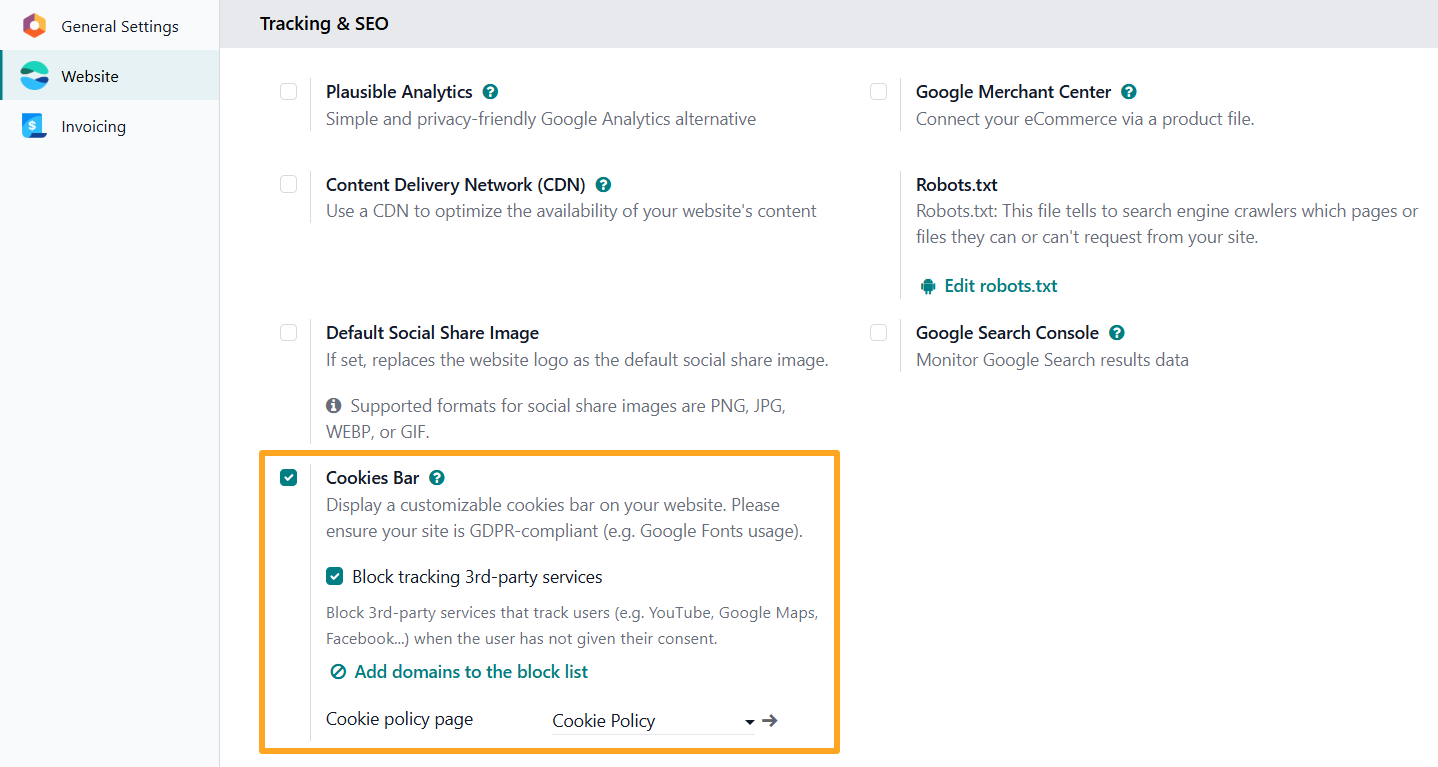
The Odoo Cookies Bar offers two types of consent for using cookies:
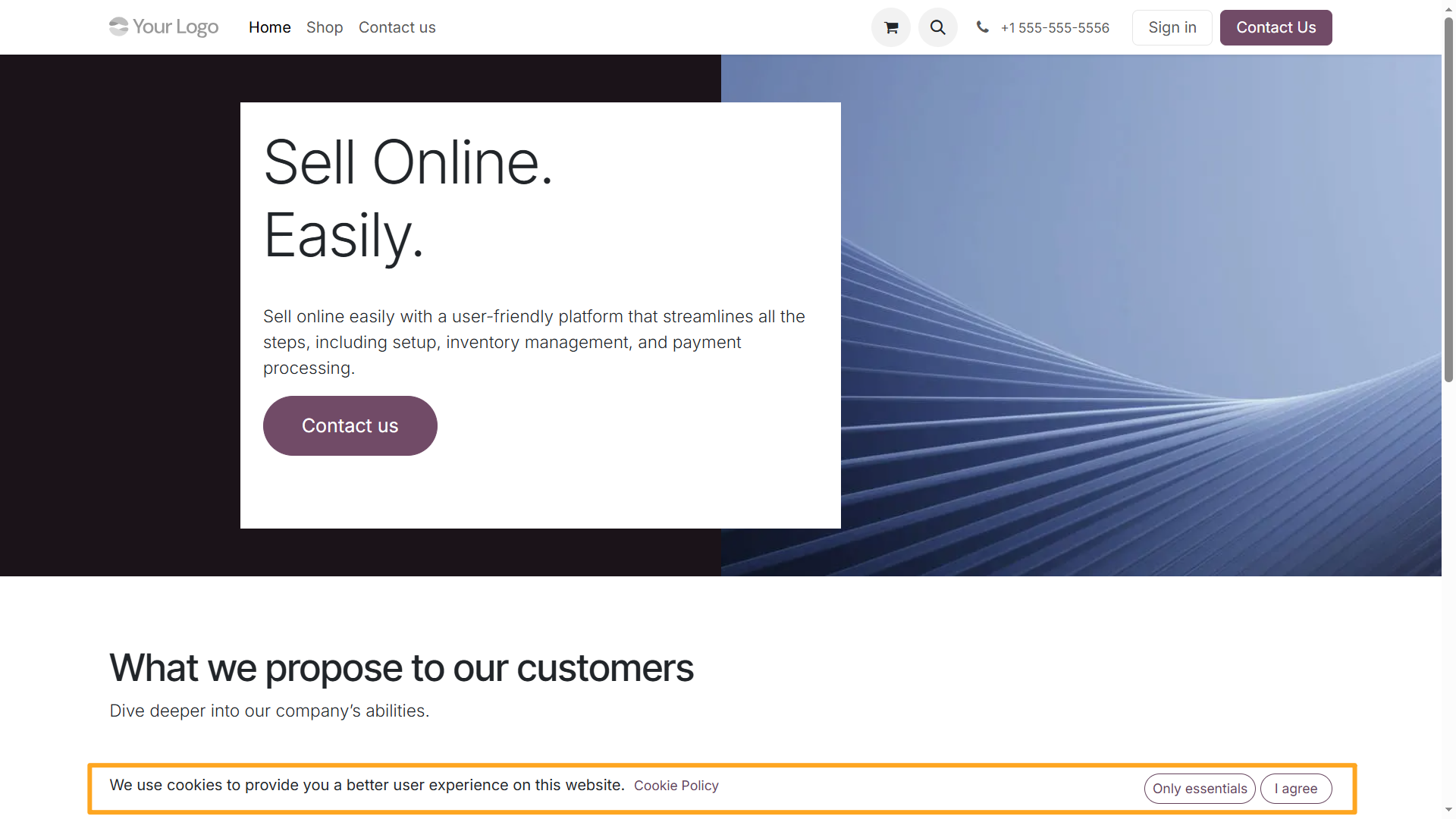
- Essential: The module always sets these cookies because the website requires them for proper functionality. To allow only this type of cookie, the visitor must click Only Essentials.
- Optional: These grant consent for other cookie types. The module enables optional cookies when the visitor clicks I Agree.


User-provided Data
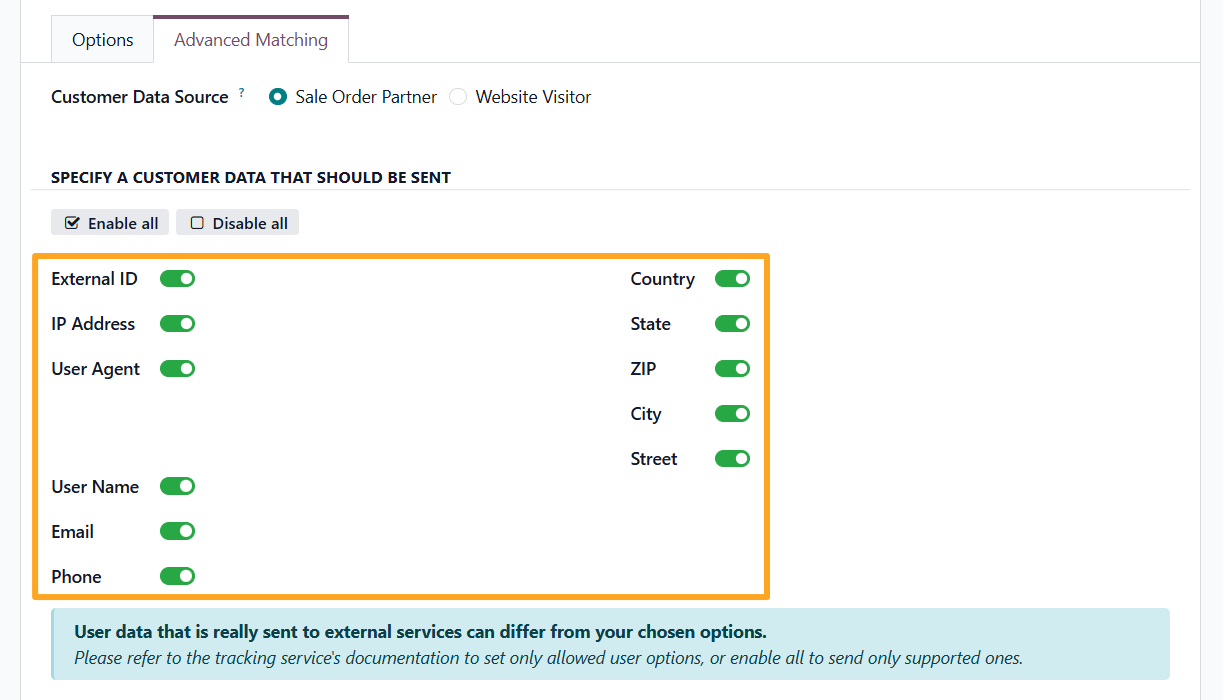
Enhanced conversions help optimize your advertisements by providing Google with additional user data. Open the tracking service on the Advanced Matching tab and select which user-provided data to send to Google Analytics.

Testing
Test the Google Analytics 4 script using three methods:
- Google Analytics 4 DebugView
- Browser Extension
- Browser Console

Debug View
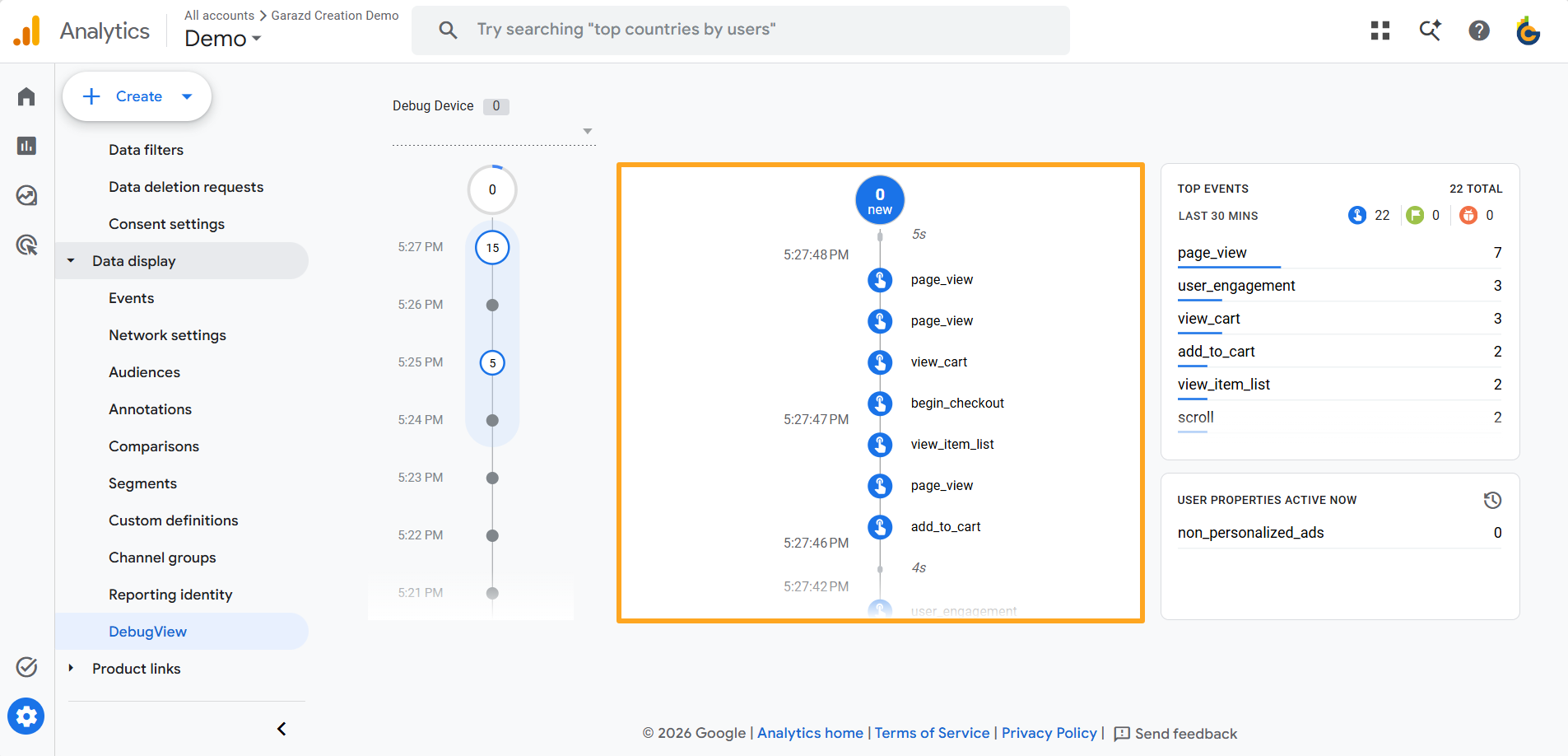
To test event transmission to Google Analytics 4 using DebugView, enable Debug Mode in the GA4 tracking service settings.

Now open Google Analytics 4, go to the Admin menu, and in the Data Display section, open Debug View. All tracking events from your website appear in this window in near real time.
Browser Extension
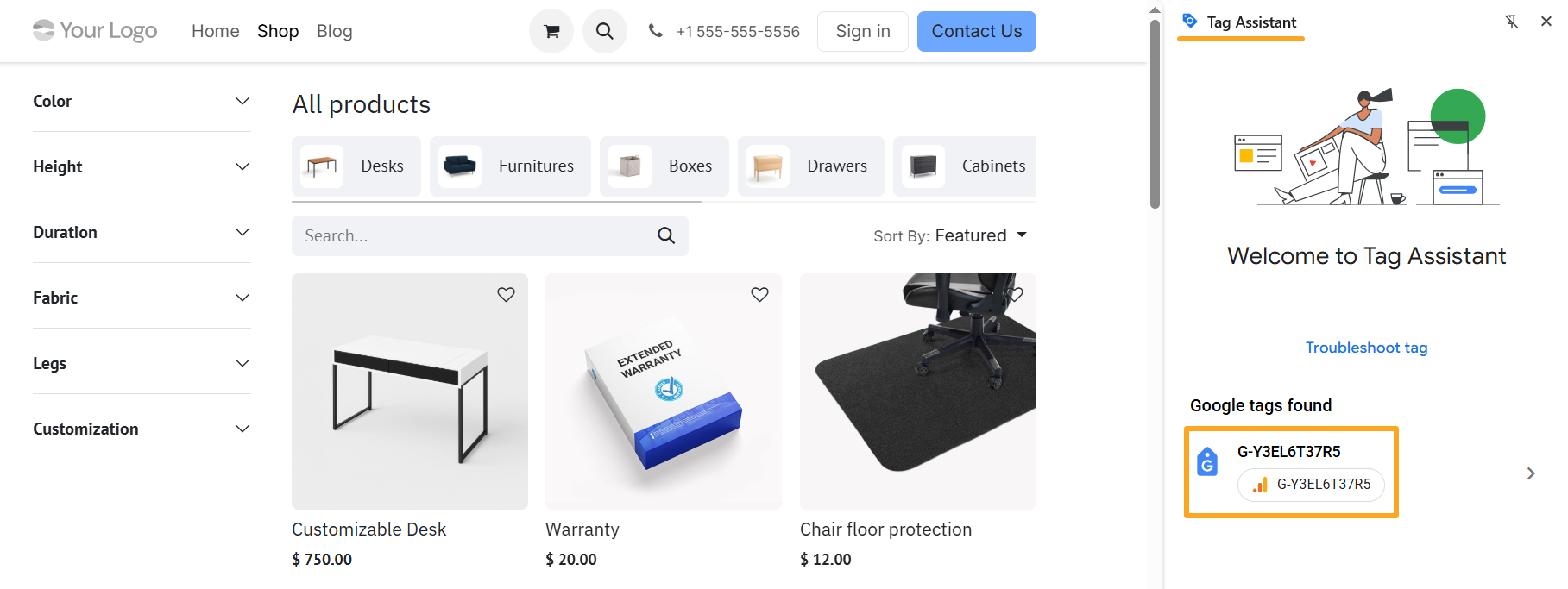
An alternative way to test the Google tag integration on your Odoo website is to use the Tag Assistant browser extension: https://chromewebstore.google.com/detail/tag-assistant/kejbdjndbnbjgmefkgdddjlbokphdefk.
Browser Console
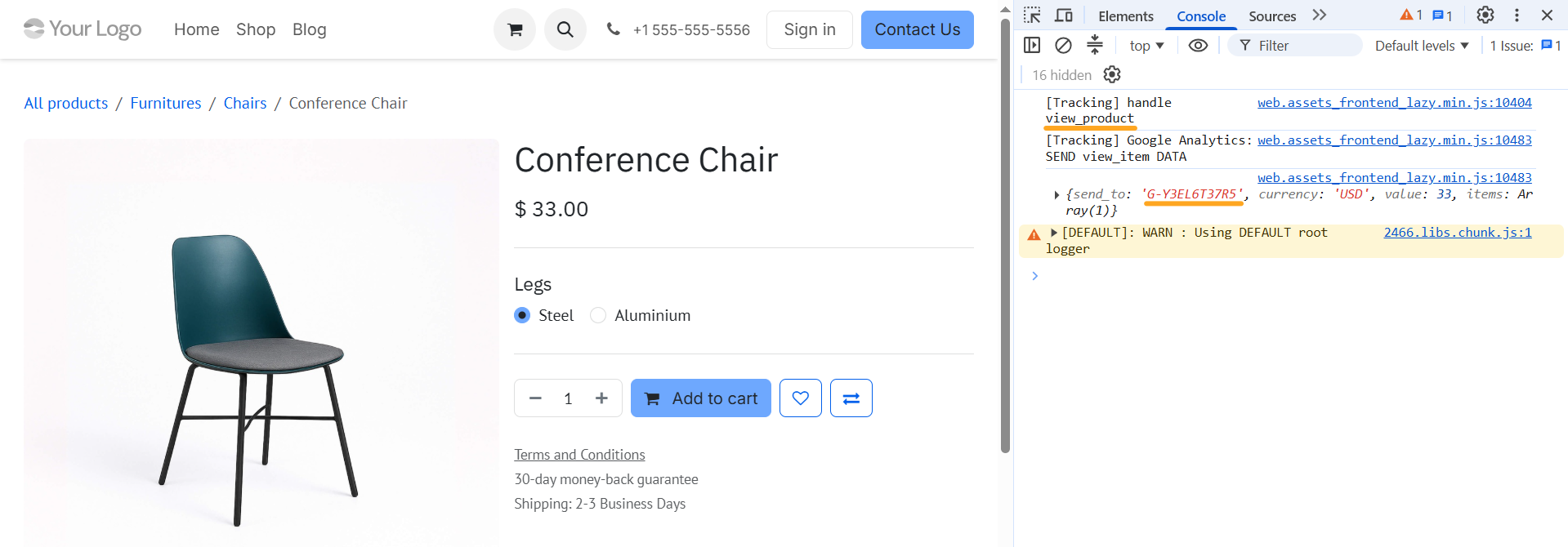
To verify website tracking and inspect events in the browser console, enable Debug Logging in the website settings.

Changelog
19.0.1.0.0 2026-07-02
- Init version.
20.0.1.0.0 2026-10-01
- Migration from 19.0.