
Plata by mono integration for your Odoo website. Connect and receive online payments.
Add a new integration with the Monobank acquiring service — Plata by Mono using this module.
| Availability |
Odoo Online
Odoo.sh
On Premise
|
|---|---|
| Compatibility |
Community
Enterprise
|
| Technical Name | payment_plata_by_mono |
| Version | 20.0.1.0.0 |
| License | OPL-1 |
| Category | |
| Support | Free 60 days support and 360 days bug-fixing |
Use Case

Jorem ipsum dolor sit amet, consectetur adipiscing elit. Nunc vulputate libero et velit interdum, ac aliquet odio mattis. Class aptent taciti sociosqu ad litora torquent per conubia nostra, per inceptos himenaeos.
Forem ipsum dolor sit amet, consectetur adipiscing elit. Nunc vulputate libero et velit interdum, ac aliquet odio mattis. Class aptent taciti sociosqu ad litora torquent per conubia nostra, per inceptos himenaeos.
Dorem ipsum dolor sit amet, consectetur adipiscing elit. Nunc vulputate libero et velit interdum, ac aliquet odio mattis.
It is a long established fact that a reader will be distracted by the readable content of a page
Korem ipsum dolor sit amet, consectetur adipiscing elit. Nunc vulputate libero et velit interdum, ac aliquet odio mattis. Class aptent taciti sociosqu ad litora torquent per conubia nostra, per inceptos himenaeos.
Korem ipsum dolor sit amet, consectetur adipiscing elit. Nunc vulputate libero et velit interdum, ac aliquet odio mattis.
Odoo App Installation
Upload modules
Upload modules from the ZIP archive to your Odoo hosting, or a GitHub repository connected there.
Place the unzipped modules in your custom add-on directory and restart the Odoo system service.
Update App List
After restarting, activate the Developer Mode, and go to the Apps menu.

Click on Update Apps List to fetch the new modules in the list.
Activate the App
Install the new module, finding it by name and clicking on the Activate button.
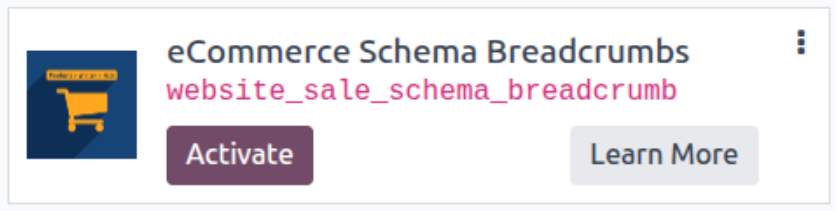
* If you don't see the module, try to remove the default Apps filter from the search bar.
Configuration
Follow the instructions in the module description to complete the installation process and start using the app.
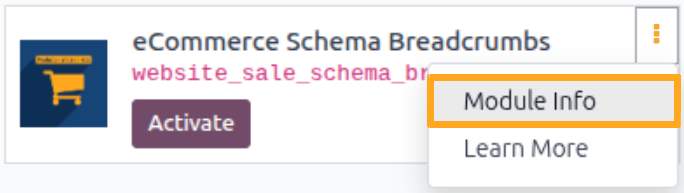

Manual

Configuration
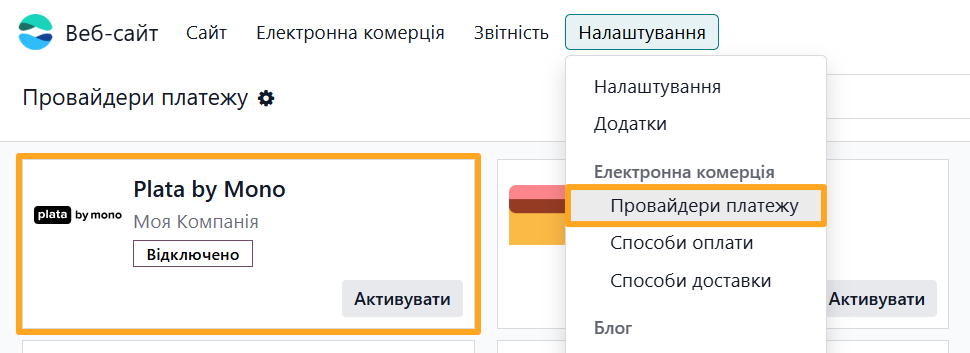
After installing the app, go to Website — Configuration — Payment Providers and open Plata by Mono:
Testing
To test the Plata by Mono payment provider, fill in the form as follows:
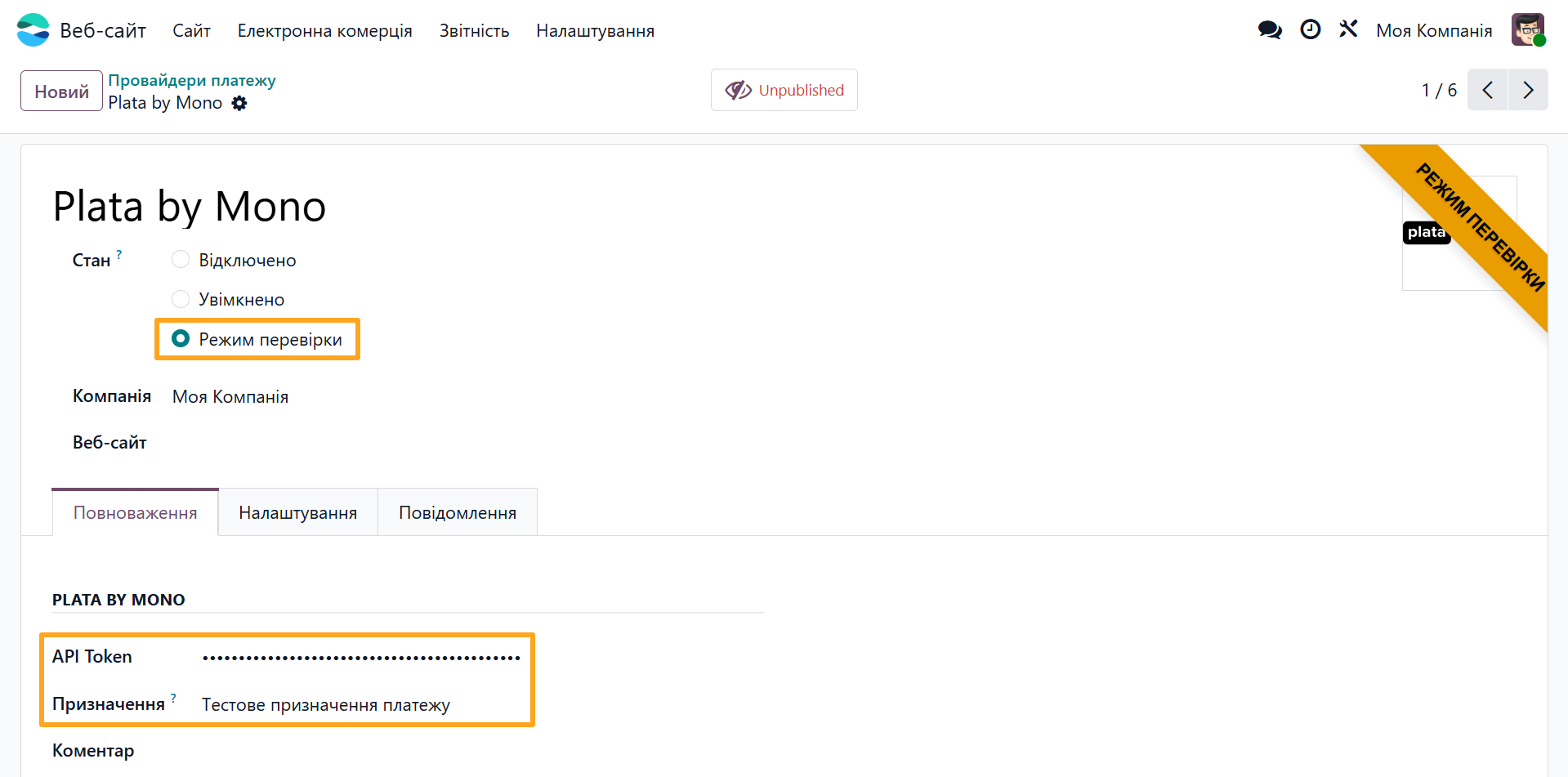
-
01Set the state to Test Mode
-
02On the Credentials tab, enter the test API Token
-
03Enter the payment destination

Then, on the Configuration tab, select the payment journal:
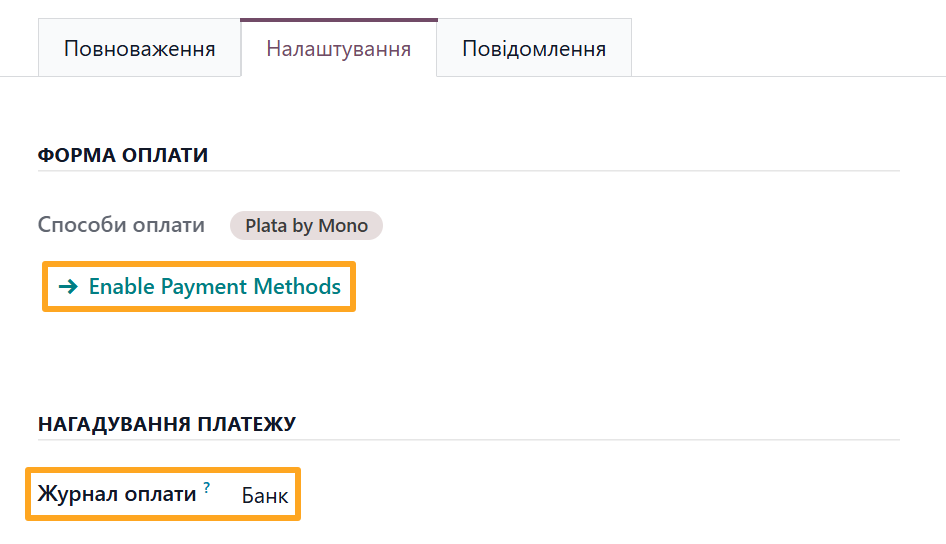
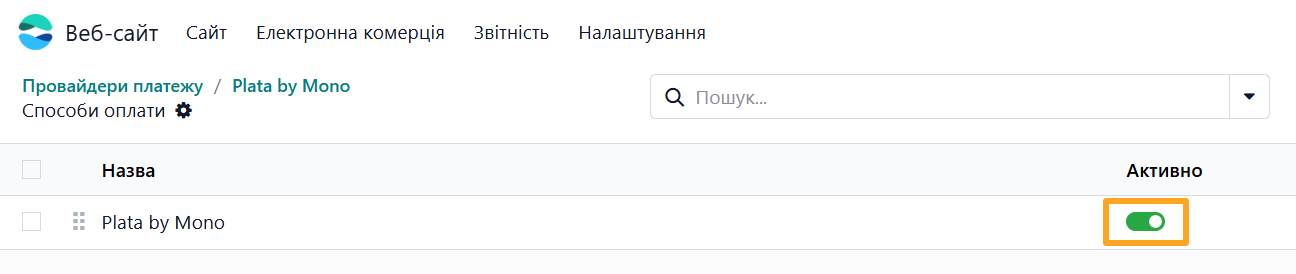
Follow the Enable Payment Methods link and activate Plata by Mono so that this payment method becomes available on the website:

Production Mode
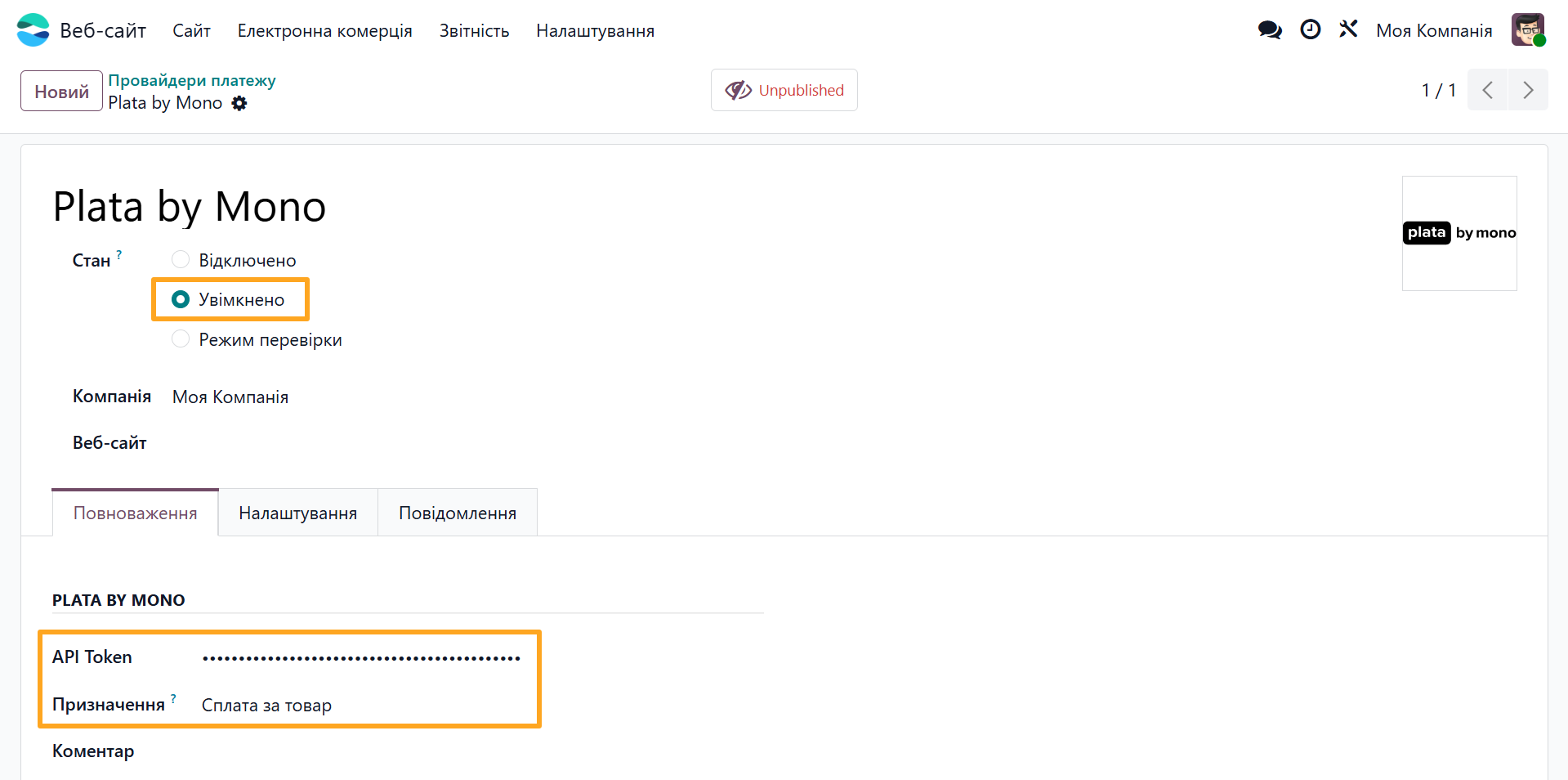
To switch the Plata By Mono payment provider to production mode, follow these steps:
-
01Set the state to Enabled
-
02On the Credentials tab, enter the production API Token
-
03Enter the payment Destination
Then, on the Configuration tab, select the payment journal (if it has not been set earlier):
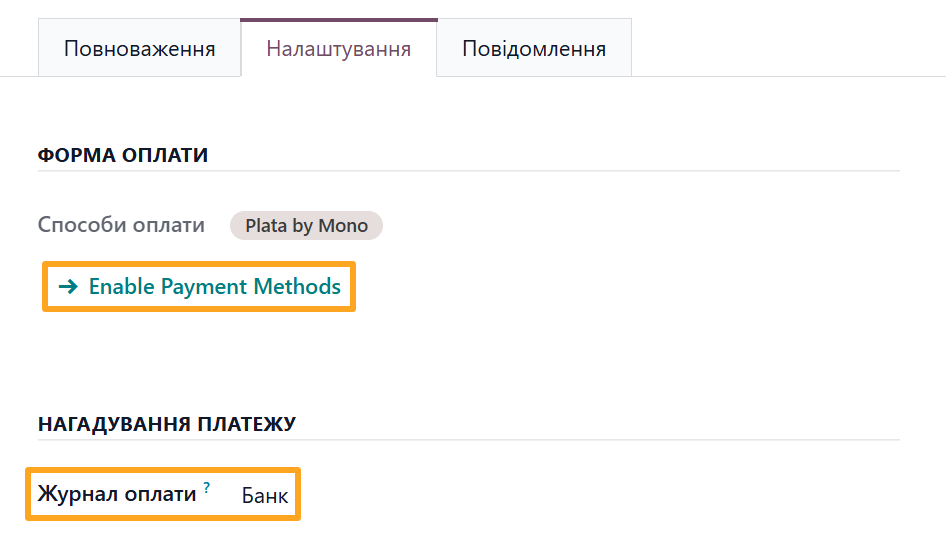
Follow the Enable Payment Methods link and activate Plata By Mono (if it has not been set earlier) so that this payment method becomes available on the website:
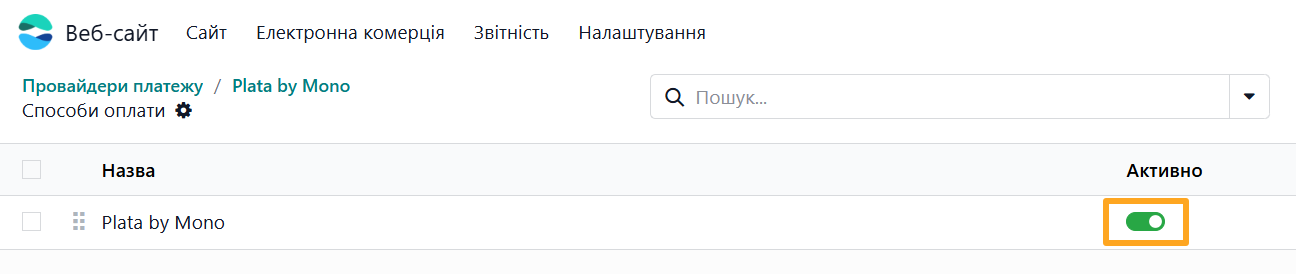
Switch the payment provider status to Published to make Plata By Mono available to all users on the website:


Order Payment
The module allows your Odoo website visitors to pay for sales orders using Plata by Mono. You can also send customers a direct link to pay for a quotation.
On the Website
After completing the configuration, the Plata By Mono payment method becomes available during checkout.
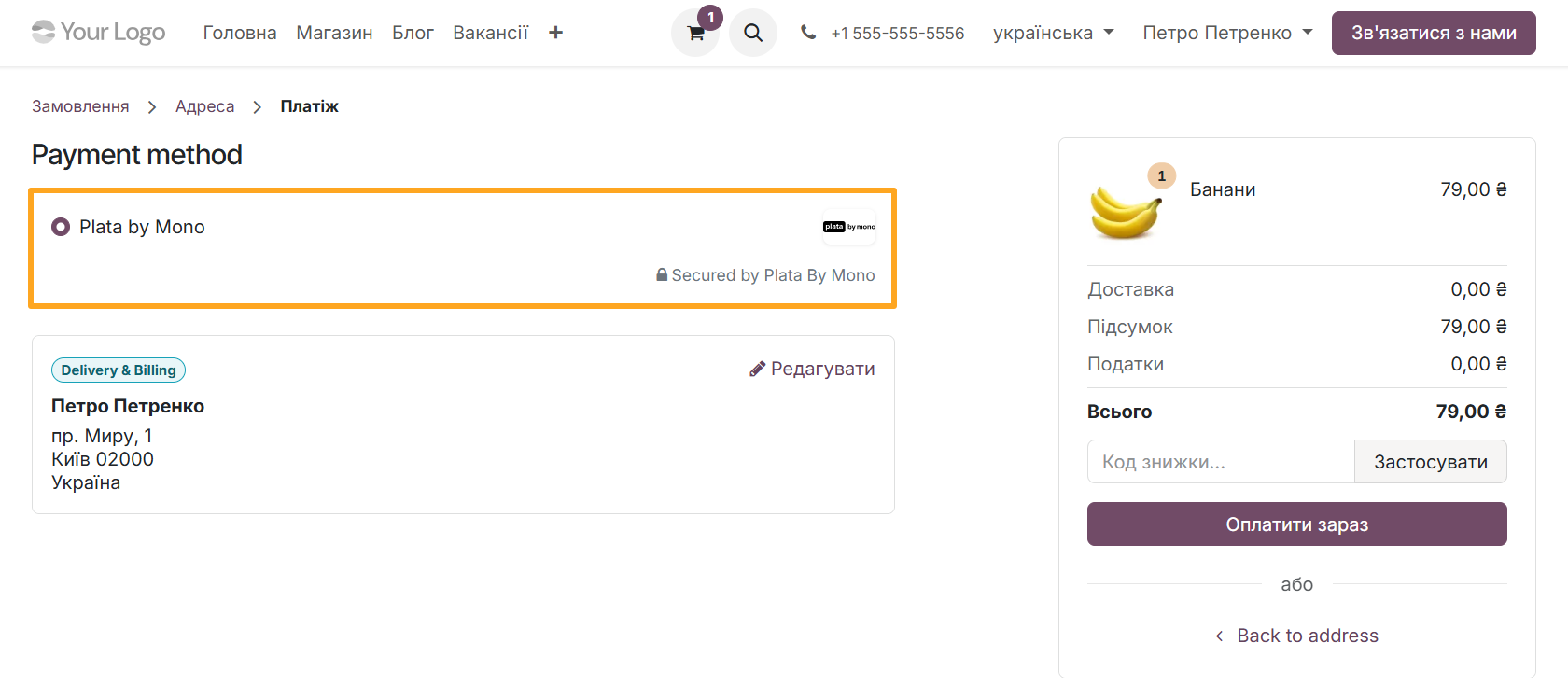
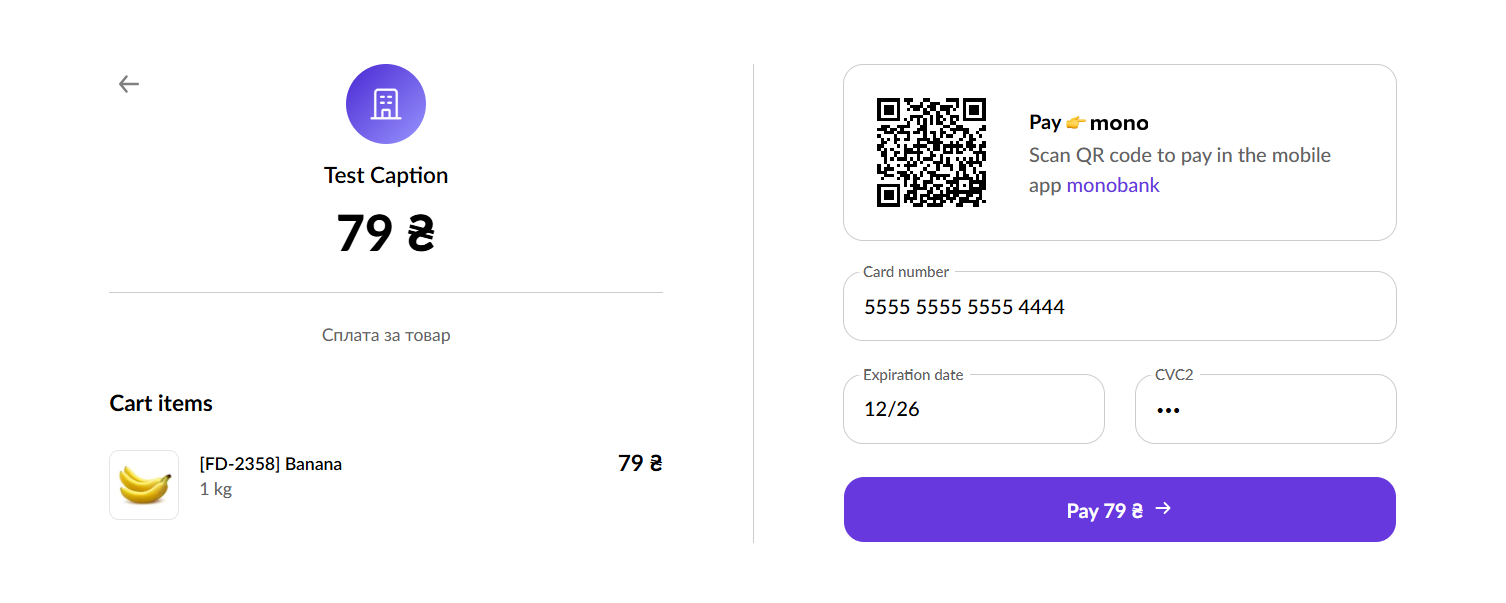
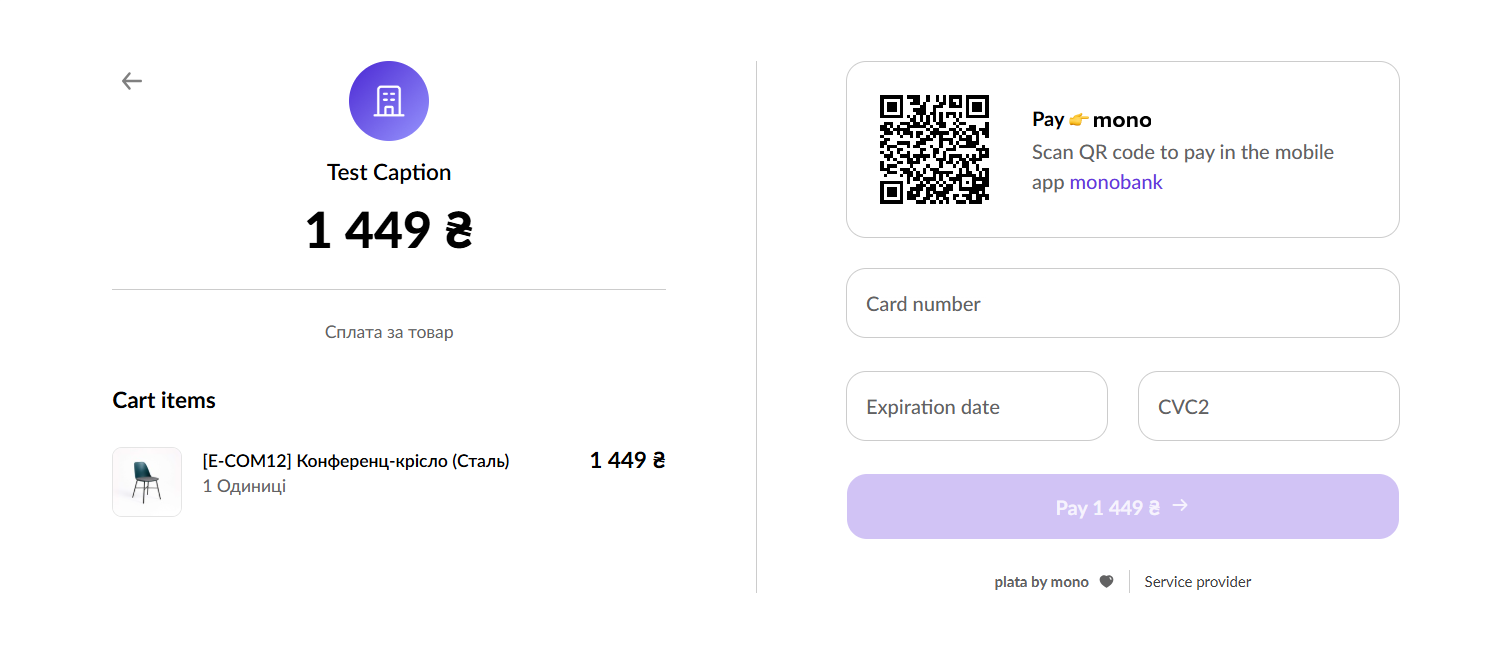
After clicking the Pay Now button, the Plata by Mono payment page opens. Scan the QR code or enter the required details in the corresponding fields and click Pay.
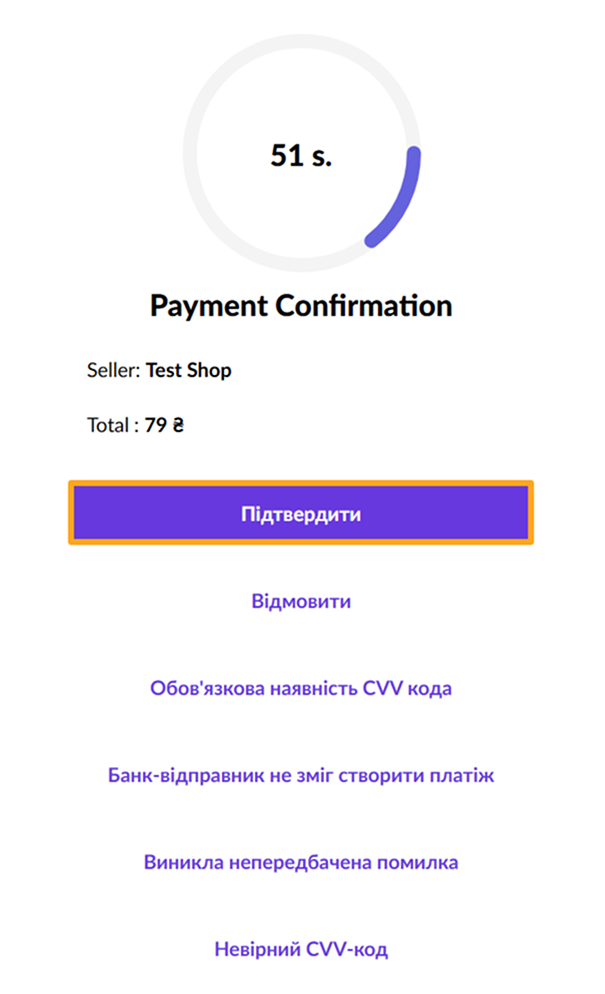
Next, the countdown for payment confirmation begins. Click Confirm. As a result, the payment status is displayed.
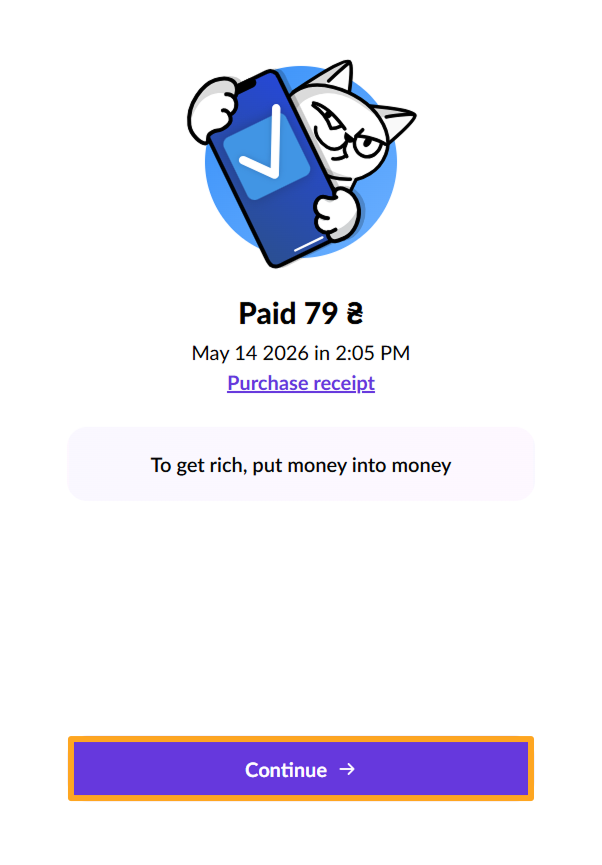
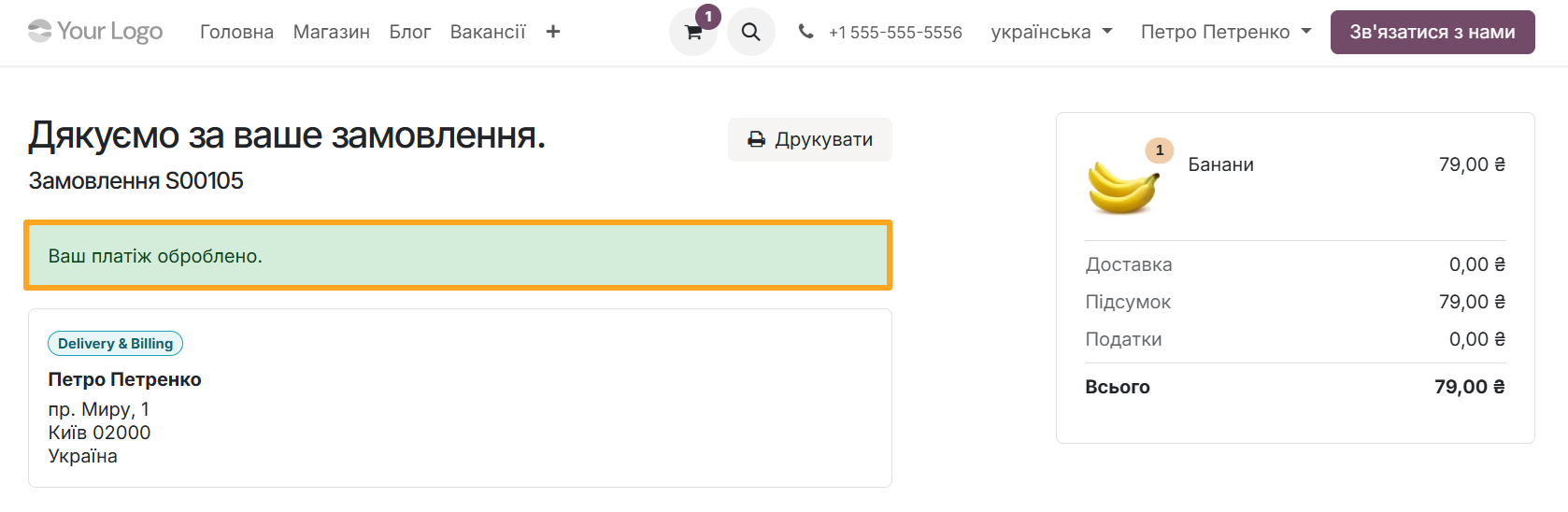
After clicking Continue, the Odoo order confirmation page opens with the payment status.
Direct Link
A direct payment link lets customers pay immediately instead of opening the quotation page on your Odoo portal. To generate this link, open a quotation or unpaid sales order and select Create Direct Payment Link from the action menu.
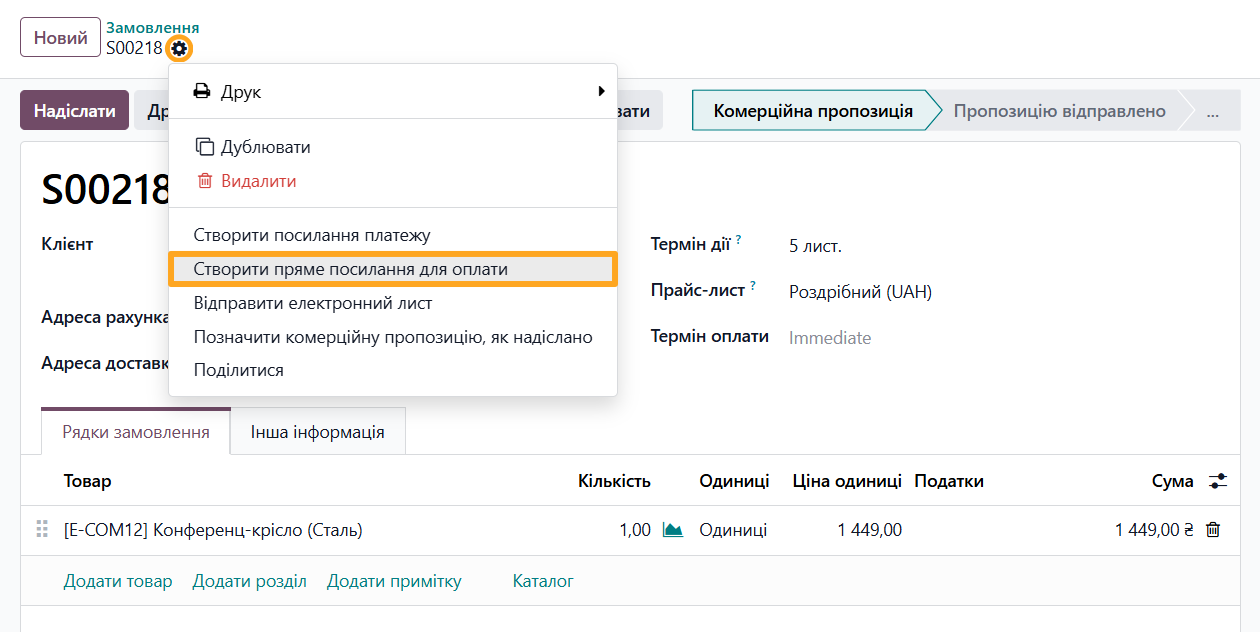
In the pop-up window:
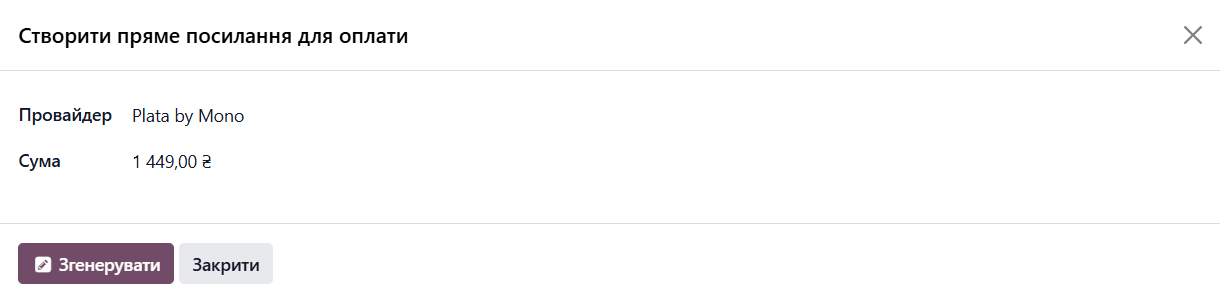
-
01Select the Plata by Mono payment Provider
-
02Enter a partial or full payment Amount
-
03Click Generate
-
04Copy the Payment Link and send it to the customer
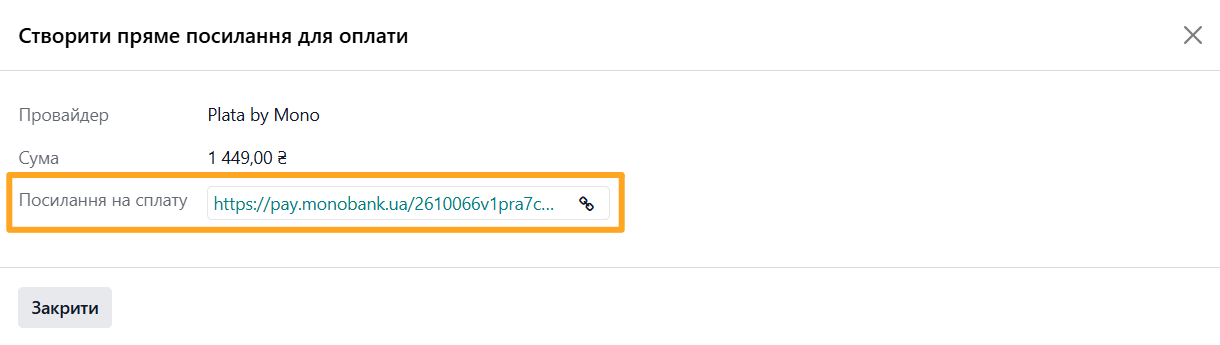
When the customer opens the link, they see the Plata by Mono page to enter their payment details.

Additional Settings
Payment Brands
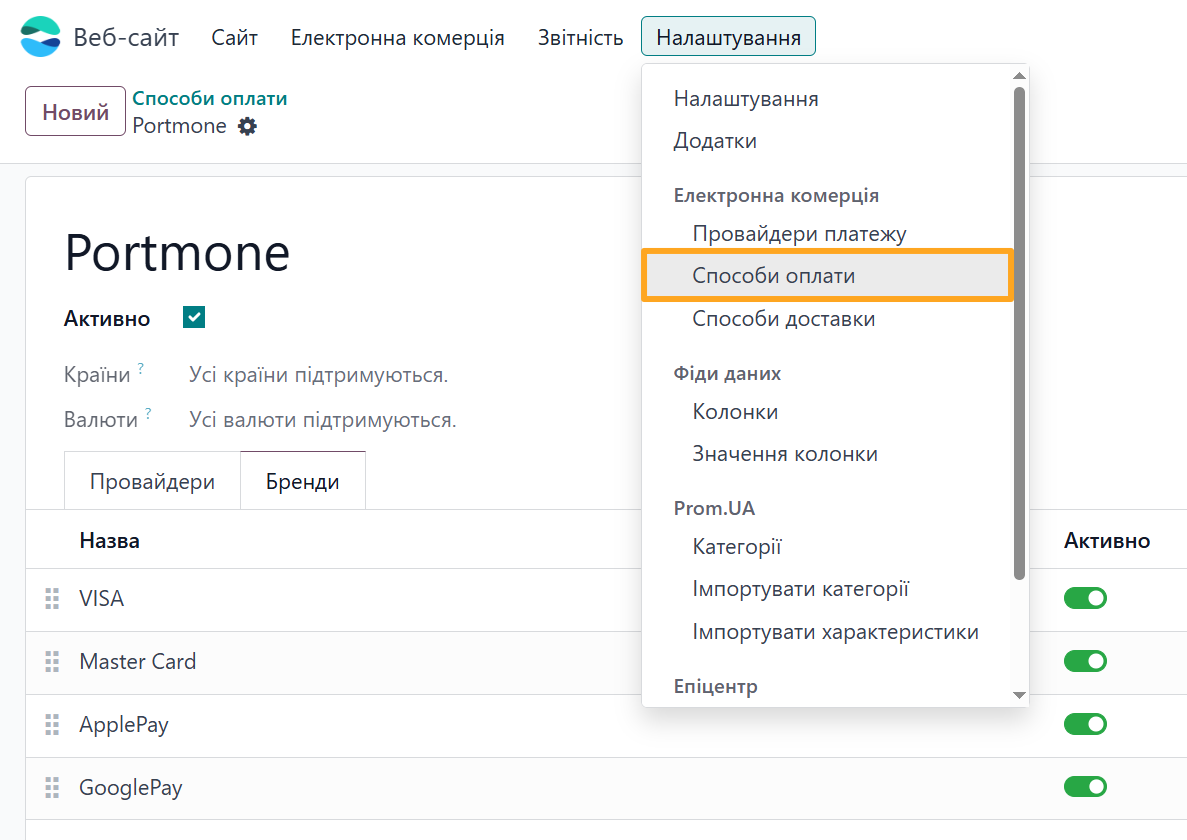
For each payment provider, it is possible to display available payment method types such as VISA, MasterCard, Apple Pay, Google Pay, and others.
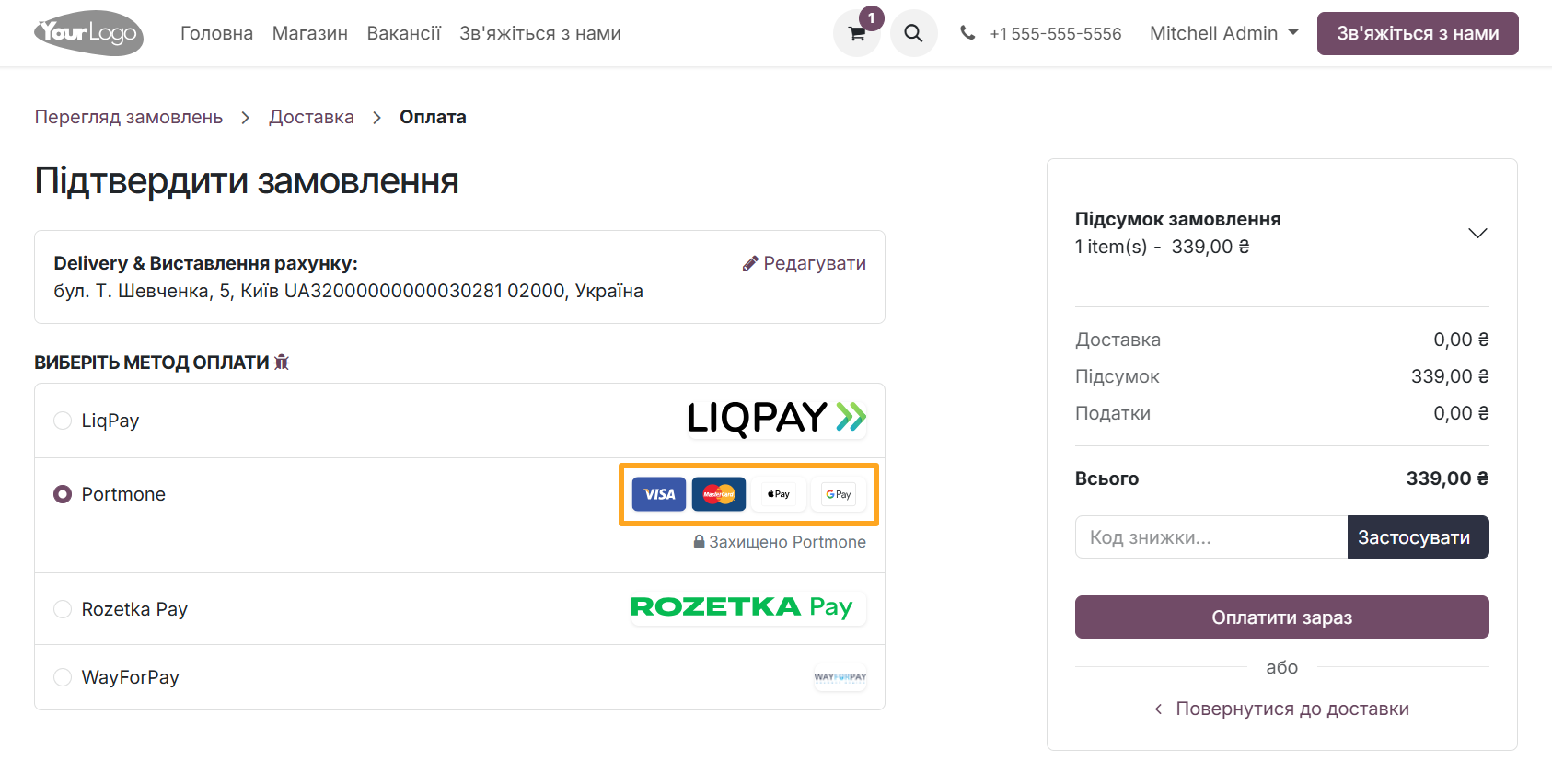
To configure this, go to Website — Configuration — Payment Methods, then select the payment provider and, on the Brands tab, add the desired payment method types.

Countries
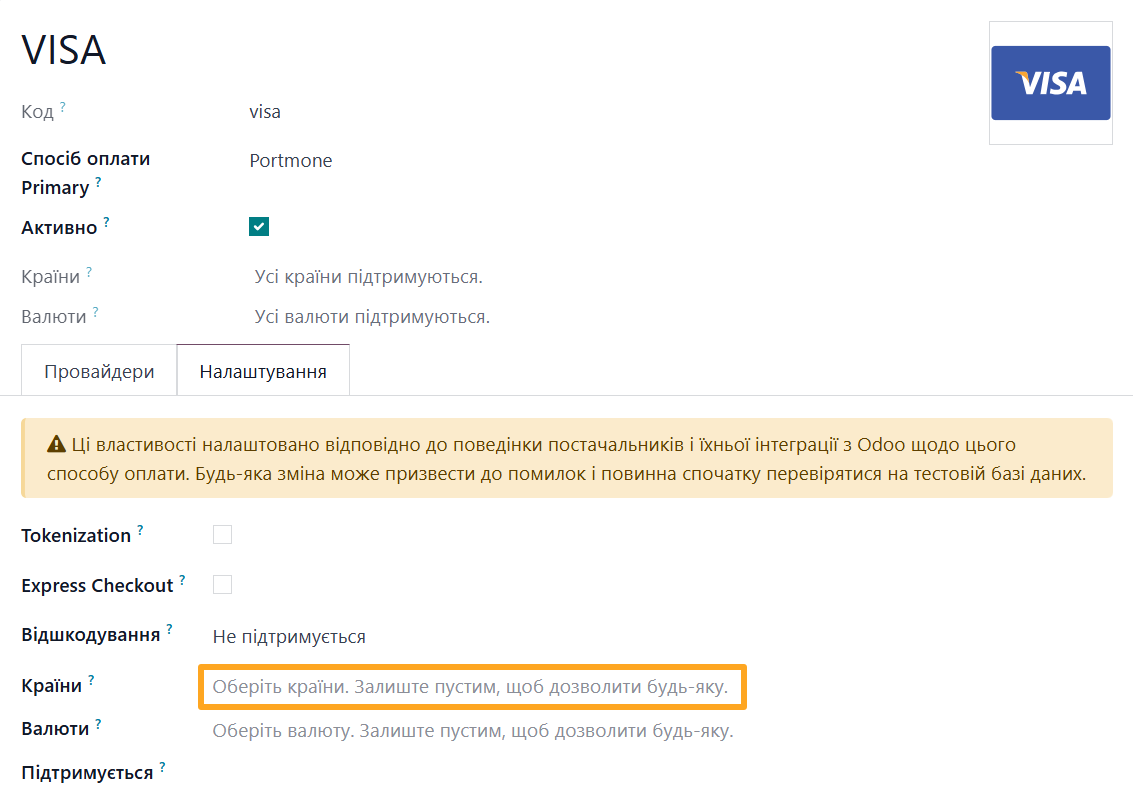
If needed, specify the list of countries where this payment method is available so that customers see up-to-date information.
Changelog
18.0.1.0.2 2026-06-17
- Implement payment refund.
18.0.1.0.1 2025-11-26
- Improve Mono callback processing.
18.0.1.0.0 2025-09-24
- Init version.
19.0.1.1.0 2026-08-18
- Implement generation of direct payment link for sale order.
19.0.1.0.1 2026-06-26
- Implement payment refund.
19.0.1.0.0 2025-10-01
- Migration from 18.0.
20.0.1.0.0 2026-09-23
- Migration from 19.0.