
Connect your Odoo website with Microsoft Advertising via server-side integration of Microsoft Universal Event Tracking
UET) supports server-side integration through the Conversions API.
Even when browser extensions on your website visitors' side block the Bing Tag JS script and prevent tracking data from being sent, server-side integration can still provide data for these events.The Microsoft UET Conversions API app integrates your Odoo e-commerce website with Microsoft Advertising via server-side integration, providing enhanced tracking data for more accurate analytics.
| Availability |
Odoo Online
Odoo.sh
On Premise
|
|---|---|
| Compatibility |
Community
Enterprise
|
| Technical Name | website_sale_bing_capi |
| Version | 20.0.1.0.0 |
| License | OPL-1 |
| Category | |
| Support | Free 60 days support and 360 days bug-fixing |
Use Case

Jorem ipsum dolor sit amet, consectetur adipiscing elit. Nunc vulputate libero et velit interdum, ac aliquet odio mattis. Class aptent taciti sociosqu ad litora torquent per conubia nostra, per inceptos himenaeos.
Forem ipsum dolor sit amet, consectetur adipiscing elit. Nunc vulputate libero et velit interdum, ac aliquet odio mattis. Class aptent taciti sociosqu ad litora torquent per conubia nostra, per inceptos himenaeos.
Dorem ipsum dolor sit amet, consectetur adipiscing elit. Nunc vulputate libero et velit interdum, ac aliquet odio mattis.
It is a long established fact that a reader will be distracted by the readable content of a page
Korem ipsum dolor sit amet, consectetur adipiscing elit. Nunc vulputate libero et velit interdum, ac aliquet odio mattis. Class aptent taciti sociosqu ad litora torquent per conubia nostra, per inceptos himenaeos.
Korem ipsum dolor sit amet, consectetur adipiscing elit. Nunc vulputate libero et velit interdum, ac aliquet odio mattis.
Odoo App Installation
Upload modules
Upload modules from the ZIP archive to your Odoo hosting, or a GitHub repository connected there.
Place the unzipped modules in your custom add-on directory and restart the Odoo system service.
Update App List
After restarting, activate the Developer Mode, and go to the Apps menu.

Click on Update Apps List to fetch the new modules in the list.
Activate the App
Install the new module, finding it by name and clicking on the Activate button.
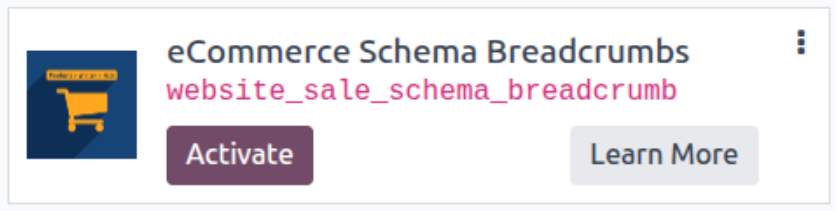
* If you don't see the module, try to remove the default Apps filter from the search bar.
Configuration
Follow the instructions in the module description to complete the installation process and start using the app.
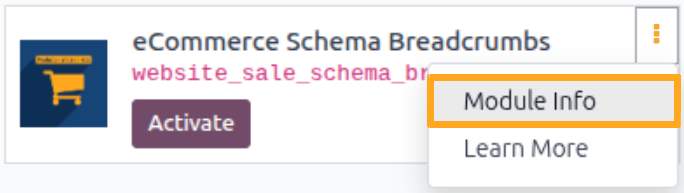

Manual

Configuration
Activation
After installing the app, go to the website settings and, in the Enhanced Website Tracking section, enable the Activate Tracking option. To test your website tracking and view tracked events in the browser console, also temporarily activate the Debug Logging feature:

Cookie Consent Settings
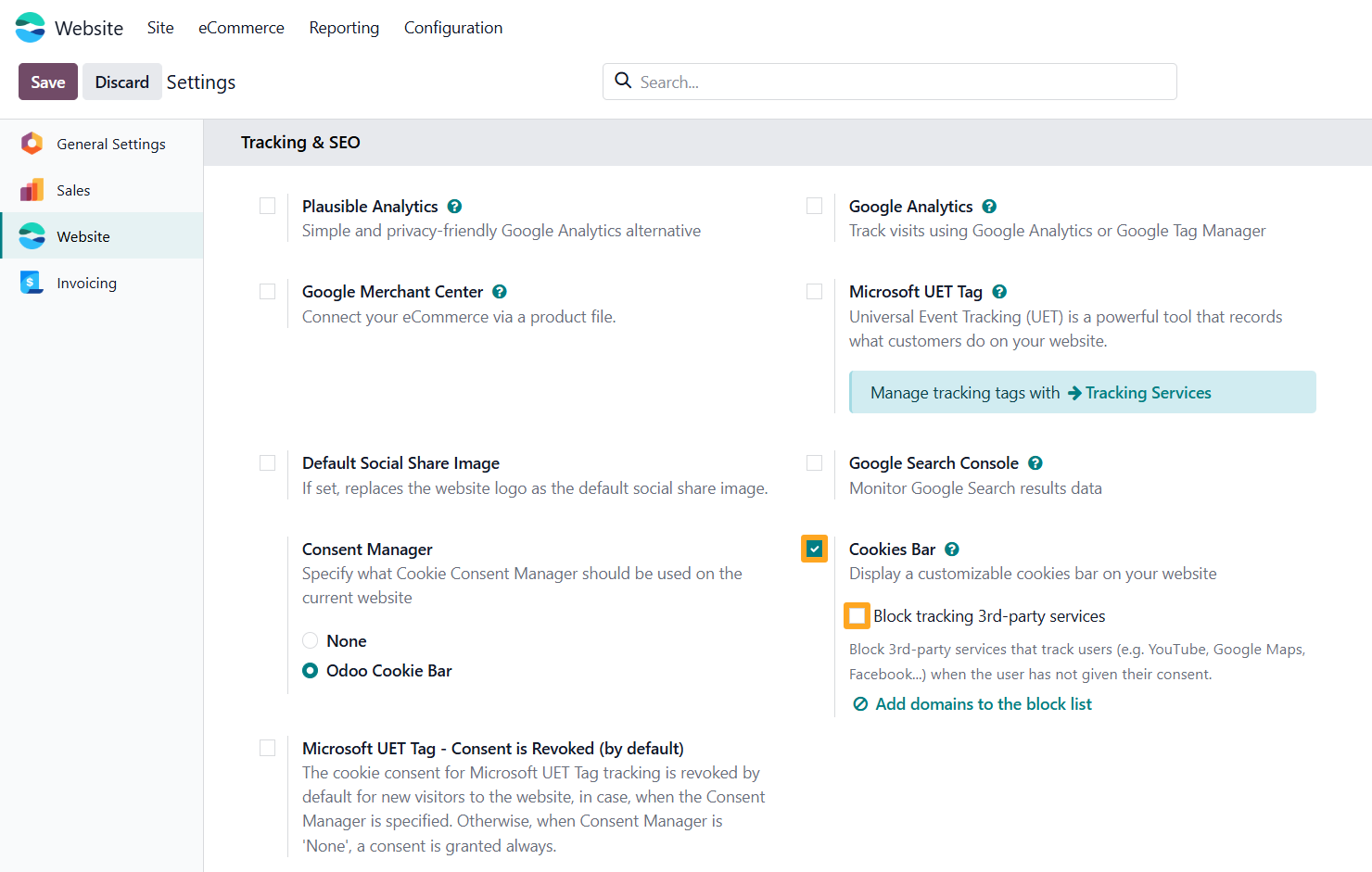
In the website settings, enable the Cookie Bar to allow your website visitors to consent to Microsoft cookies. Without the Cookie Bar, consent for Microsoft cookies is granted by default:

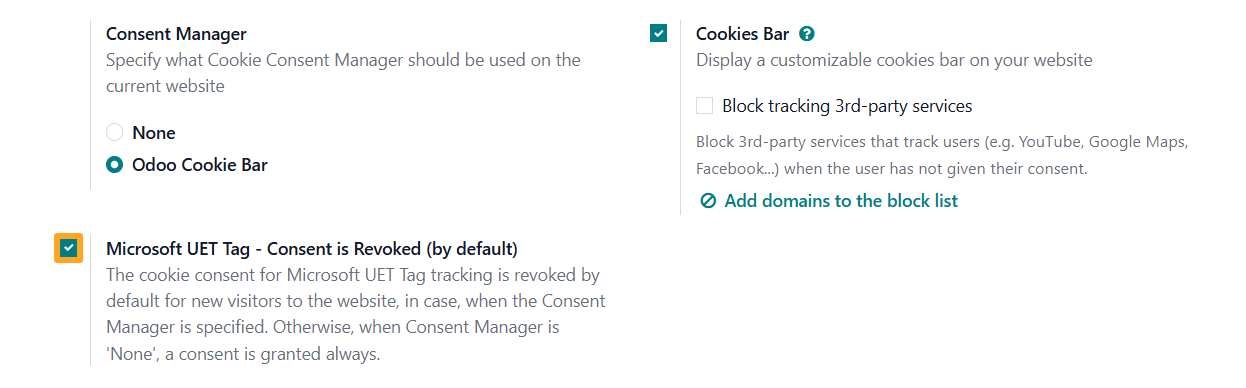
To change the defaults, enable the Microsoft UET Tag - Consent is Revoked (by default) option:

Tracking Service Settings
Adding a Tracking Service
Go to the Website - Configuration - Tracking - Services menu and click New to add a new tracking service for your Odoo website:
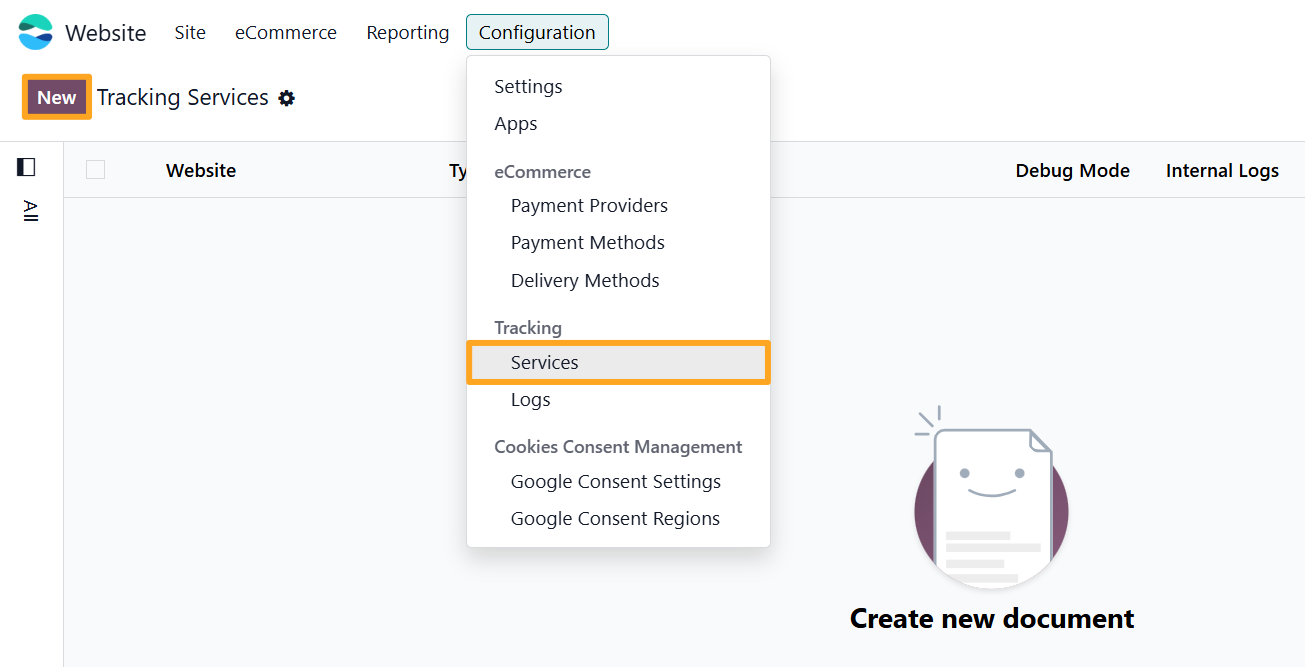
Firstly, fill in the following fields in the new tracking service:
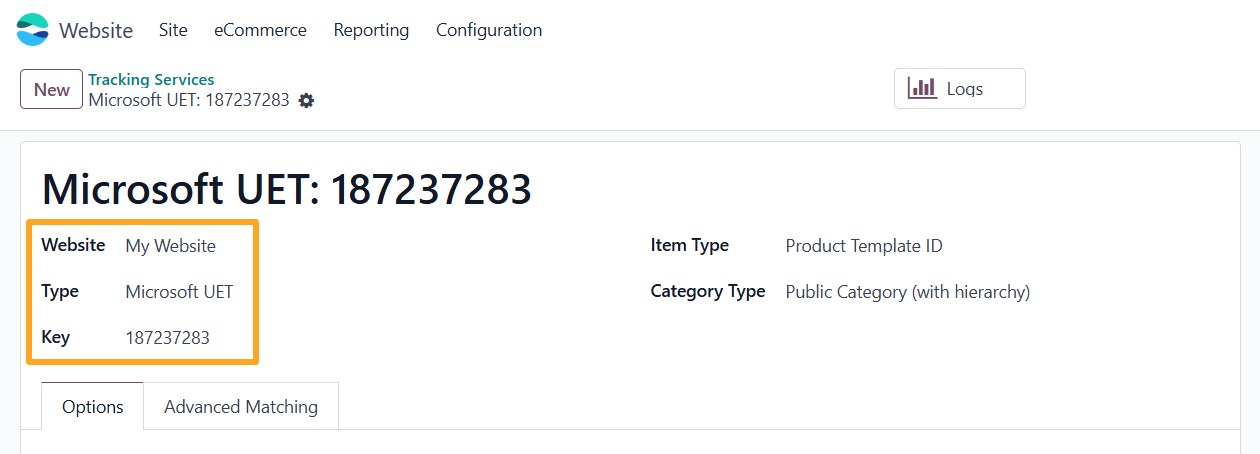
- Specify a Website (if multiple websites are used)
- Select the service Type as Microsoft UET
- Paste your Microsoft Universal Event Tracking Tag ID into the Key field
Then, specify the type of identifier for the products and which product category is provided to Microsoft Ads:
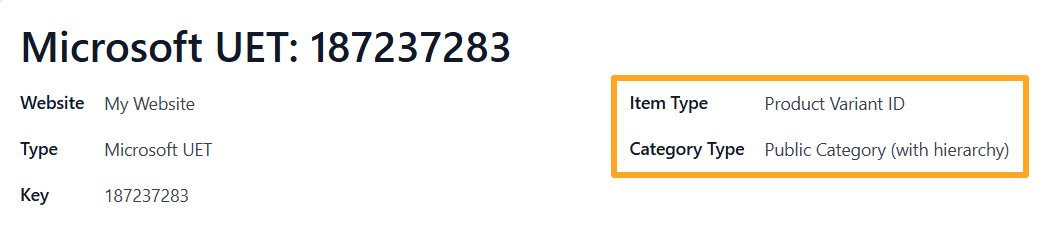
If products have attributes and variants, choose Product Variant ID in the Item Type field; otherwise, select Product Template ID.
Select the desired Category Type: an eCommerce Public Category or an internal Product Category.
The next option is the Lead Value on the Options tab:
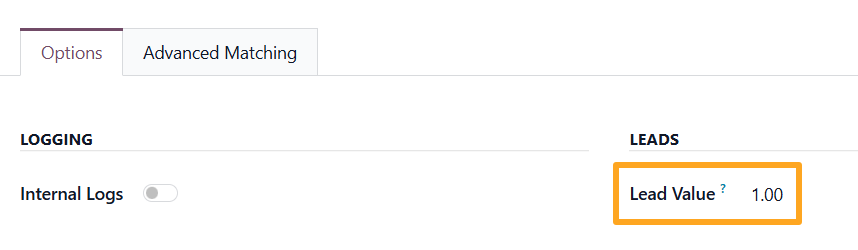
It is the monetary value of the Lead Generation event and should be set based on your estimate
Conversions API Activating
Enable the Internal Logs option:
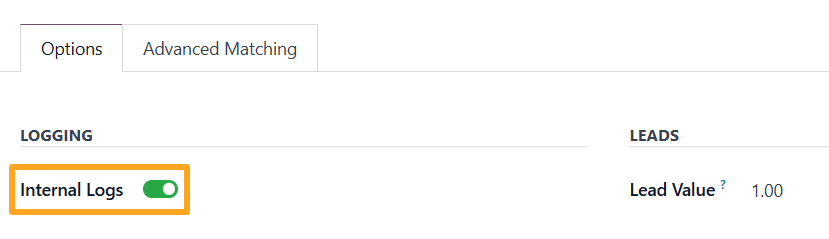
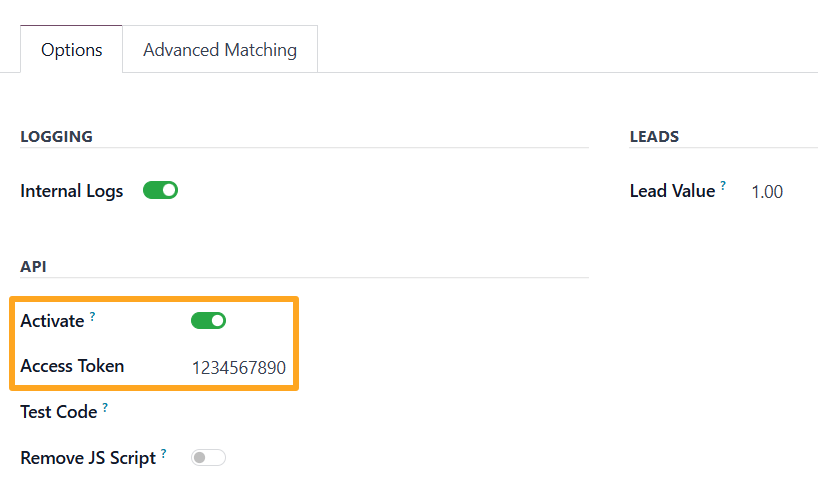
After that, switch on the API mode by enabling the Activate option in the API section:

Enhanced Conversions
Enhanced conversions help optimize your advertisements by providing Microsoft with additional user data. Open the Advanced Matching tab and click Enable allowed, which enables all available options for this tracking service:
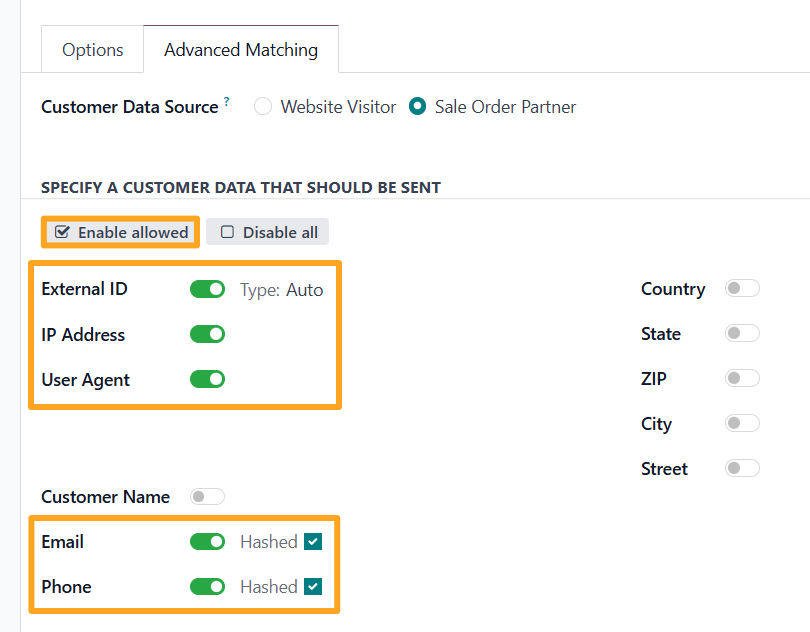
Select the Hashed checkboxes next to the enabled options to ensure customer data is protected with hashing in accordance with Microsoft requirements.
Use the Sale Order Partner value for the customer data, as it provides more user details in case you allow guest checkouts without registration:


Tracking Data Sending
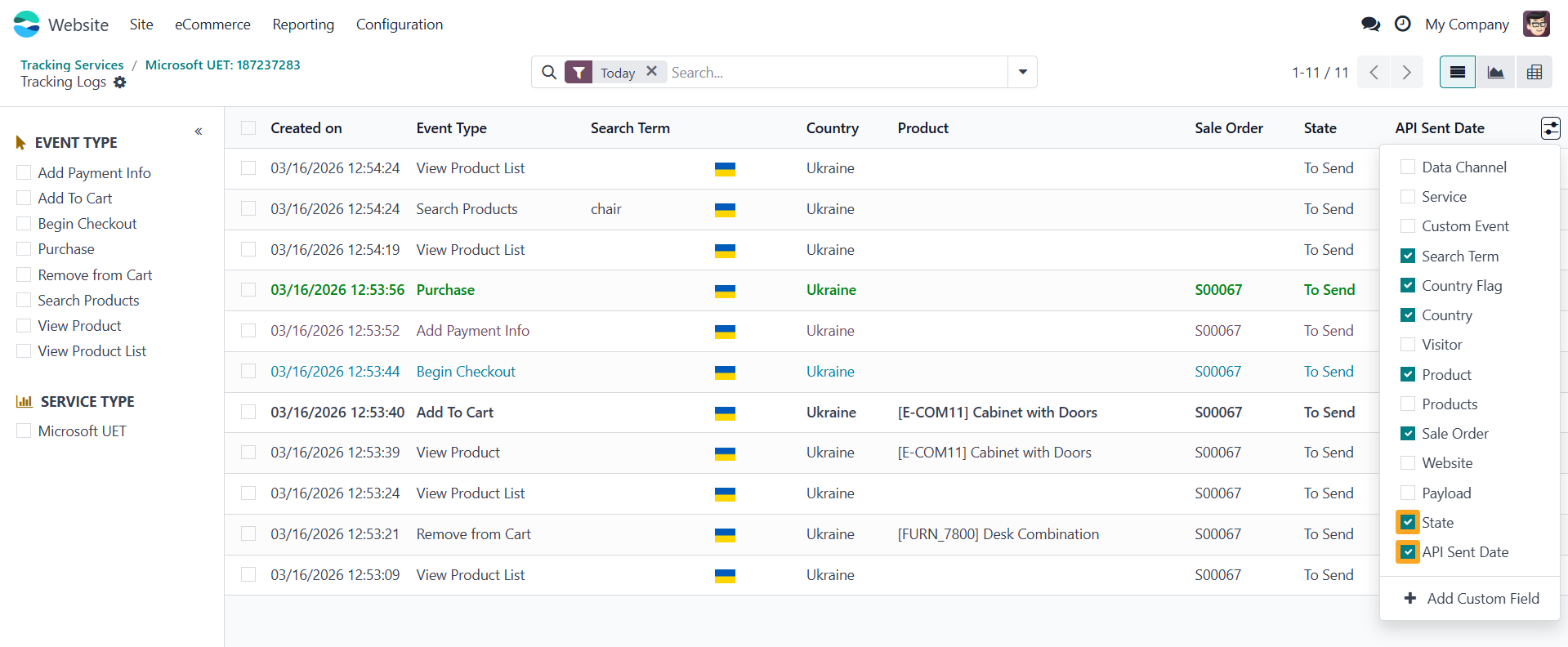
Internal logs record visitor actions on your Odoo website and can be used for further analysis and monitoring. Click the Logs button at the top of the form:

Enable the State and API Sent Date columns to display a status and the date of sending the event to Microsoft Advertising via the Conversions API:
Events are sent periodically by a scheduled action:
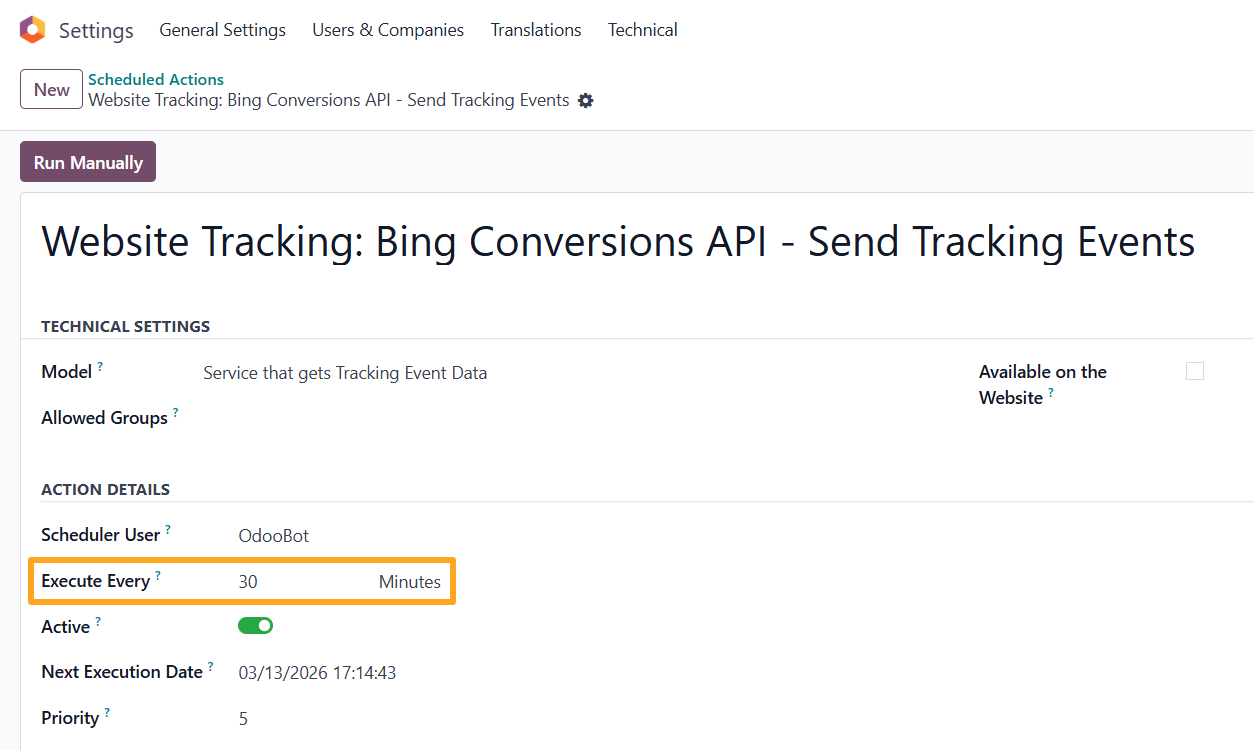
By default, it runs every 30 minutes. This interval can be adjusted to your requirements.
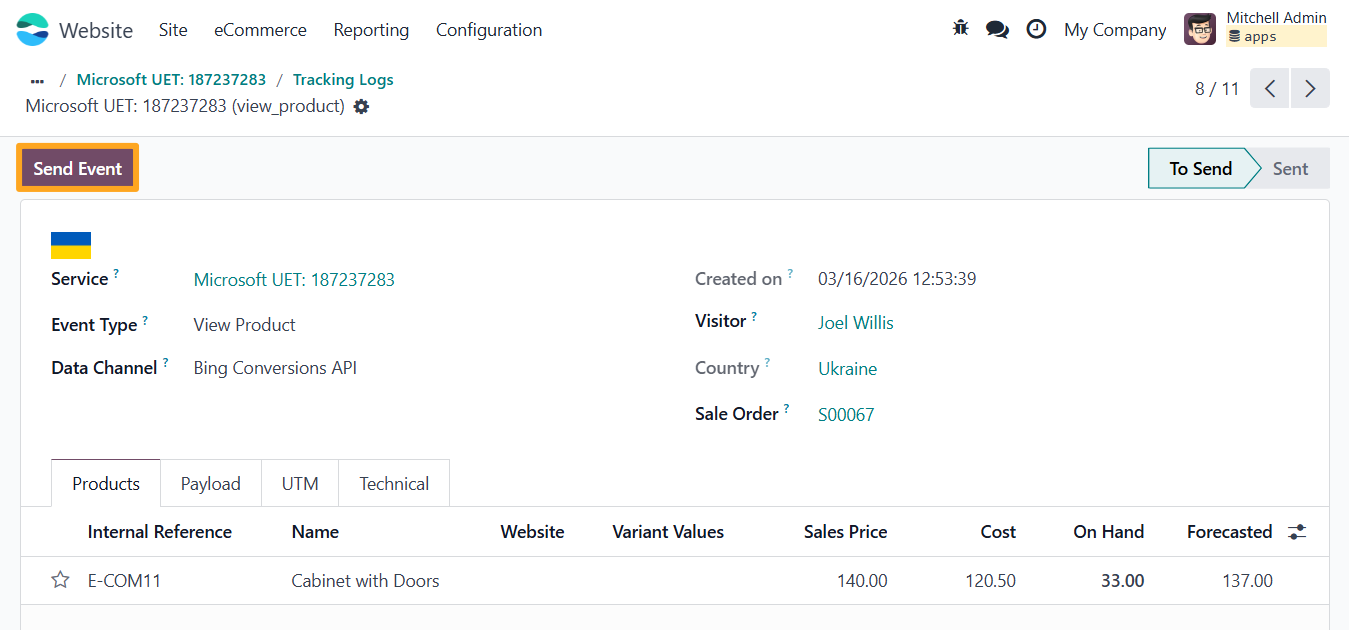
To send tracking data manually, select tracking logs from the list or open a log and click on Send Event:
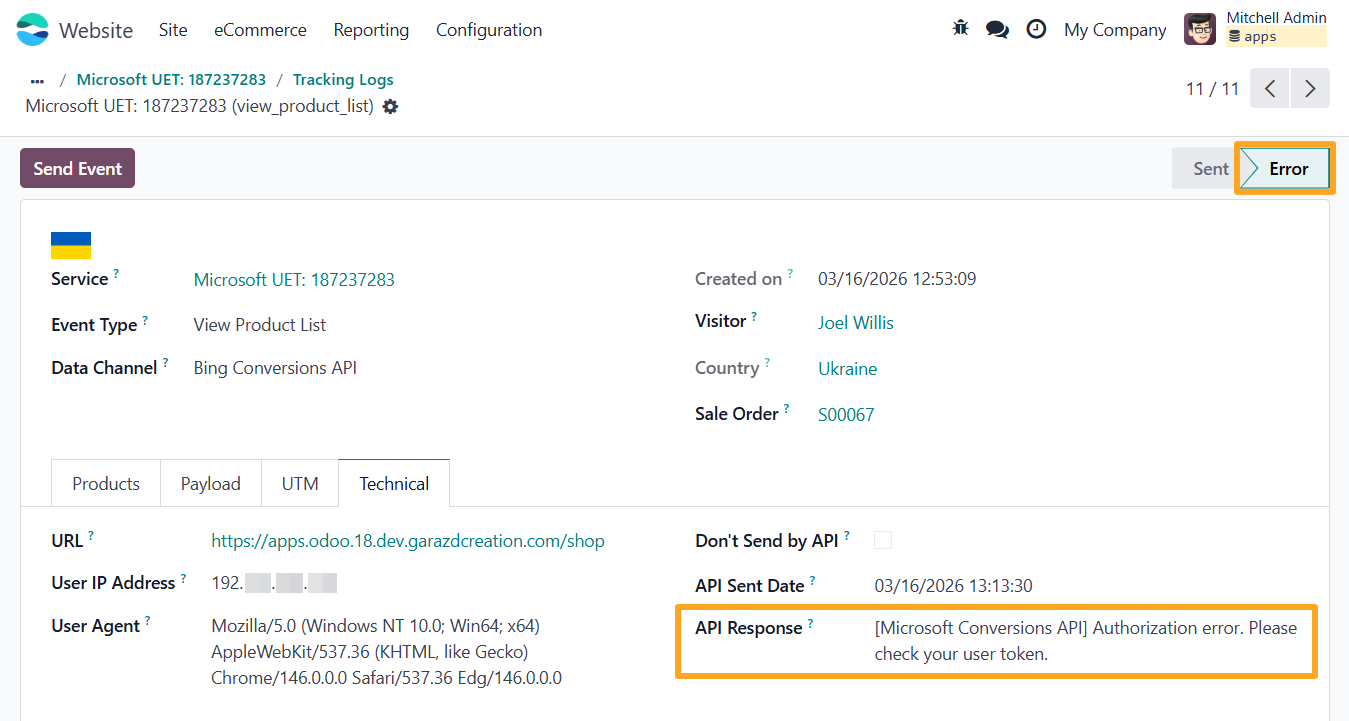
After sending, the log status can be changed to Warning or Error if data is missing or for other reasons. Open the Technical tab and get details in the API Response field:
Because tracking logs can contain sensitive data such as IP addresses and user agents, it's possible to configure their cleanup. Go to the website settings and set the cleaning period. The default period is 30 days:
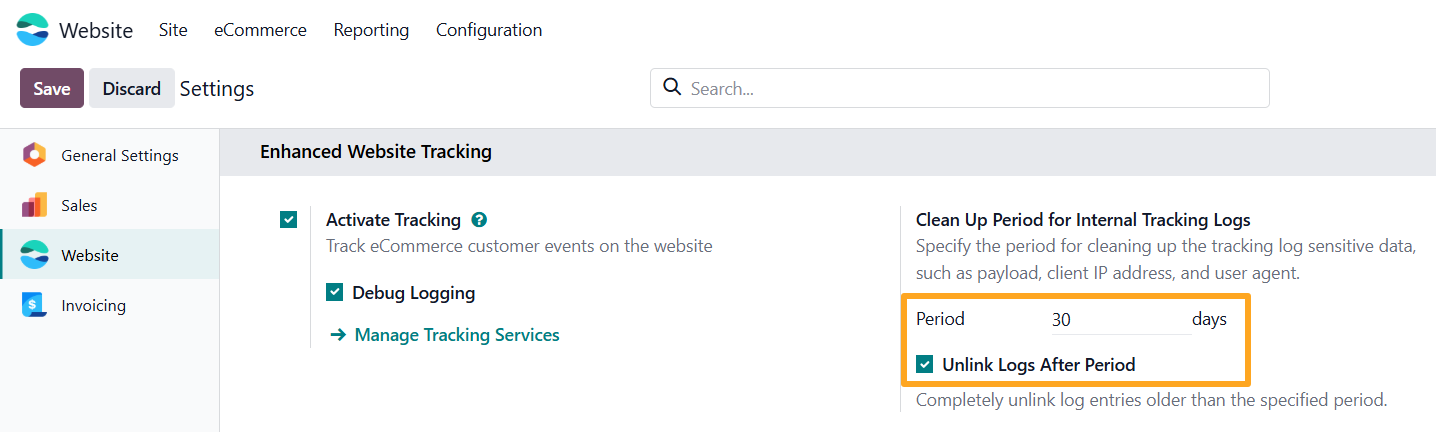
Enable the Unlink Logs After Period option to remove tracking logs older than the specified period permanently.

Additional Settings
The solution also includes additional settings available in Developer Mode.
Product Identifier
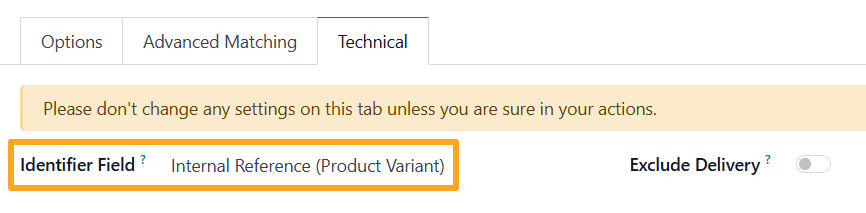
The app uses the product ID field as the product's unique identifier. In case you require using a different value, activate the Developer Mode, and, on the Technical tab, specify a different product field that contains the desired identifier:
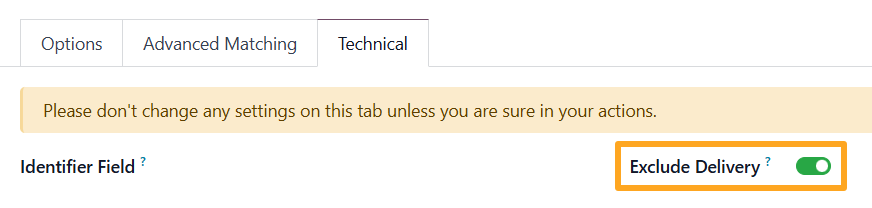
Exclude Delivery
The next setting available for tracking services is Exclude Delivery. When this option is enabled, delivery lines from sales orders are not included in tracking data and are not sent to Microsoft:
Changelog
18.0.1.0.0 2026-01-06
- Init version.
19.0.1.0.0 2026-06-25
- Migration from 18.0.
20.0.1.0.0 2026-09-21
- Migration from 19.0.
Resources