
Measure Odoo eCommerce website visitor behavior and improve LinkedIn Ads campaign conversions
The module integrates the LinkedIn Insight Tag into your Odoo e-commerce website to track visitor activity. Using Odoo UI, you can map tracking events to conversions created in LinkedIn Ads | Campaign Manager. Turn storefront behavior into measurable marketing insight without modifying code or involving developers.
| Availability |
Odoo Online
Odoo.sh
On Premise
|
|---|---|
| Compatibility |
Community
Enterprise
|
| Technical Name | website_sale_linkedin_tag |
| Version | 20.0.1.0.0 |
| License | OPL-1 |
| Category | |
| Support | Free 60 days support and 360 days bug-fixing |
Use Case

Jorem ipsum dolor sit amet, consectetur adipiscing elit. Nunc vulputate libero et velit interdum, ac aliquet odio mattis. Class aptent taciti sociosqu ad litora torquent per conubia nostra, per inceptos himenaeos.
Forem ipsum dolor sit amet, consectetur adipiscing elit. Nunc vulputate libero et velit interdum, ac aliquet odio mattis. Class aptent taciti sociosqu ad litora torquent per conubia nostra, per inceptos himenaeos.
Dorem ipsum dolor sit amet, consectetur adipiscing elit. Nunc vulputate libero et velit interdum, ac aliquet odio mattis.
It is a long established fact that a reader will be distracted by the readable content of a page
Korem ipsum dolor sit amet, consectetur adipiscing elit. Nunc vulputate libero et velit interdum, ac aliquet odio mattis. Class aptent taciti sociosqu ad litora torquent per conubia nostra, per inceptos himenaeos.
Korem ipsum dolor sit amet, consectetur adipiscing elit. Nunc vulputate libero et velit interdum, ac aliquet odio mattis.
Odoo App Installation
Upload modules
Upload modules from the ZIP archive to your Odoo hosting, or a GitHub repository connected there.
Place the unzipped modules in your custom add-on directory and restart the Odoo system service.
Update App List
After restarting, activate the Developer Mode, and go to the Apps menu.

Click on Update Apps List to fetch the new modules in the list.
Activate the App
Install the new module, finding it by name and clicking on the Activate button.
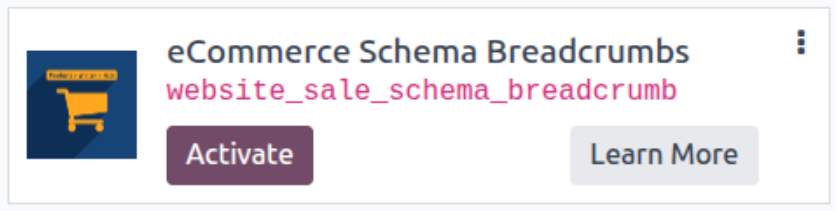
* If you don't see the module, try to remove the default Apps filter from the search bar.
Configuration
Follow the instructions in the module description to complete the installation process and start using the app.
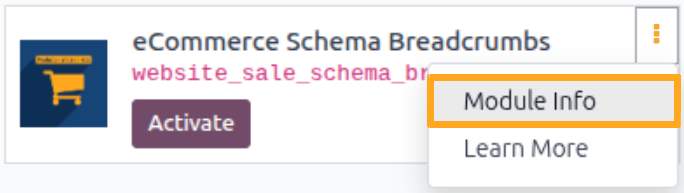

Manual

Obtaining the Identifier
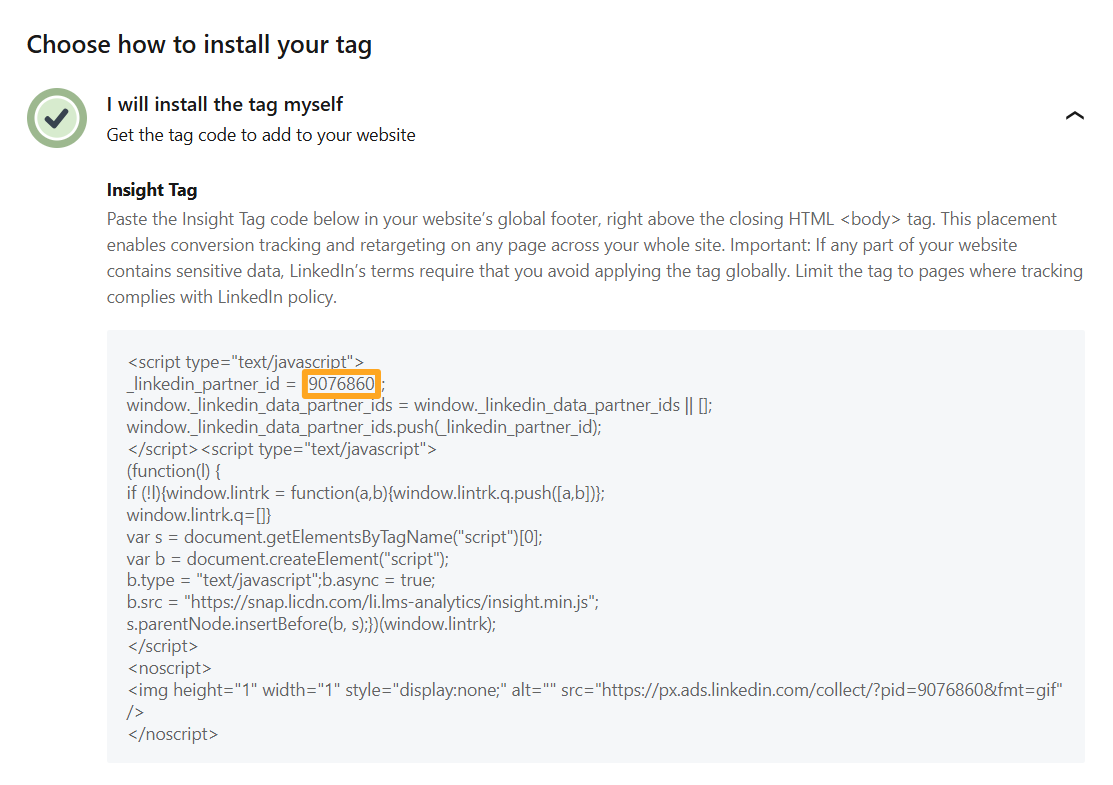
Before adding the JS script to your website, obtain the Partner ID. Complete the following steps:
-
01Sign in to your LinkedIn Ads | Campaign Manager account
-
02Open the Measure — Signals Manager menu
-
03Select the Insight Tag in the Sources catalog section
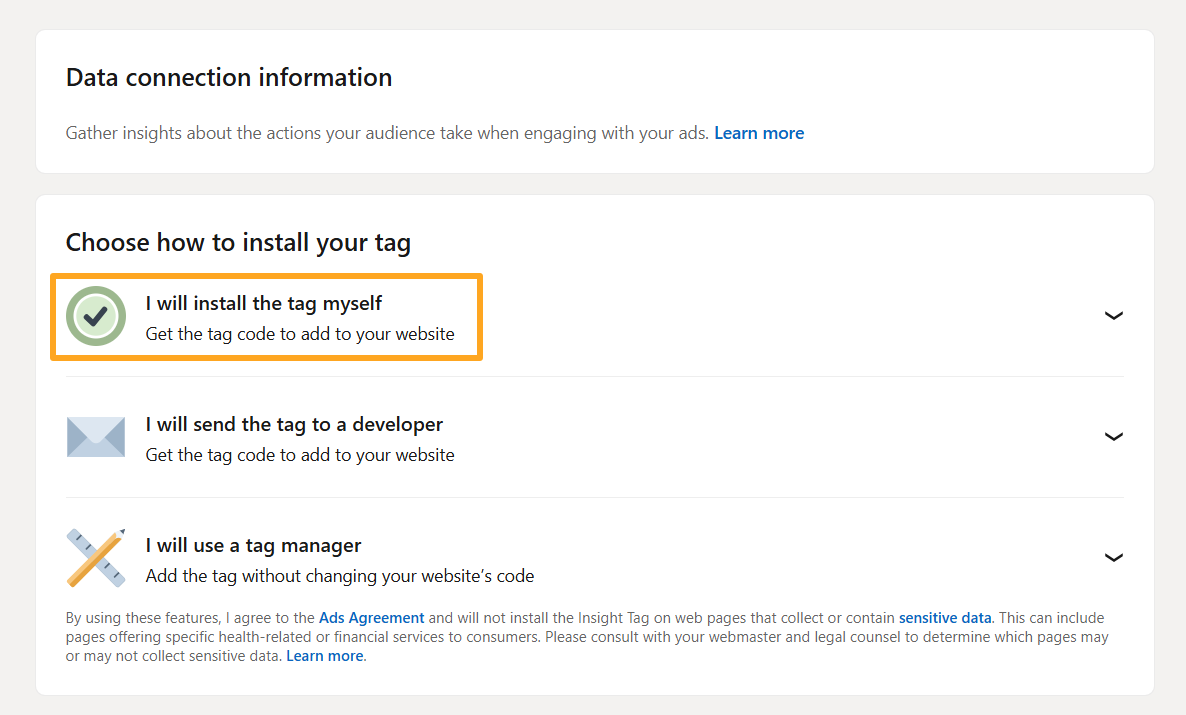
Next, click I will install the tag myself.
Copy the value of the _likedin_partner_id field.

Activation
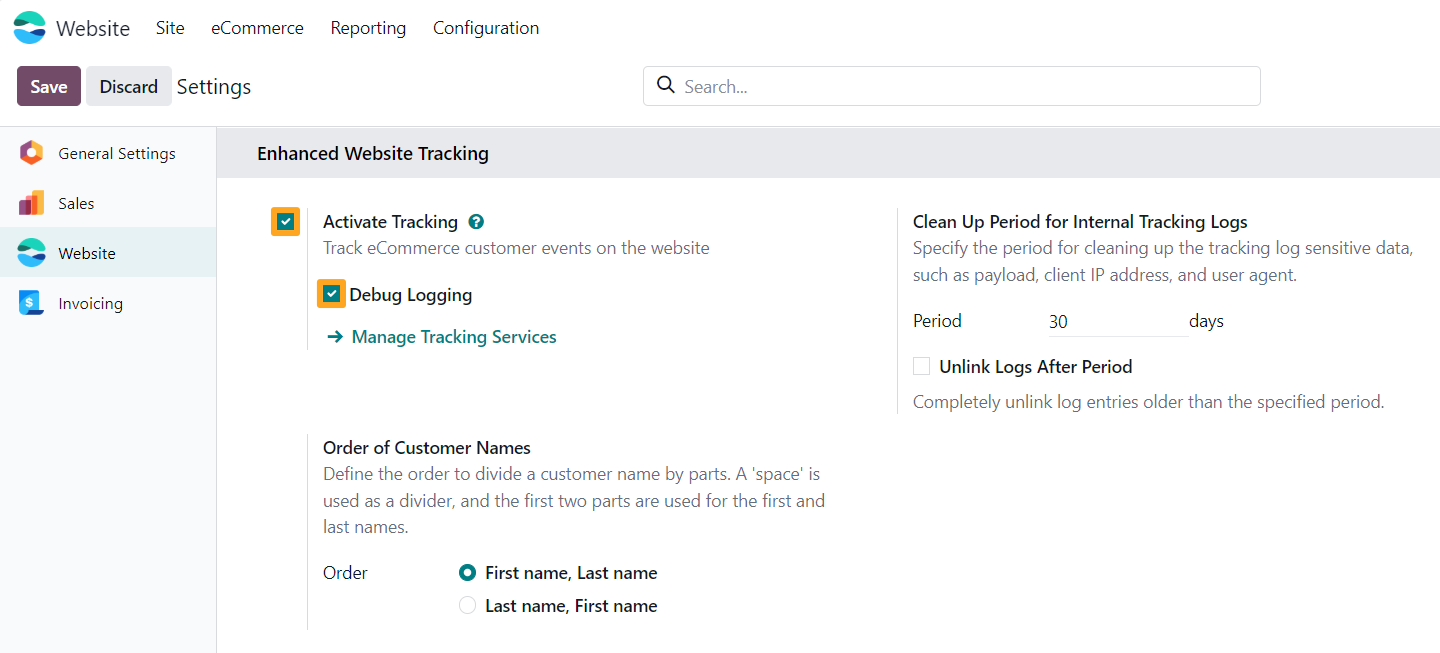
After installing the module, go to the website settings and enable the Activate Tracking option in the Enhanced Website Tracking section. To test your website tracking and view tracking events in the browser console, temporarily enable the Debug Logging feature.

Configuration
The module enables you to track e-commerce events on your website and store them in internal Odoo logs for site analysis and monitoring. These features operate at the tracking service level. Add and configure a tracking service for your Odoo website to start monitoring events.
Adding a Tracking Service
Go to the Website — Configuration — Tracking — Services menu and click New to add a new tracking service for your Odoo website.
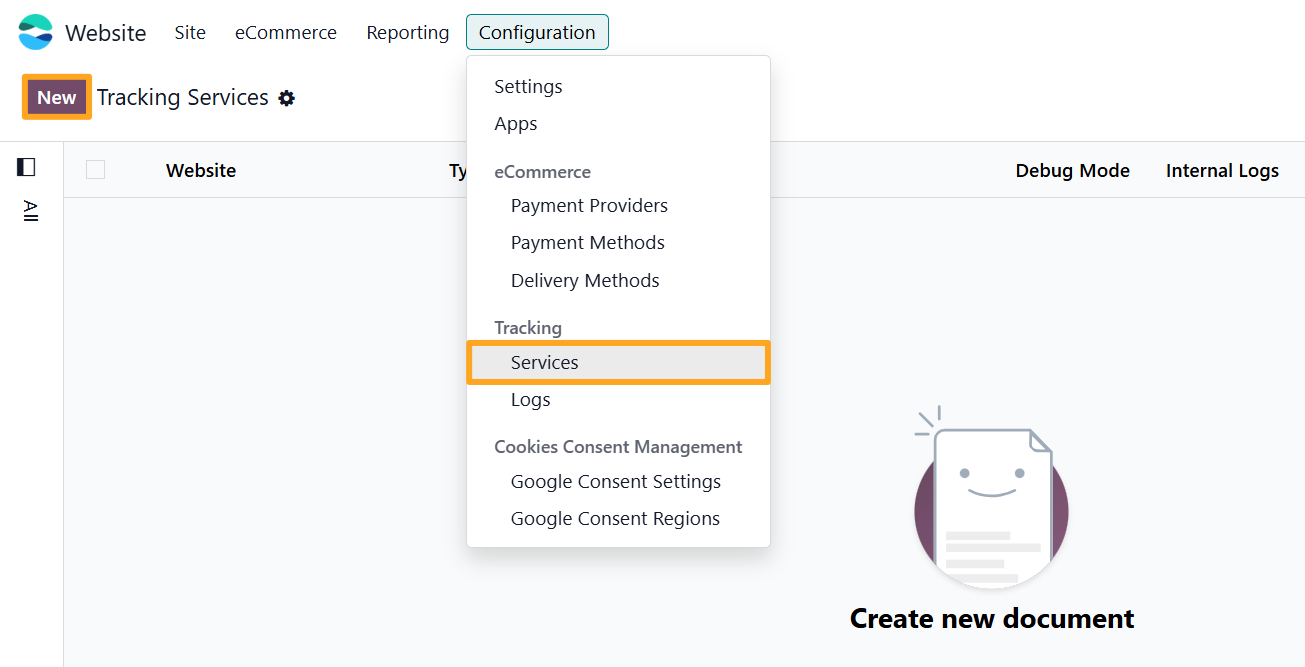
Firstly, fill in the following fields in the new tracking service:
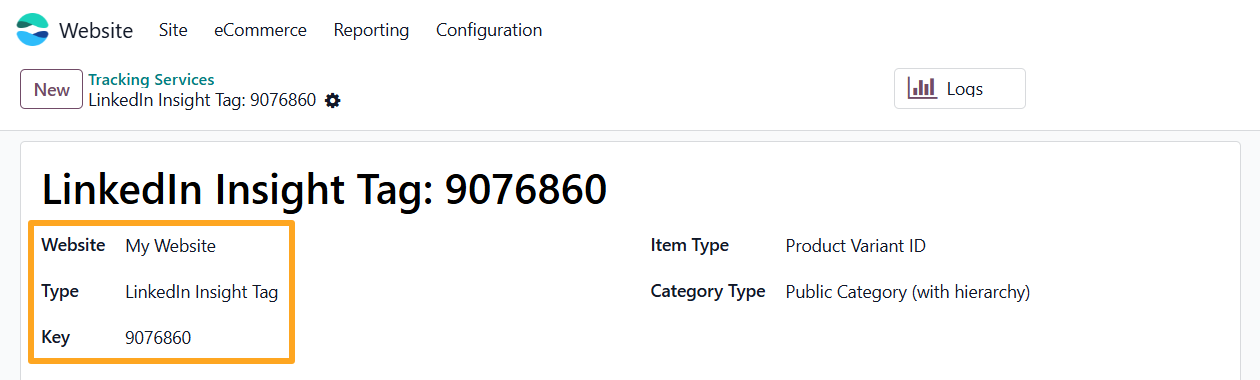
- Specify a Website (if using multiple websites)
- Select LinkedIn Insight Tag as the service Type
- Paste your copied Partner ID into the Key field
Then, specify the type of product identifier and product category sent to LinkedIn Ads.
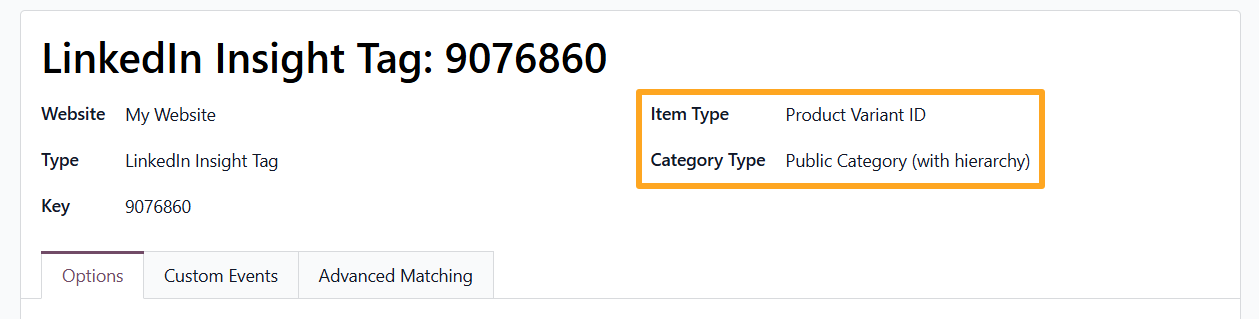
If products have attributes and variants, choose Product Variant ID in the Item Type field; otherwise, select Product Template ID.
Select the desired Category Type: an eCommerce Public Category or an internal Product Category.
The next option is the Lead Value on the Options tab.

This field represents the monetary value of a lead generation, based on estimated evaluations.
Tracking Logs
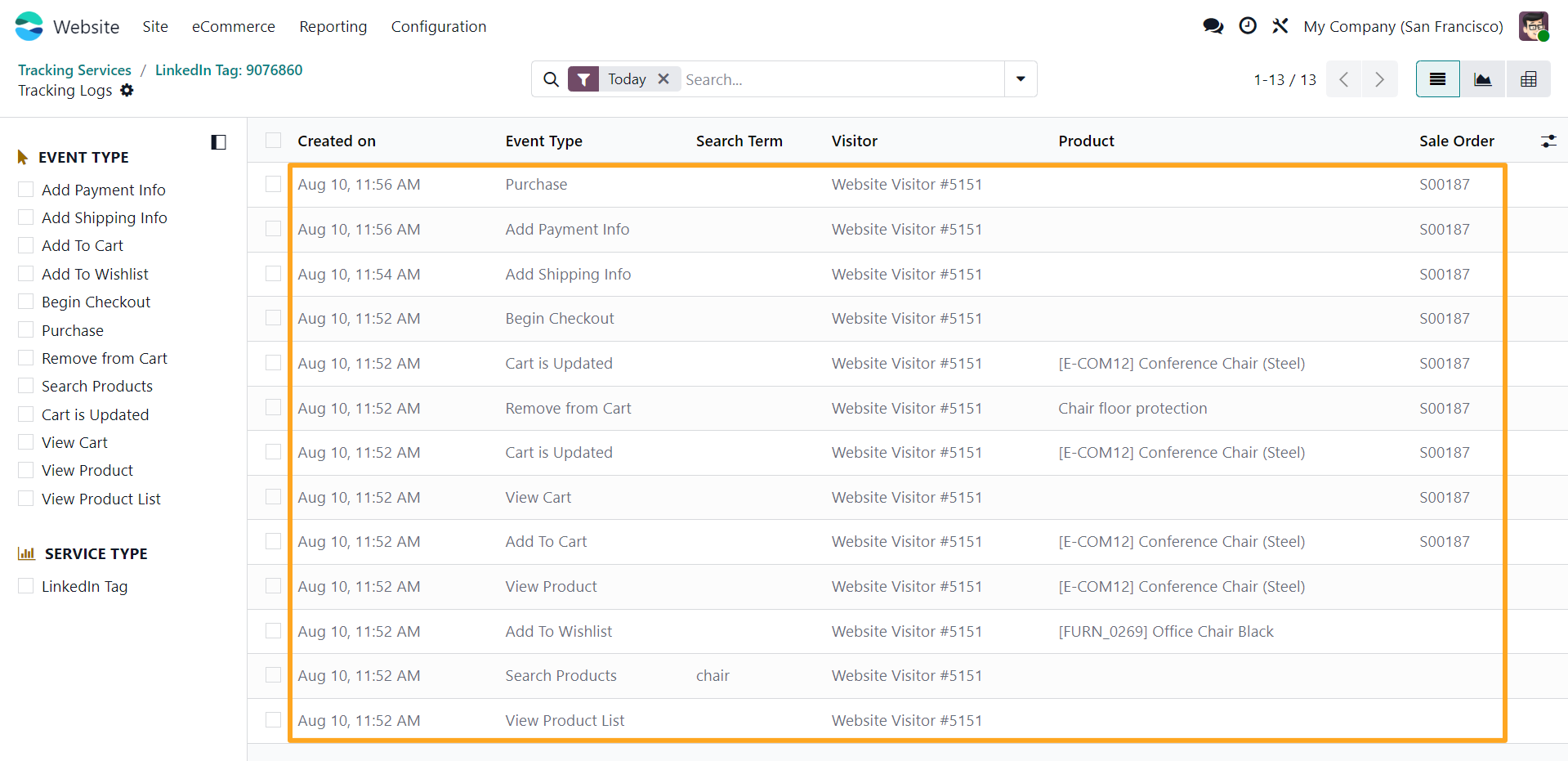
The module includes an internal logging feature. To activate it, enable the Internal Logs option.

To view logs, go to the Website – Configuration – Tracking – Logs menu or click the Logs button at the top of the form.

The list of internal tracking events is below.

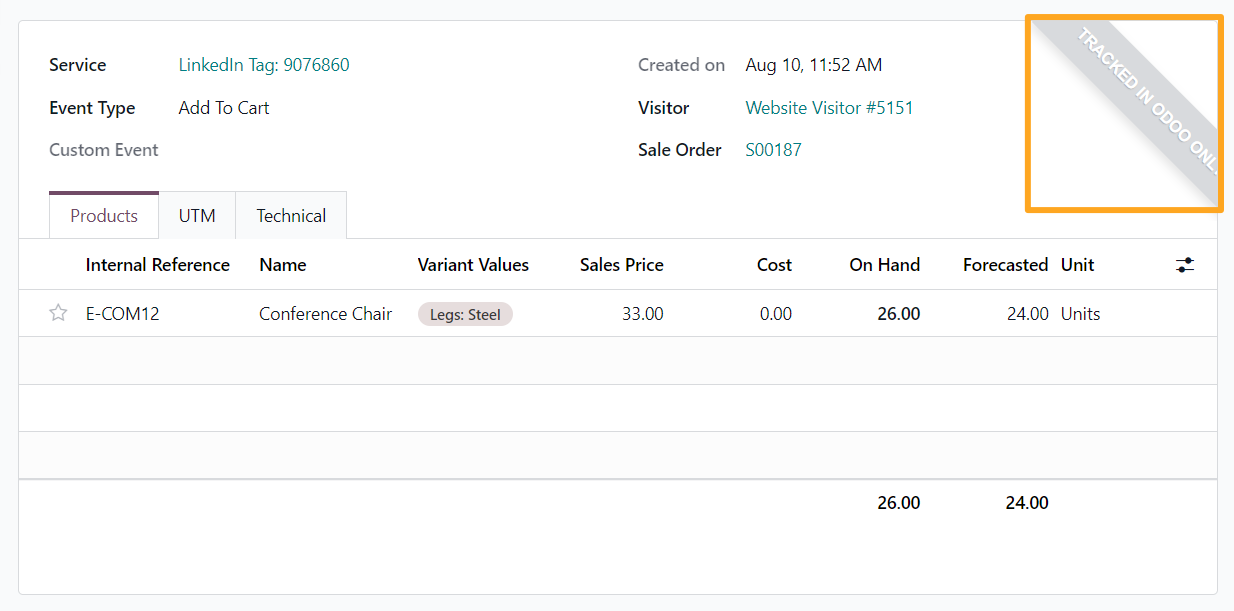
To send tracking events to LinkedIn in addition to storing them, create conversions and map them to custom events in Odoo.

Conversion Setup
To analyze conversions for your LinkedIn ad campaigns, set up tracking data delivery from Odoo. Create a conversion, retrieve its ID in LinkedIn Ads, and link the conversion to a custom event in Odoo.
Creating a Conversion in LinkedIn Ads
To create a conversion:
-
01Log in to your LinkedIn Ads account
-
02Go to Measure — Conversion Tracking
-
03Click Create Conversion — Insight Tag Conversion
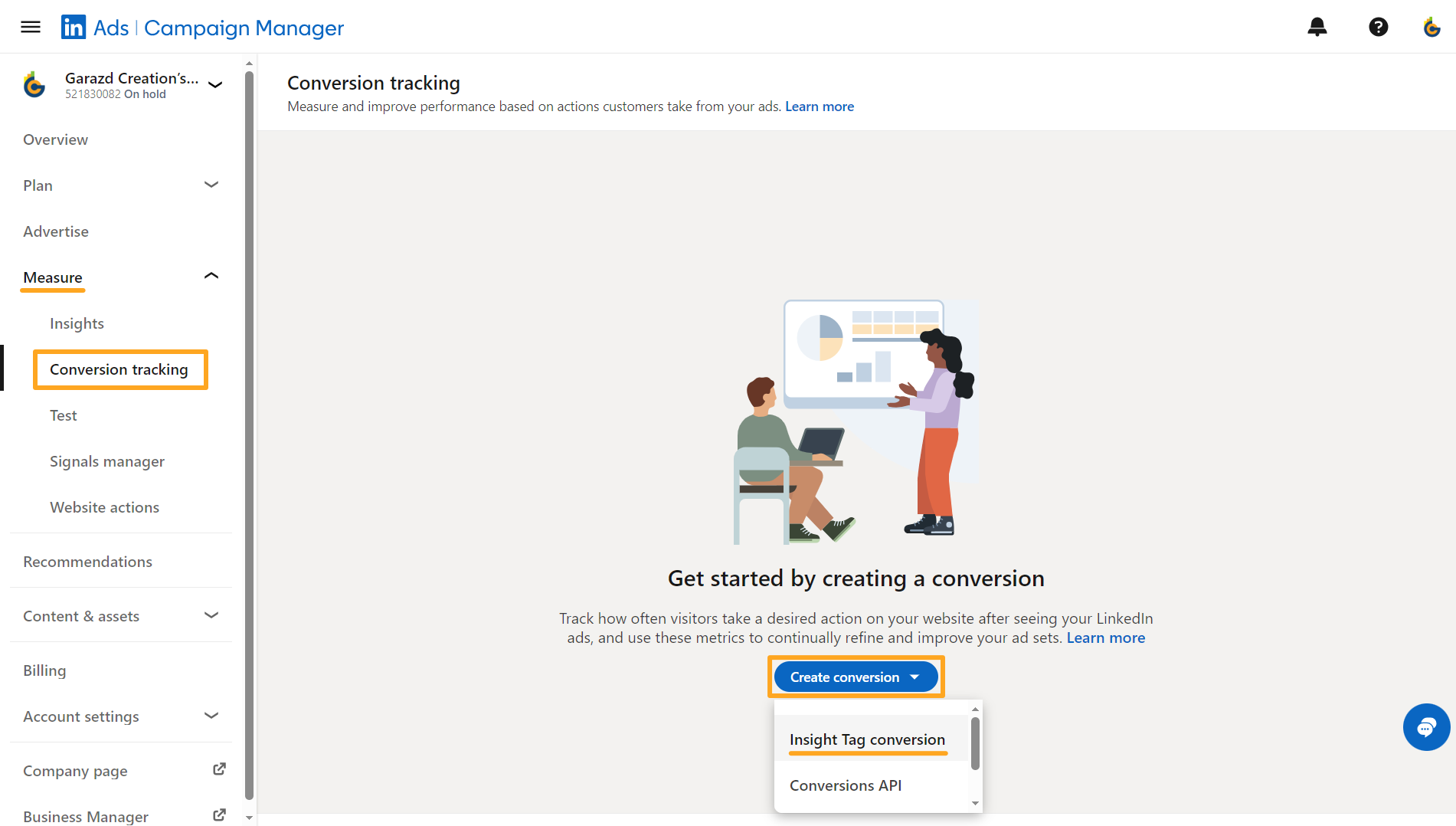
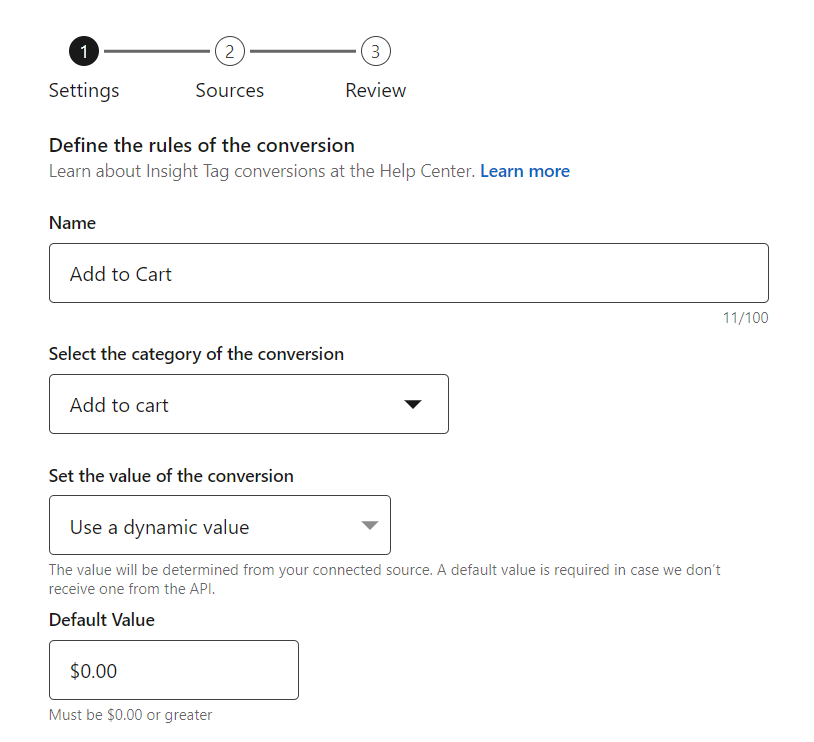
Fill in the form:
- Enter a name for the conversion.
- Select a conversion category
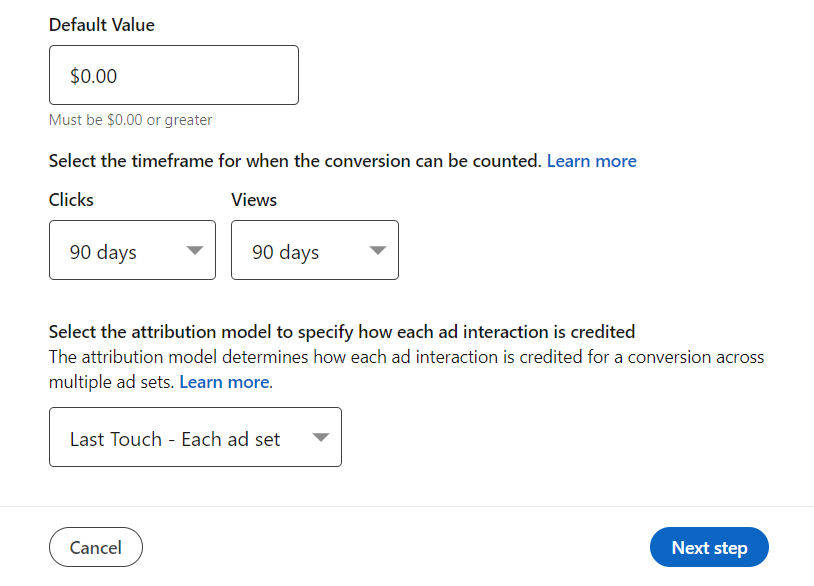
- Configure the conversion value
- Adjust other settings according to your requirements
In the next step, select Manual Conversion Setup.
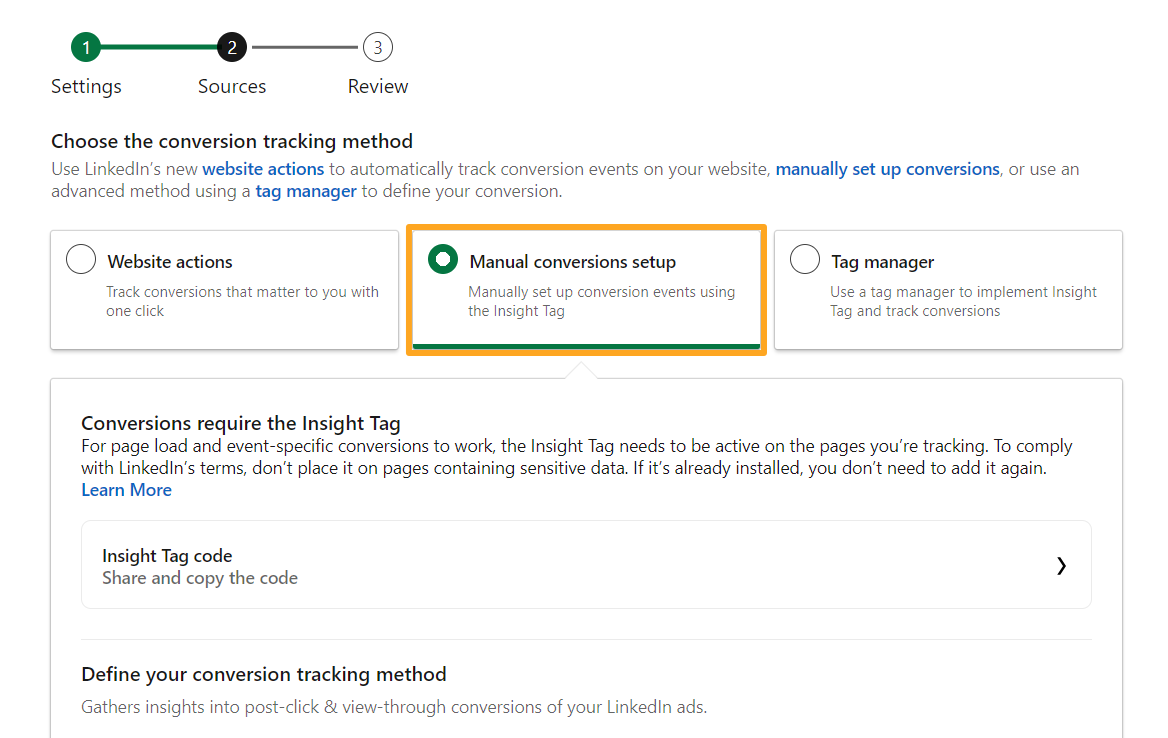
Select Event-specific as the Insight Tag method, copy the conversion_id value, and proceed to the next step.
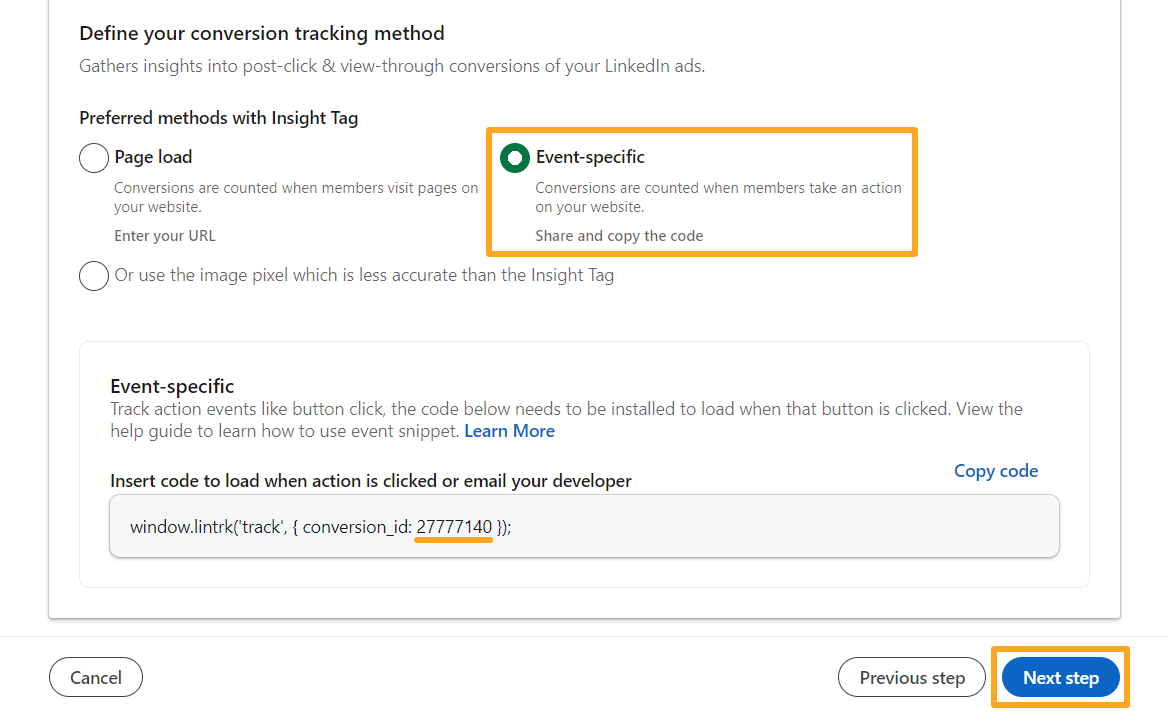
Click Create on the last step.
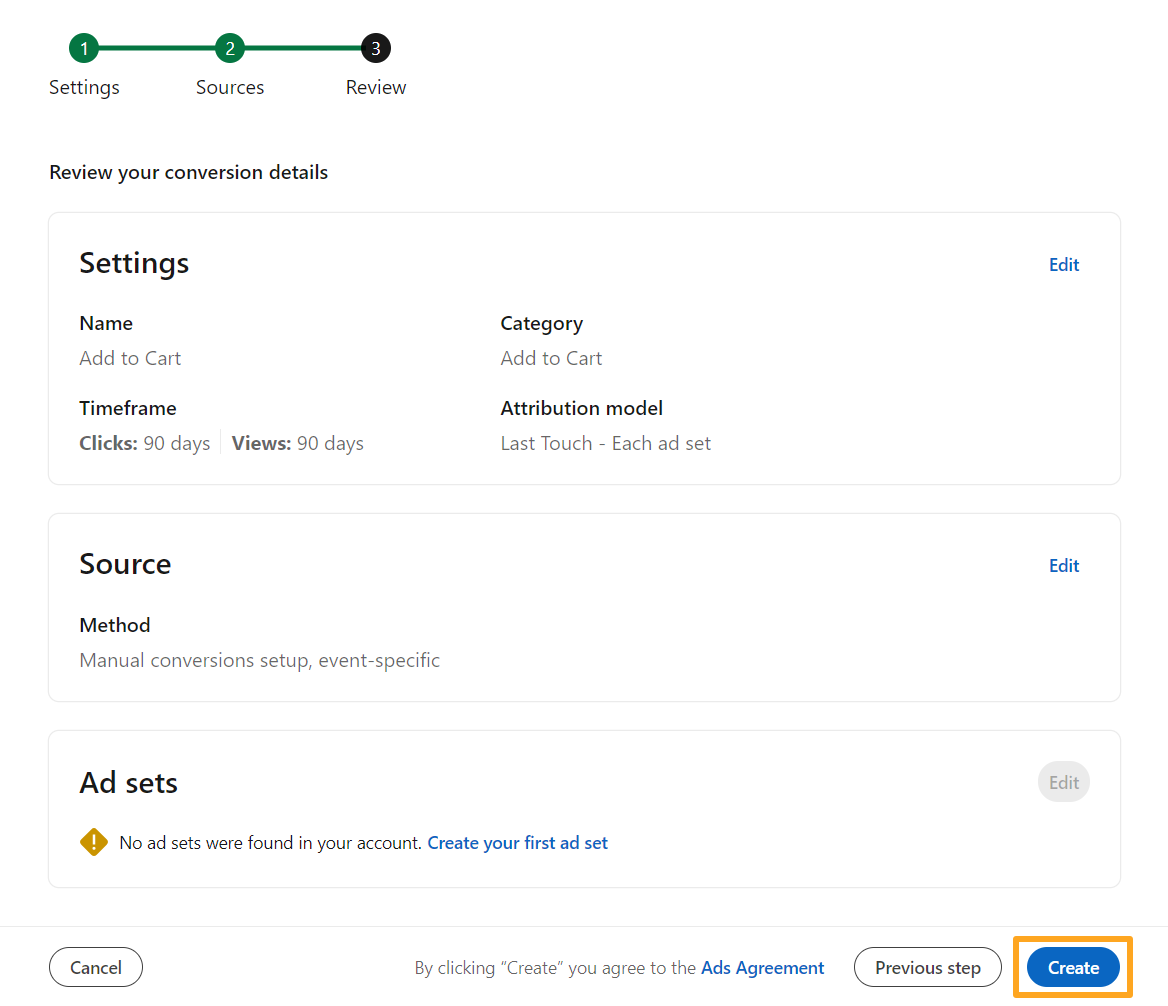
Creating a Custom Event in Odoo
To create a custom event in Odoo and link it to a LinkedIn conversion:

-
01Open the LinkedIn Insight Tag tracking service on the Custom Events tab
-
02Click Add a Line
-
03Select the tracking event Type
-
04Enter a Name for the custom event
-
05Paste the copied
conversion_idfrom LinkedIn Ads

Enhanced Conversions
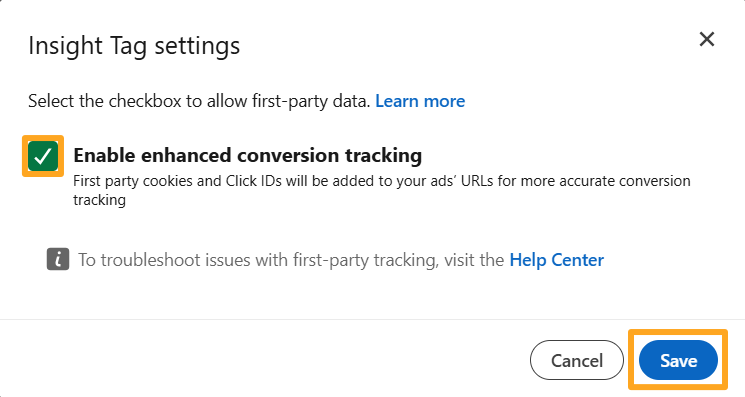
Enhanced conversion tracking optimizes your ad campaigns by providing LinkedIn Ads with user data. You must enable enhanced conversions for Insight Tag events on both sides: in LinkedIn Ads and in Odoo.
Enabling in LinkedIn Ads
In LinkedIn Ads, go to Measure — Signals Manager — Insight Tag.
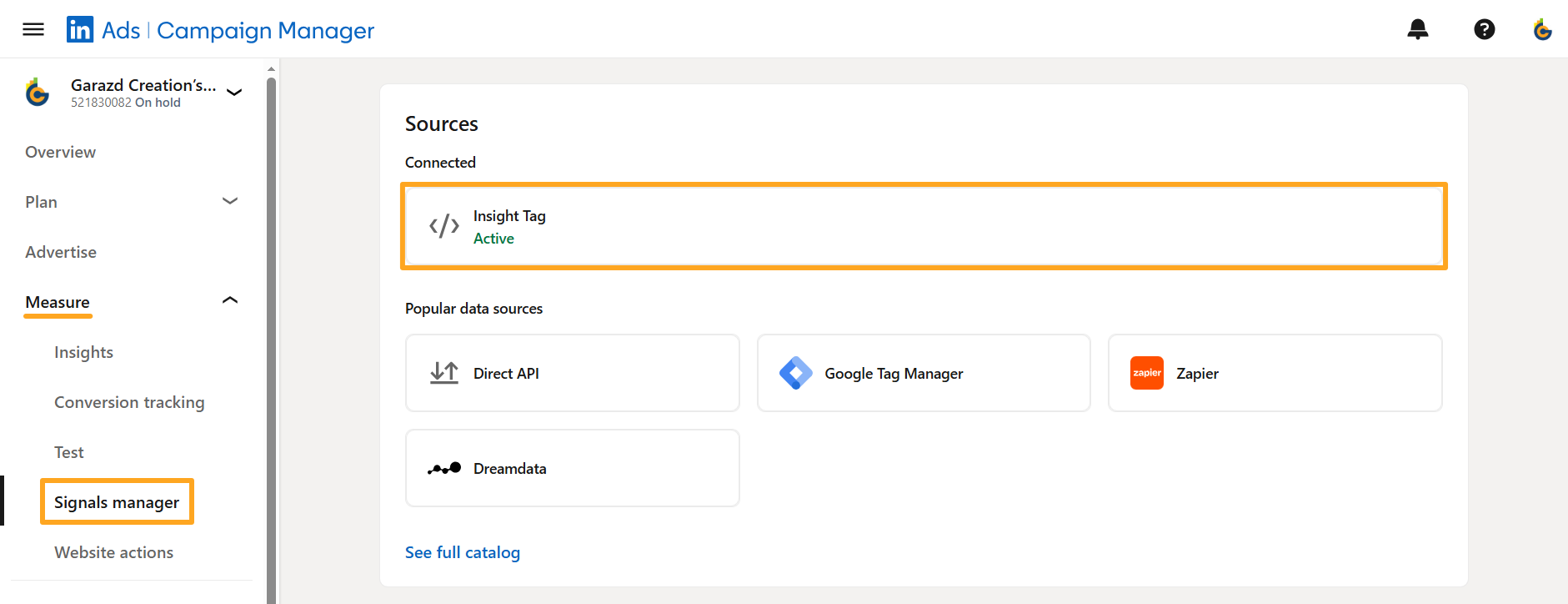
Click Manage Insight Tag — Settings.
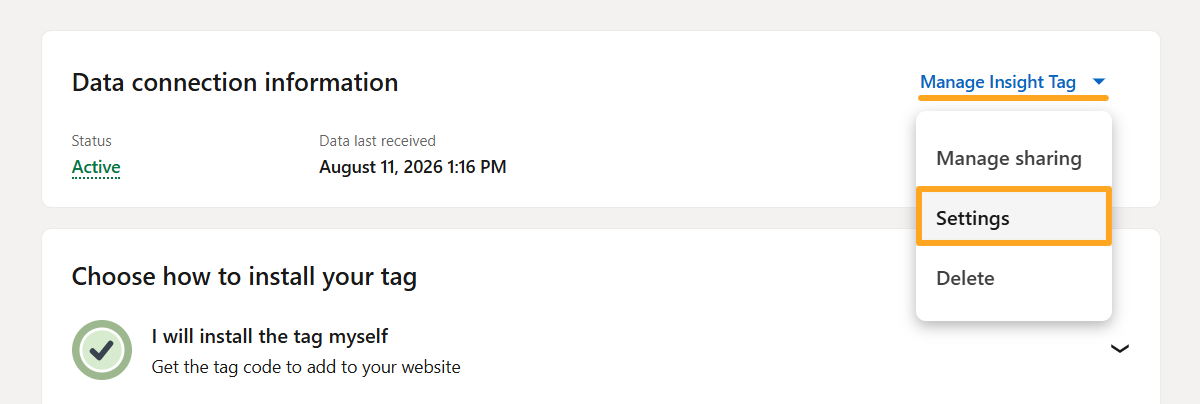
In the pop-up window, activate the Enable enhanced conversion tracking option and click Save.
Enabling in Odoo
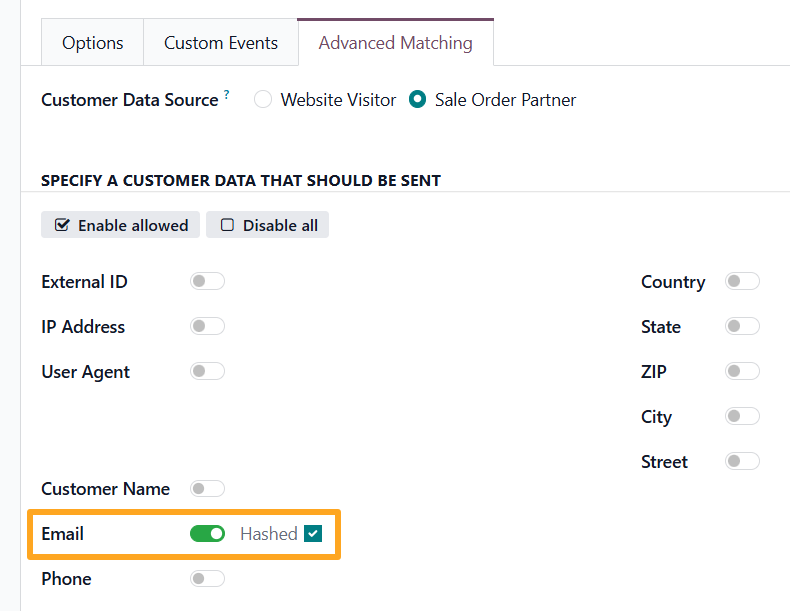
As part of enhanced conversion tracking, the Insight Tag supports sending hashed user email addresses. To activate this in Odoo, open the LinkedIn tracking service and enable the Email option on the Advanced Matching tab.
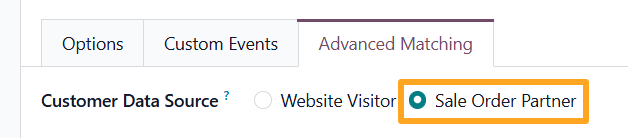
Use the Sale Order Partner value as the Customer Data Source because it provides more user information when guest checkouts are allowed without registration.

Advanced Settings
The module includes additional settings available in Developer Mode.
Product Identifier
The module uses the Product ID field as a unique product identifier. To use a different value, specify another product field containing the desired identifier on the Technical tab:


Purchase on Portal
To track portal purchases, enable the Track Purchase on Portal option:

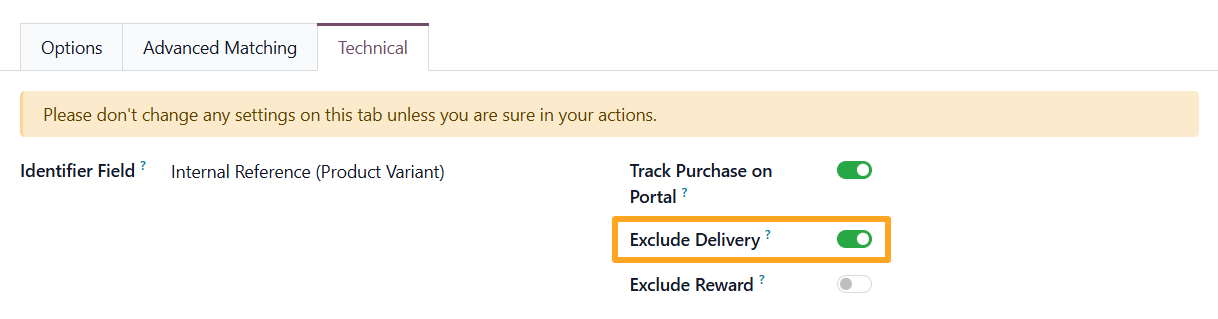
Exclude Delivery
The next available setting for tracking services is Exclude Delivery. When enabled, the service excludes delivery lines from sales orders in tracking data transmissions:
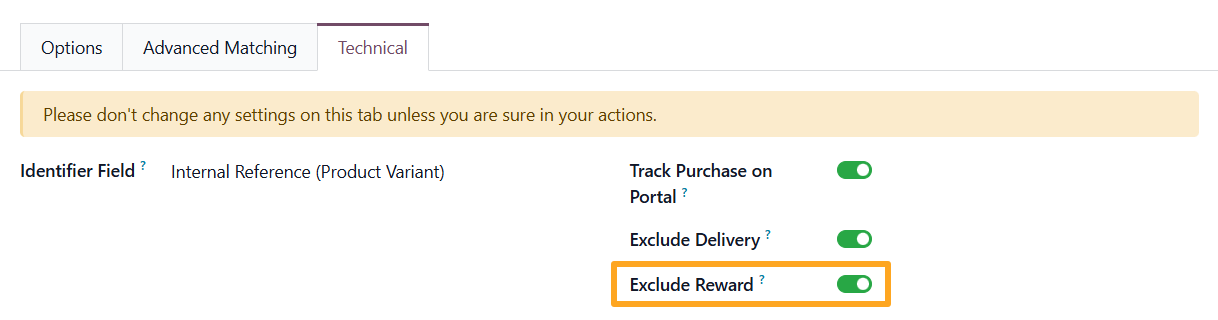
Exclude Rewards
To exclude reward order lines from tracking data, enable the Exclude Reward option:
Add to Cart
By default, the module tracks the actual addition of a product to the cart. To track the event upon clicking the button without waiting for the actual addition to the cart, perform the following steps:
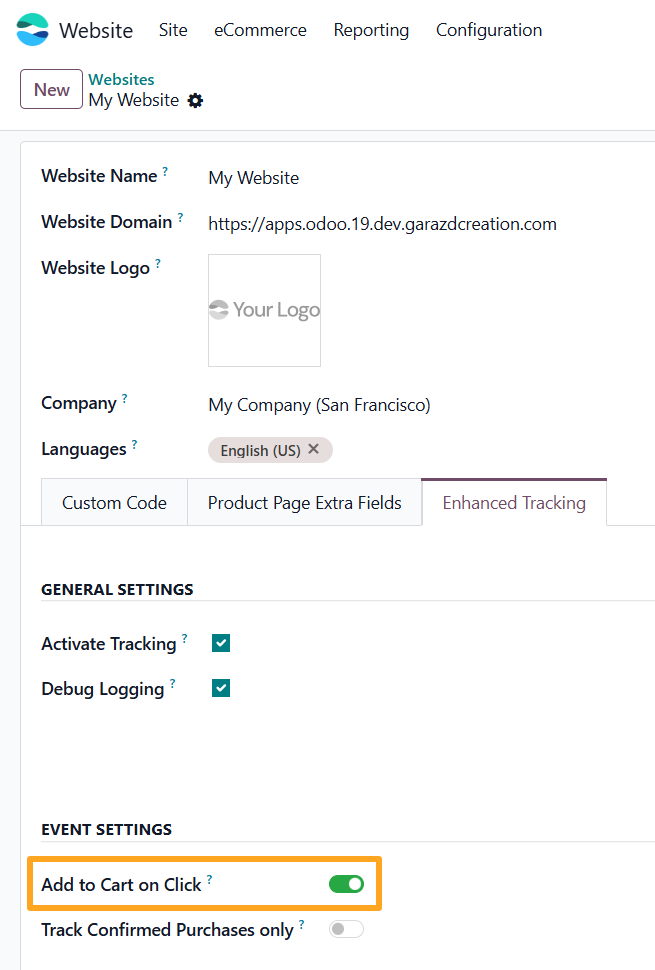
- Navigate to Website — Configuration — Websites
- Open the website on the Enhanced Tracking tab
- Enable the Add to Cart on Click option

Purchase
To track purchases only after a successful payment transaction, enable the Track Confirmed Purchases only option:
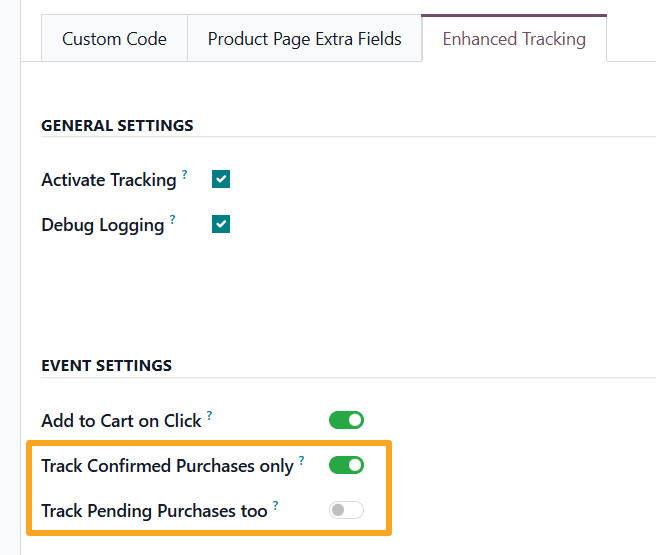

If business logic considers an order with a Pending payment status as a purchase, enable the Track Pending Purchases too option as well.

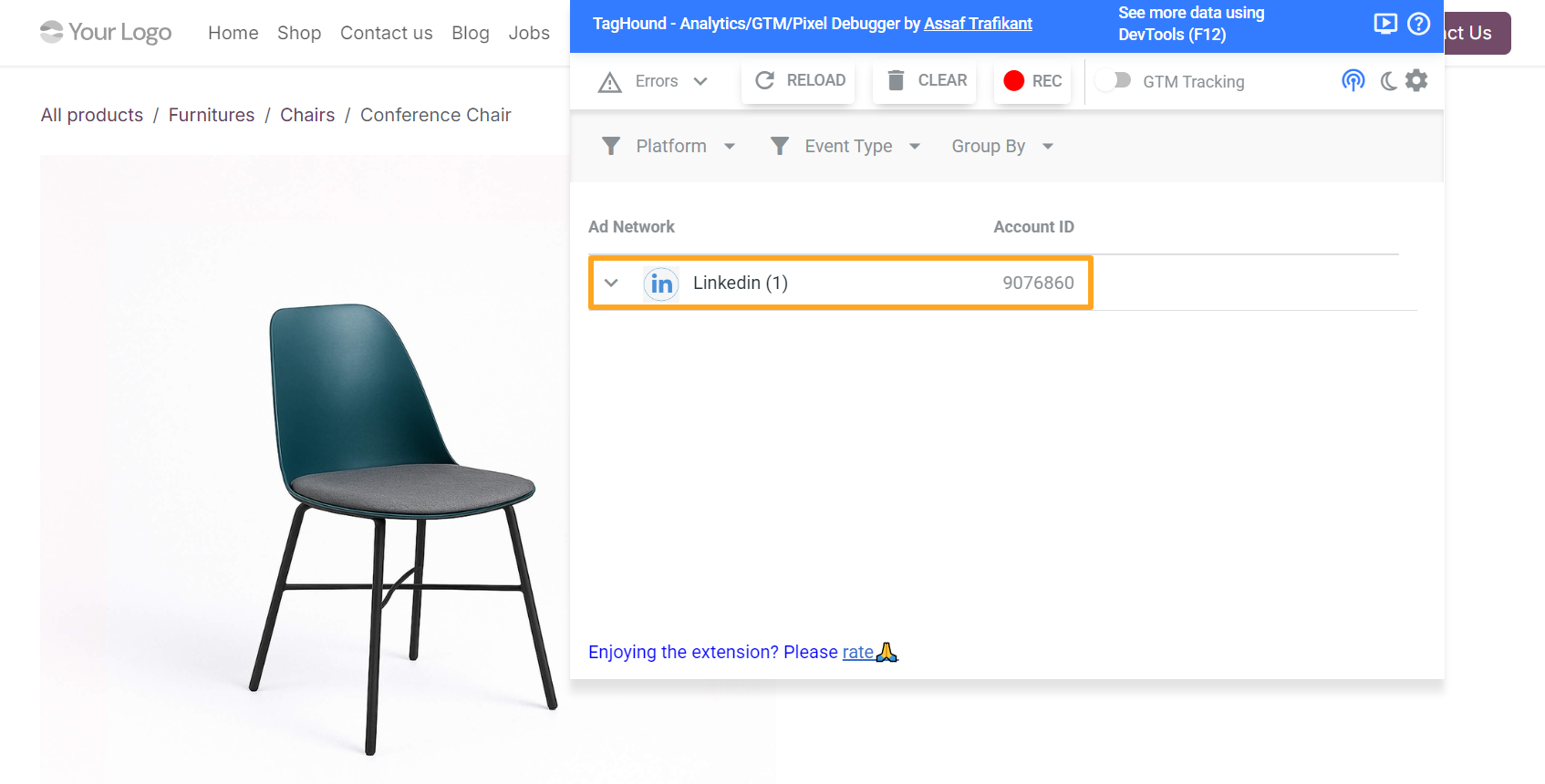
Testing
You can test the LinkedIn Insight Tag integration using a browser extension.

Changelog
19.0.1.0.0 2026-05-15
- Init version.
20.0.1.0.0 2026-09-28
- Migration from 19.0.