
Integrate OpenAI Ads Measurement Pixel into your Odoo website
The Odoo ChatGPT Ads Pixel module integrates this pixel directly into your Odoo website. After configuration, the module automatically adds the tracking script to all webpages.
| Availability |
Odoo Online
Odoo.sh
On Premise
|
|---|---|
| Compatibility |
Community
Enterprise
|
| Technical Name | website_openai_pixel |
| Version | 20.0.1.0.0 |
| License | OPL-1 |
| Category | |
| Support | Free 60 days support and 360 days bug-fixing |
Use Case

Jorem ipsum dolor sit amet, consectetur adipiscing elit. Nunc vulputate libero et velit interdum, ac aliquet odio mattis. Class aptent taciti sociosqu ad litora torquent per conubia nostra, per inceptos himenaeos.
Forem ipsum dolor sit amet, consectetur adipiscing elit. Nunc vulputate libero et velit interdum, ac aliquet odio mattis. Class aptent taciti sociosqu ad litora torquent per conubia nostra, per inceptos himenaeos.
Dorem ipsum dolor sit amet, consectetur adipiscing elit. Nunc vulputate libero et velit interdum, ac aliquet odio mattis.
It is a long established fact that a reader will be distracted by the readable content of a page
Korem ipsum dolor sit amet, consectetur adipiscing elit. Nunc vulputate libero et velit interdum, ac aliquet odio mattis. Class aptent taciti sociosqu ad litora torquent per conubia nostra, per inceptos himenaeos.
Korem ipsum dolor sit amet, consectetur adipiscing elit. Nunc vulputate libero et velit interdum, ac aliquet odio mattis.
Odoo App Installation
Upload modules
Upload modules from the ZIP archive to your Odoo hosting, or a GitHub repository connected there.
Place the unzipped modules in your custom add-on directory and restart the Odoo system service.
Update App List
After restarting, activate the Developer Mode, and go to the Apps menu.

Click on Update Apps List to fetch the new modules in the list.
Activate the App
Install the new module, finding it by name and clicking on the Activate button.
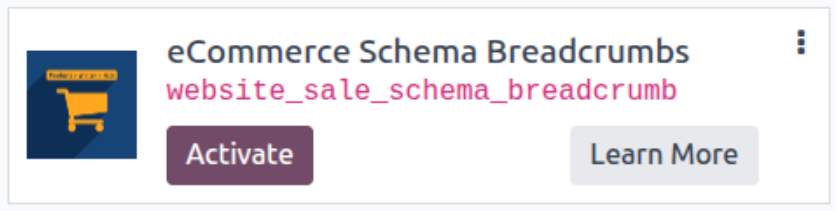
* If you don't see the module, try to remove the default Apps filter from the search bar.
Configuration
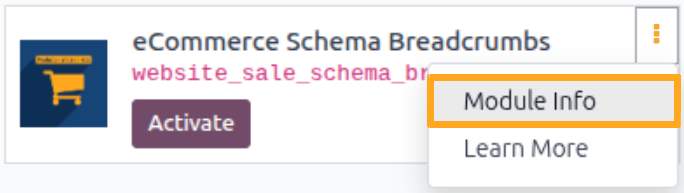
Follow the instructions in the module description to complete the installation process and start using the app.

Manual

How to get Pixel ID
Before adding the JS script to your website, first obtain the Pixel ID. To do this, complete the following steps:
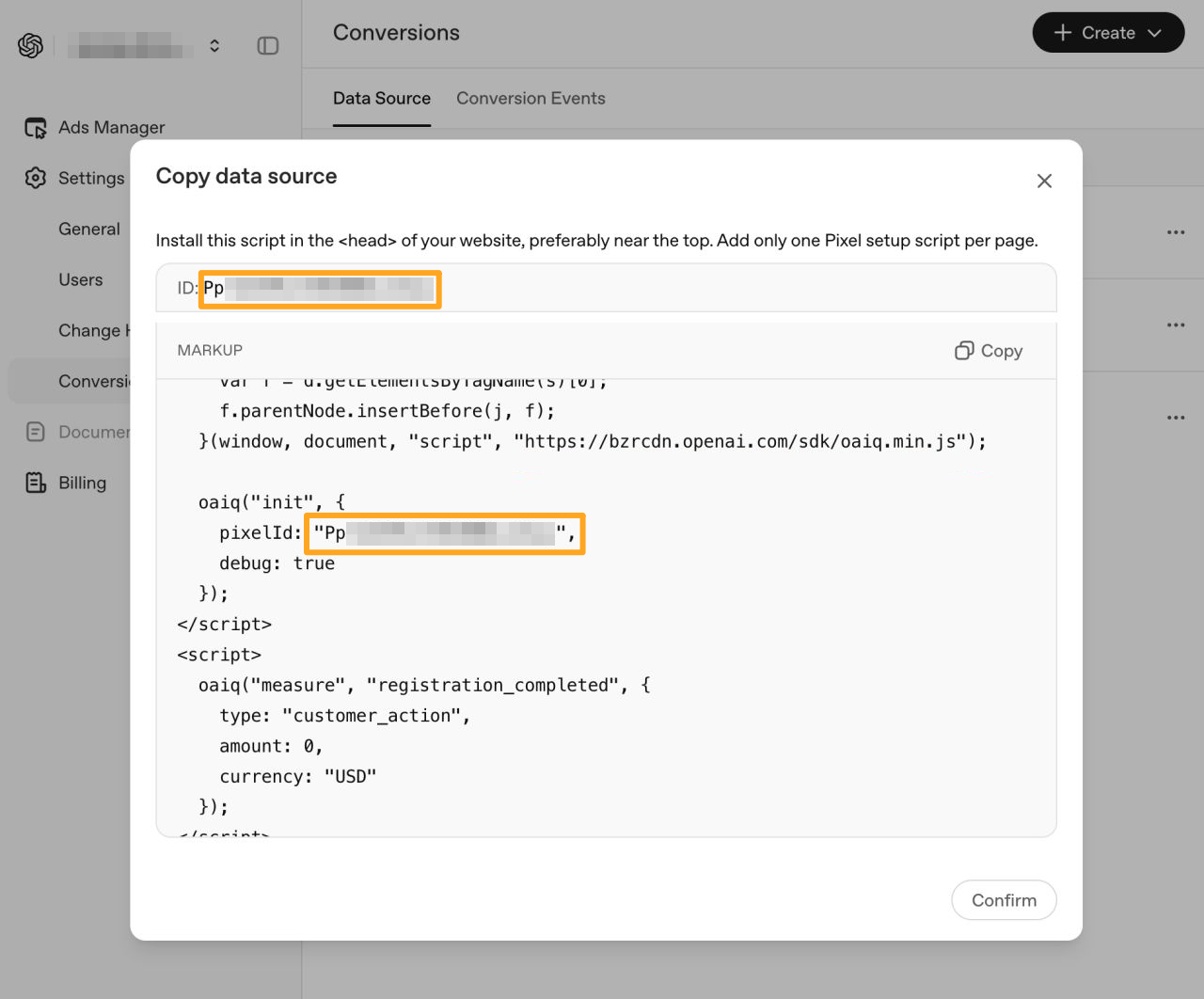
- Sign in to your OpenAI Ads Manager account
- Open the Settings — Conversions menu
- Click Create to add a data source
- On the Data Source tab, open one of the sources and copy the Pixel ID

SECTION NAME
After installing the module, activate tracking by completing the following steps:
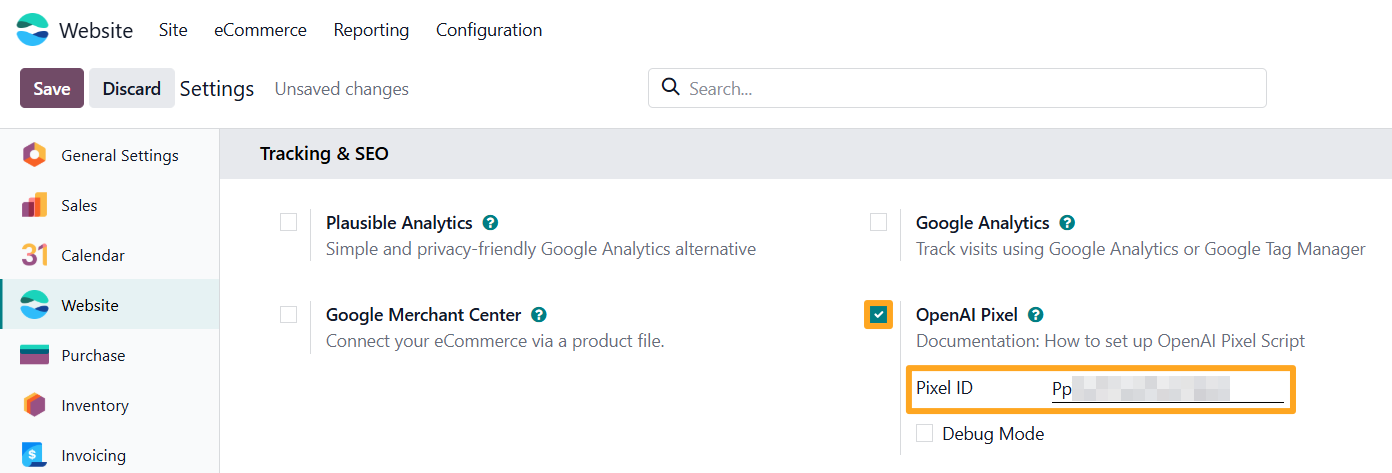
- Open the website settings
- In the Tracking and SEO section, enable the OpenAI Pixel option
- Paste the copied Pixel ID
- Save the settings
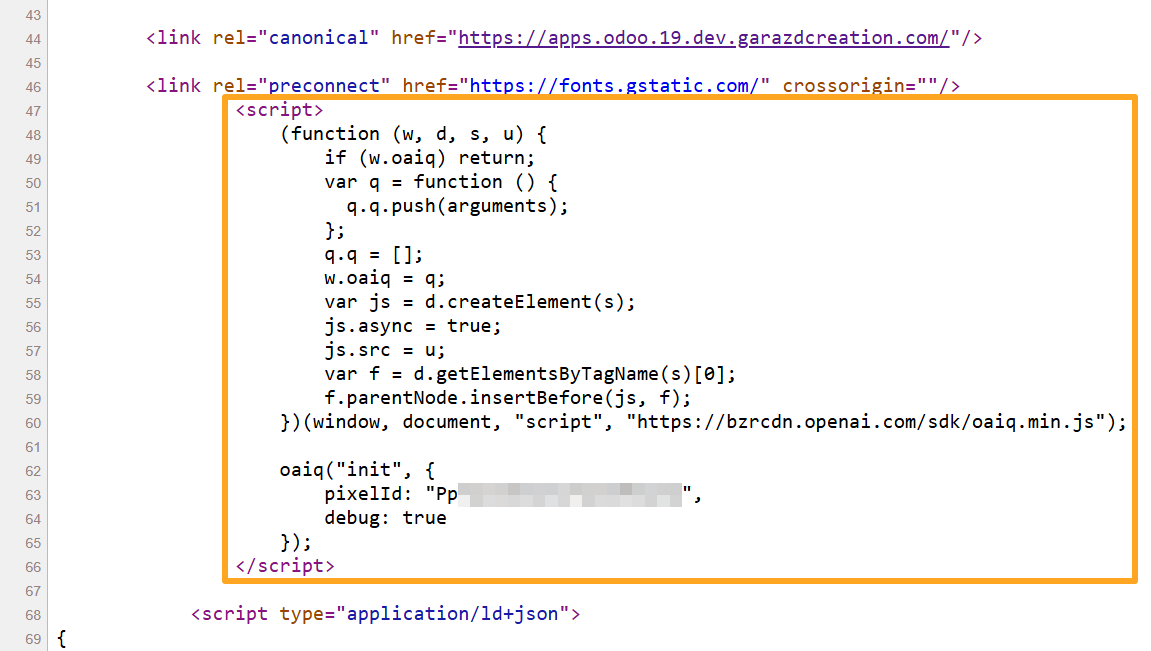
The OpenAI Ads Measurement Pixel script is now automatically added to all pages of your Odoo website:
Changelog
19.0.1.0.0 2026-05-11
- Init version.
18.0.1.0.0 2026-05-22
- Migration from 19.0.
17.0.1.0.0 2026-05-22
- Migration from 18.0.
20.0.1.0.0 2026-09-21
- Migration from 19.0.